
Connection to Impala
To connect an Apache Impala cluster to the DQC Platform, you provide the host and port of its HTTPS endpoint — typically an Apache Knox gateway — the database, the HTTP path of the Impala service, and the credentials of an LDAP user with read access. Every table in the database then becomes available for data quality checks.
Add an Impala connector
To begin:
Go to the Connectors > Data sources screen
Click the Impala tile
Enter the connection parameters described below
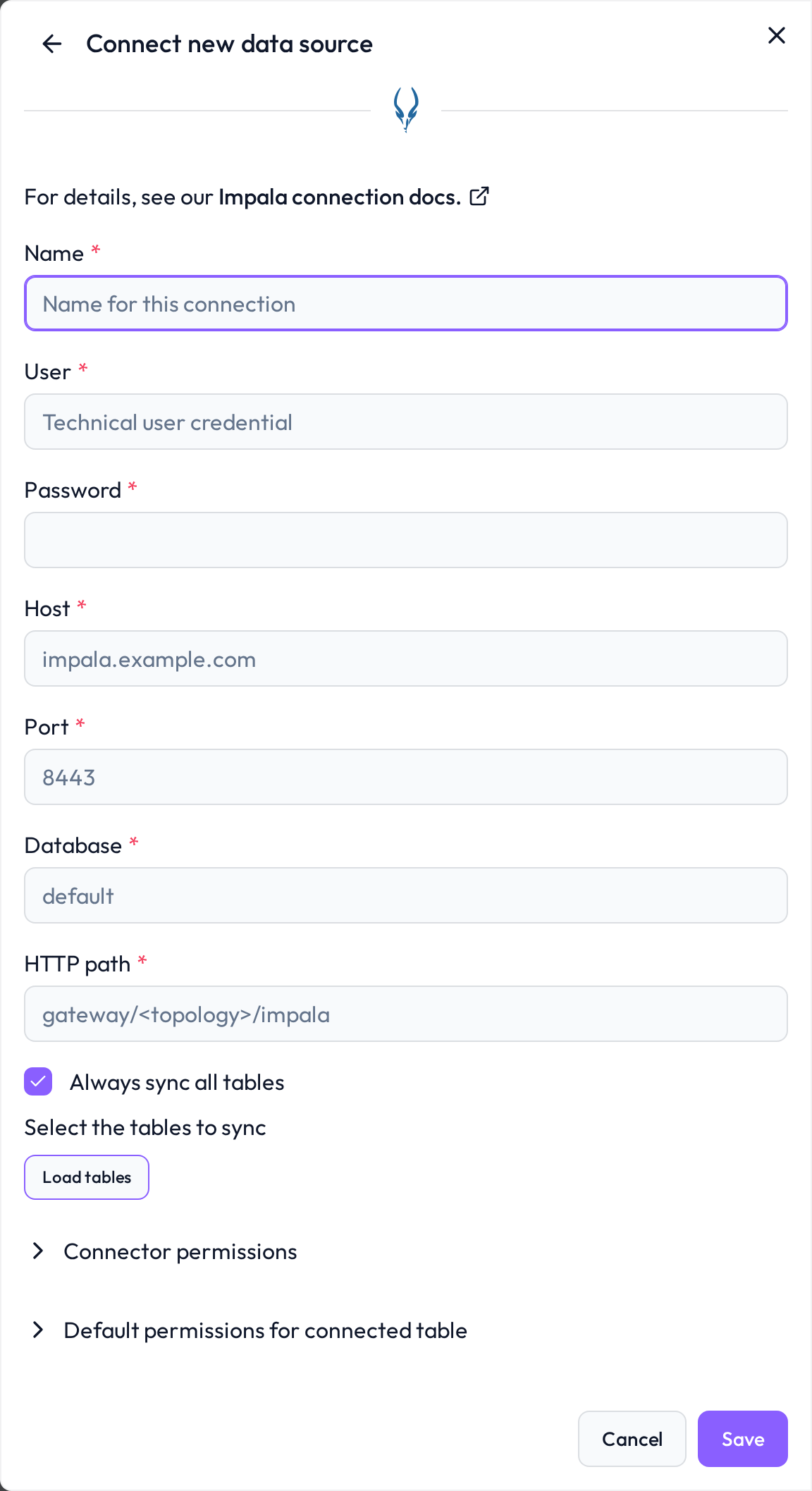
 Required connection information
Field | Example | Description |
|---|---|---|
Name |
| A custom name to identify this connector inside DQC |
User |
| LDAP user with read permissions on the target database |
Password |
| Password of the LDAP user |
Host |
| Hostname of the Impala endpoint — usually the Knox gateway. Bound to the connector and cannot be changed after creation. |
Port |
| Port of the HTTPS endpoint; |
Database |
| Name of the database to connect to. Defaults to |
HTTP path |
| Path of the Impala service behind the gateway, where |
 Authentication and transport
Authentication is LDAP — user and password are both required.
The connection always runs over HTTP transport with TLS. This is not optional: a connection without TLS is rejected when the connector is saved.
The server certificate is verified, so the endpoint needs a certificate DQC trusts.
Access through Apache Knox is the expected setup — point Host and Port at the gateway and name the Impala service in HTTP path.
 Permissions and network
Create a dedicated read-only LDAP user (for example
dqc_reader) withSELECTpermission on exactly the databases and tables that should be quality-checkedDQC validates the connection by listing tables — the user has to be able to see them
If the cluster enforces IP allow-listing, whitelist the DQC platform's outbound IP
If the cluster is not reachable from the internet, connect it through the DQC Proxy.
 What gets imported
Every table the user can read in the configured database becomes a DQC table
DQC only reads: every query it runs against Impala is read-only, and nothing is written back to the cluster
Host, port, database and HTTP path are bound to the connector and cannot be changed afterwards — create a new connector to point at a different cluster or database
 Connect and assign permissions
After saving, DQC validates the credentials, lists the available tables and lets you pick which ones to expose. To control who can use the connector inside DQC, see Data source access permissions.
Troubleshooting
When DQC cannot connect to Impala or load its tables, it shows the reason with a short fix and links to this section. Look up the beginning of the message:
Message in DQC | Likely cause | Fix |
|---|---|---|
| LDAP rejected the user | Check user name and password |
| The gateway rejected the credentials | Check user name and password |
| Wrong HTTP path | Enter the path of the Impala service behind the gateway, for example |
| Wrong host or port, or a firewall blocks the DQC IP address | Check host and port, and whitelist the DQC Platform IP address |
| DQC verifies the server certificate and found it untrusted, for example self-signed or issued for another host name | Use a certificate of a publicly trusted certificate authority for the host name you entered |
| A required transport setting is off | Keep TLS, certificate verification and HTTP transport on |
| DQC could not classify the error of the connection test | Check every field of the form, the network access and the permissions described above |
| The table was renamed, moved or deleted, or the user lost access to it after the last sync | Restore the table or the access, then resync the connector |
Synchronization failed: when a sync cannot connect, the connector shows Failed on the Data sources screen and the badge links to this section. Edit the connector and click Load tables or Save: DQC tests the connection again and shows the current reason.
Tables missing from the table list: DQC lists only tables the user may read in Ranger or Sentry.
Still stuck? Write to support@dqc.ai with the connector name, the time of the attempt and the full message.