
Connection to PostgreSQL
To connect a PostgreSQL database to the DQC Platform, you'll need to provide user credentials, access details, and optionally define the schema. This guide also outlines best practices for secure authentication.
Add a PostgreSQL connector
To get started:
Go to the Data Connectors screen
Click the PostgreSQL button
Enter the required connection details (see below)
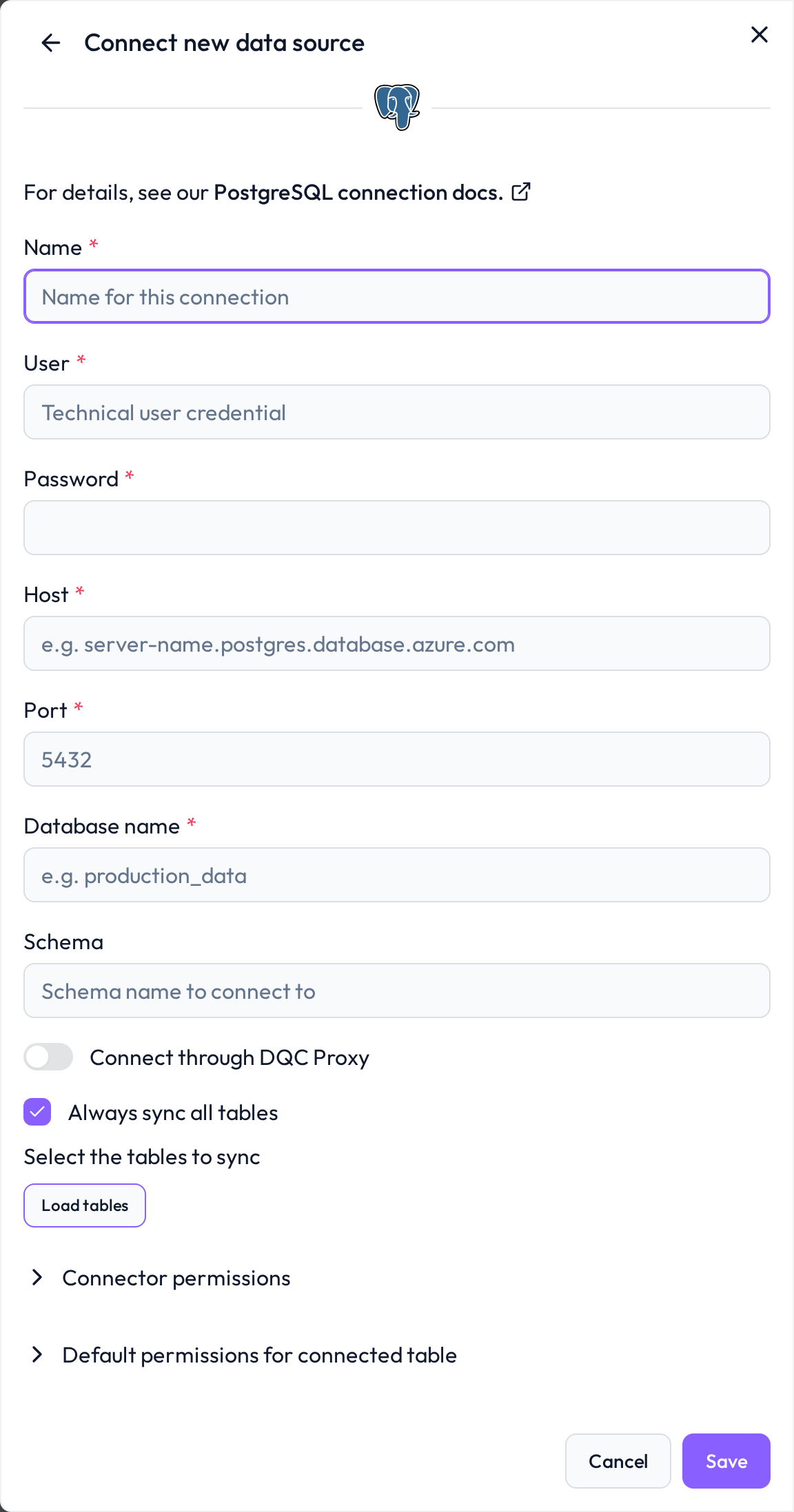 Select PostgreSQL to begin setting up your connection
Required connection information
Field | Example | Description |
|---|---|---|
Name |
| A descriptive name for this connection |
User |
| PostgreSQL user with read-only access |
Password |
| Password for the specified user |
Host |
| DNS or IP address of the PostgreSQL server |
Port |
| Default PostgreSQL port (adjust if needed) |
Database name |
| Target PostgreSQL database |
Schema |
| Name of the schema to query (optional filter) |
Best practices for secure authentication
Use a dedicated user
Avoid using administrative or shared credentials
Create a dedicated technical user for the DQC Platform
Grant read-only permissions
Limit access by assigning only the SELECT privilege. For example:
GRANT CONNECT ON DATABASE company_data TO dqcreader;
GRANT USAGE ON SCHEMA public TO dqcreader;
GRANT SELECT ON ALL TABLES IN SCHEMA public TO dqcreader;
Whitelist the DQC Platform IP address
Ensure the following IP address is allowed by your PostgreSQL access rules (e.g., in pg_hba.conf, security groups, or firewall settings):
3.123.94.228 Notes
Notes
Encrypted SSL connections are strongly recommended
For managed PostgreSQL (e.g. AWS RDS, Azure Database), whitelist the IP in your cloud firewall rules
Learn more: Supported data sources, Connection to Snowflake, Data source access permissions