
Settings screen
The Settings section in the DQC Platform lets you manage users, access, and advanced platform configurations such as BI connections and LLM settings.
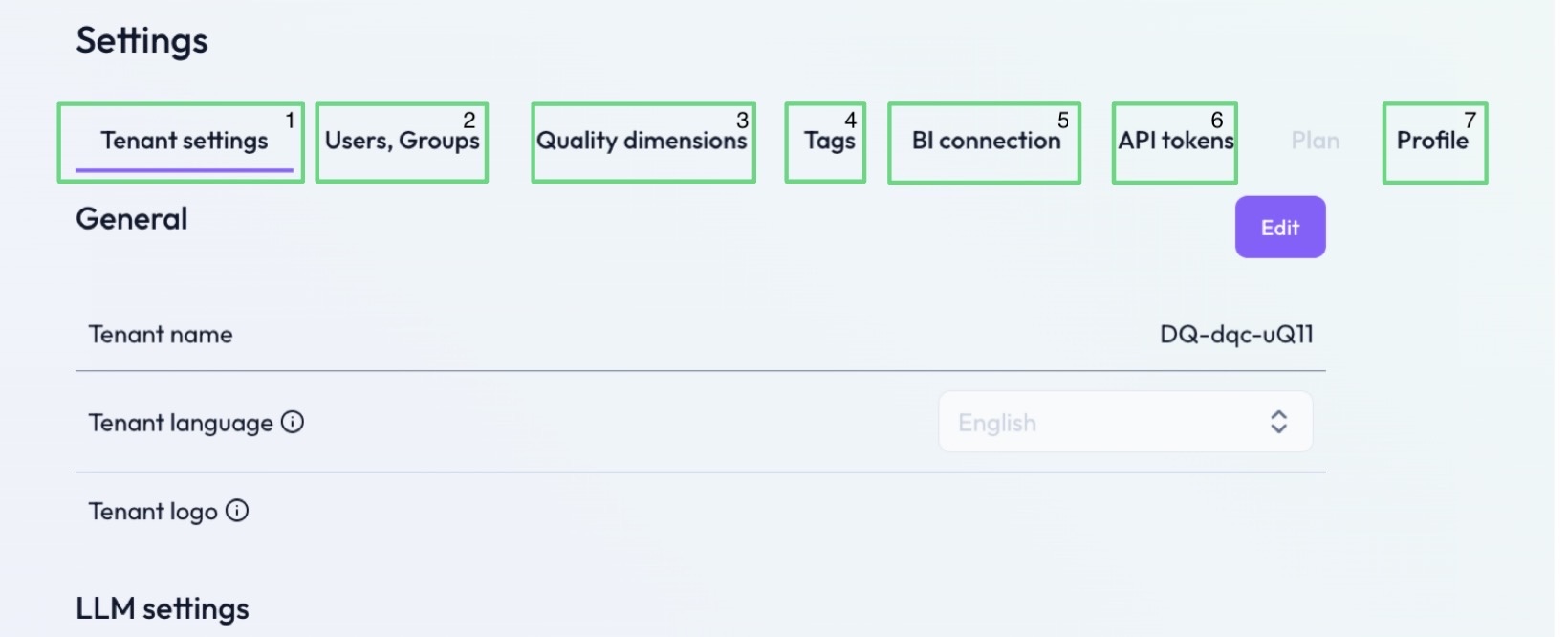
(1) Tenant Settings
Manage tenant-level settings:
Change the tenant name, language or logo
Adjust LLM settings
(2) Users, Groups
Users and Groups enable easier permission control:
Invite new users by email
Adjust user roles (Owner/Member)
Delete users from the tenant
Enable or disable Auto join for users from the same email domain
Define groups and assign multiple users
Use groups for streamlined access management to tables and connectors
(3) Quality dimensions
Configure the structure used to classify your data quality rules:
View existing dimensions like Completeness, Accuracy, or Consistency
Add new dimensions
Allocate rule conditions to one or more dimensions
(4) Tags
Maintain custom tags used for organizing rules and tables:
Add new tags for filtering or categorization
Delete unused or outdated tags
(5) BI connection
Enable access to your platform data from BI tools such as Power BI:
Activate the BI connection
Use the provided access credentials to link your dashboards
(6) API tokens
Manage tokens for secure programmatic access:
Generate and revoke API tokens
Use tokens for automated DQC Platform interactions
For assistance, contact support@dqc.ai
(7) Profile
Update your personal account settings:
Adjust your name and email
Enable or disable two-factor authentication
Change your login password
Set your preferred platform language or theme
 Notes
Notes
Settings are tenant-specific and only accessible to owners
Group and tag configurations help streamline rule management
Learn more: User Management and Access Rights, BI Connection Setup, API Access Overview