
Setting up a mission
Missions in the DQC Platform provide a structured and collaborative approach to resolving data quality issues. Once configured, they automatically assign issues to the right people and track progress toward your data quality goals.

How to set up a mission:
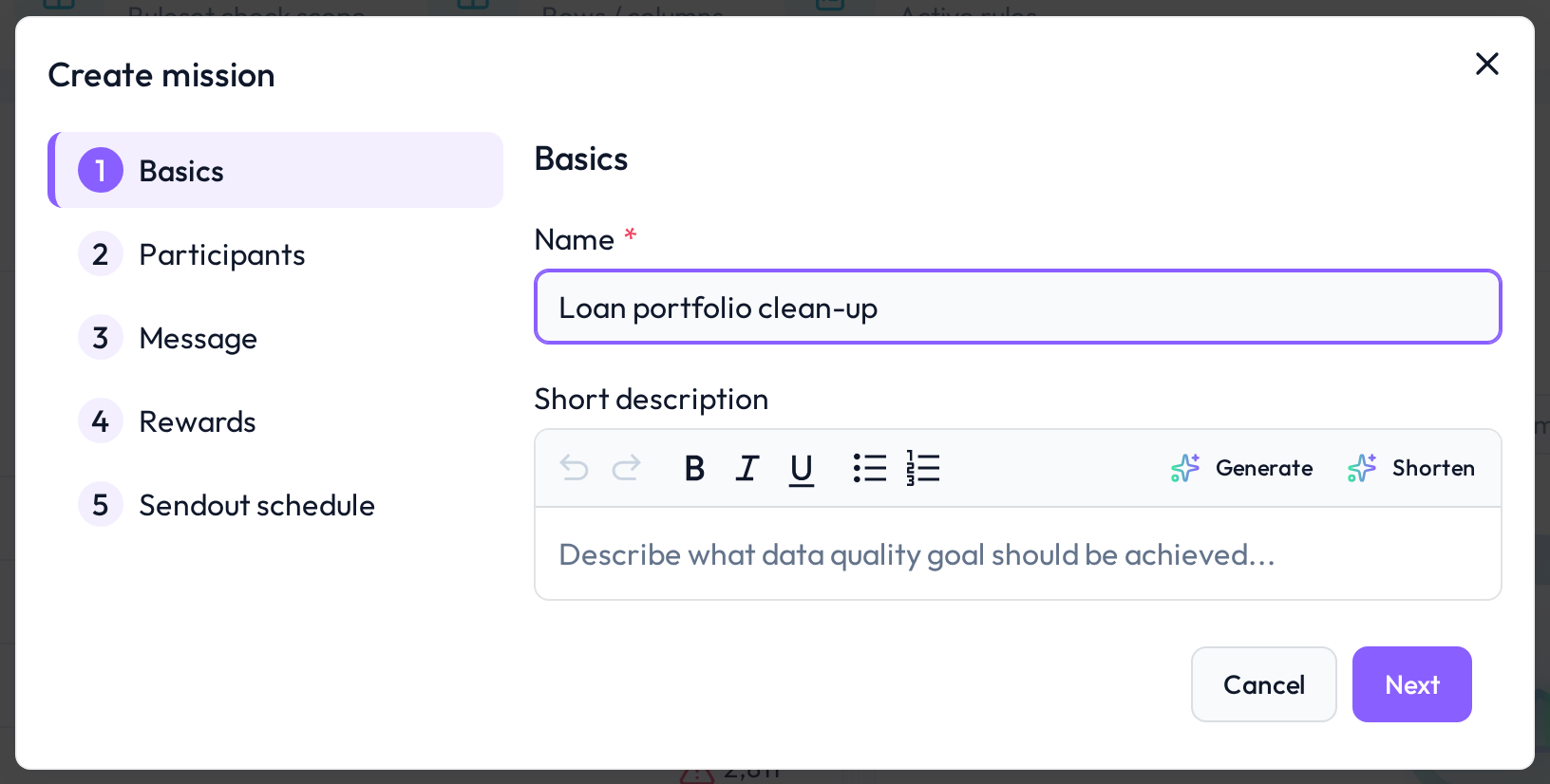
How to create a mission
Select a Data Table
Choose the table whose data quality you want to track and improve.Configure a Ruleset
Activate the rules that should be used to identify issues. These issues will be bundled and sent as tasks to participants.Click “Create mission”
At the top of the Rules or Issues screen, click on Create mission. A guided wizard will open with the following configuration steps:
Mission setup options
Basics
Provide a name and optional description for the mission.
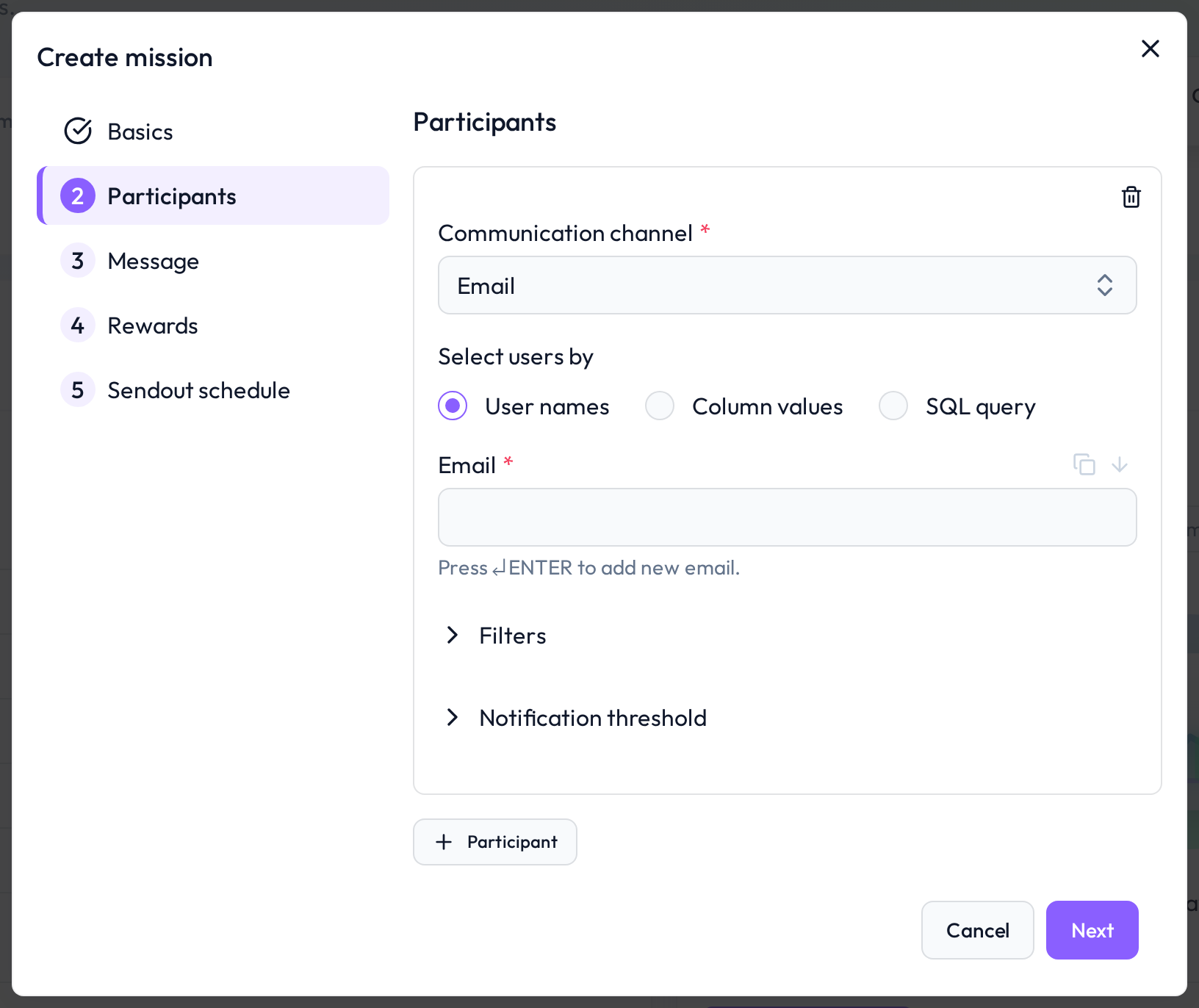
Participants
Communication channel:
Email – messages are sent via email
MS Teams Chat – messages are sent directly to users
MS Teams Channel – messages are posted in a group channel
Recipient selection:
Use column values: Select a column from the table that contains recipient names or email addresses
Use user names: Add users manually (email or MS Teams name)
Use SQL query: Define a SQL clause to dynamically select recipients
Condition (optional): Filter rows or rules for which messages should be sent
Notification threshold (optional): Set a minimum number of issues required to trigger a message
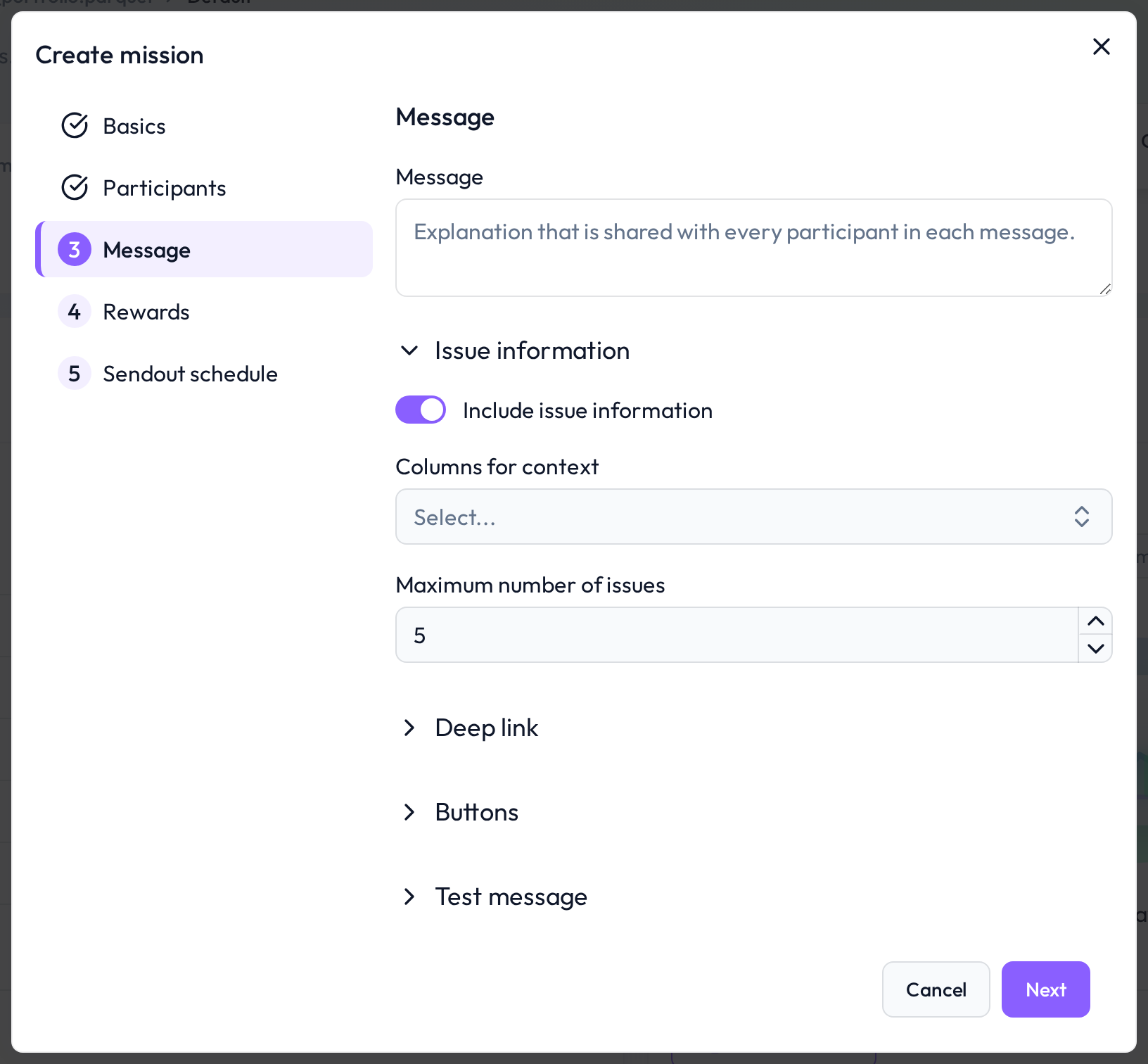
Message
Add an explanation that will be shown in the message
Columns for context: Choose table columns to show in the message
Maximum number of issues: Limit how many issues are included per message
Deep links / Identifiers / Link names: Add contextual links to help users navigate to systems
Buttons: Add custom links as buttons in the message
Test message (optional): Send a test message to check setup
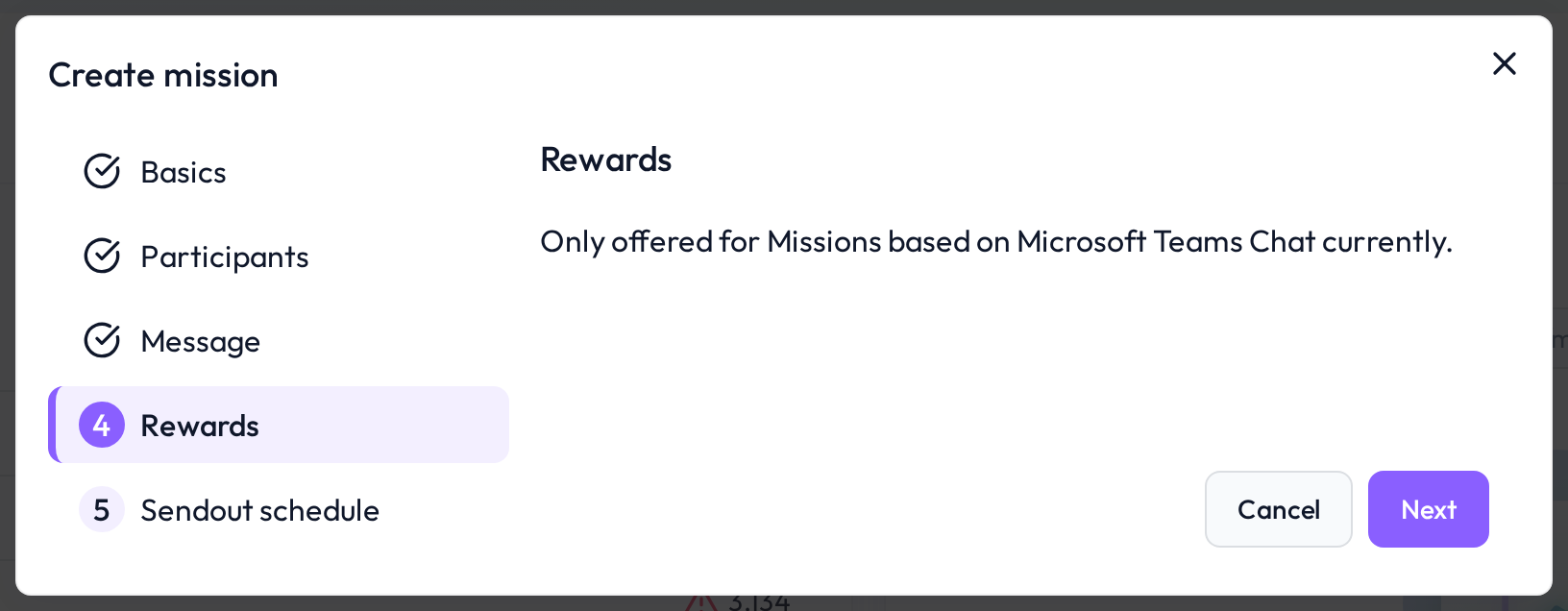
Rewards
Add optional gamification points for issue resolution (only for MS Teams)
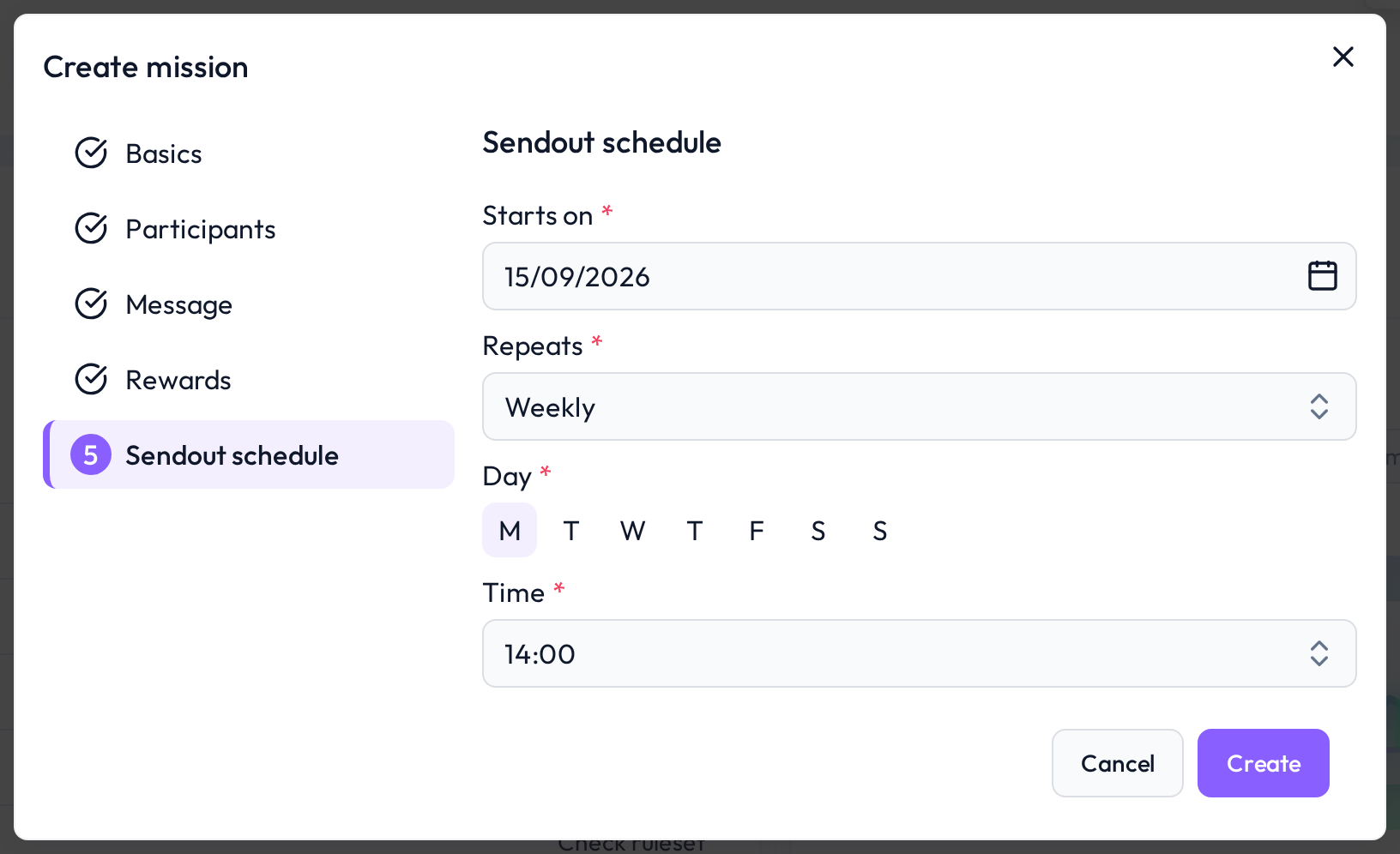
Sendout schedule
Choose when to start the mission and how often messages should be sent
Mission overview
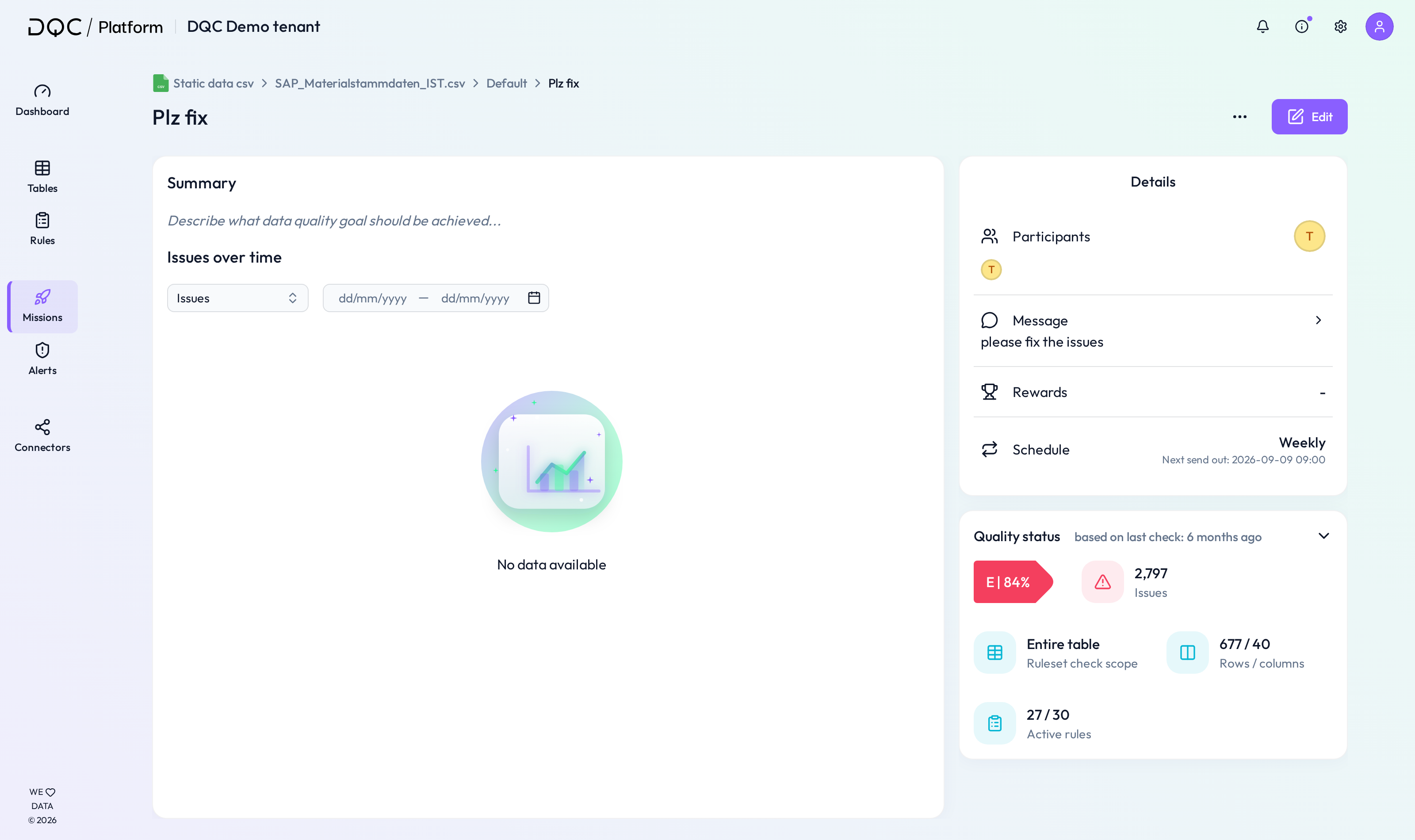
Once created, the mission runs automatically until all relevant issues are resolved or new ones appear.
You can monitor and adjust the mission at any time by clicking View mission or navigating to the Missions tab in the sidebar.
 Notes
Notes
Missions help distribute issue resolution across teams
Gamification can boost motivation and completion speed
Multiple recipient types and channels can be combined
Learn more: Mission Overview, Using Filters, Setting Up Rulesets