
Downloading an issue table
For every rule in the DQC Platform, you can download a table of identified issues. This issue table is exported as a CSV file, allowing further analysis, archiving, or sharing.
How to download the issue table
Each rule has its own issue table, accessible directly from the Rule Detail view.
Navigate to the Rules tab
Click on a specific rule to open the Rule Detail View
Scroll down to the Issue sample section
Click the Download icon in the bottom right corner
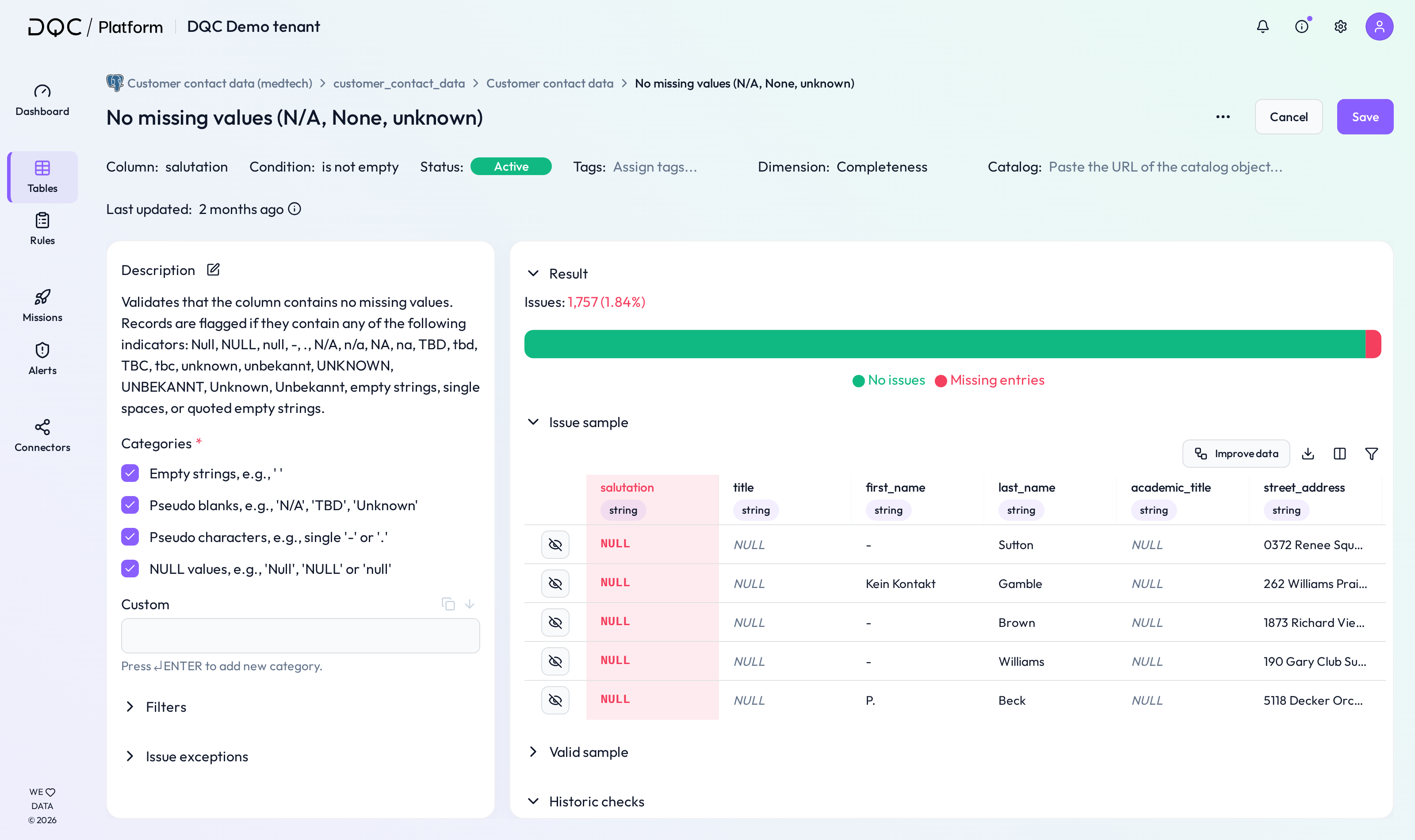
 The green square in the screenshot highlights the download button
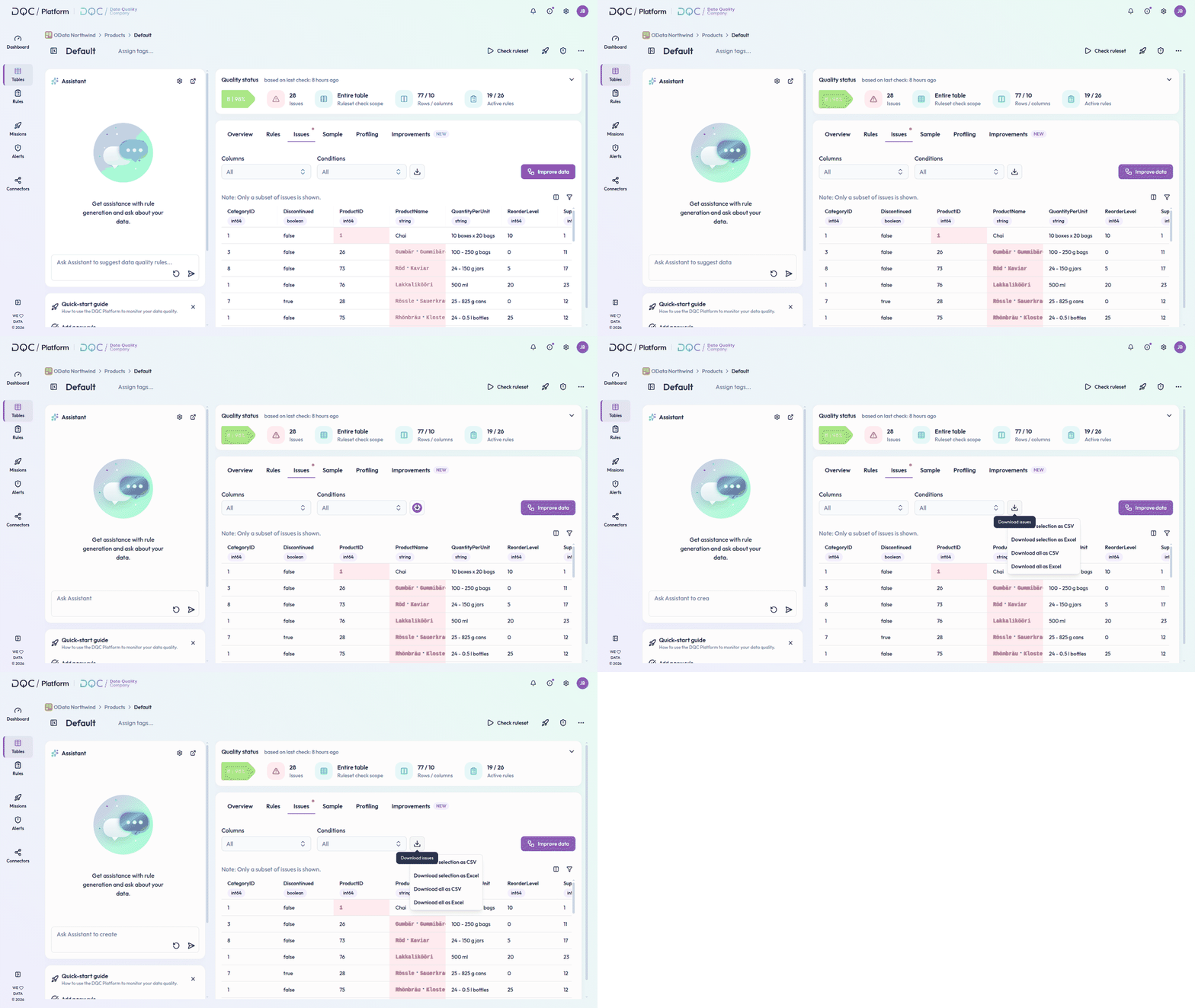
2. You can also download a consolidated issue table for all rules in a ruleset.
Open the desired ruleset
Go to the Issues tab
Use the button to either Download sample or the split button to Download all.
What’s included in the file
The exported CSV contains:
All columns of the original table
Only the rows with issues for that specific rule
If the table contains duplicate rows, each duplicated row will appear only once in the issue download, and all issues related to these duplicates will be merged into that single row.
 Notes
Notes
Issue tables can be used to share findings with stakeholders
All issue downloads are local CSV files (no cloud sync)
Learn more: The Issue Table, Setting Up Data Quality Rules, Rule Detail Screen Overview