
Table – Sample screen
The Sample screen provides a quick overview of your table structure and sample content. It’s ideal for verifying column formats, checking if the table has loaded correctly, and assessing general data quality at a glance.
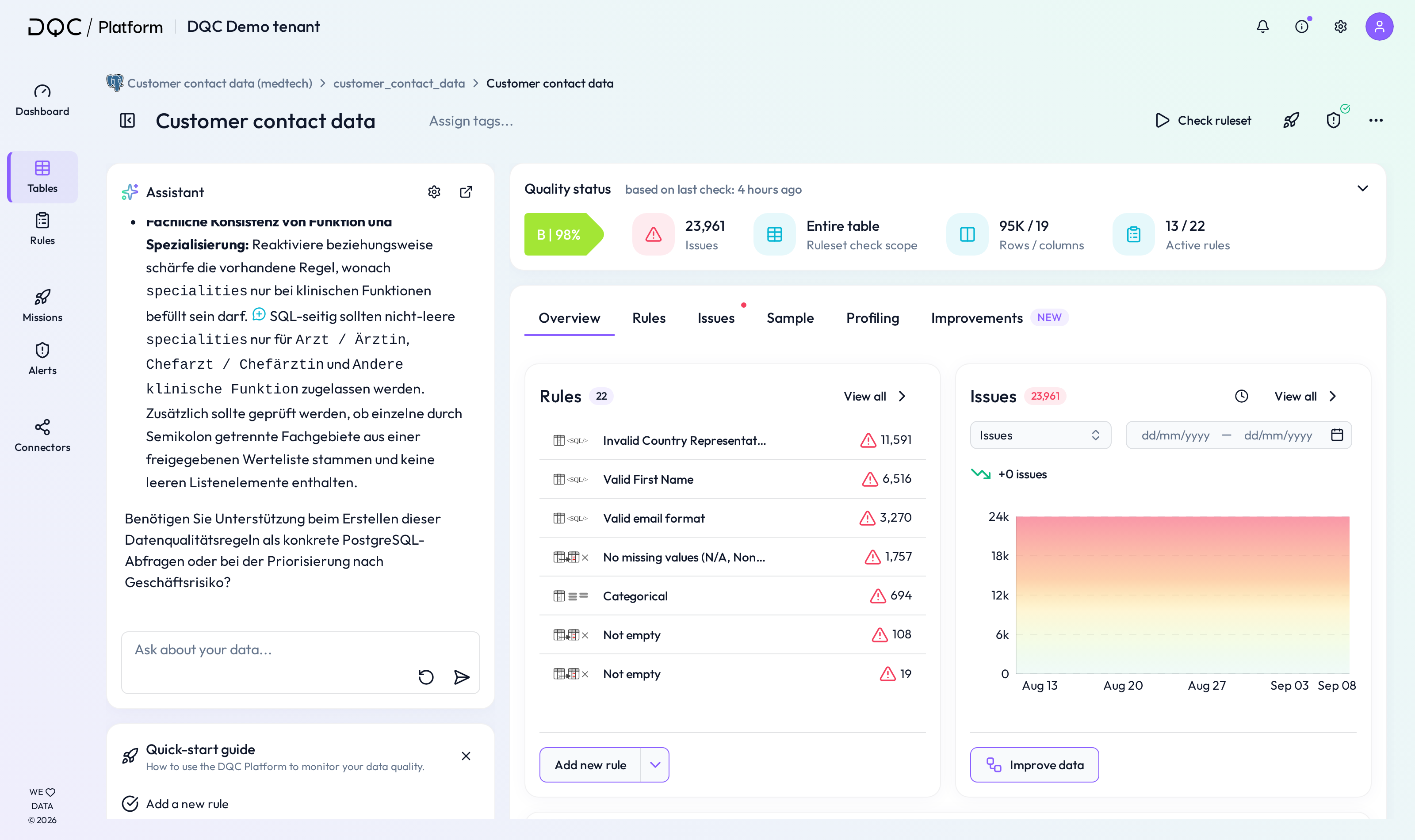
1. Sample overview
This section shows a preview of your table, including:
All columns (with name and data type)
Several sample rows of data
Use this view to ensure column formats match expectations and verify if values look correct.
2. Quality status
On the right sidebar, the platform shows the most recent data quality status:
Score – The calculated quality grade based on rules and checks
Issues – Total number of current problems
Table check scope – Full table or filtered section
Rows / columns – Size of the data
Active rules – Number of rules currently applied
3. Table-based rules
You can quickly see which table-level rules (e.g., Format, Freshness, Volume) are active or inactive.
Click on a rule to activate or configure it if needed.
4. DQ-AI Assistant
The integrated DQ-AI Assistant can be used to:
Ask questions about the data
Request suggestions for useful rules
Start generating rules based on sample data
 Notes
Notes
The sample is auto-generated and does not include all rows
Use this screen to double-check data types before rule creation
Learn more: Table Overview Screen, Table – Rules Screen, Table – Issue Screen