
Connection to Azure Blob
To connect Azure Blob Storage to the DQC Platform, you can authenticate using an account key, SAS token, or service principal. This guide explains each method and outlines recommended security practices.
Add an Azure Blob connector
To begin:
Navigate to the Data Connectors screen
Click the Azure Blob button
Select your preferred authentication method
Enter the required values (see below)
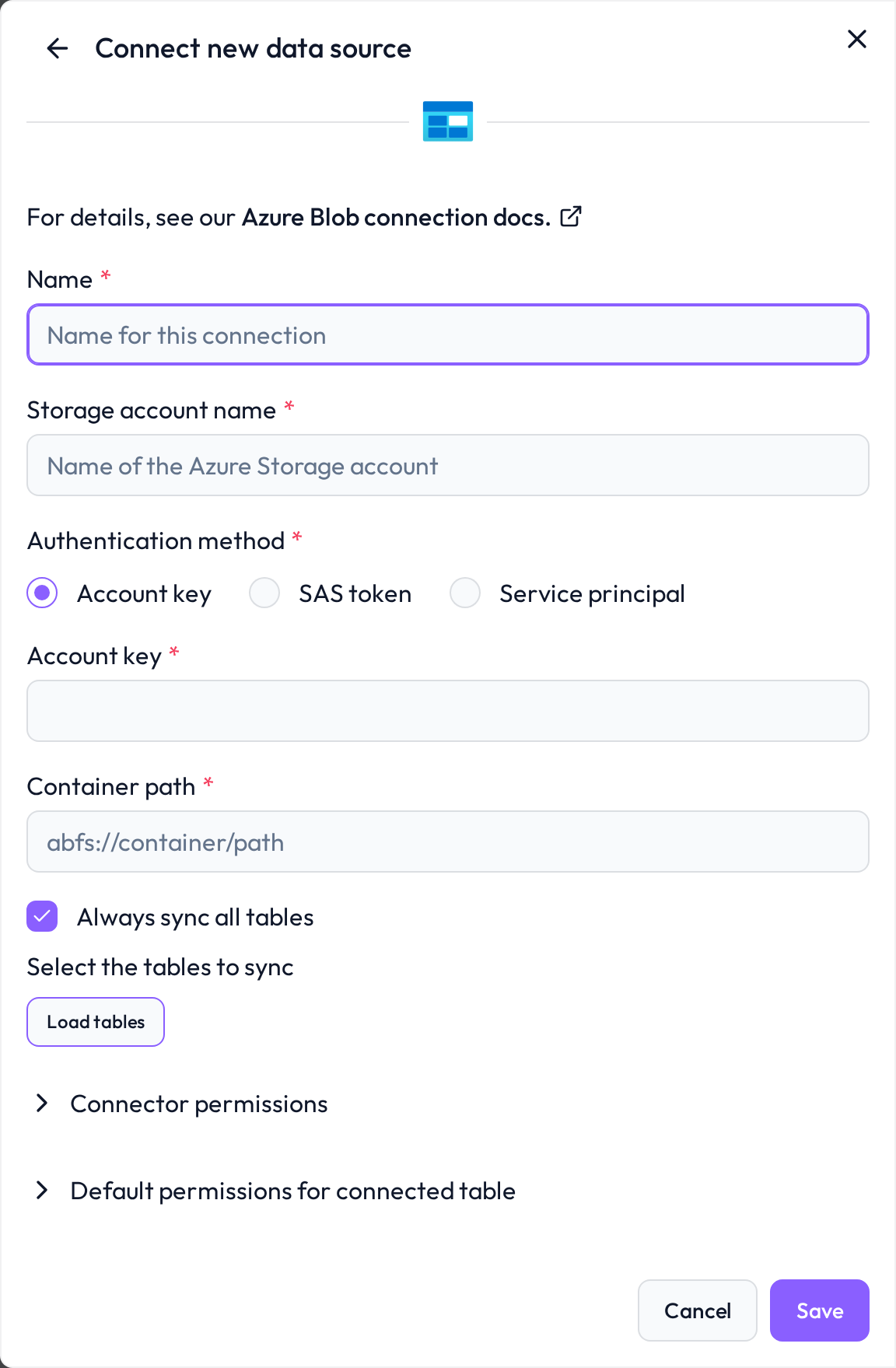 Choose Azure Blob as your file-based data source.
Required Connection Information
Option 1: Account key authentication
Field | Example | Description |
|---|---|---|
Name |
| Internal name for the connection |
Account name |
| Storage account username |
Account key |
| Storage key from Azure |
Container path |
| Full URI to the blob container |
Option 2: SAS token authentication
Field | Example | Description |
|---|---|---|
SAS token |
| Time-limited signed token string |
Container path |
| URI to the specific blob container |
Option 3: Service principal authentication
Field | Example | Description |
|---|---|---|
Tenant ID |
| Azure AD directory identifier |
Client ID |
| App registration / principal identifier |
Client secret |
| Password (secret) for the app |
Container path |
| Full URI to blob container |
Recommended access configuration
To ensure secure integration, follow these best practices:
Use a dedicated minimal-privilege account
Create a dedicated service principal, storage user, or token
Avoid using owner or admin accounts
Grant read-only access
Limit the connected account to read-only permissions
Prevent unintended write, delete, or overwrite actions
Restrict scope
Configure access only for the required container
Use container-specific SAS tokens or scoped role assignments
Whitelist the DQC platform IP address
Allow inbound traffic from the DQC Platform's static IP:
3.123.94.228Troubleshooting
When DQC cannot connect to Azure Blob or load its tables, it shows the reason with a short fix and links to this section. Look up the beginning of the message:
Message in DQC | Likely cause | Fix |
|---|---|---|
| Account key and SAS token are both filled in | Keep one authentication method |
| No method is complete | Fill in one option completely (see Required Connection Information) |
| Wrong container path, an expired SAS token or one without List and Read, missing Storage Blob Data Reader role, or the storage firewall blocks the DQC IP address | Enter the container path as |
| The file was deleted or renamed after the last sync | Restore or rename the file, then resync the connector |
Synchronization failed: when a sync cannot connect, the connector shows Failed on the Data sources screen and the badge links to this section. Edit the connector and click Load tables or Save: DQC tests the connection again and shows the current reason.
Files missing from the table list: DQC lists CSV, JSON and Parquet files directly in the container path. Excel files are not supported on Azure Blob; convert them to CSV or Parquet.
One broken file blocks the connector: fix the file or move it out of the container path.
Still stuck? Write to support@dqc.ai with the connector name, the time of the attempt and the full message.
 Notes
abfs://is the preferred URI format for hierarchical namespace-enabled storage accountsIf using a SAS token, remember to set an appropriate expiration time
Learn more: Supported data sources, Connection to AWS S3, Connection to Power B