
Import and export of rules
To save time and ensure consistency across tables, the DQC Platform allows you to export a set of rules from one ruleset and import them into another. This is especially helpful when multiple tables share the same column names and structure or if you want to reuse rules on another ruleset of the same table.
Exporting rules
Export rules from a table as a file:
Go to the table and navigate to the Rules tab
Select the rules you want to export
Click the Export icon in the action bar above the rule list
Enter a name, choose the format and click Export. DQC (JSON) is the format for importing the rules into another ruleset; ODCS data contract (YAML) exports them as a data contract and cannot be imported again.
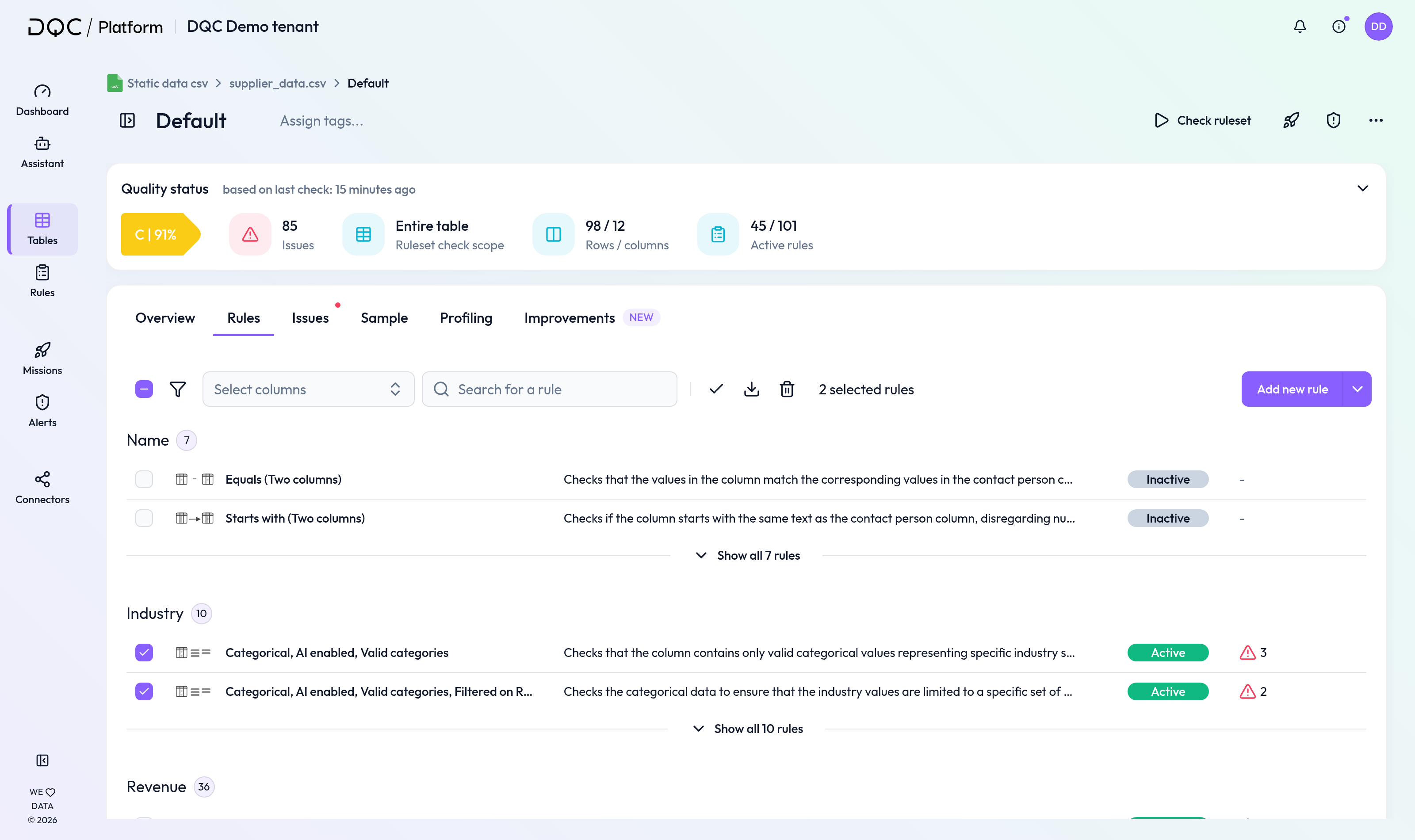
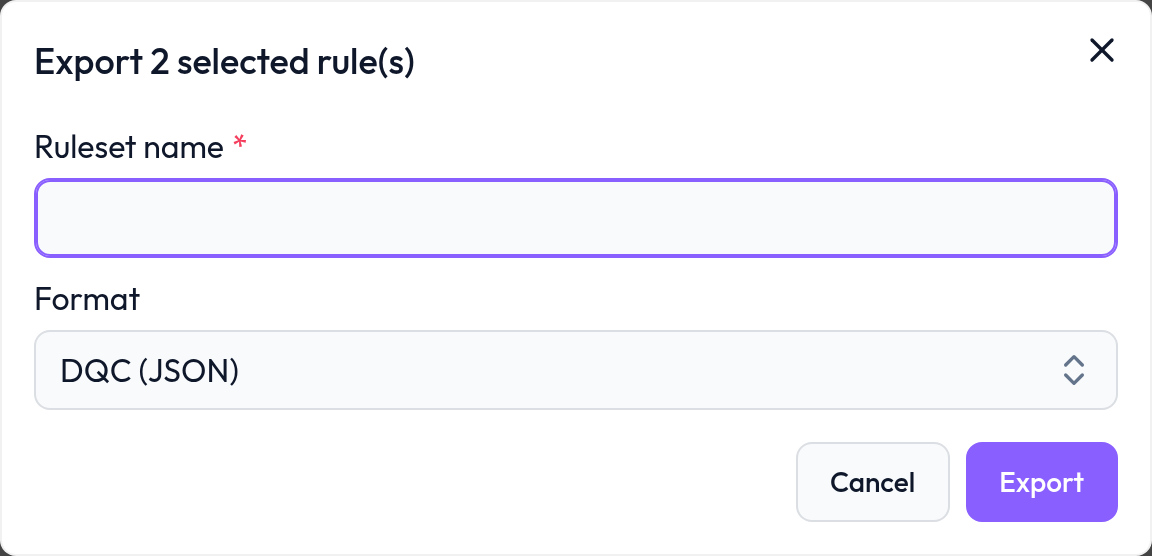 Only selected rules will be included in the export
Importing rules
You can import the saved rules into another ruleset:
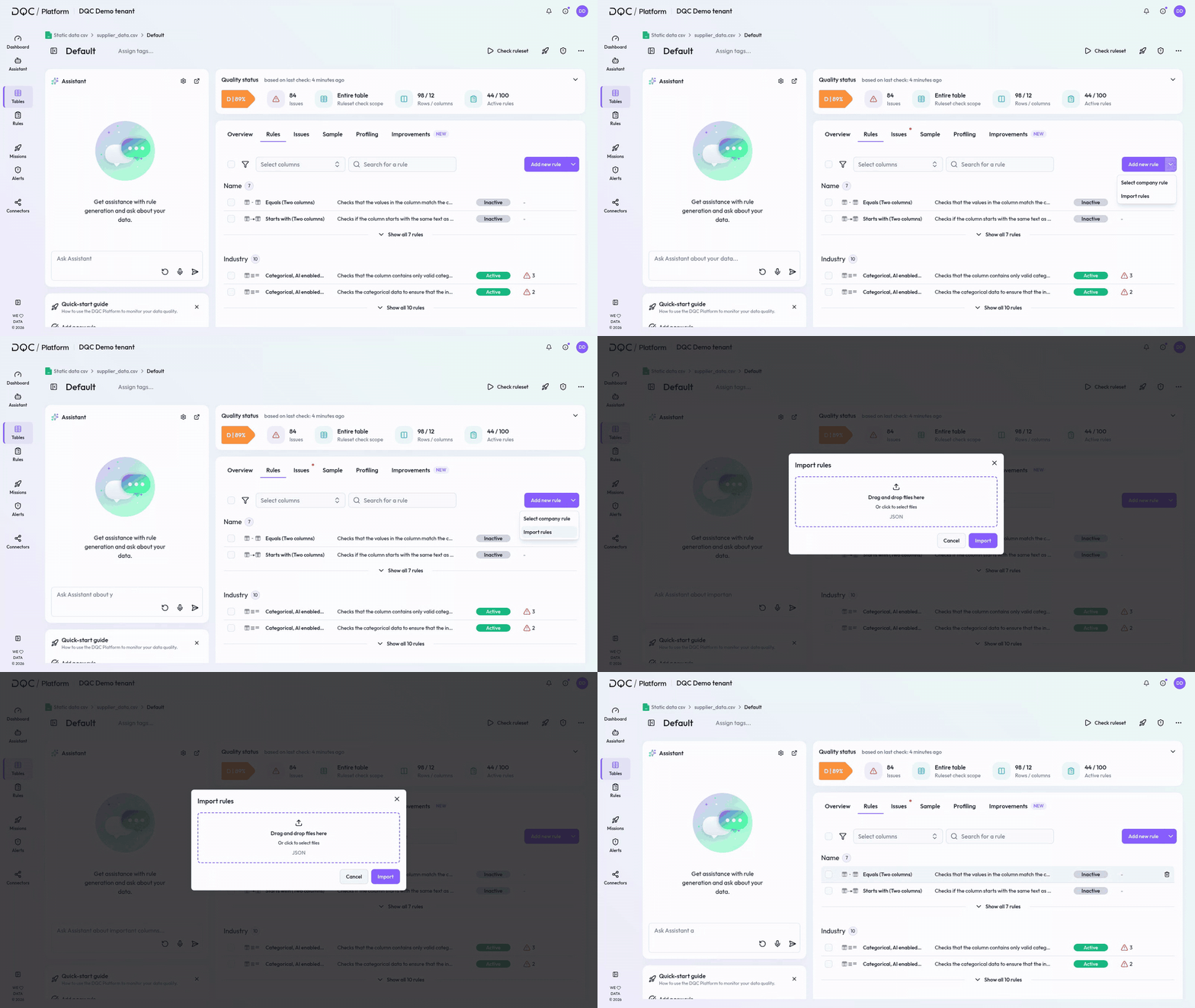
Navigate to the target table and ruleset
In the Rules tab, open the arrow next to “Add new rule” and select “Import rules”
Upload the exported .json file
Click Import
Review the rules and run a table check to validate the rules

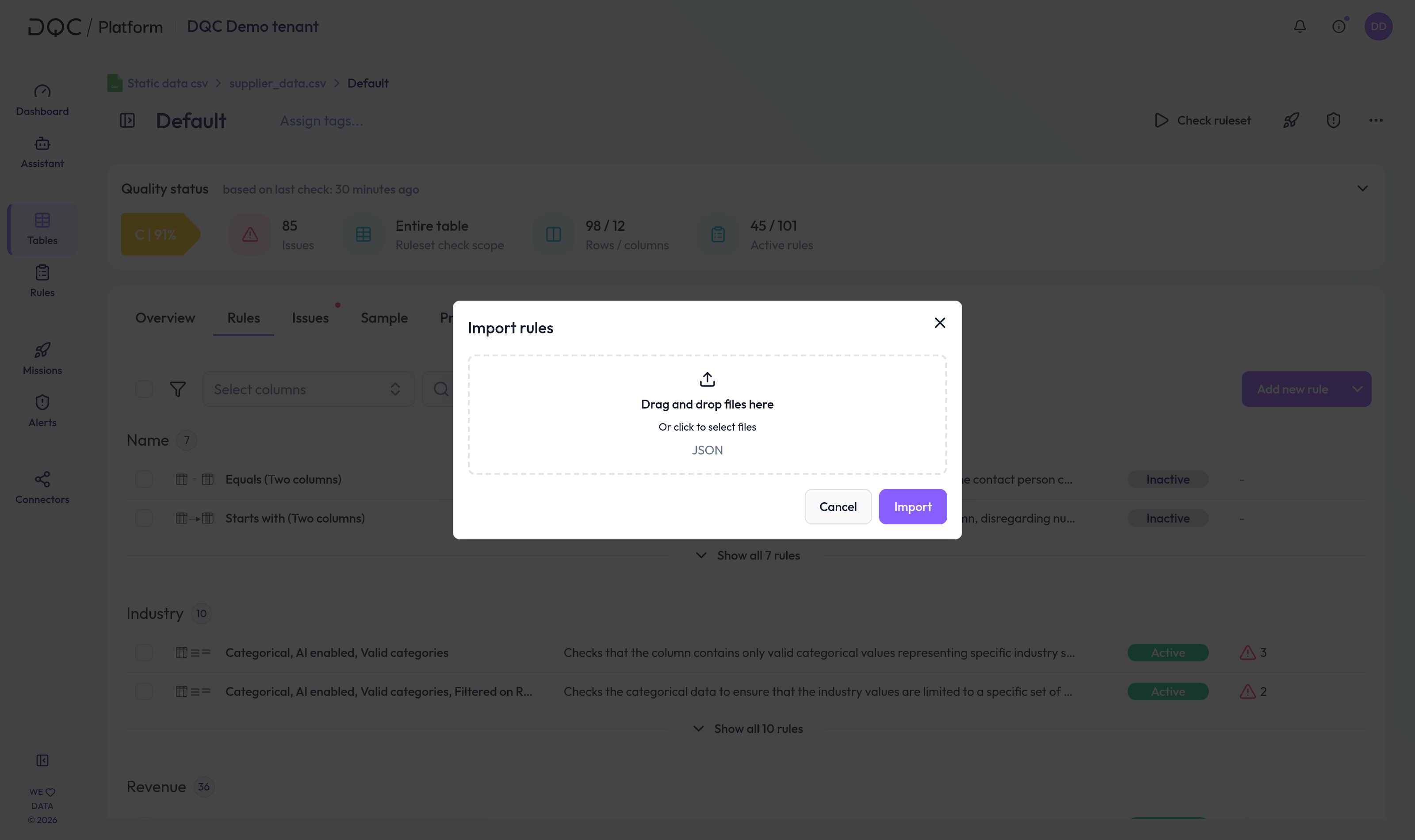 Rules are only imported if their columns exist in the target table with a compatible data type
 Notes
A rule is only imported if its columns exist in the target table with a compatible data type (and within the ruleset's column scope). Rules that do not fit are skipped and listed in a message; all other rules are imported
You can adjust imported rules individually before running the check
Imported rules are added to the existing rules of the ruleset
Learn more: Setting Up a Table Check, Rule Activation, Working in the Rule Detail Screen