
Overview of existing rules
The DQC Platform enables you to define a wide range of data quality rules tailored to different column types and use cases. Rules can be added manually by clicking “Add new rule”, or automatically generated based on data profiling.
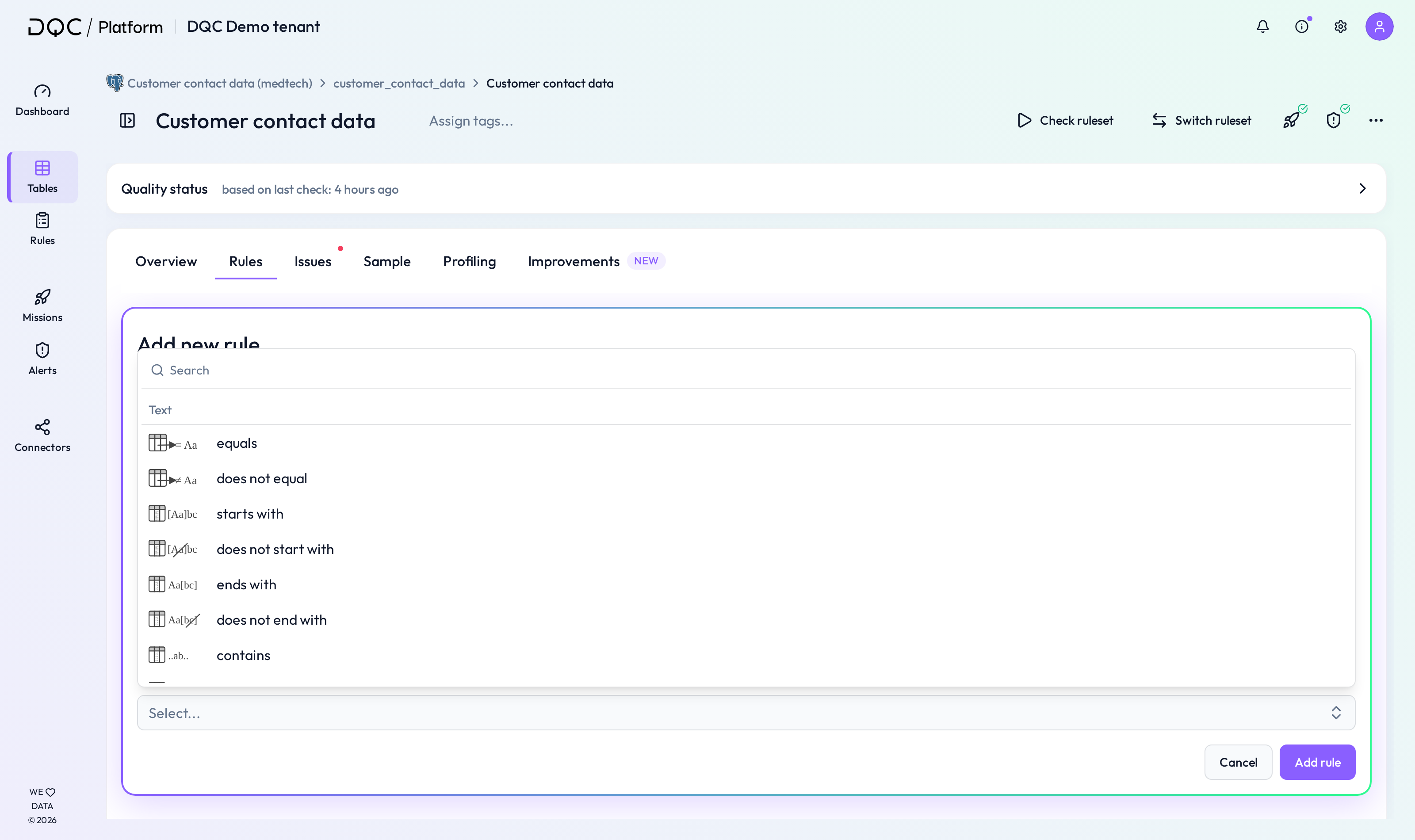
Rule categories
Data quality rules are grouped by data type and structure:
 Numeric
 Text
 Other
 Two-columns
 Multi-column
Ruleset-based
Cross table
When adding a new rule, the platform filters the available Condition options based on the selected column’s data type (e.g. text columns won’t show numeric rules, date columns only show date relevant conditions).
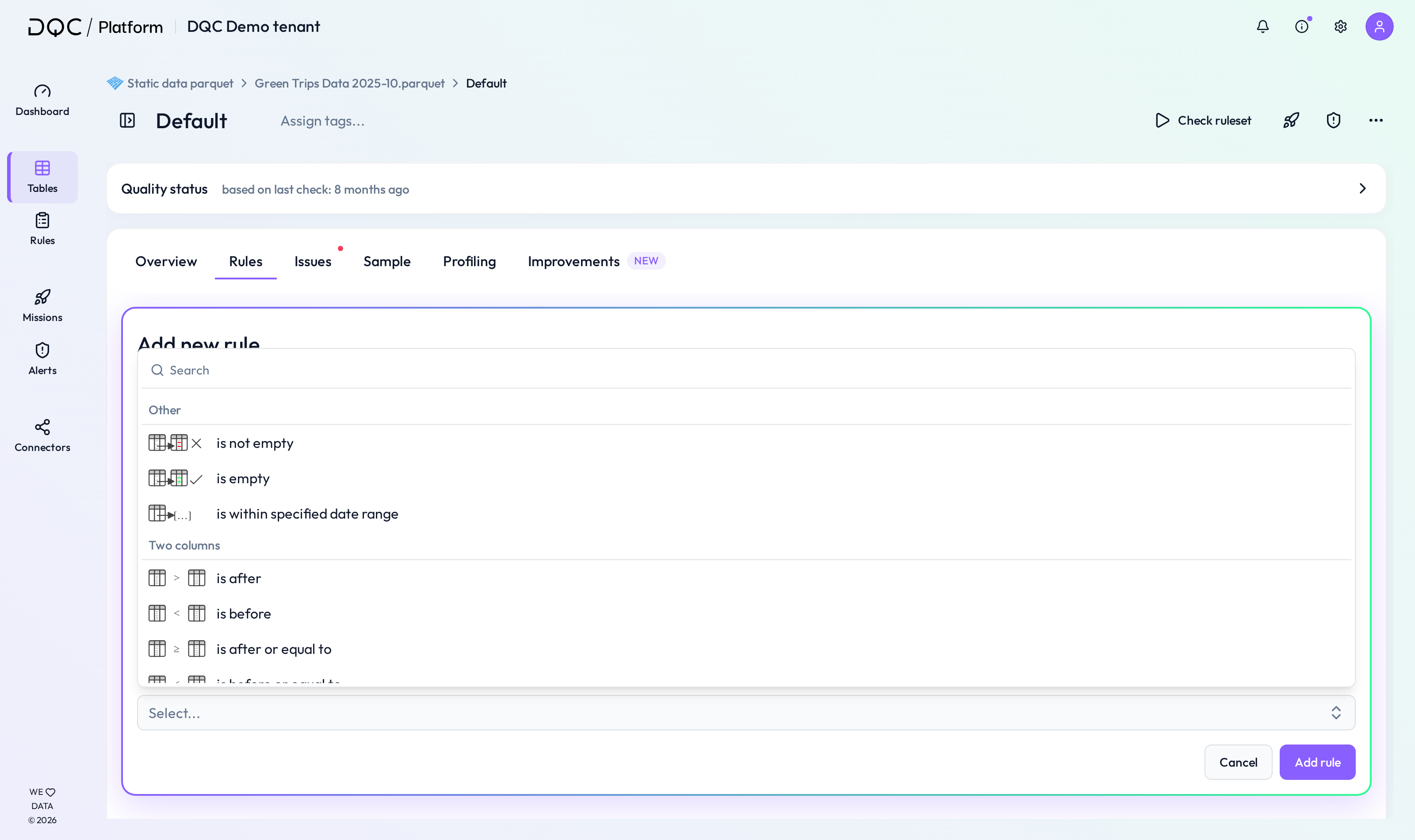
Numeric rules
These rules apply to numeric columns (integers, floats):
Greater than
Greater than or equal
Less than
Less than or equal
Equals
Does not equal
Between
No outlier
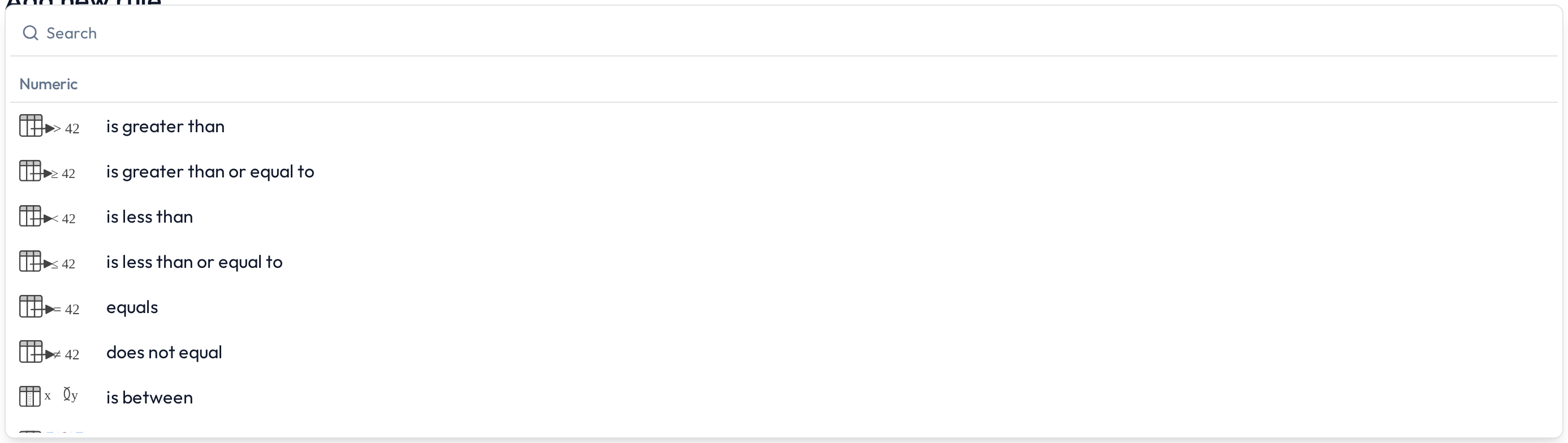
Text rules
These rules validate content in text columns:
Equals / Does not equal
Starts with / Does not start with
Ends with / Does not end with
Contains / Does not contain
Text pattern
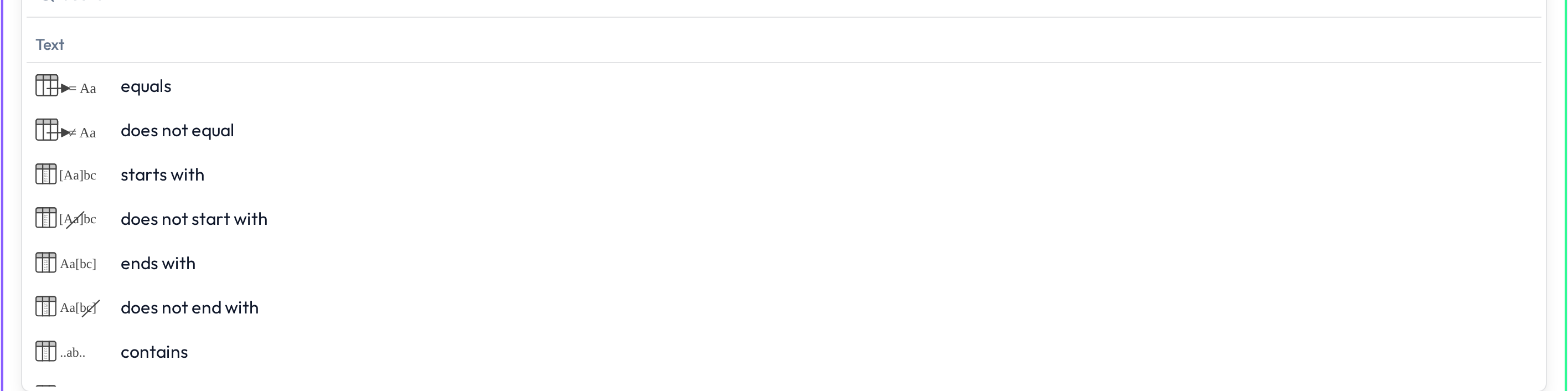
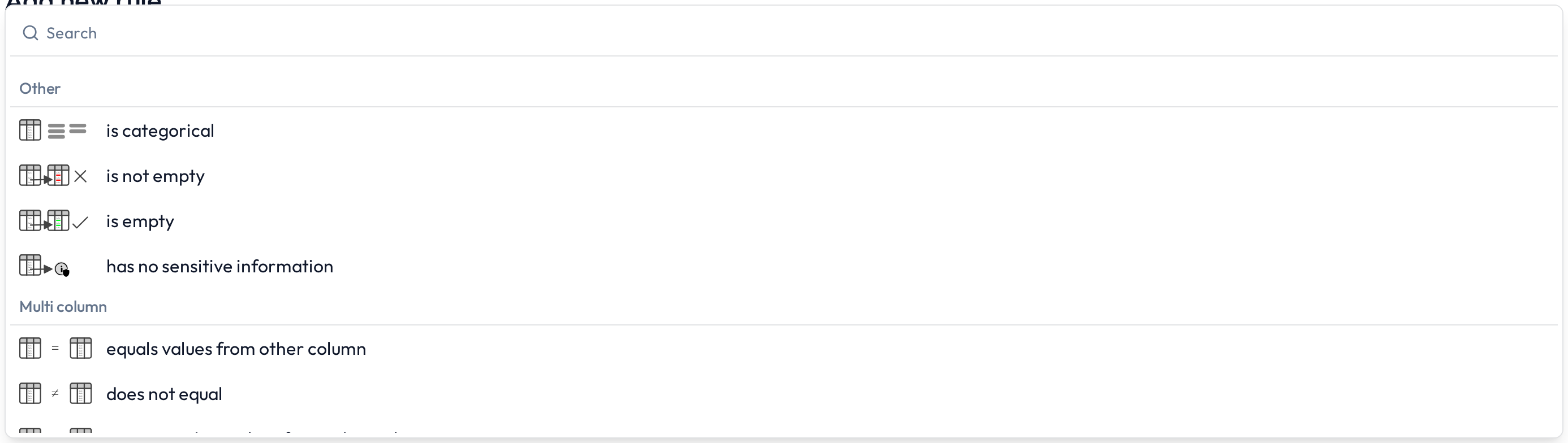
Other rules
These cover structural and classification checks:
Categorical
Not empty / Empty
No sensitive information (PII)
Date range (within a specified date range)
Two-column rules
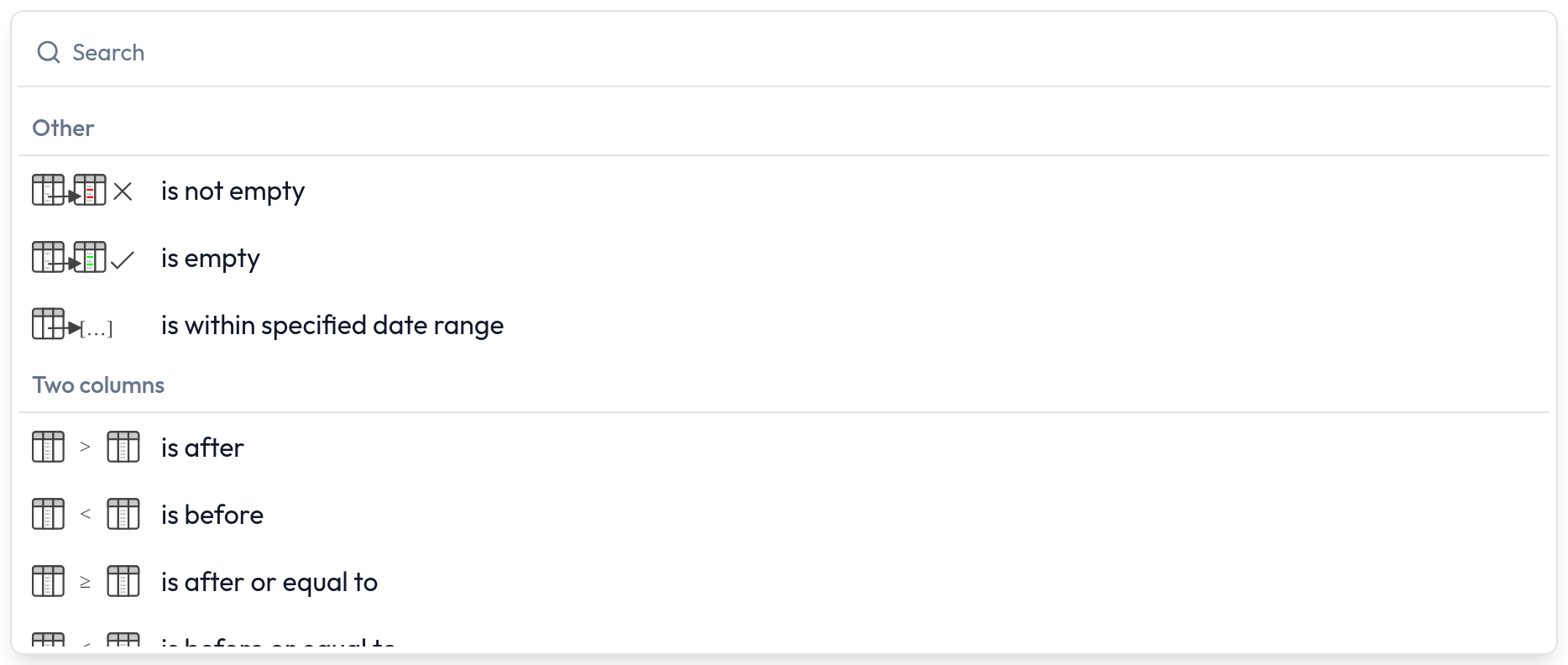
These compare two columns — string, date or numeric types:
Contains
Starts with
Ends with
After / After or equal (for dates)
Before / Before or equal (for dates)
Is correlated with (two numeric columns)
Multi-column rules
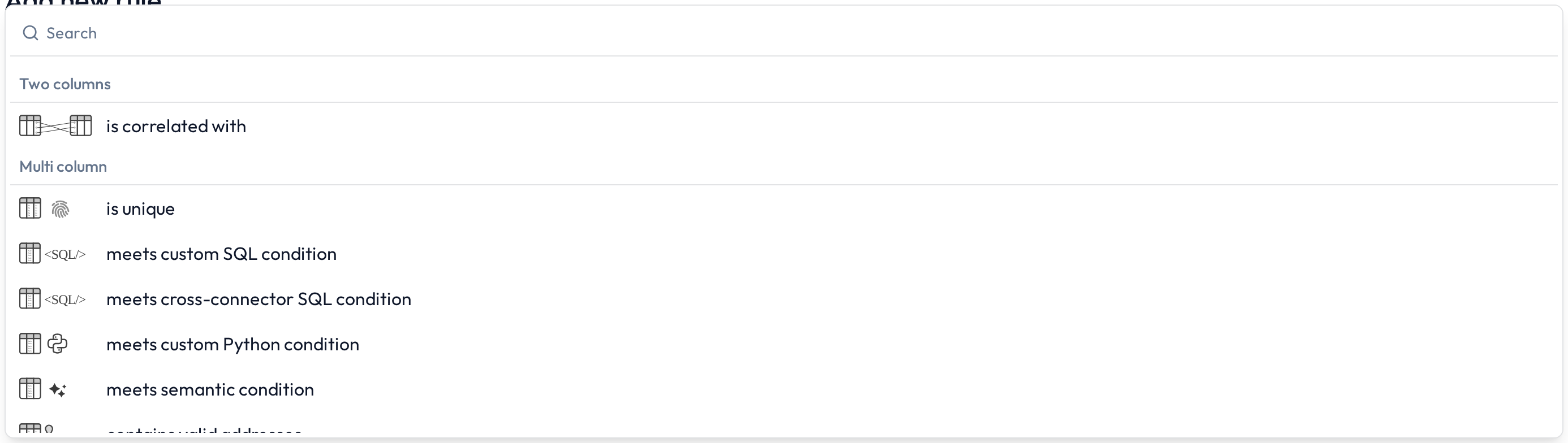
These rules compare or combine multiple columns in a single logic block:
Contains values from other column
Custom SQL
Custom Python
Semantic (LLM-based)
Greater than / Greater than or equal (float)
Less than / Less than or equal (float)
Equals / Does not equal (float)
Additional features
 Filters
Most rule types can be refined with filters (e.g. only apply rule if country = DE). Custom SQL, cross-connector SQL, custom Python, cross-table and ruleset-based rules have no filter section.
 Segmentations
The following rule types can be further segmented to apply checks per group:
No outlier
Text pattern
Categorical
Ruleset-based rules
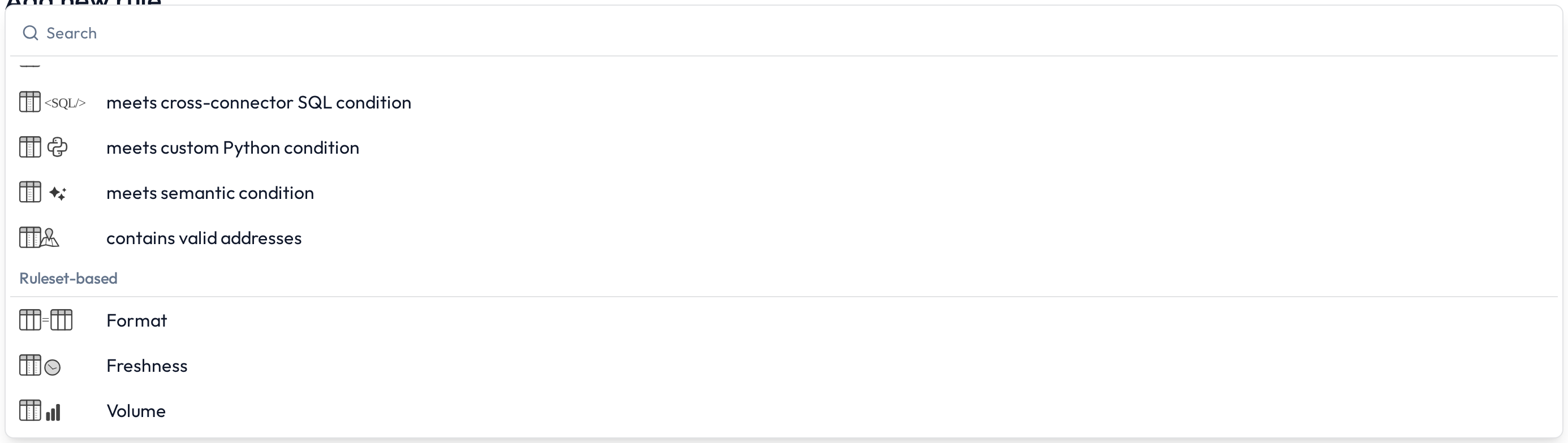
Ruleset-based rules check the dataset as a whole. To add one, click “Add new rule”, select any column and pick it from the Ruleset-based group of the condition list:
 Freshness – Time since last update
 Volume – Expected row count
 Format – Schema of the table (columns and data types)
 Notes
Rules can be created manually, via dropdowns, or by using the Assistant
All rules are visible in the Rules repository and can be edited later
Learn more: Rule creation with the Assistant, Working in the rule detail screen, Multi-column rules