
Use of the DQ-AI Assistant to create rules
The DQ-AI Assistant allows you to create data quality rules by simply describing them in your own words. It is directly available in the rule creation screen on the right-hand side, so no additional setup or window is required.
You describe what the rule should do — and the DQ-AI Assistant automatically configures the rule using the dropdown logic (if possible) or fallback SQL if needed.
How it works
The assistant uses your prompt to suggest a suitable data quality rule, pre-configured based on the selected table's structure and profiling information.
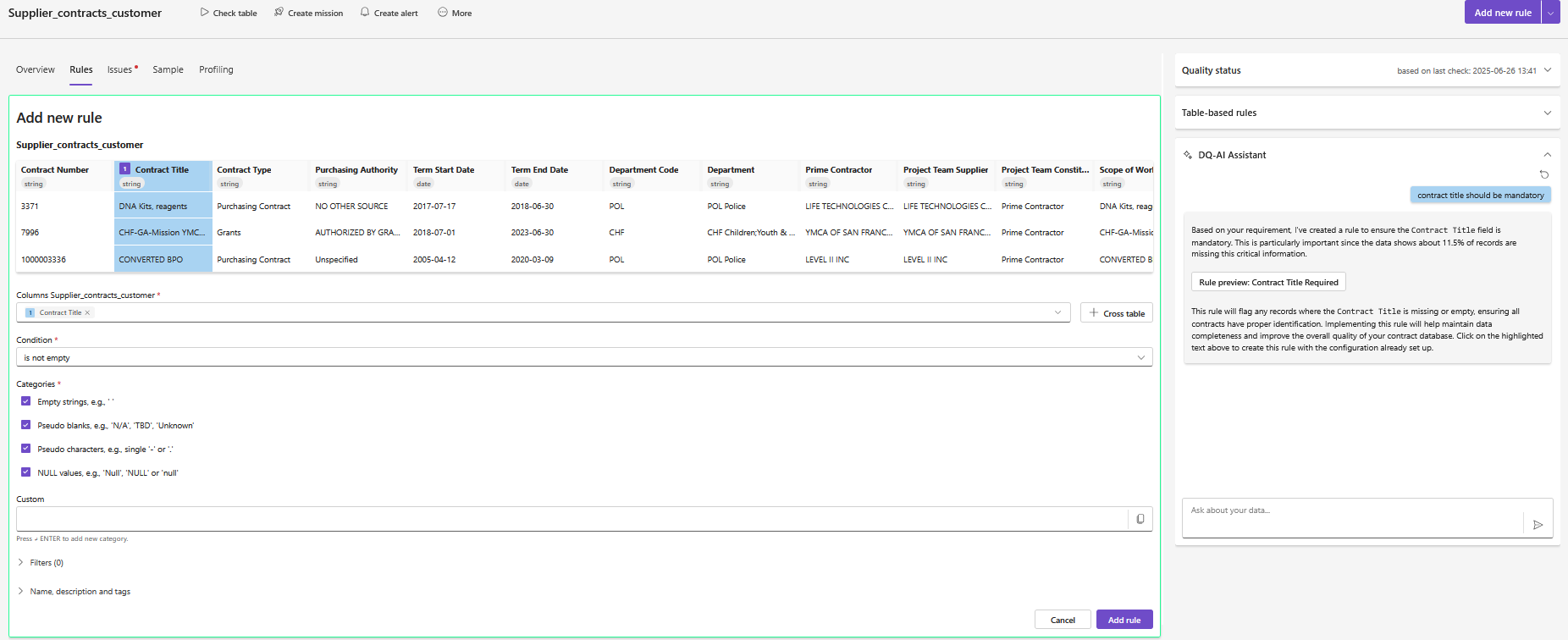 The entire process takes place in a single view — intuitive and fast
That's how you create a rule with the DQ-AI Assistant:
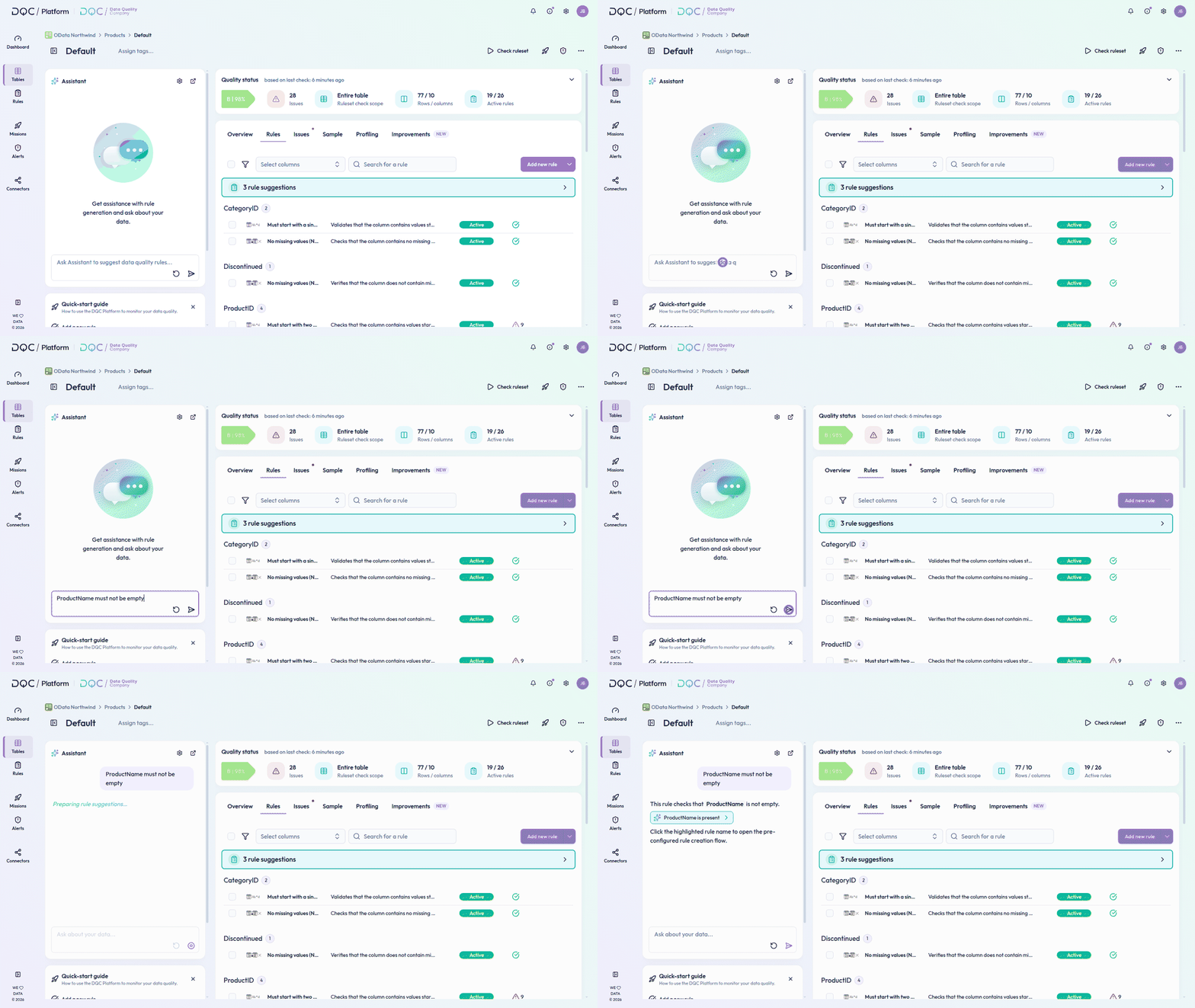
Step-by-step: Creating a rule with the Assistant
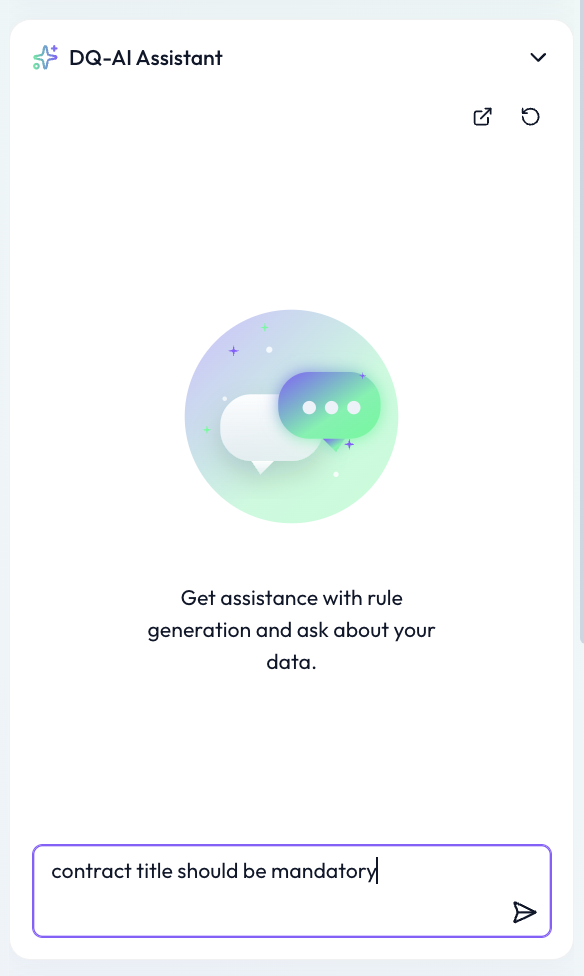
1. Write a prompt
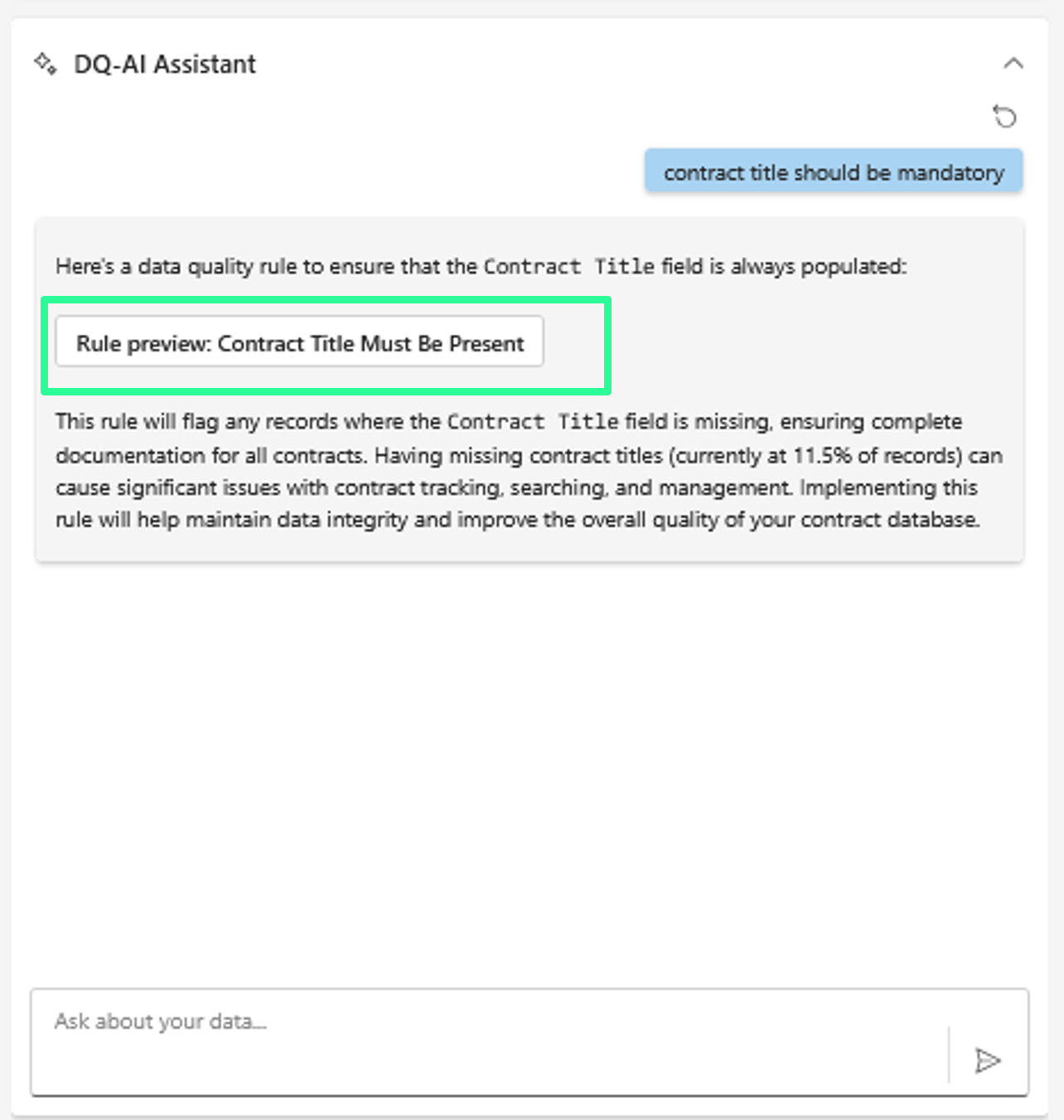
In the DQ-AI Assistant on the right-hand side, enter a short description of the rule you want.
Examples:
“Contract Title should be mandatory”
“Revenue must be greater than 0”
“Start Date should be before End Date”
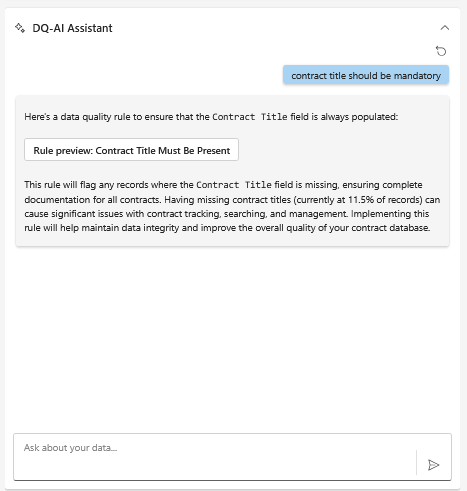
2. Review the Assistant's answer
The assistant returns:
An explanation of the rule
A “Rule preview” button showing the generated logic
Optional statistics based on profiling (e.g. % of empty values)
3. Click the button to create the rule
Click the Rule preview button. The rule will be created using the dropdown form (if supported), or inserted as custom SQL logic if necessary.
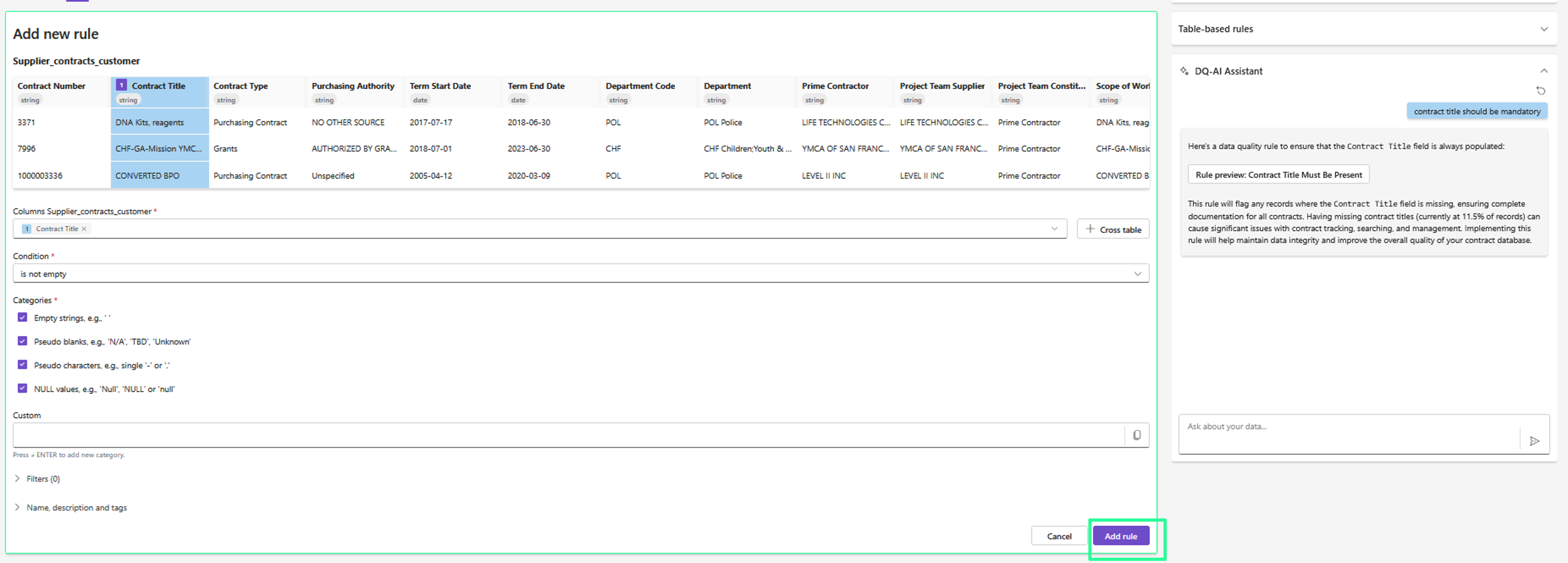
The rule configuration is now visible in the center panel.
4. Adjust (Optional)
You can optionally adjust:
Column or condition
Filters or segmentations
Rule name or description
5. Finalize by clicking "Add rule"
Once the rule looks good, click Add rule to save it.
 Notes
Notes
You don’t need to click "Add new rule" to start — just use the assistant directly
AI rules are created using standard dropdown logic where possible - write "SQL rule: PROMPT" to directly get the rule as SQL statement
If the rule is too complex, the assistant will generate SQL logic instead
Learn more: Overview of existing rules, Using the DQ-AI Assistant, Rule creation via drop-down