
Connection to MotherDuck
To connect a MotherDuck database to the DQC Platform, you need a MotherDuck access token plus the name of the database you want to query. MotherDuck is a managed cloud version of DuckDB — once connected, every table in the selected database becomes available for data quality checks.
Add a MotherDuck connector
To begin:
Go to the Connectors > Data sources screen
Click the MotherDuck tile
Enter the connection parameters described below
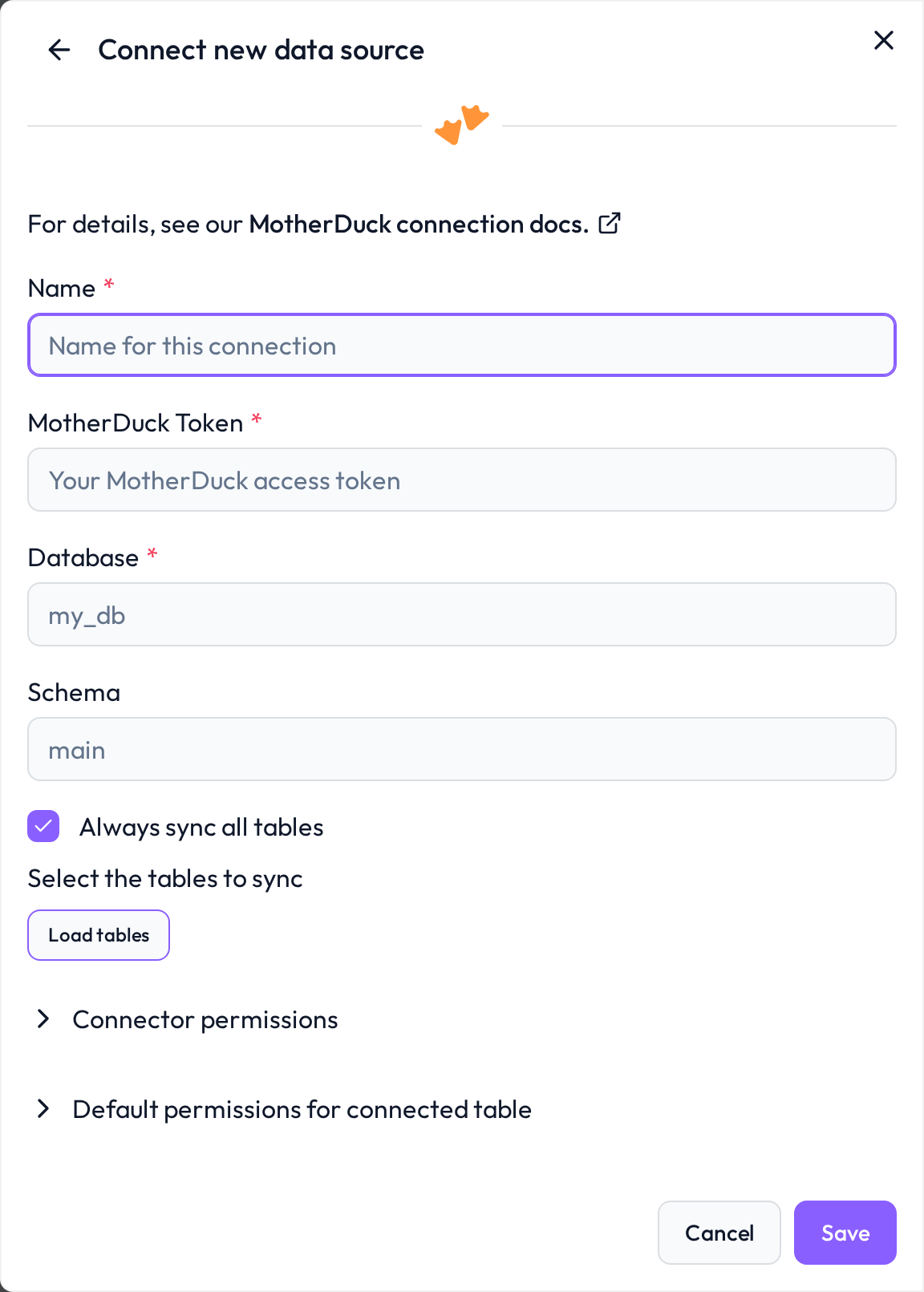
 Required connection information
Field | Example | Description |
|---|---|---|
Name |
| A custom name to identify this connector inside DQC |
MotherDuck Token |
| Your MotherDuck access token. Generate one in the MotherDuck UI under |
Database |
| Name of the database to connect to. Bound to the connector and cannot be changed after creation. |
DB Schema |
| Schema inside the database. Defaults to |
 Generate a MotherDuck token
Sign in to the MotherDuck UI
Open Settings > Tokens and create a new read-only token (recommended)
Copy the token immediately — MotherDuck will not show it again
Paste it into the MotherDuck Token field in DQC
Tokens are stored encrypted; only the first and last few characters are displayed in the UI after saving.
 What gets imported
All tables in the selected database and schema become available as DQC tables
Views are included if visible to the token's user
Schema and database are fixed per connector — to switch databases, create a new connector
 Connect and assign permissions
After saving, DQC validates the token, lists the available tables and lets you pick which ones to expose. To control who can use the connector inside DQC, see Data source access permissions.
Troubleshooting
When DQC cannot connect to MotherDuck or load its tables, it shows the reason with a short fix and links to this section. Look up the beginning of the message:
Message in DQC | Likely cause | Fix |
|---|---|---|
| The token is wrong, revoked or expired | Create a new token (see Generate a MotherDuck token) |
| Wrong database name | Check the database name |
| DQC cannot reach MotherDuck | Try again later; contact support if it persists |
| Another error; the reason names it | Act on the reason |
| DQC could not classify the error of the connection test | Check every field of the form, the network access and the permissions described above |
| The table was renamed, moved or deleted, or the user lost access to it after the last sync | Restore the table or the access, then resync the connector |
Synchronization failed: when a sync cannot connect, the connector shows Failed on the Data sources screen and the badge links to this section. Edit the connector and click Load tables or Save: DQC tests the connection again and shows the current reason.
Tables missing from the table list: DQC lists the tables of the
mainschema of the database.Still stuck? Write to support@dqc.ai with the connector name, the time of the attempt and the full message.