
User management and access rights
1. Introduction
The DQC Platform uses a two-layer access model: Tenant Roles control what users can do platform-wide, while Object-Level permissions control access to specific data sources (connectors, tables, rulesets).
This model balances flexibility, safety, and ease of understanding, allowing you to grant broad capabilities while restricting access to sensitive data where needed.
2. Tenant Roles — Global Capabilities
Tenant roles define global administrative and operational capabilities across the entire platform. They do not automatically grant access to specific connectors, tables, or rulesets.
The DQC Platform has three tenant roles: Owner, Manager, and Member.
Capability | Owner | Manager | Member |
|---|---|---|---|
Manage general settings |
|
|
|
Manage LLM settings |
|
|
|
Invite users |
|
|
|
Change roles & remove users |
|
|
|
Create & manage groups |
|
|
|
Manage quality dimensions |
|
|
|
Manage tags |
|
|
|
Access to BI connection & API token |
|
|
|
Manage company rules |
|
|
|
Add data sources |
|
|
|
Add channels & catalogs |
|
|
|
Manage missions & alerts |
|
|
|


*Only if they are assigned as group owners
'**Only if they have access rights to the respective ruleset
Note on BI Connection & API Token: This capability allows Owners to generate API tokens for programmatic access and connect the platform to external Business Intelligence tools.
Note on Groups: For detailed information on creating and managing groups, see the separate Groups documentation.
3. Object-Level Access Rights
Object-level access rights control visibility and editability of data objects (Connectors, Tables, and Rulesets) for Managers and Members.
Owners always have full access to all objects and are not restricted by object-level permissions.
Access Rights Levels
Access Right Level | Meaning |
|---|---|
No access | Hidden — object does not appear in lists or navigation |
View | Object is visible, read-only |
Coordinate* | Object is visible and allows limited modifications |
Edit | Object can be modified |
* Only available at the ruleset level. Specific capabilities are defined in Section 6.
4. Hierarchy and Inheritance
The DQC Platform's authorization model is based on Google's Zanzibar access control system, adapted for data quality management workflows.
Object Hierarchy
The platform organizes objects in a hierarchy:
Connectors contain Tables
Tables contain Rulesets
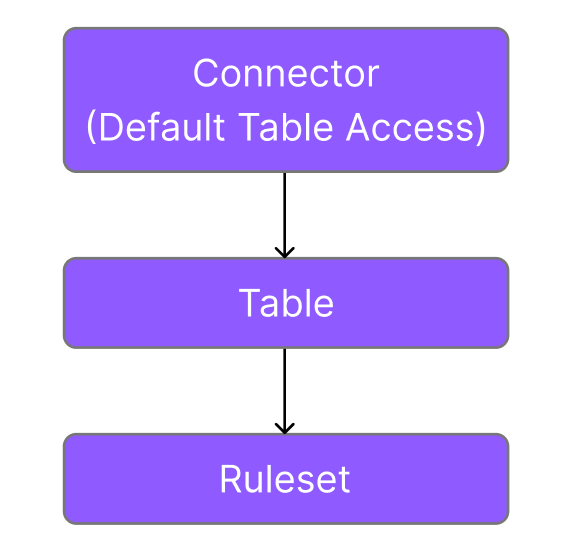
Core Permission Model
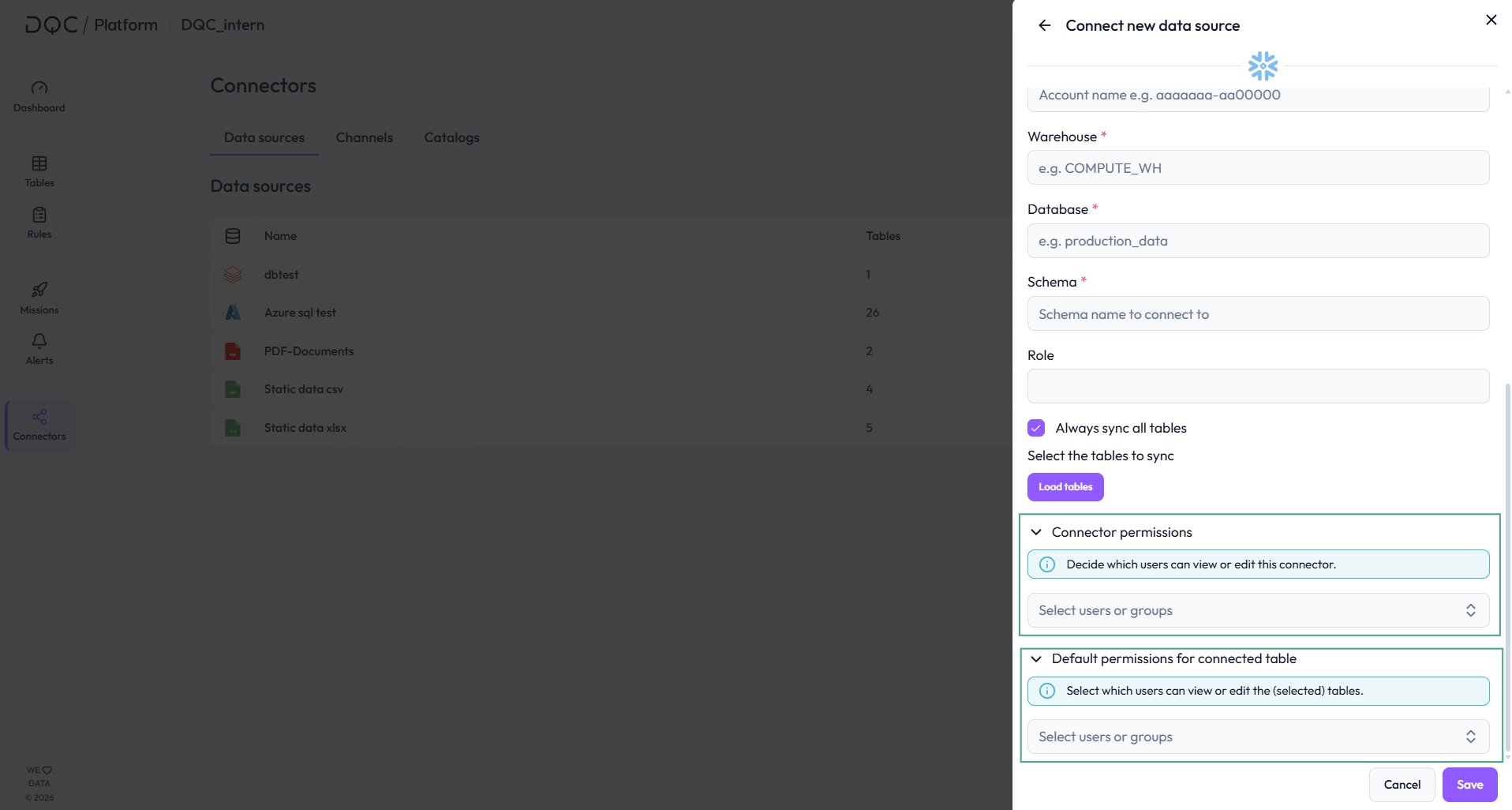
Connectors: Setting Permissions During Connection
When connecting a new connector, you define two types of access:
Connector Access – Controls who can see and modify the connector itself
Default Table Access – Sets the baseline permissions that all tables within this connector will inherit
This design allows you to configure access for future tables at connection time, rather than managing each table individually afterward.
You can edit both Connector Access and Default Table Access at any time after the initial connection. Changes to Default Table Access will affect all tables in inherited state.
Tables: Primary Inheritance from Default Table Access
Tables primarily inherit their permissions from Default Table Access, which is configured at the connector level. This default acts as a template that automatically applies to all tables within a connector and is used to set up permissions
Key Inheritance Rule:
If Default Table Access is unrestricted (no users assigned), tables remain unrestricted for all users, regardless of any Connector Access restrictions
If Default Table Access has explicit assignments (users are assigned), all tables are restricted to Managers/Members that are explicitly assigned
Note:
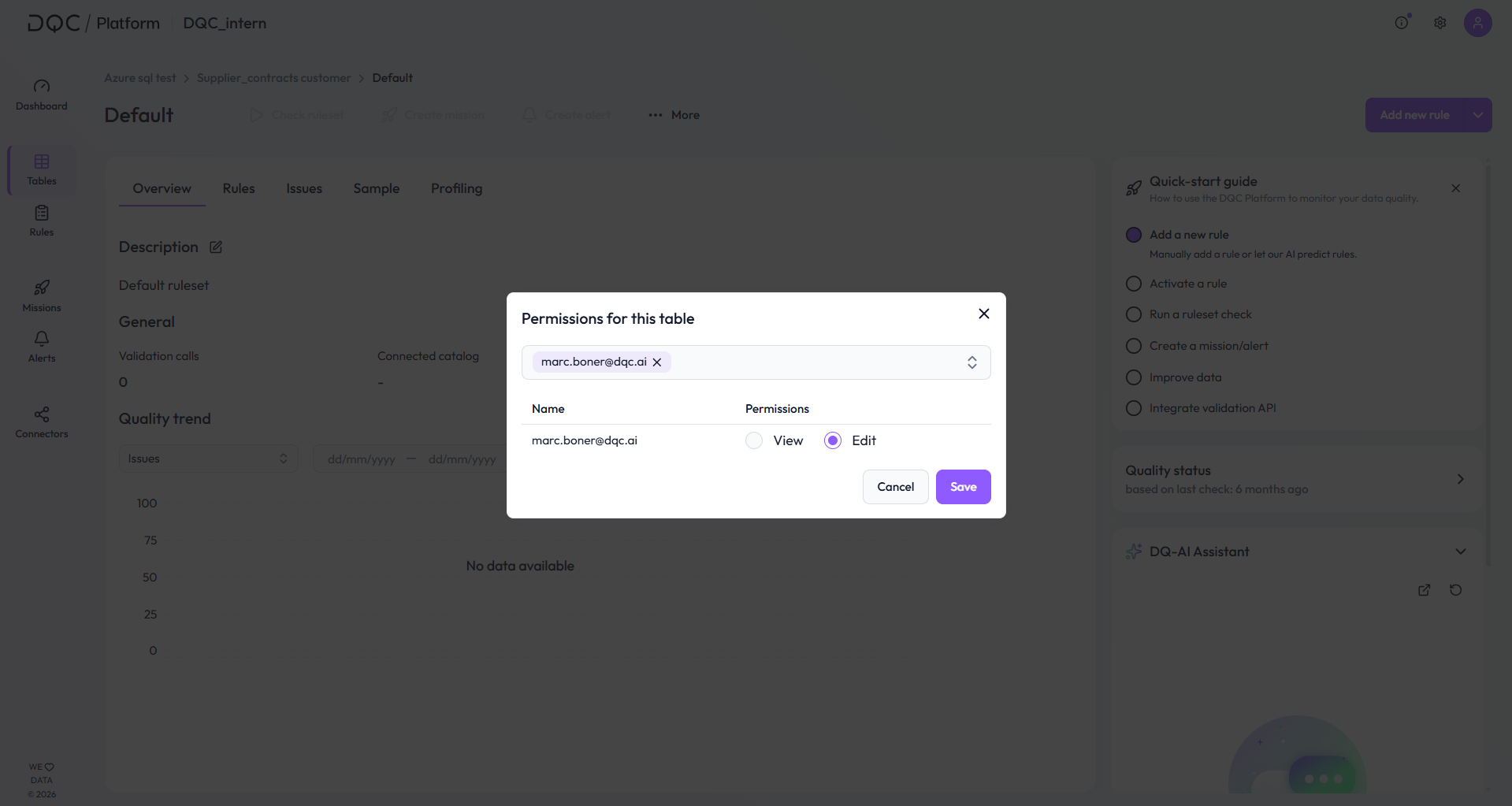
Default table permissions can also be overwritten on the table level by explicitly assigning users
When Default table permissions are assigned, those will be combined with the connector access permissions as well. The highest permission level from either source applies to the table
Rulesets: Inherit from Parent Table
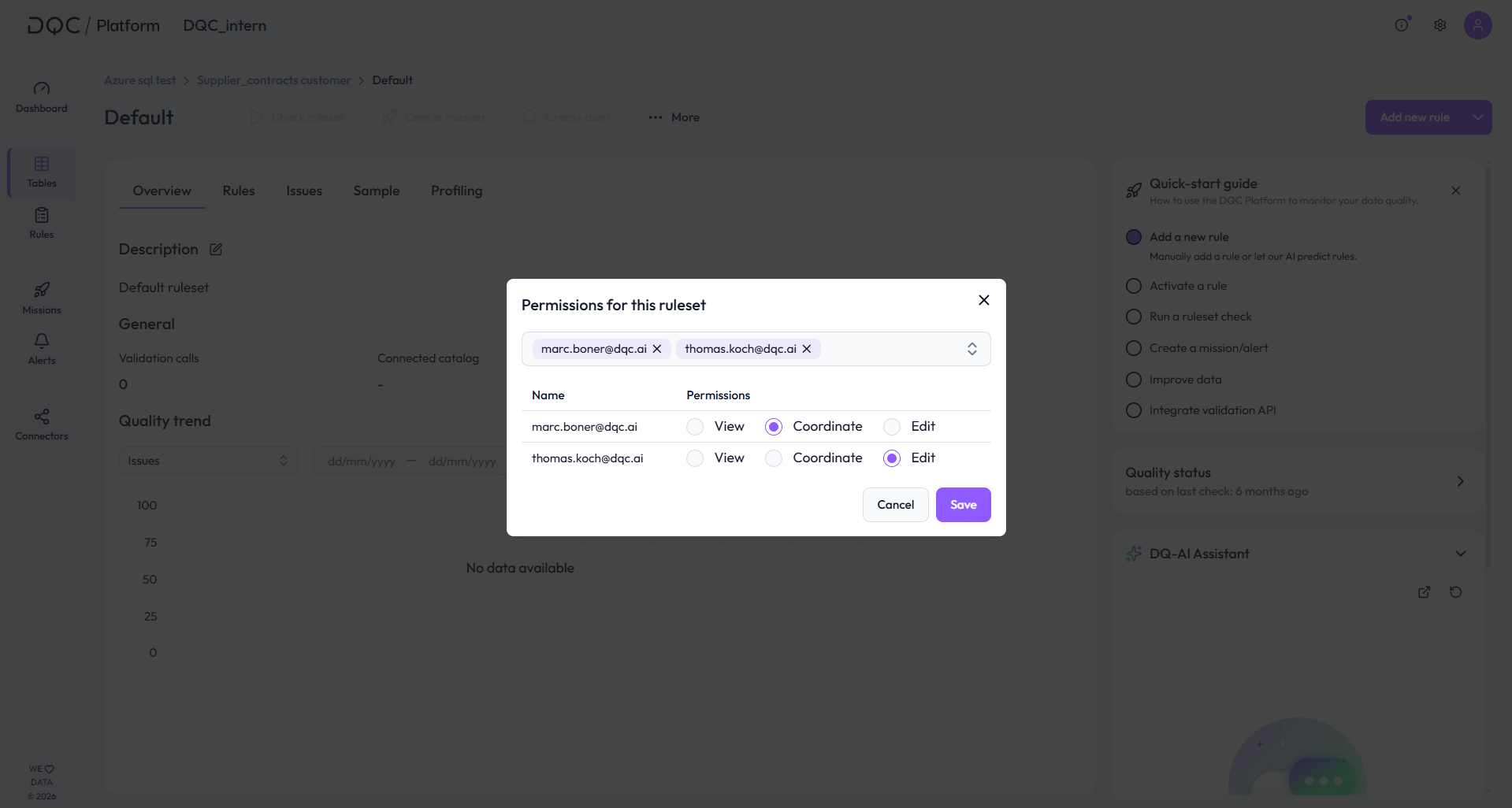
Rulesets inherit permissions from their parent table. If a table has View access for a user, the user also has View access to all rulesets within that table (unless overridden by explicit ruleset permissions).
Permission States
Every table and ruleset exists in one of two states:
Inherited Access (Default State)
No explicit permissions are assigned to this object
The object automatically inherits permissions from its inheritance sources
For tables:
Inherits from Default Table Access (always)
Also inherits from Connector Access (only when Default Table Access has explicit assignments)
For rulesets: Inherits from parent table
Changes to parent permissions automatically flow down to inherited objects
Explicit Access (Locked State)
Specific permissions have been manually assigned to this object
Inheritance is broken – the object no longer receives updates from parent permissions
All access must be manually managed until explicit permissions are cleared
Default Behavior for New Objects
Important: If no explicit access rights are assigned during connector setup:
Newly connected connectors and tables are accessible to all users without restrictions
All users (Members, Managers, and Owners) can edit these objects by default
This includes the default ruleset automatically created for each newly connected table
Example: How Inheritance Works
Example 1: Unrestricted Default Table Access
Setup:
Connector Access: Edit for Member A
Default Table Access: Unrestricted (no assignments)
Table X Access: no users assigned
Result:
Connector: Tenant Owner and Member A have Edit access
Table X: The table is in inheritance state, but did not inherit any limiting permissions from default table access. Therefore all users have edit rights.
Example 2: Restricted Default Table Access (Dual Inheritance)
Setup:
Connector Access: View for User A
Default Table Access: Edit for User A, View for User B
Table X: no users assigned
Table Y: Explicit View for User A
Table Z: Explicit View for User B
Result:
Table X: User A has Edit access (highest of: View from connector + Edit from default)
Table X: User B has View access (highest of: no connector access + View from default)
Table Y: User A has View access to (explicit permission locks this access level)
Table Z: User A has No access (explicit permission only grants access to User B who has View access)
Modifying Default Table Access
You can edit Default Table Access at any time to change the baseline permissions for tables.
Tables in inherited state – They immediately receive the updated permissions
Tables with explicit access – They are unaffected and maintain their explicitly assigned permissions
Important: If you change Default Table Access from unrestricted to having explicit assignments (or vice versa), this affects whether Connector Access permissions flow down to tables.
Navigation Visibility
Minimum hierarchy for navigation: If a user has access to a lower-level object but not to its parent, the platform displays the minimum required hierarchy for navigation purposes.
Example: If a user has No Access to a connector and table, but View access to a specific ruleset within that table, the user will see:
The connector name (but cannot access it)
The table name (but cannot view table configurations)
The ruleset they can view
This ensures users can navigate to objects they have permission to access, even if parent objects are restricted.
5. How Effective Access is Determined
When a user attempts to access an object, the DQC Platform evaluates access in this order:
1. Check tenant role
Does the user have the global capability to perform this type of action?
If the user is an Owner: grant full access (skip object-level checks)
If not: proceed to step 2
2. Collect all applicable permissions
Check for individual permissions assigned directly to the user
Check for group permissions from all groups the user belongs to
Note: A user can be in one or multiple groups
3. Determine effective access on the object
If the object is in inherited state (no explicit permissions set):
For tables: Merge permissions from both the connector AND default table permissions
For rulesets: Use the parent table's effective permissions
Apply the highest permission level when merging
If the object is locked (explicit permissions are set):
Use only the explicitly defined permissions; ignore parent permissions
4. Apply the highest permission level
When multiple permissions apply (individual + multiple groups), the highest access level takes precedence.
Example: User has individual View access + belongs to a group with Edit access → Effective access is Edit
Example: User belongs to Group A (View) + Group B (Edit) → Effective access is Edit
5. Apply the access level
Based on the effective access (No access, View, Coordinate, Edit), allow or restrict the action.
6. Specific Access Rights per Object Level
This section defines exactly what each access level allows at each object type.
If a user does not have View, Coordinate, or Edit permissions, access defaults to No access, and an Access denied message is shown.
Edit access automatically includes all View access rights. Therefore, the following section only lists the additional permissions granted with Edit access.
Connector Level
View
See connector name in the connectors overview
See all connected tables and ruleset
Edit
Resync connector
Edit connector credentials (only available for non-static connectors)
Select tables to sync
Manage connector permissions (users and groups)
Manage default table permissions (users and groups)
Delete connector
Table Level
View
See table in tables overview
See all rulesets of the table
View tabs: Overview, Rules, Issues, Sample, Profiling
Download issues
Edit
Create and delete rulesets
Add data catalog information
Manage table permissions
Ruleset Level
View
See ruleset
Use the DQ-AI Assistant for explanations and answers (no rule creation)
Coordinate
Create, edit, and delete rules (manual or via DQ-AI Assistant)
Change dimensions and tags on rules
Activate or deactivate rules
Predict data quality rules
Apply company rules
Start quickstart guide
Run rule checks
Create and edit missions and alerts
Create and edit improvement workflows
Edit
Adjust quality scores
Change schedule of ruleset checks
Edit ruleset scope
Manage ruleset permissions
Delete, import, and add new rulesets
Note: The Coordinate access level is only available for rulesets. It allows users to work with rules and quality checks without modifying structural settings or permissions.
7. Realistic Example: Access setup for a tenant with HR, Finance, and Sales data
A company uses the DQC Platform to validate data from three departments: HR, Finance, and Sales. The tenant has one Tenant Owner, several Business Users, and two groups: HR Team and Finance Team.
The Tenant Owner configures the DQC Platform, invites users, creates the groups, and manages global settings. The Business Users only receive access to the objects they need for their work.
Example setup:
- The Tenant Owner connects three data sources: HR Data, Finance Data, and Sales Data
- The HR Team receives Edit access to the HR connector and its tables
- The Finance Team receives Edit access to the Finance connector and its tables
- All Business Users receive View access to the Sales tables, because the data is not sensitive and should be visible across teams
- Default Table Access is configured for each connector so that new HR tables are automatically restricted to the HR Team and new Finance tables are automatically restricted to the Finance Team
Example inheritance:
- A new table called Employee Master Data is added under the HR connector
- Because the table is still in inherited access state, it automatically receives the HR connector’s Default Table Access
- Members of the HR Team can edit the table and its rulesets
- Members of the Finance Team cannot see the table unless access is explicitly granted
Example explicit override:
- A ruleset on the Employee Master Data table checks whether employee cost centers are valid
- The Finance Team needs to review these rules but should not edit the table itself
- The Tenant Owner or HR editors grants the Finance Team Coordinate access on this specific ruleset
- The Finance Team can now create, edit, activate, and run rules in this ruleset, but cannot change table permissions, ruleset scope, or delete the ruleset
Example result:
- HR Team: Can manage HR data and HR rulesets
- Finance Team: Can manage Finance data and coordinate selected HR rulesets where finance input is needed
- Business Users: Can view Sales data but cannot modify access rights or sensitive HR/Finance objects
- Tenant Owner: Has full access to all connectors, tables, rulesets, users, and tenant settings
This setup keeps sensitive HR and Finance data restricted, while still allowing cross-team collaboration on selected rulesets where needed.
 Notes
Notes
Tenant roles define global capabilities, not data access
Object permissions control access to connectors, tables, and rulesets
Explicit permissions override inheritance and must be managed manually
Learn more: Invitation of New Users, Creation of Groups