
Connection to OData
The DQC Platform supports connections to OData v2 and v4 services — including SAP-based APIs. This guide explains how to configure an OData connector with the required URL, credentials, and optional headers.
Add an OData connector
To begin:
Go to the Data Connectors screen
Click the OData Server button
Fill in the required fields as described below
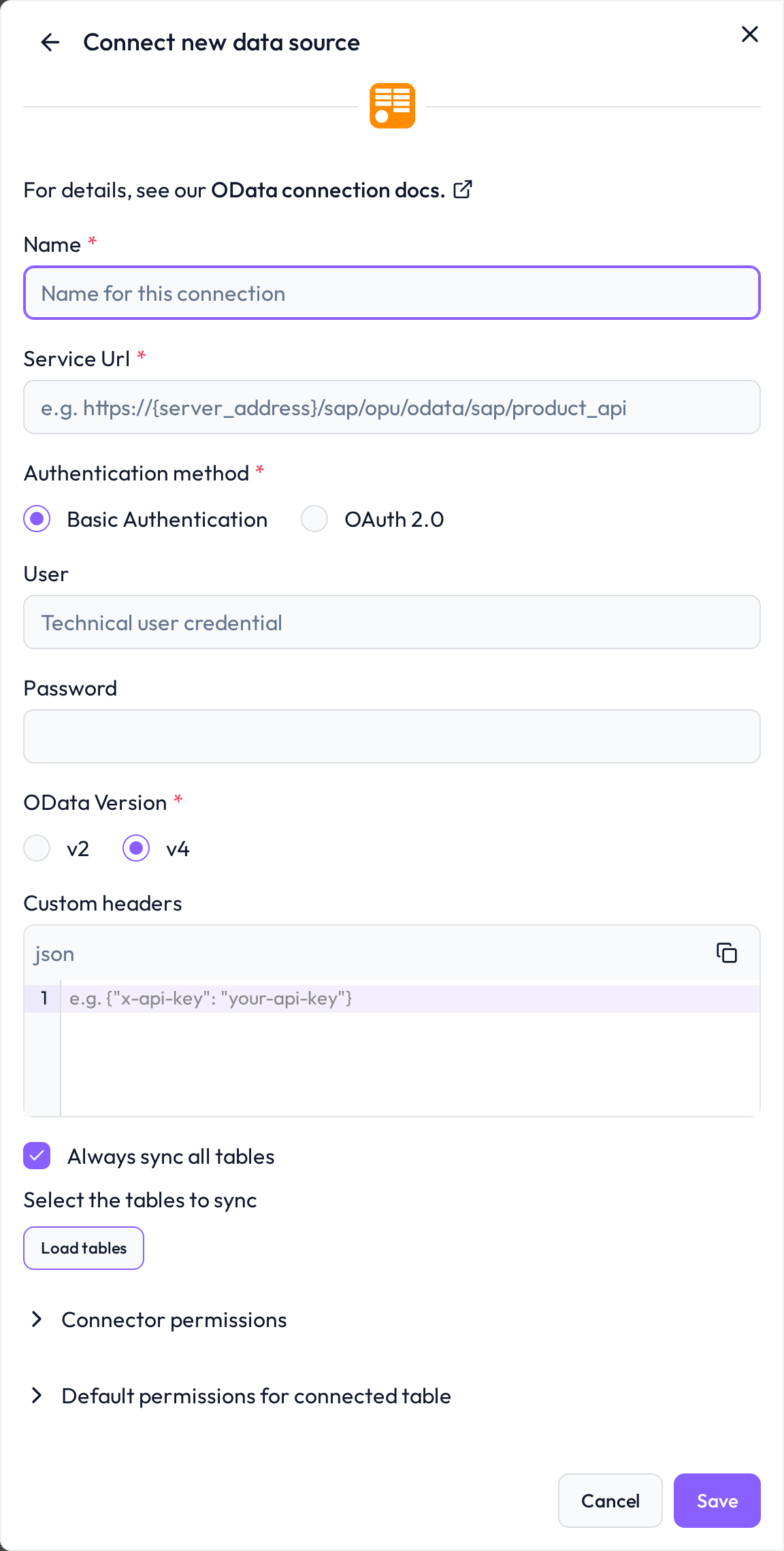 Start by selecting OData as the integration type
Required connection information
Field | Example | Description |
|---|---|---|
Connector Name |
| A name for this connection |
Service URL |
| Base URL of your OData service (for example from SAP Gateway or SAP BTP Cloud Integration) |
OData Version |
| Version of the API; v4 is preferred where available (SAP CPI OData API projects default to v2) |
Authentication Method |
| Use |
Username / Password |
| Required when Authentication Method is |
OAuth Client ID / Secret |
| Required when Authentication Method is |
OAuth Token URL |
| Token endpoint URL (required when Authentication Method is |
OAuth Scope | (optional) | Optional scope for the OAuth 2.0 token request |
Custom Headers |
| Optional JSON object with custom HTTP headers |
Note: Do not append /$metadata, an EntitySet name, or query parameters (such as ?sap-client=...) to the Service URL.
Best practices for access control
When configuring an OData connection, make sure the user credentials are authorized to access the desired entities or data services.
SAP-specific setup
 OData is one of several ways to bring SAP data into DQC. For a side-by-side comparison with SAP HANA and third-party connectors, see Connecting to SAP systems.
You can connect to SAP OData services in two ways:
Via SAP BTP Cloud Integration (CPI / SAP Integration Suite): Expose your SAP data as an OData v2 or v4 endpoint in SAP Cloud Integration (
https://<cpi-runtime-host>/gw/odata/SAP/<Service_Name>;v=1) and authenticate with OAuth 2.0 using a Process Integration Runtime (integration-flow) Service Key with roleESBMessaging.send. Ensure the CPI integration flow supports/$metadata,<EntitySet>/$count(returning> 0), and pagination (__nextor$top/$skip). See the dedicated guide: Connection to SAP OData via SAP BTP.Directly via SAP NetWeaver Gateway / S/4HANA: Use the service root URL (for example
https://server/sap/opu/odata/sap/API_PRODUCT_SRV). Ensure the service is active inSICF//IWFND/MAINT_SERVICEand grant OData authorizations by adding the service to a PFCG role (go to PFCG Role Maintenance, add the OData service to the role menu, assign the role to the technical user, and ensure start and business authorizations).
For further details visit: OData and SAP
Whitelist the DQC Platform static IP
Ensure that the OData endpoint (or the reverse proxy/firewall in front of it) accepts traffic from:
3.123.94.228Troubleshooting
When DQC cannot connect to OData or load its tables, it shows the reason with a short fix and links to this section. Look up the beginning of the message:
Message in DQC | Likely cause | Fix |
|---|---|---|
| The service answered | Open |
| The service URL is malformed | Enter the full URL starting with |
| OData V4: the service or its | Check URL, credentials and OData version |
| The entity set was renamed or removed | Pick an entity set from the list of available entities |
| Both methods are filled in | Keep only one authentication method |
| Network error, failed OAuth token request, or invalid custom headers | Check that the host allows the DQC IP address, the OAuth token URL, client and secret, and that custom headers are a JSON object |
| The table was renamed, moved or deleted, or the user lost access to it after the last sync | Restore the table or the access, then resync the connector |
Synchronization failed: when a sync cannot connect, the connector shows Failed on the Data sources screen and the badge links to this section. Edit the connector and click Load tables or Save: DQC tests the connection again and shows the current reason.
Entity sets missing from the table list: DQC lists only entity sets that return rows and support
$count.The connection test on Save does not contact the OData service; click Load tables to check URL and credentials before saving. A wrong URL otherwise shows up as a failed sync.
Still stuck? Write to support@dqc.ai with the connector name, the time of the attempt and the full message.
 Notes
Use OData v4 where possible for better performance and schema management
If using SAP, confirm the service is active and reachable from external IPs
Learn more: Supported data sources, Connection to Power BI, Connection to SAP OData via SAP BTP