
Connection to Amazon Redshift
To connect Amazon Redshift to the DQC Platform, you need to provide your cluster connection details and configure IAM permissions. This article guides you through the full setup.
Add an Amazon Redshift connector
To begin:
Open the Data Connectors screen
Click the Amazon Redshift button
Fill in the connection parameters as listed below
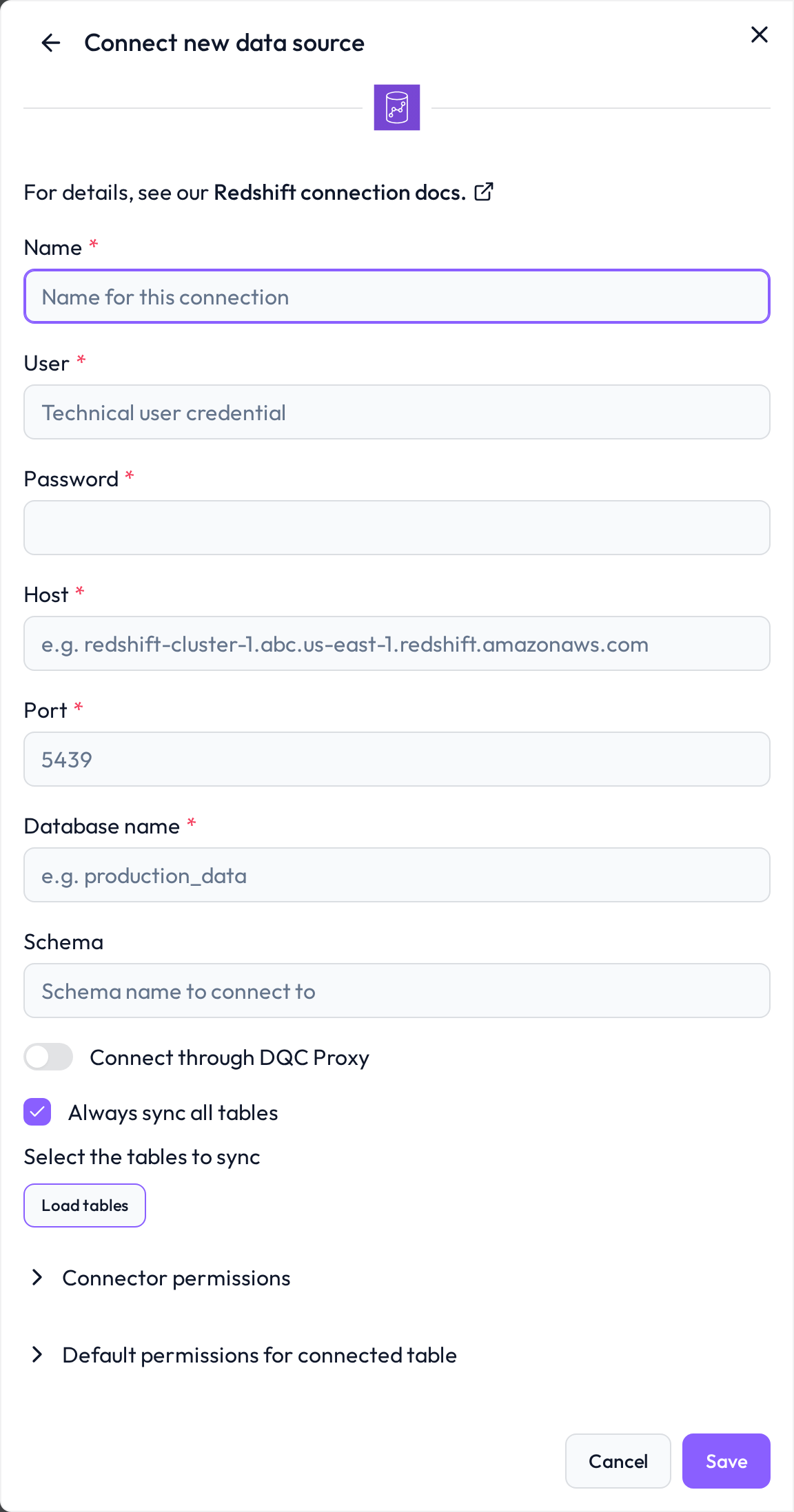 Start the process by selecting the Redshift data source
Required connection information
Field | Example | Description |
|---|---|---|
Name |
| Internal label for the connector |
User |
| Redshift user with read access |
Password |
| Password for the above user |
Host |
| Found under Configuration > Endpoint in your Redshift cluster settings |
Port |
| Default port for Redshift |
Database name |
| Target database to query |
Schema |
| Schema containing the relevant tables |
Configure IAM permissions
To support enhanced Redshift integration (e.g. Redshift Spectrum or federated roles), follow this setup:
Step 1: Create a custom IAM policy
Include the following permissions:
{
  "Effect": "Allow",
  "Action": [
    "redshift:GetClusterCredentials",
    "redshift:DescribeClusters",
    "redshift-data:ExecuteStatement"
  ],
  "Resource": "*"
}
Step 2: Create and attach IAM role
Go to IAM > Roles
Click Create role
Select Redshift as trusted entity
Attach the custom policy from step 1
Review and create the role
Step 3: Associate role with Redshift cluster
In the AWS Console:
Go to Amazon Redshift > Clusters
Open your cluster and select the Properties tab
Click Associate IAM Roles and choose the role created above
Whitelist the DQC Platform static IP
Make sure your network/firewall configuration or security group allows connections from:
3.123.94.228Troubleshooting
When DQC cannot connect to Amazon Redshift or load its tables, it shows the reason with a short fix and links to this section. Look up the beginning of the message:
Message in DQC | Likely cause | Fix |
|---|---|---|
| Redshift rejected the login | Check user name and password |
| Wrong database name | Check the database name |
| The host name cannot be resolved | Enter only the endpoint host, without |
| DQC cannot reach the cluster: the security group does not allow the DQC IP address, the cluster is not publicly accessible, or the port is wrong | Allow inbound traffic on the cluster port from the DQC Platform IP address, or connect through the DQC Proxy |
| DQC could not classify the error of the connection test | Check every field of the form, the network access and the permissions described above |
| The table was renamed, moved or deleted, or the user lost access to it after the last sync | Restore the table or the access, then resync the connector |
| Virtual tables need temporary tables in the source | Allow the user to create temporary tables, or do not use virtual tables on this connector |
Synchronization failed: when a sync cannot connect, the connector shows Failed on the Data sources screen and the badge links to this section. Edit the connector and click Load tables or Save: DQC tests the connection again and shows the current reason.
Tables missing from the table list: DQC lists only tables (no views or external tables) of the configured schema that the user can read with
SELECT.Still stuck? Write to support@dqc.ai with the connector name, the time of the attempt and the full message.
 Notes
We recommend using a dedicated Redshift user with read-only access
For secure connections, use SSL-enabled endpoints
Learn more: Supported data sources, Connection to AWS S3, Connection to Snowflake