
Connection to Power BI
The DQC Platform allows you to connect your data quality metrics directly to Power BI. This enables the creation of real-time dashboards that refresh automatically every hour with the latest platform data.
How to connect to Power BI
Follow these steps to establish the connection between the DQC Platform and Power BI:
Enable the BI connection in the DQC Platform
Go to Settings → BI connection and toggle the switch to enable access.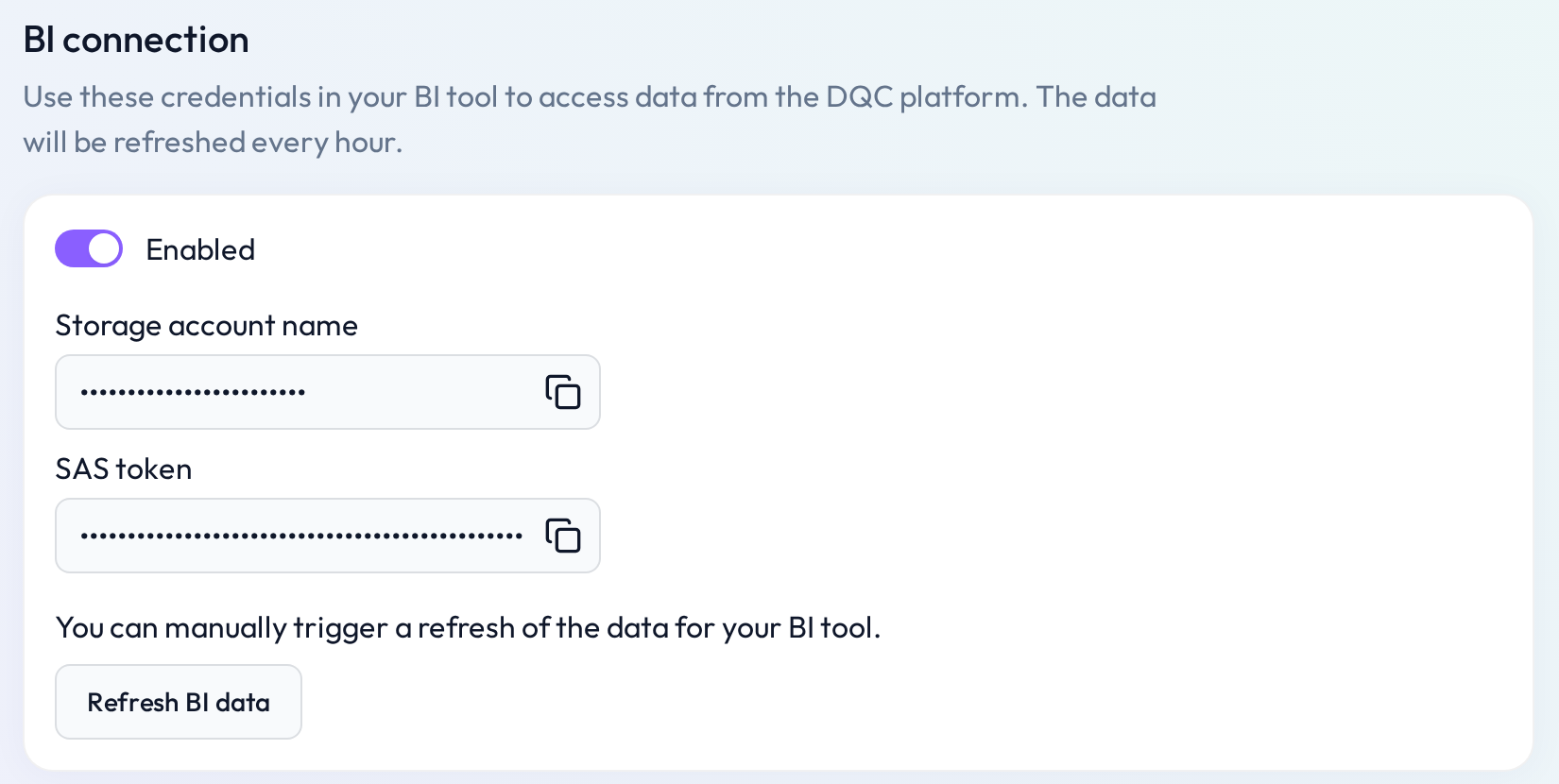
Open Power BI
Click Get data → More → Azure → Azure Blob Storage → Connect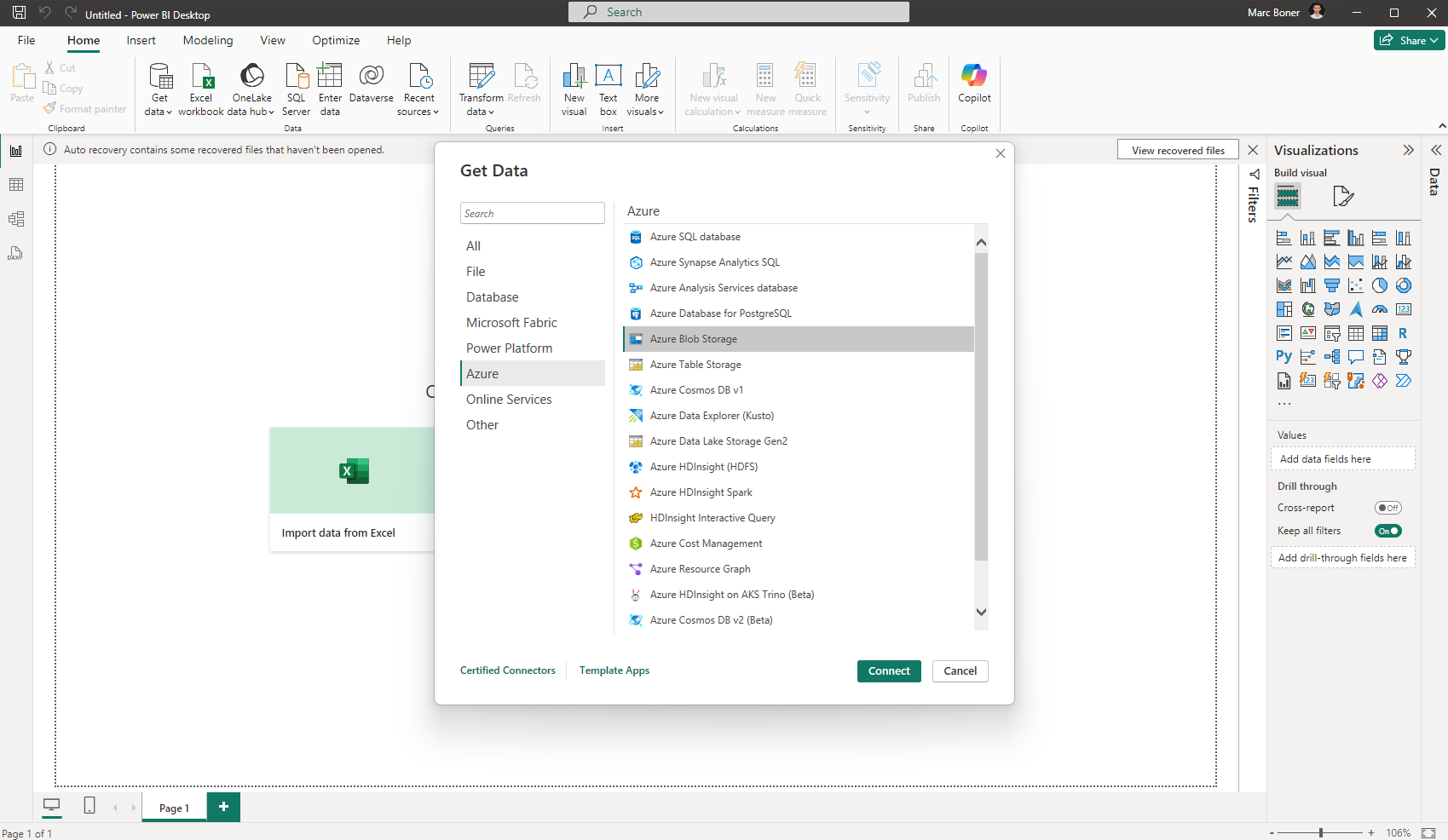
Enter Credentials
In the DQC Platform, copy the Account name and SAS token and paste them into Power BI.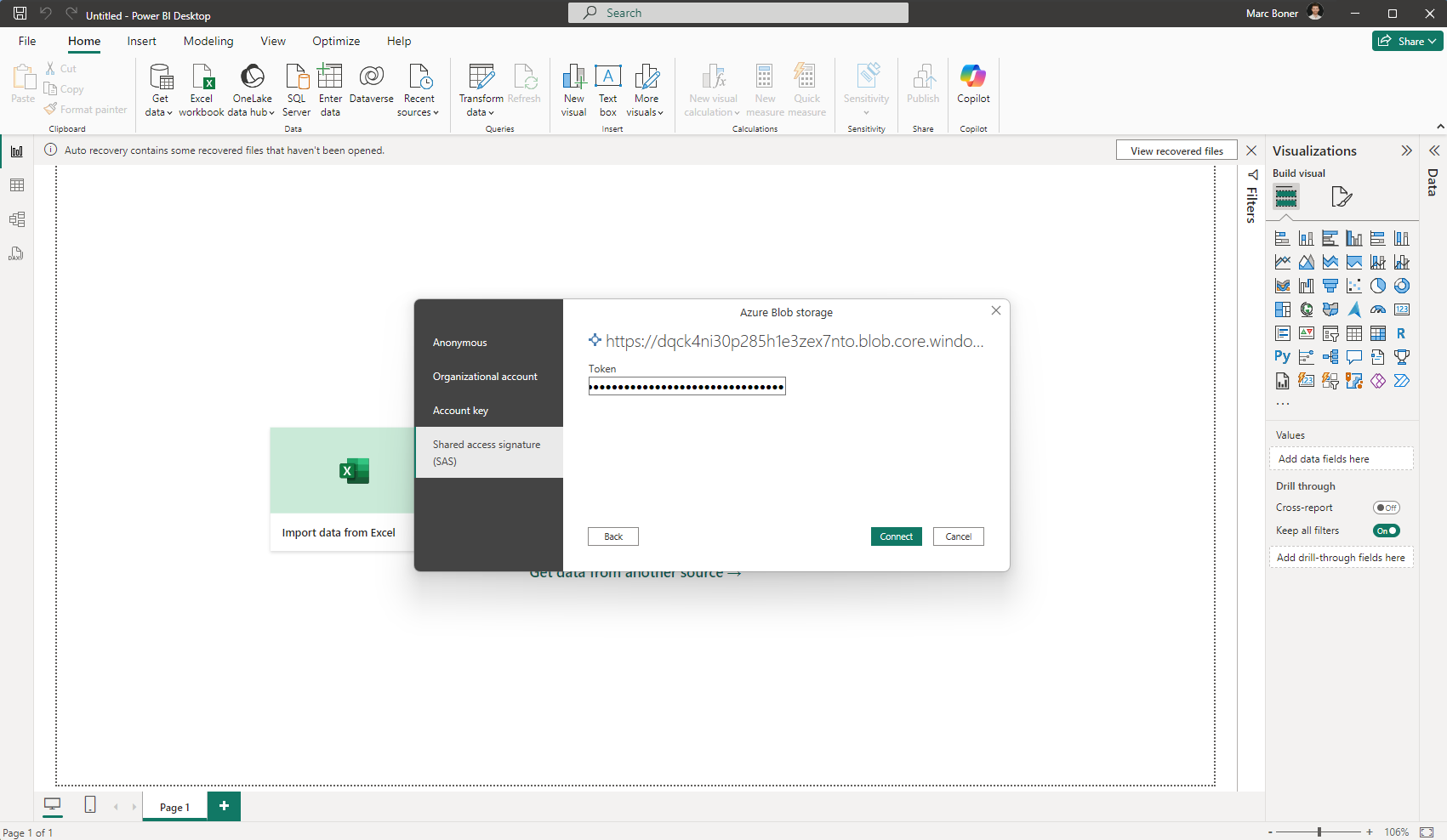
Select the Container
Choose the container nameddqc-data-container.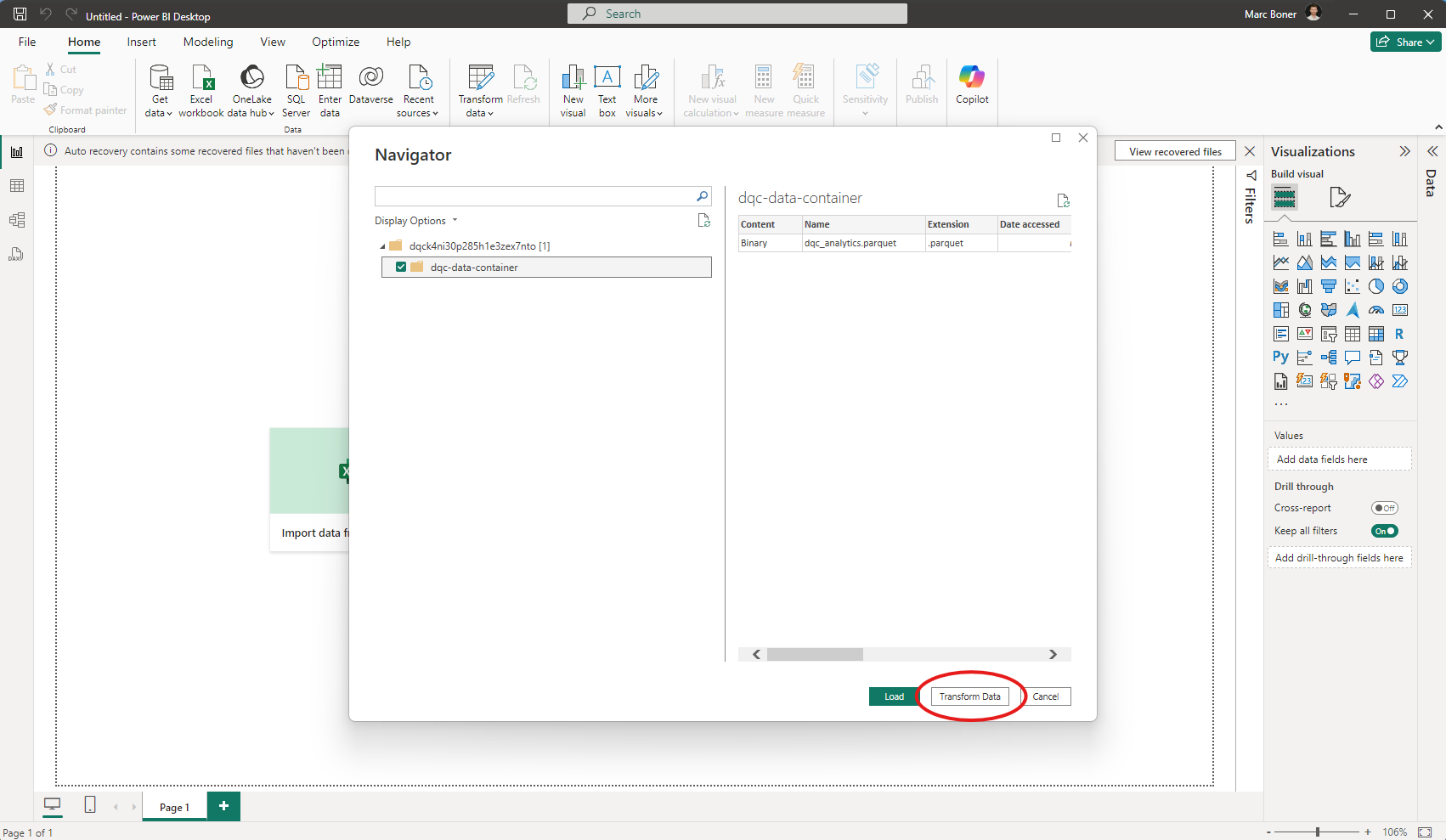
Transform the Data
In the Power BI overlay, click on Binary in the first row to unpack the data.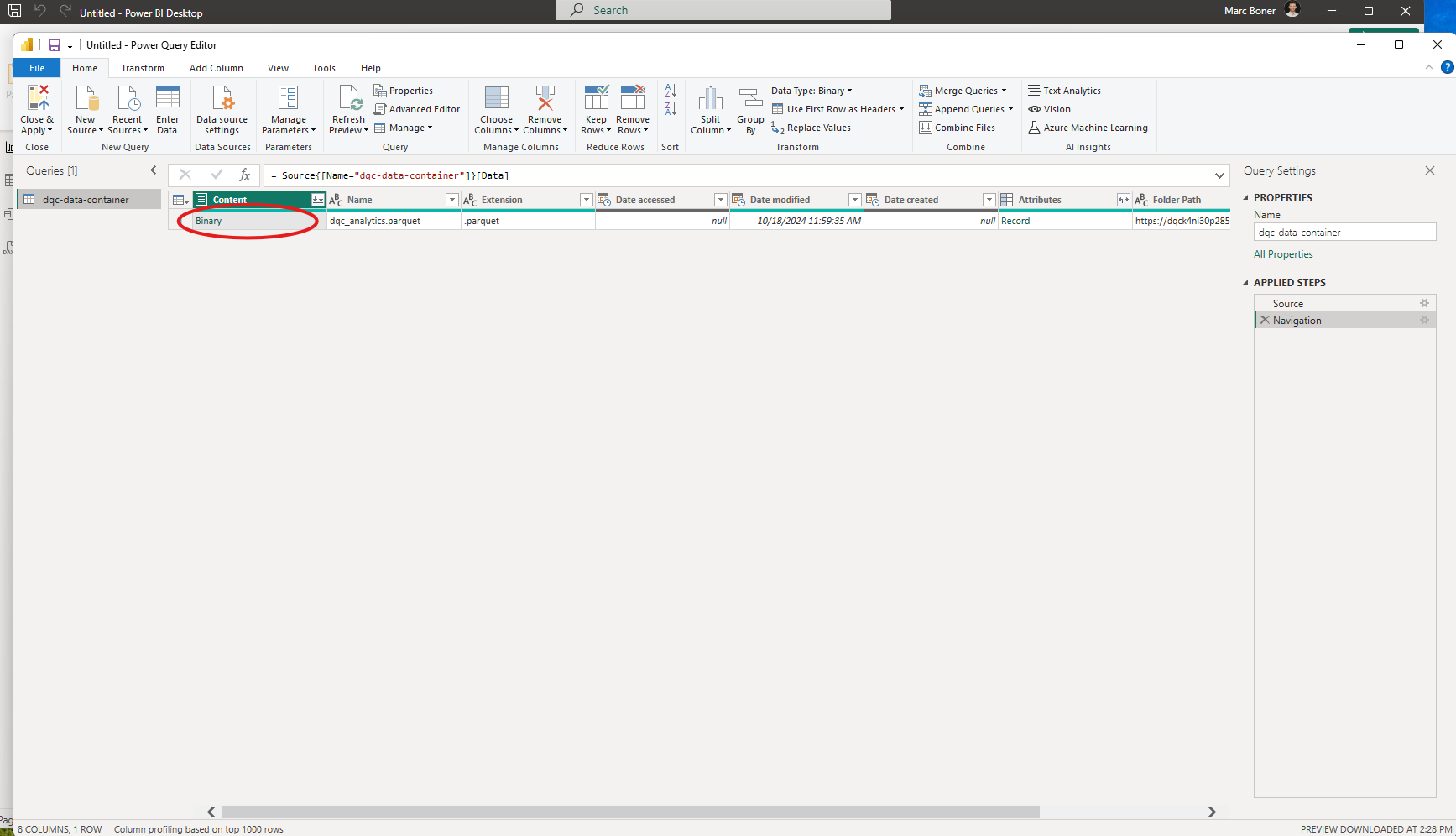
Apply Changes
Click Close & Apply to load the data into Power BI.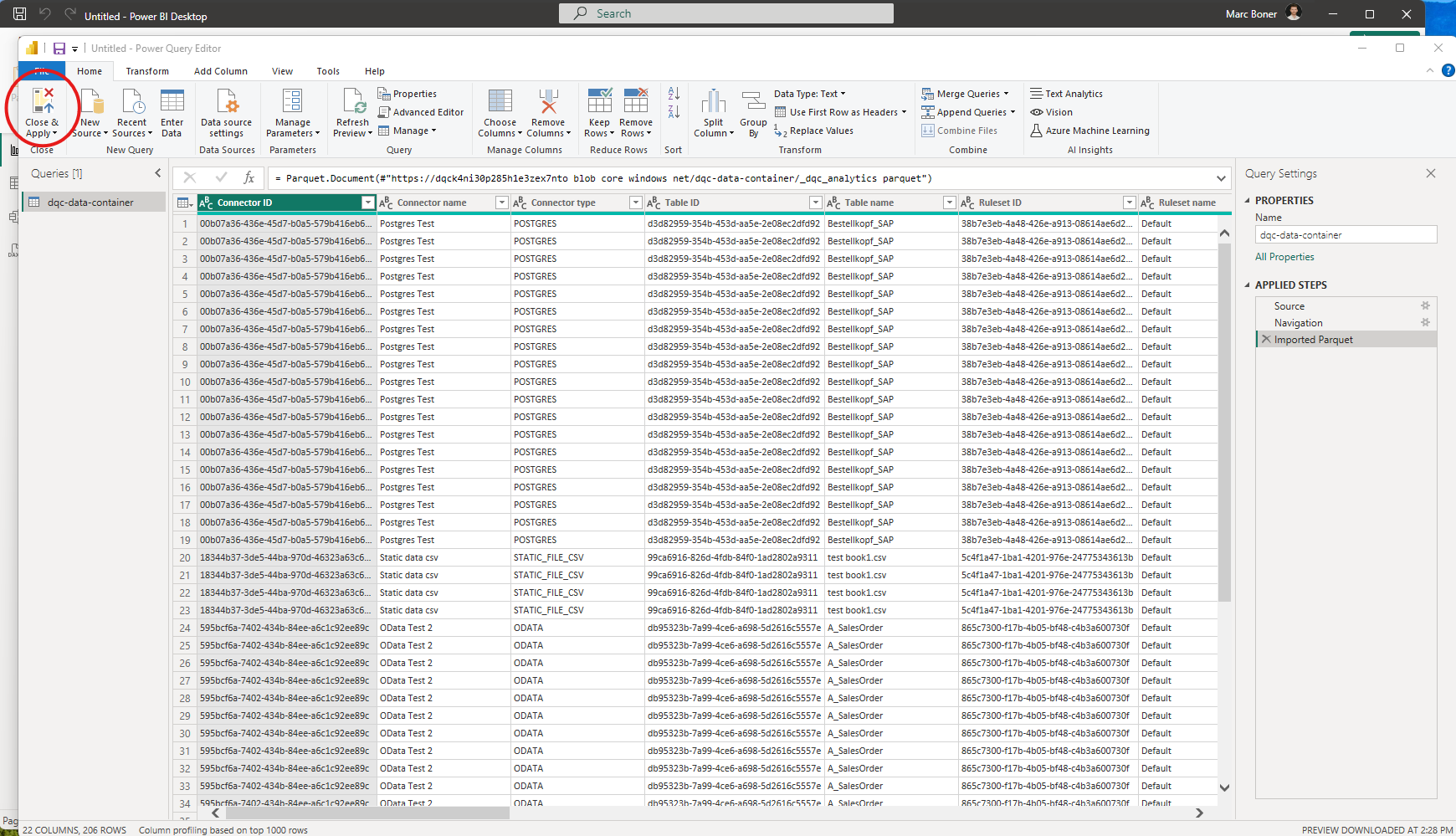
Build Your Dashboard
The most recent data is now available—start creating your custom data quality visualizations.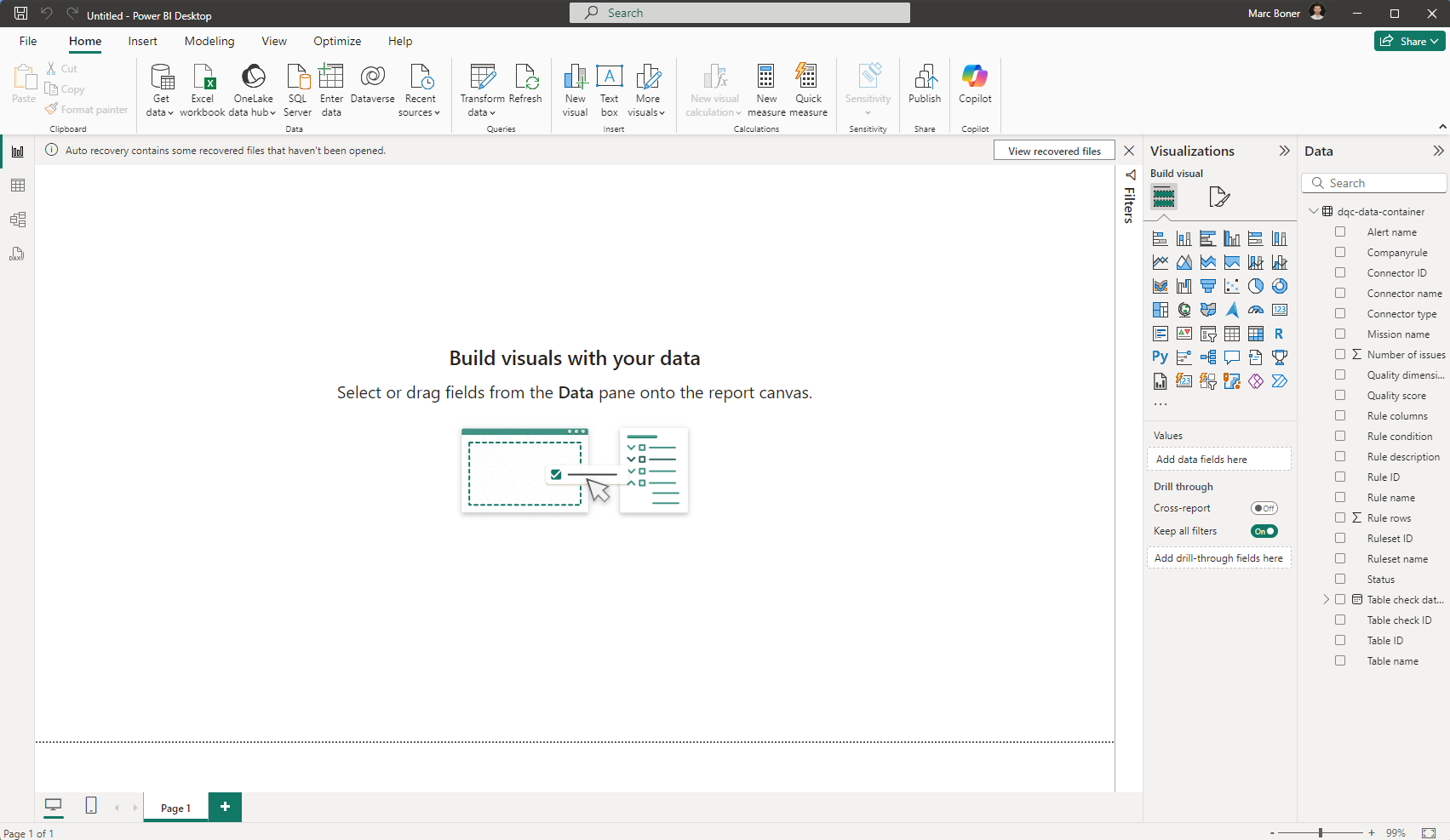
 Notes
Notes
Dashboards automatically refresh hourly. In addition to the hourly export, users can now manually trigger a BI export from the Settings. This allows for quick validation of changes made in the DQC Platform directly within your BI tool. The update is typically completed within a minute
The data provided includes quality scores, rule statistics, issue counts, and more
Learn more: Quality Dimensions, Quality Ratios