
v2.40
This release introduces multiple rulesets per table, ruleset versioning with JSON exports and restore, and a redesigned rule detail preview that updates all panels. It adds workflow cancellation with live progress, a new address validity rule, a “Coordinator” role, connector/table permissions during database setup, and the ability to upload a company logo.
 New Features
Multiple rulesets per table
This update allows teams to define and manage multiple, distinct data quality requirements for the same table — supporting parallel standards, testing environments, and localized compliance needs.
It removes the previous limitation of having only one table ruleset by introducing flexible, team-specific configurations.
Key benefits
Department- or region-specific standards – Define separate rulesets for Finance vs. Operations, regulatory vs. internal monitoring, or for individual countries or business units
Focused alerts and workflows – Keep notifications and Missions relevant by linking them only to the ruleset that matters for each team
Safe experimentation – Create temporary or testing rulesets to try out new thresholds or rule types before publishing them to all users
Independent metrics and governance – Each ruleset has its own KPIs, issue statistics, quality scores, and audit trail
Granular access control – Permissions can be applied at both the table and ruleset level, so departments can manage only their own configurations and optionally hide others (see Permissions section below)
Adding a new ruleset
A new ruleset can be added from the Ruleset Detail view under More > Manage ruleset > Add ruleset.
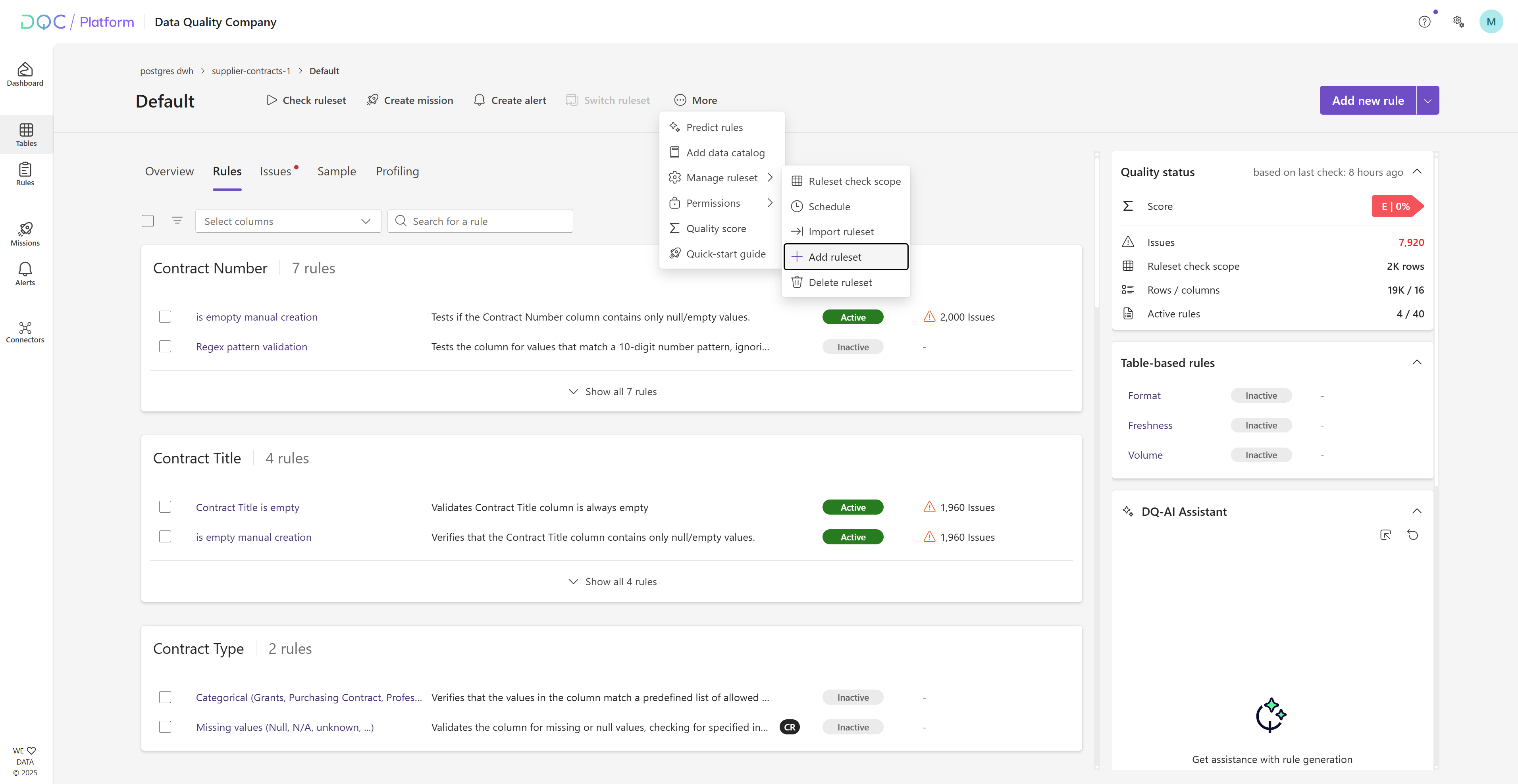 If you have access to a table but not to its existing rulesets, you can also add new rulesets directly from the Table overview.

Renaming a ruleset
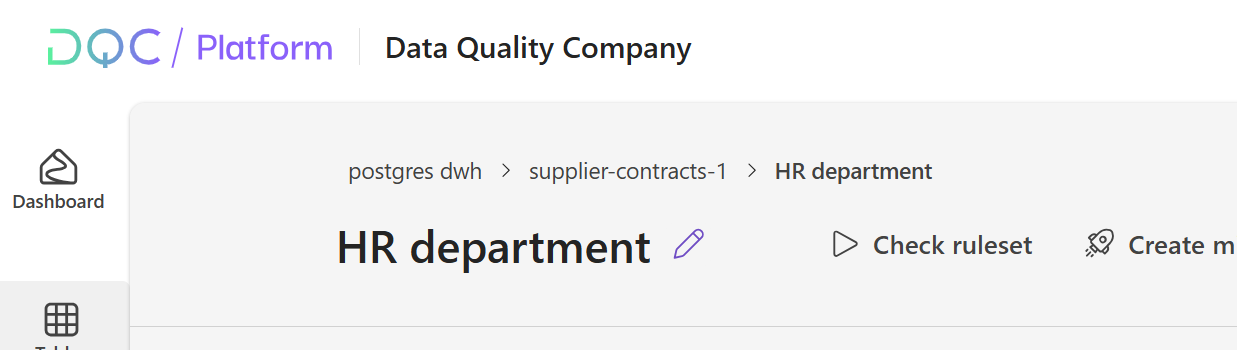
Newly created rulesets are automatically named New ruleset <timestamp>.
You can rename them by clicking the edit (pen) icon next to the ruleset name (visible on hover).
Selecting and switching between rulesets
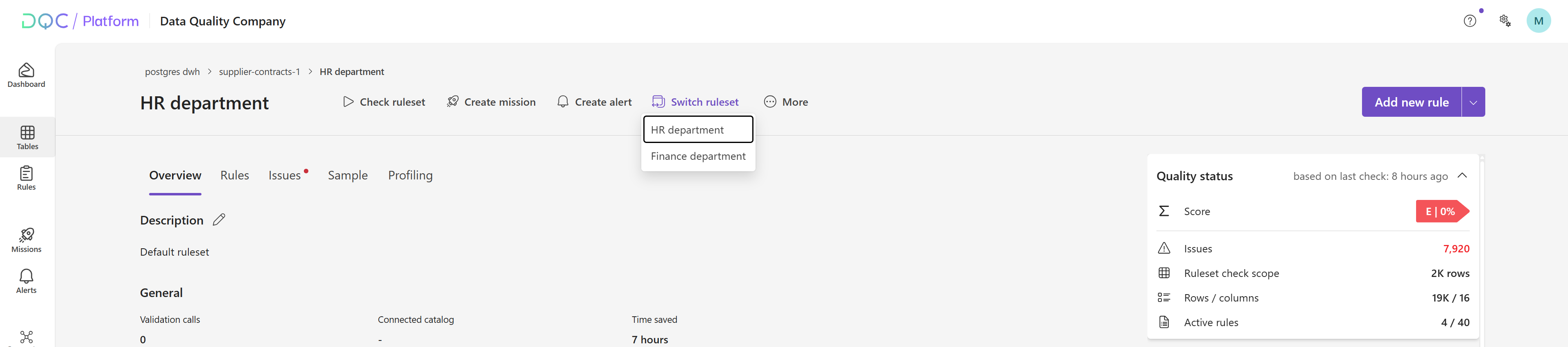
Users can select a ruleset directly from the Table overview by expanding a table that contains multiple rulesets.
 Alternatively, users can switch between rulesets from within the Ruleset detail view using the new Switch rulesets button in the header.
Only rulesets the user has permission to access will be displayed.
Rule detail layout changes and preview updates
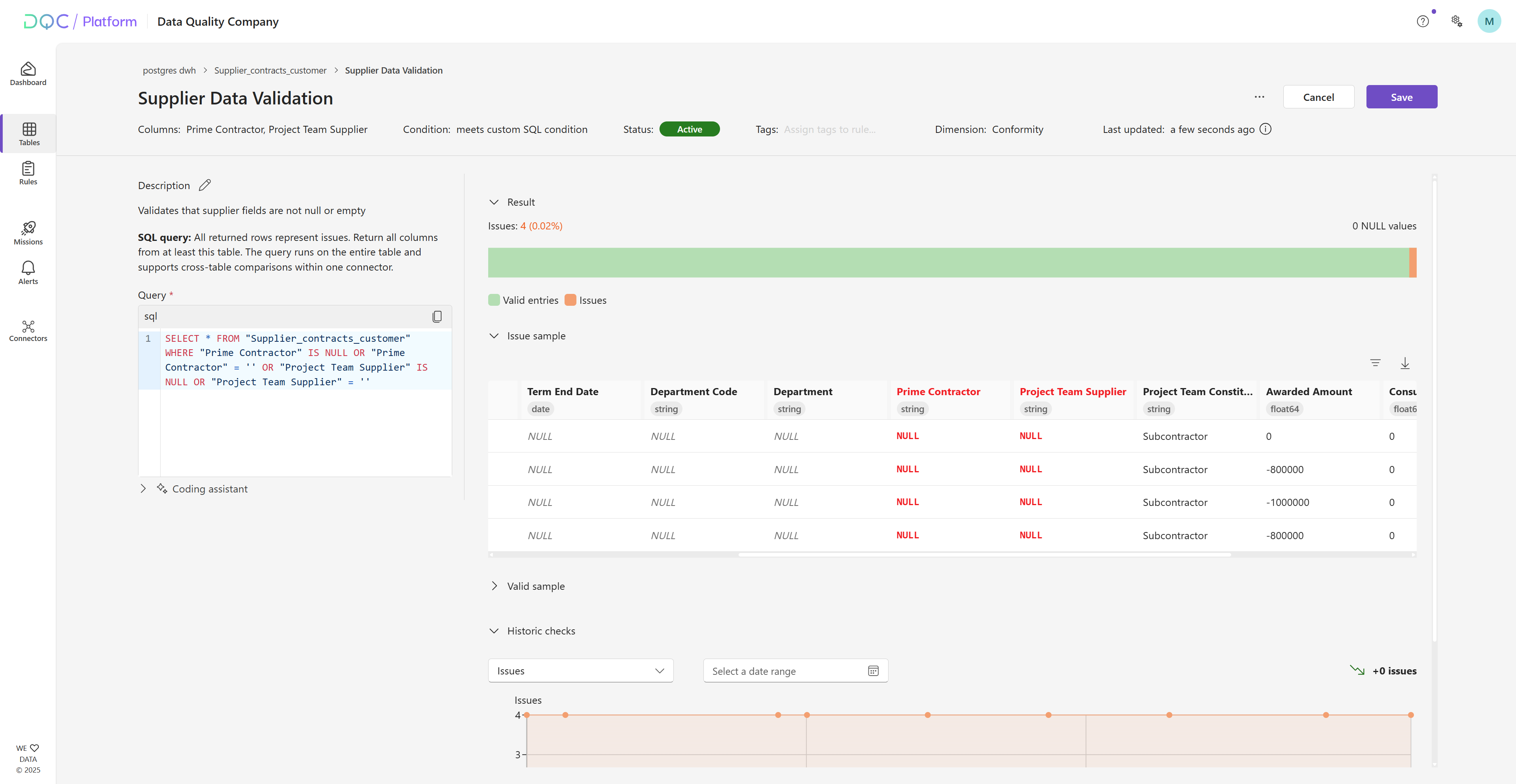
When you change a rule’s configuration, the "Update" preview bar now sits at the top and refreshes all four panels on the right: Result chart, Historic checks, Issue sample, and Valid sample. Previously, only the Result chart updated; now you can immediately see updated issue counts alongside new example rows.
We also reordered the sections: Historic checks has been moved to the bottom, and the Issue sample and Valid sample now sit closer to the counts of issues and valid entries.
Improvement workflow: cancel & progress updates
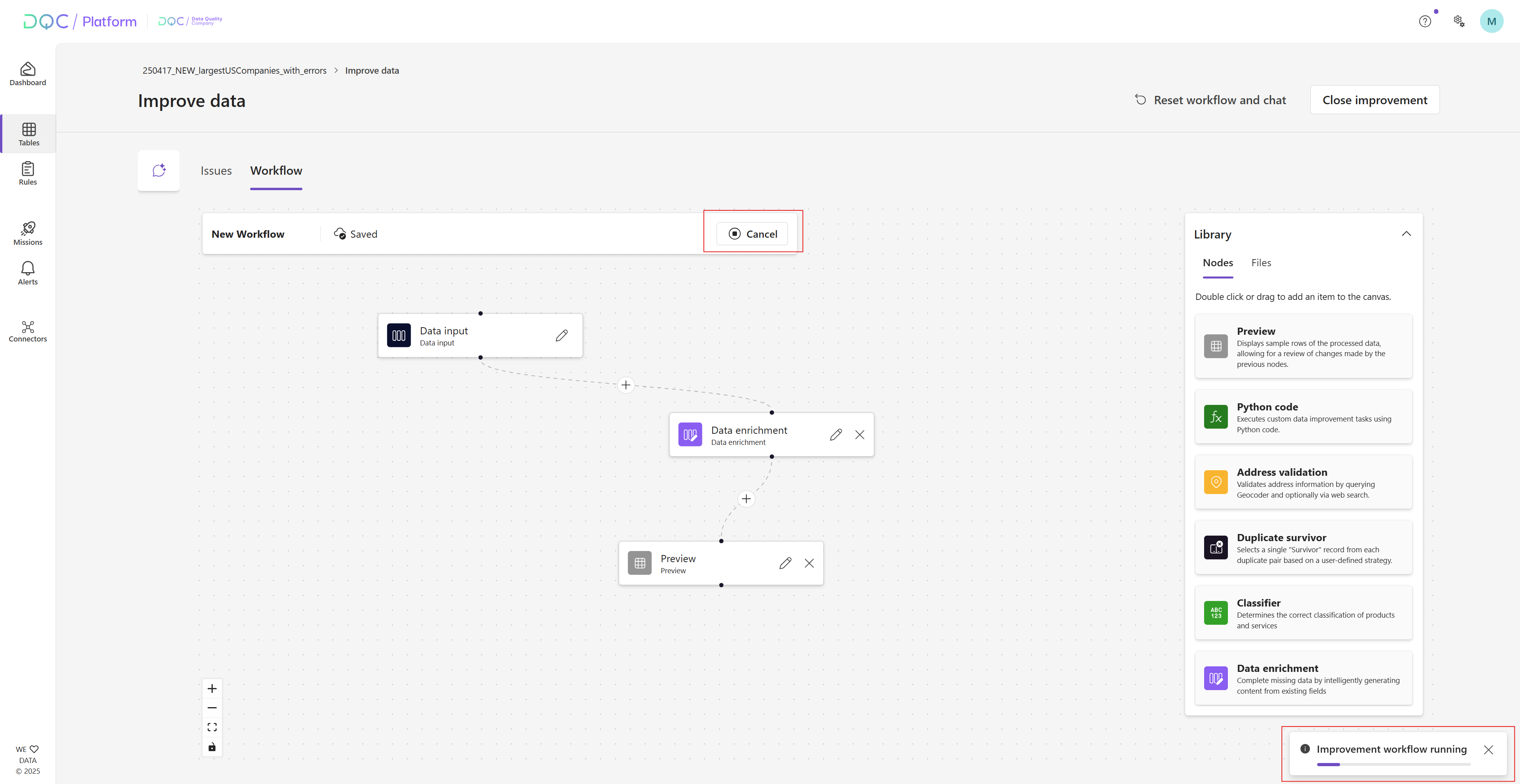
Cancel stuck or long-running jobs right from the workflow canvas with the new Cancel button — save compute and regain control fast
Track run status at a glance: while an improvement workflow is running, a toast displays a live progress bar so teams can monitor progress in real time
New rule: contains valid addresses
New issue detection rule that flags malformed or non-existent addresses and surfaces them as issues to establish a baseline of valid vs. invalid entries
Can be used as the basis for improving addresses in a second steps. You first use the rule to get a baseline of the number of invalid addresses and then use the address validation node in a second step to inpute correct addresses
More granular permissions: new “Coordinator” role
Alongside 'View' and 'Edit' roles, we’ve added a 'Coordinator' role at the ruleset level.
What Coordinators can do
Add new rules
Edit existing rules
What Coordinators cannot do
Change ruleset settings (description, scope, permissions)
Why this helps
Delegate rule maintenance without granting full control
Prevent unwanted permission changes or table-wide access
Permissions during database connection
Set connector and table permissions while adding a new database (all non-static connectors). This lets you control visibility and access from the start. Key behavior:
Connector permissions can hide the entire connector and all its tables from tenant members
Permissions set at the connector level cascade to tables (unless a table has its own specific permissions)
Users with edit rights can change permissions later
Tenant owners always have access to all connectors, tables, and rulesets
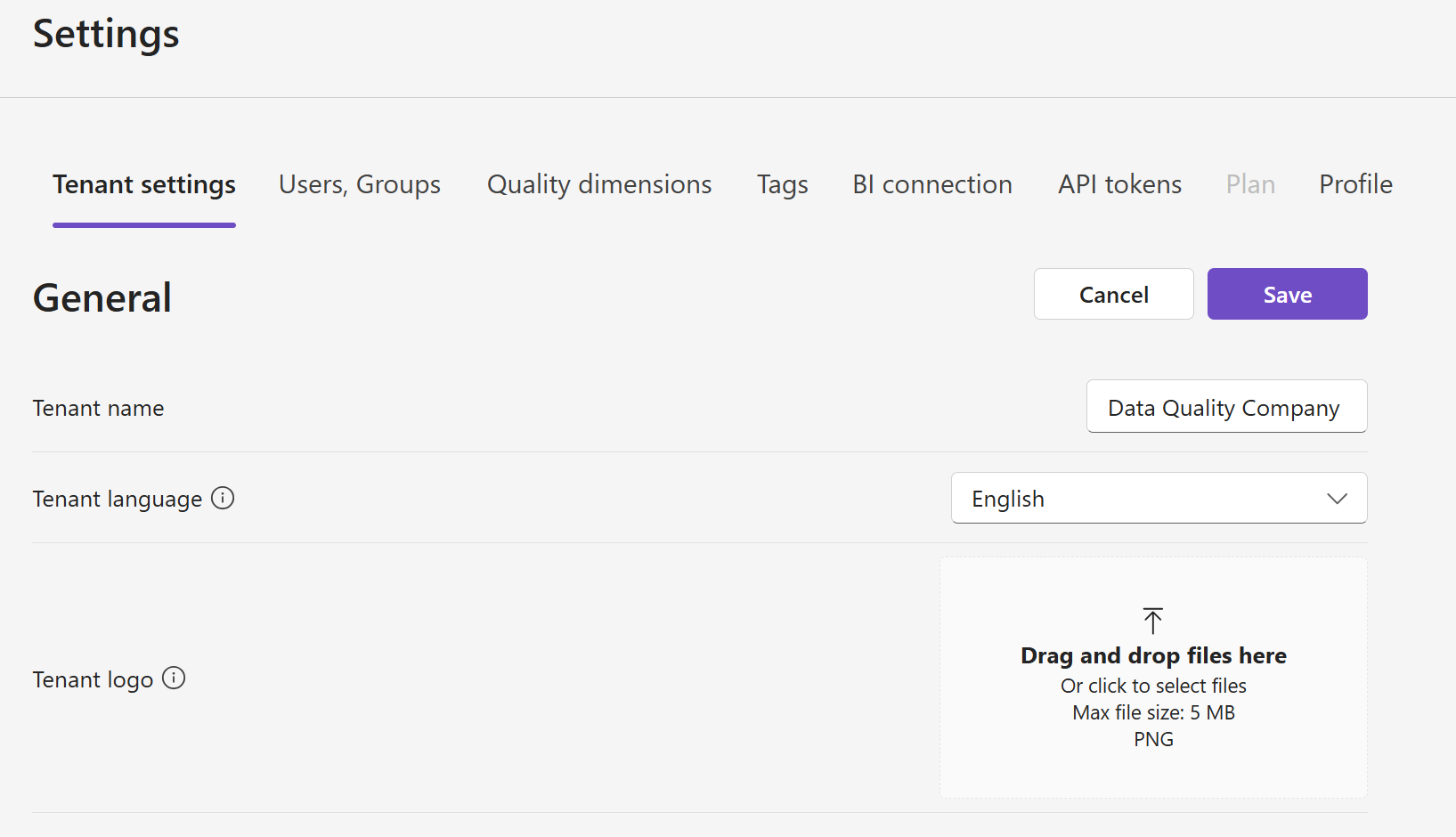
Company logo
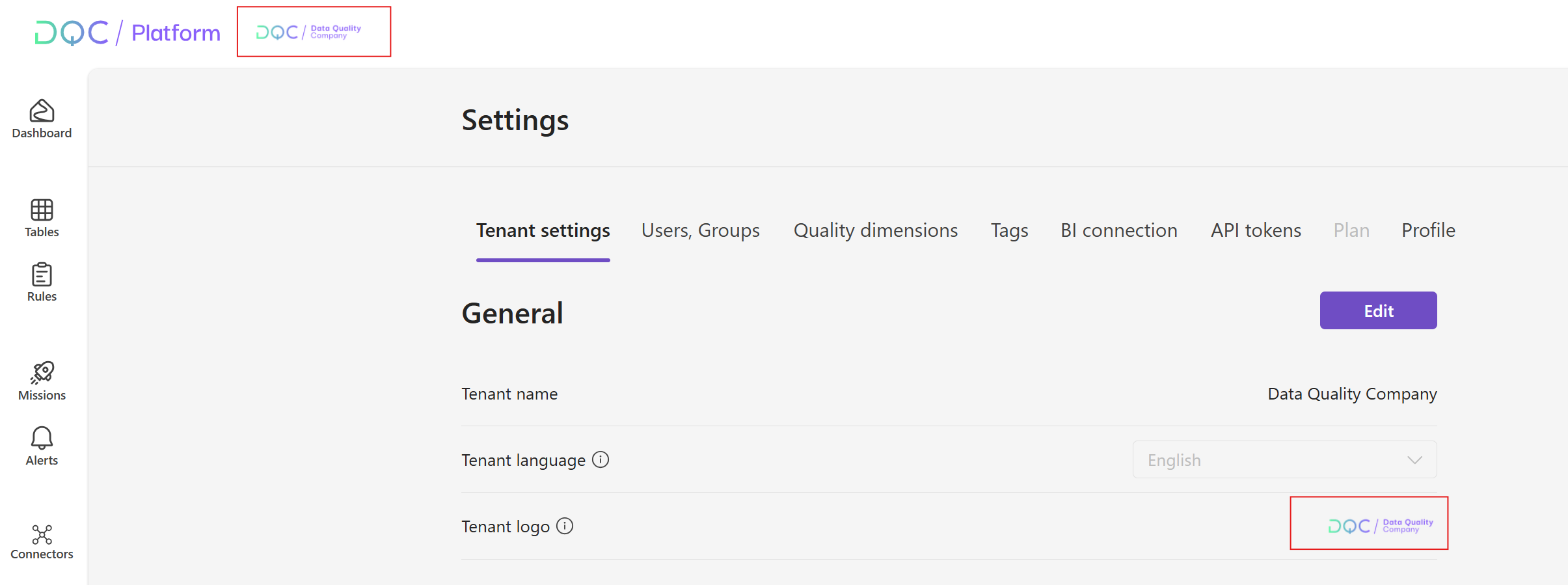
You can now upload your company logo in Settings to further customize your environment
Once uploaded, it appears in the platform header:
 Small improvements and bug fixes
Fixed gateway timeouts during rule operations and strengthened error handling
Optimized layouts on large screens by applying a maximum page width
Fixed an issue where ruleset samples failed to load
Resolved an edge case where rule suggestions ignored the tenant language
Enhanced search in Settings > Users with username search and sortable columns
 Breaking Changes
None in this release