
Communication tools for data improvement
The DQC Platform allows you to connect internal messaging systems to notify users about data quality tasks, alerts, and missions. Integrating communication tools ensures real-time collaboration and fast issue resolution.
Available communication channels
Under the Channels section in the Connectors menu, you can integrate the following tools:
Microsoft Teams – Direct messages to individual users
Microsoft Teams Workflow – Messages sent to shared Team channels
Microsoft Graph – Required for user resolution and messaging via Teams
Email – Enabled by default for all user notifications
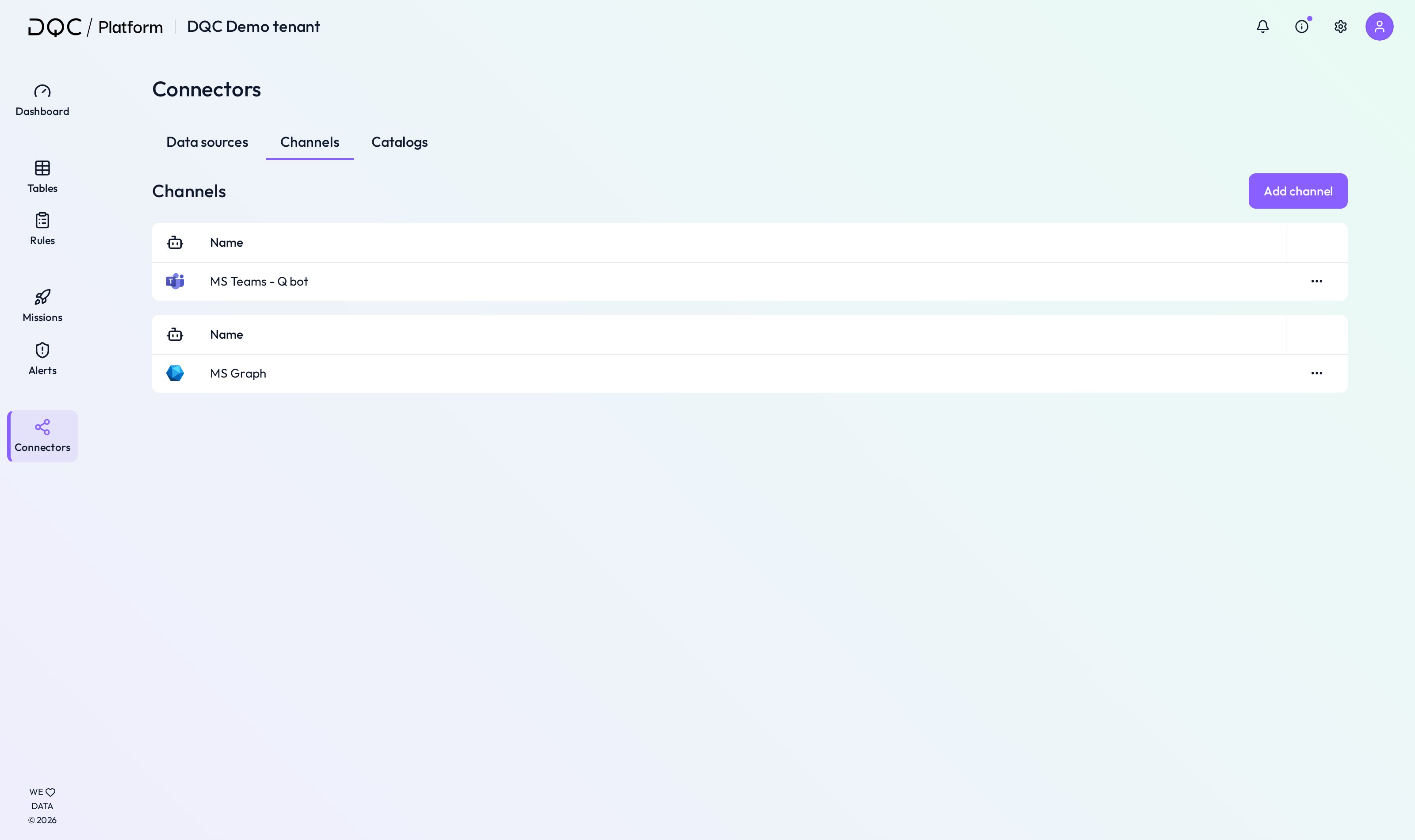 Choose your preferred communication methods for alerts, missions, and task assignments
Microsoft Teams integration
Enable direct messaging from the DQC Platform to specific users within Microsoft Teams.
 Required Information
Field | Description |
|---|---|
Name | Your custom name for this integration (e.g. "Main Teams Connector") |
Client ID | The App ID from Azure AD / Teams registration |
Client secret | Secret key used alongside the Client ID for authentication |
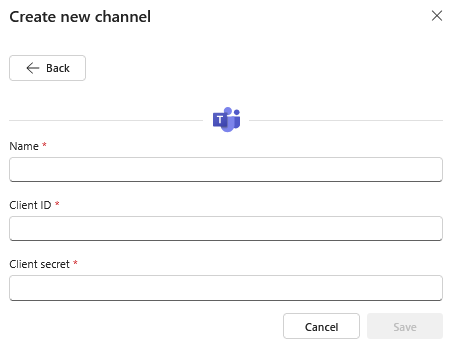 Use your Azure-registered app credentials to connect Teams
Activate the DQ Bot in Teams
To receive direct messages, users must initialize the bot:
Open Microsoft Teams
Go to Apps and search for “DQ bot”
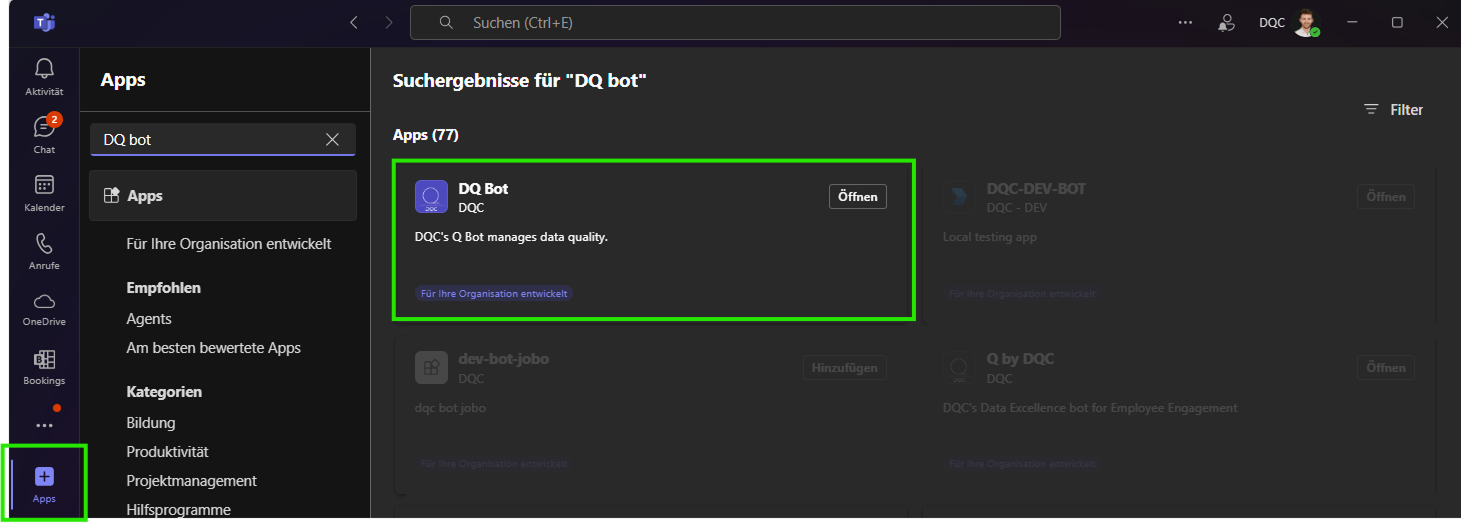
Click Add to install the bot
Send any first message (e.g. “Hi”) — this activates permission for the bot to message you
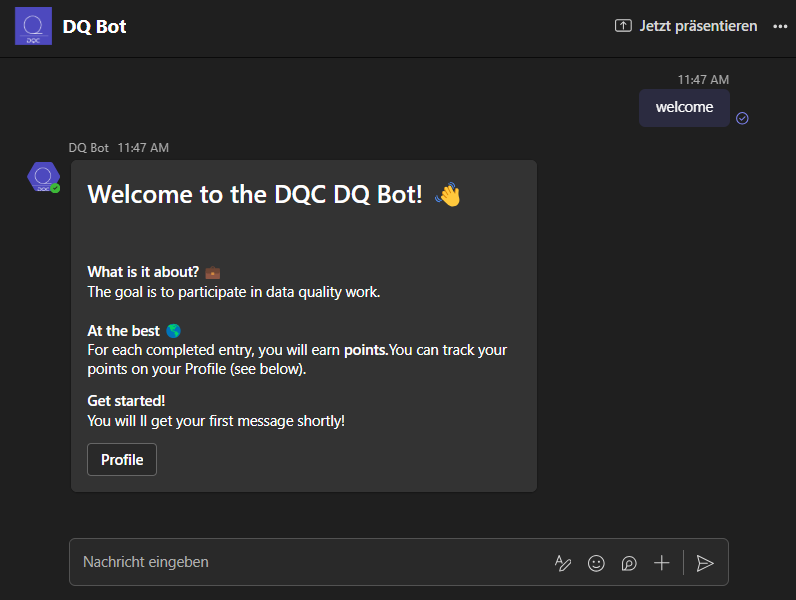 Users must send a first message to allow notification delivery
Microsoft Teams workflow (channel notifications)
Use Teams Workflows to send messages into shared channels (e.g. a quality-alerts or data-governance team).
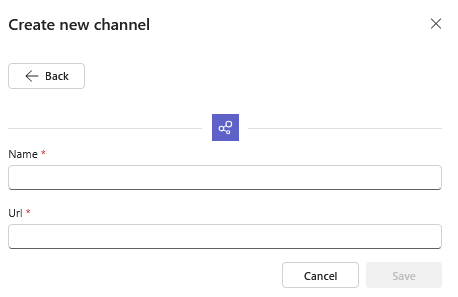
Required Information
Field | Description |
|---|---|
Name | Identifier for this channel connection in the DQC Platform |
URL | Workflow webhook URL from the Teams channel |
Create a Workflow Webhook in Teams
Right-click on a channel in Teams
Choose “Workflows” > “Create workflow”
Search for “Webhook” and select
“Publish the receipt of a webhook request in a channel”Copy the generated URL and paste it into the DQC Platform
Microsoft Graph Integration
Microsoft Graph enables the DQC Platform to access your Azure AD directory — essential for resolving and targeting individual users in Microsoft Teams.
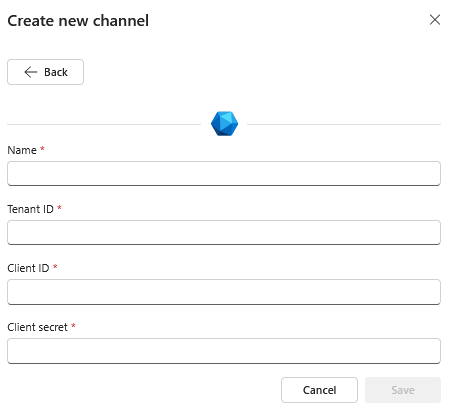
Required Information
Field | Description |
|---|---|
Name | Your custom name for this Microsoft Graph integration |
Tenant ID | Azure AD tenant ID |
Client ID | Application (client) ID registered in Azure AD |
Client secret | Secret associated with your app for authentication |
Email Notifications (Included by Default)
All users with a valid email address receive platform notifications and alerts by default via email. No additional configuration is needed.
Whitelist the DQC Platform Static IP
To ensure successful message delivery and service authentication, whitelist this IP address if required by your firewall or Teams security policies:
3.123.94.228 Notes
Notes
Microsoft Graph must be connected to enable Microsoft Teams messaging to individual users
For Teams workflows, the webhook URL must remain active and valid
Learn more: Setting up Missions, Using Alerts