
Setting up a data quality check
The DQC Platform allows you to define custom data quality rules for each table. These rules help detect invalid values and ensure consistency across your datasets — either globally or per segment.
You can create new rules from several different tabs within a table:
 Available in:
Overview, Rules, Issues, Sample, Profiling
 Click “Add new rule” in the top-right corner of any tab
Alternatively, start with the DQ-AI-Assistant on the right part of the screen
Create a rule using the DQ-AI Assistant
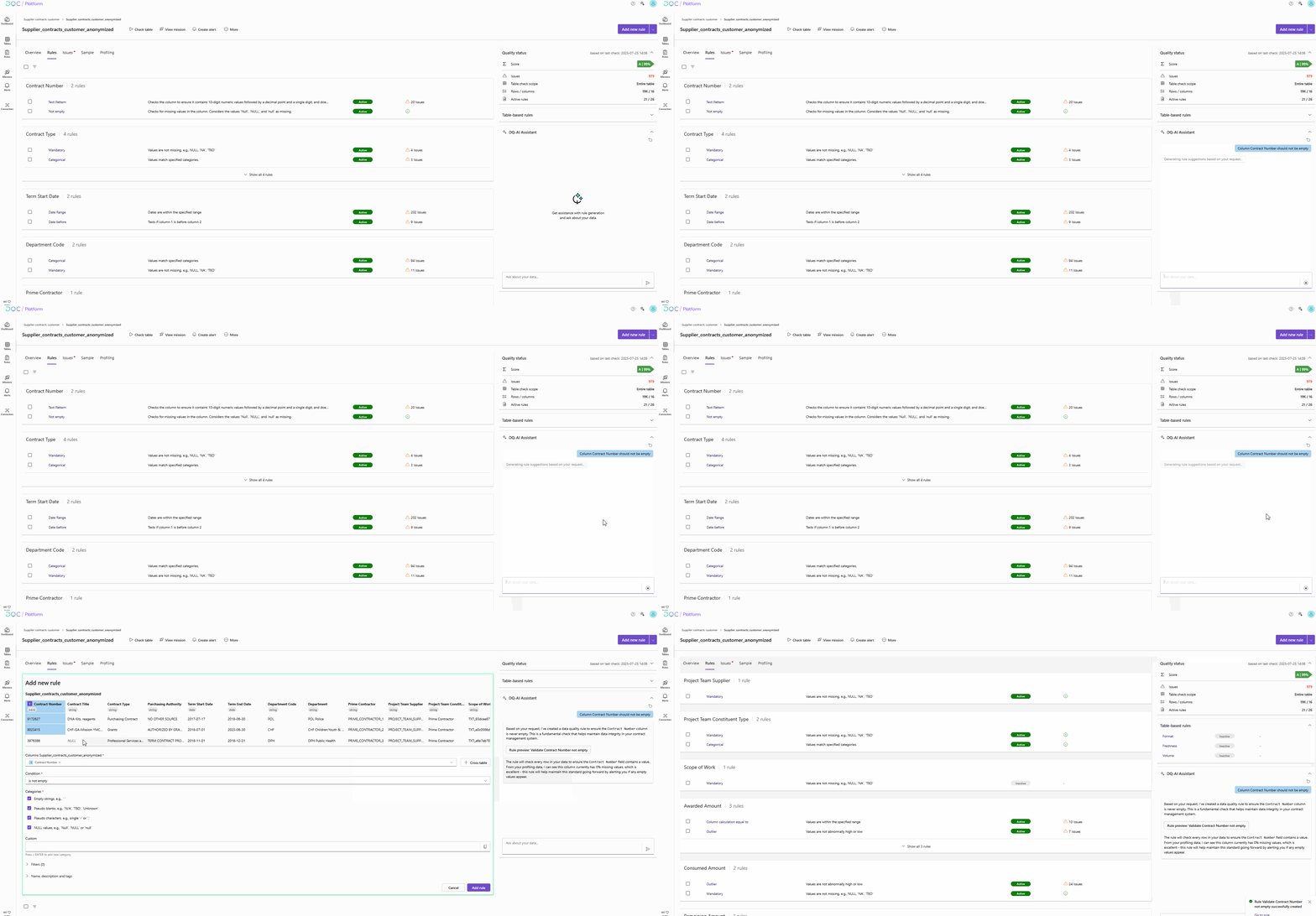
The DQ-AI Assistant is always visible on the right-hand side of the screen. It allows you to create rules by typing in a natural-language prompt.
Steps
Enter a rule description such as:
“Contract Number should be mandatory”The assistant will respond with:
A short explanation
A Rule preview button
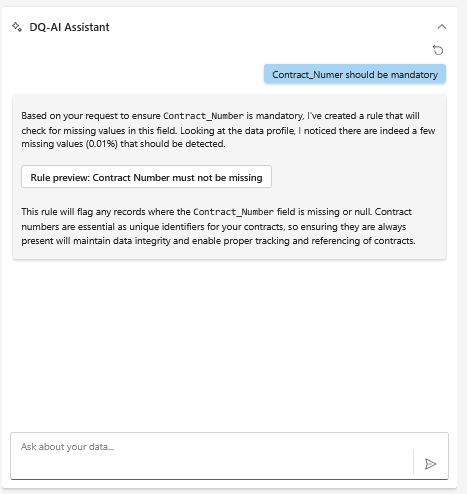
Click “Rule preview”
→ The rule will be inserted into the formOptionally refine the rule settings (e.g., filters, segmentation, tags)
Click “Add rule” to confirm
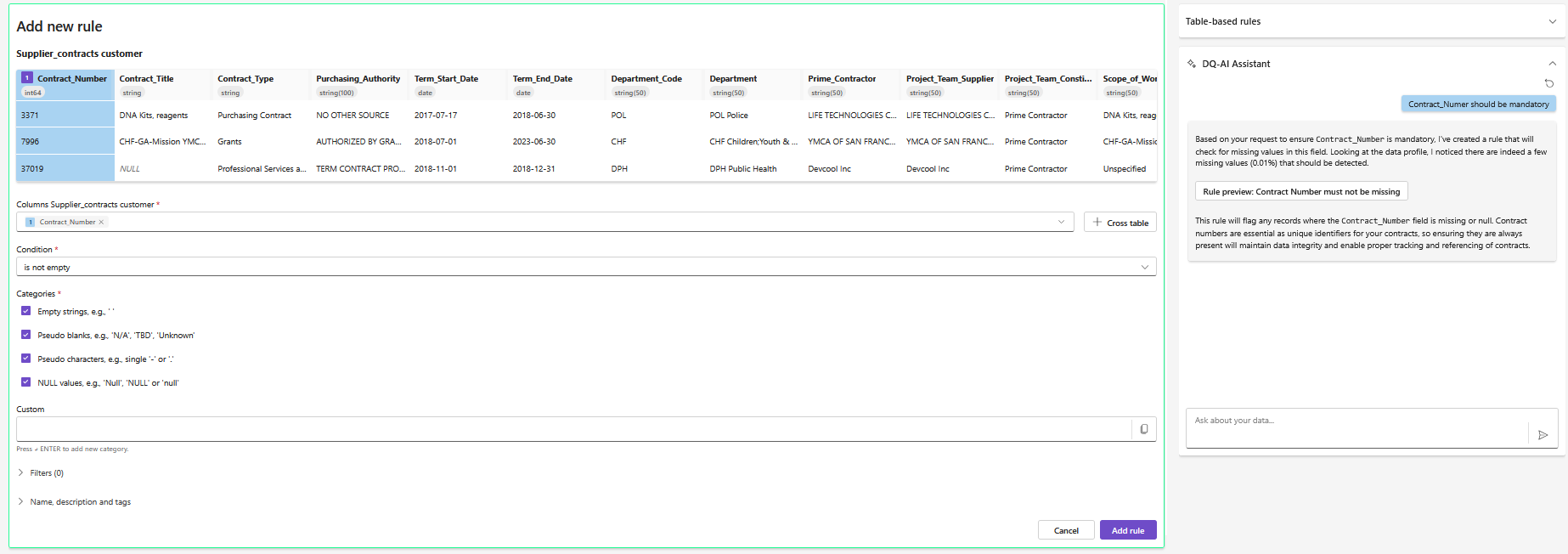 The preview is fully editable before saving
Define the rule manually
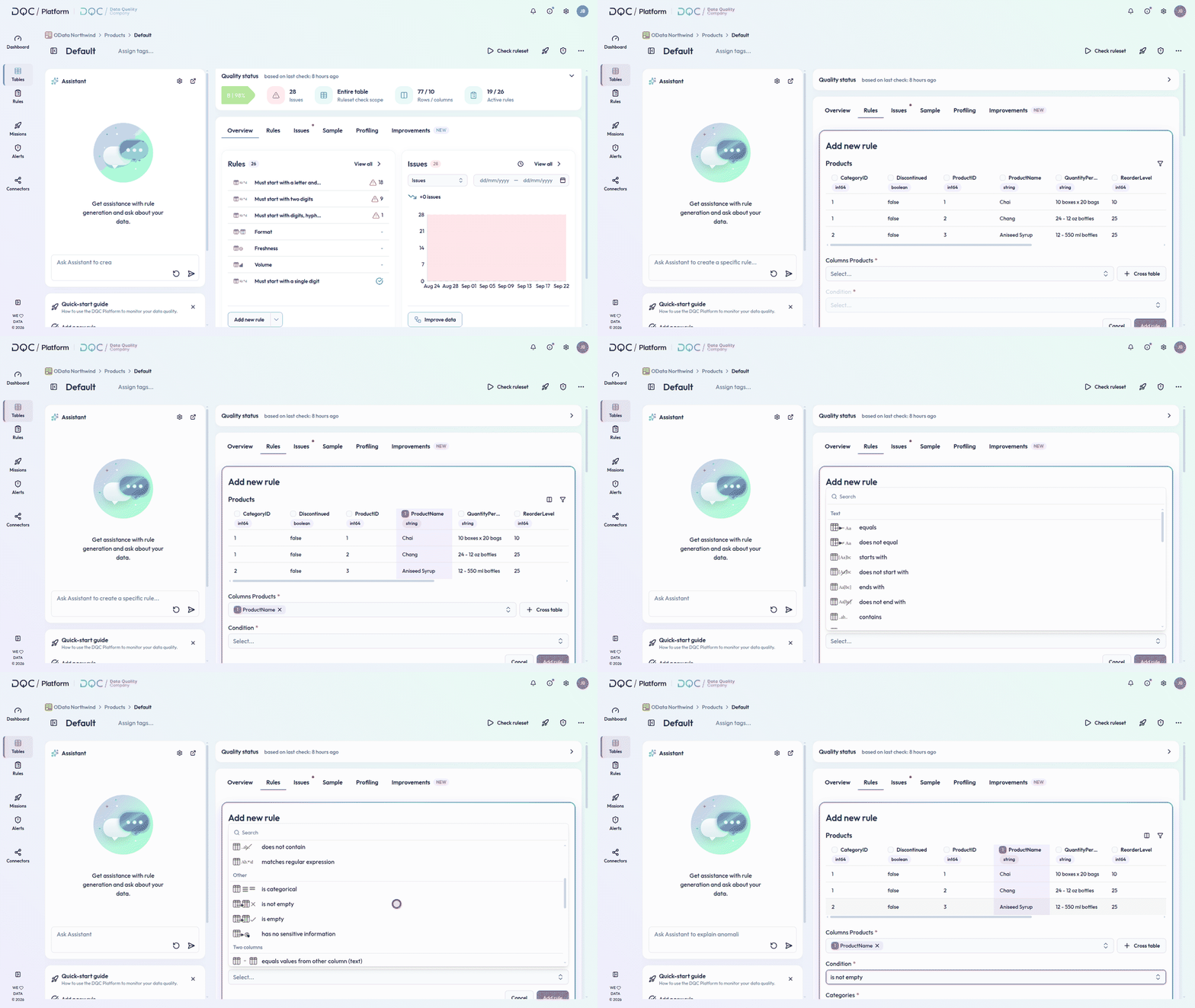
If you already know the logic, define your rule using the form fields:
Required
Columns – Select the column(s)
Condition – Choose a condition depending on column type
Optional
Categories – Adjust how empty values are interpreted (e.g., NULL, pseudo blanks)
Filters – Limit the rule scope
Segmentation – Apply the rule individually across groups
Name, description and tags – Add metadata for better structure
 Notes
Notes
Each rule is stored in the Rule Repository
You can edit, deactivate, or delete rules at any time
Learn more: Rule Creation via DQ-AI Assistant, Filters , Working with the Rule Detail Screen