
Participant selection for alerts
In the DQC Platform, participants are the recipients of alert notifications. When data quality issues are detected after a table check, alerts automatically notify selected users—ensuring timely responses and smooth operational workflows.
Participant Setup Options
You can configure one or more participant groups per mission. Each group is defined by its communication channel and user selection logic.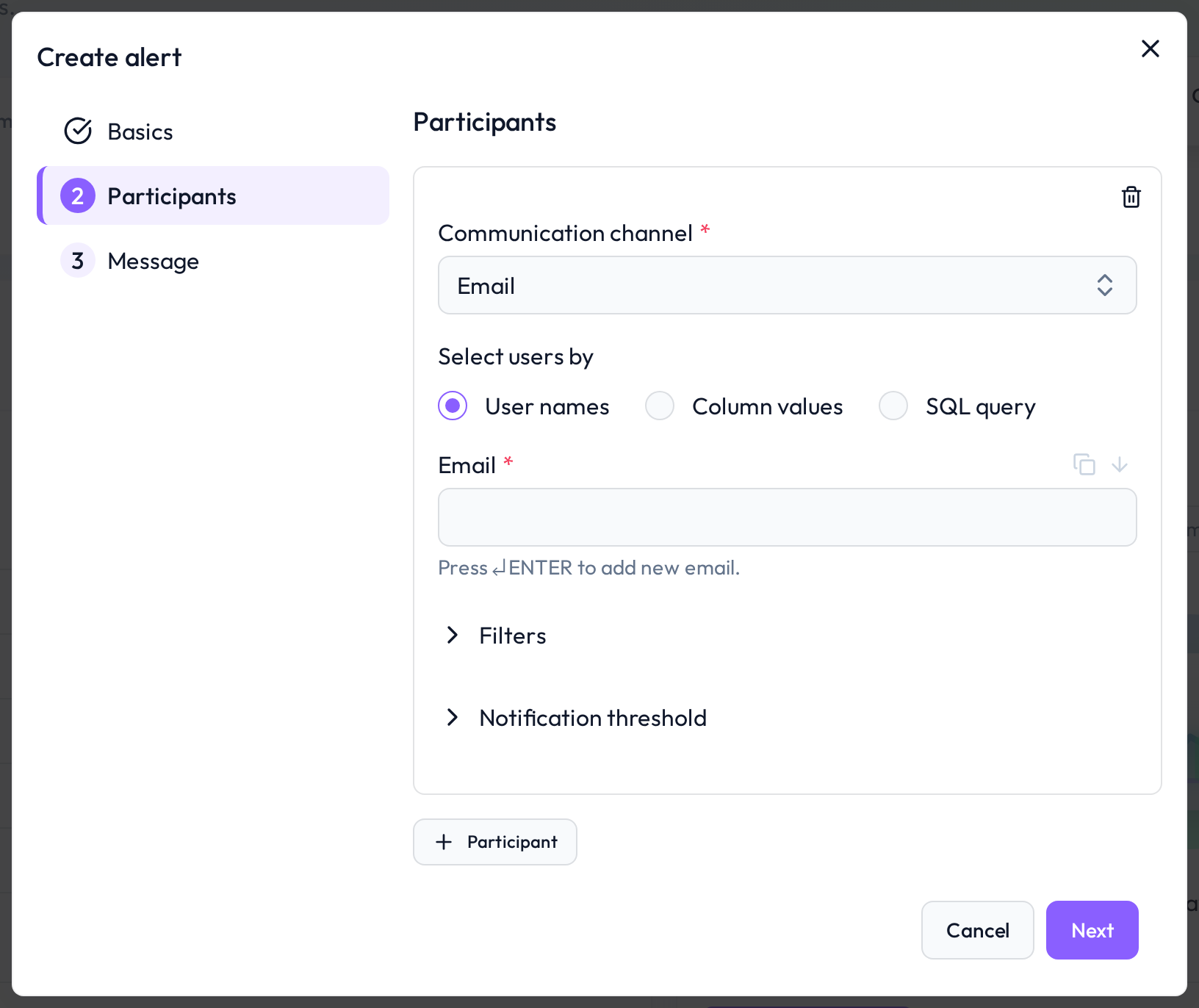
Communication channel
Choose how participants will receive mission messages:
Email – Sends notifications to individual email addresses
MS Teams chat – Sends direct messages to individual users
MS Teams channel – Sends group messages to a channel
Select users by
There are three methods to define participants:
User names – Manually select or enter users (email or MS Teams ID)
Column values – Use a column in the table that contains recipient data
SQL query – Use a query to dynamically fetch recipients from the data
Filters (optional)
You can narrow the scope of assigned issues with filters:
Rule filters – Only send issues for specific rules
Row filters – Target specific entries based on column values
Notification threshold (optional)
To avoid message overload, you can define a minimum threshold that must be met before sending a notification.
Choose one of two methods:
Absolute – Minimum number of issues
Relative – Minimum drop in quality ratio
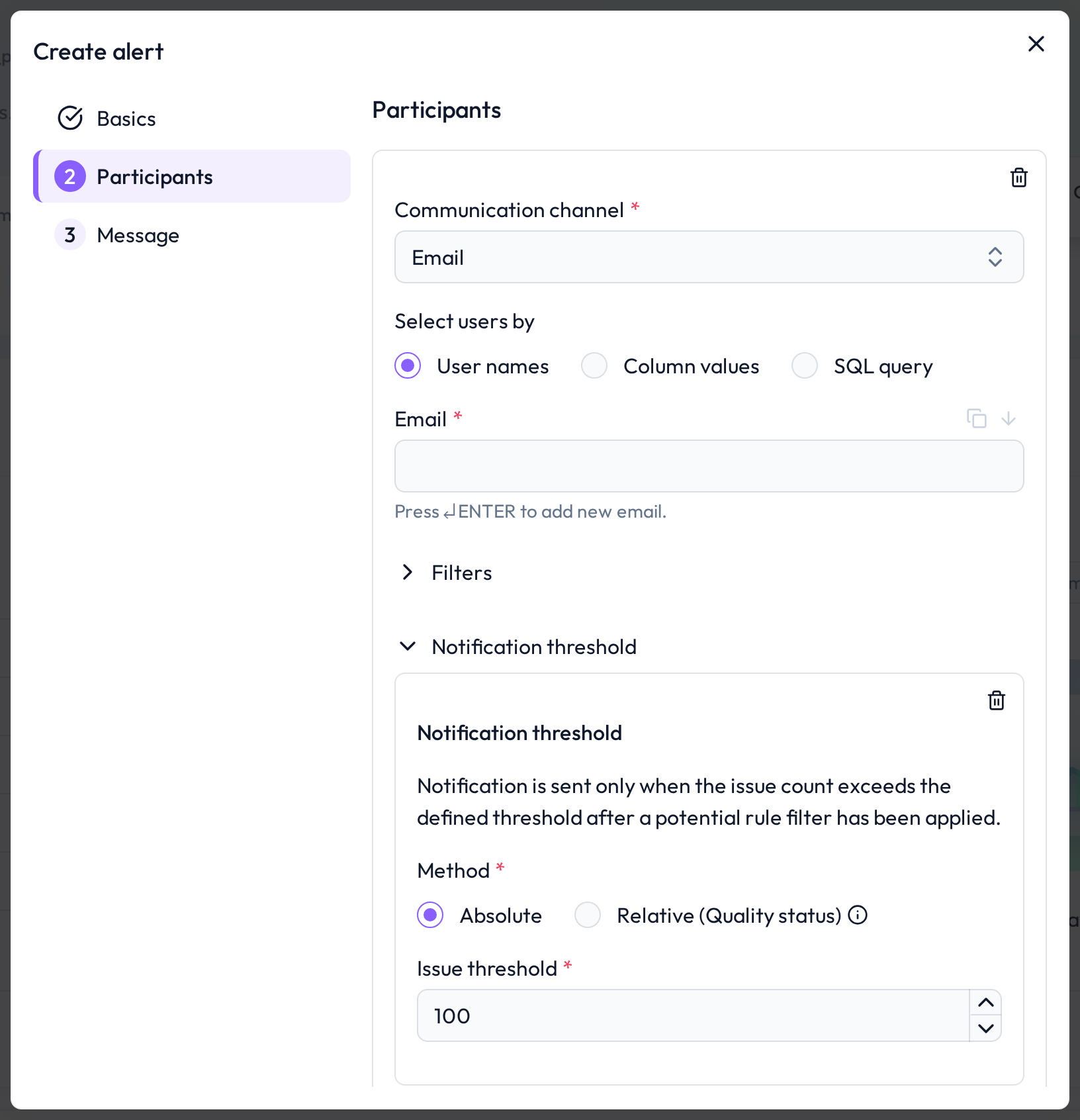 In this case, the MS Teams participant will only be notified if 30+ issues are found
 Notes
Notes
You can define multiple participant groups with different filters and channels
Notification thresholds are useful for focusing user attention
Learn more: Alert overview, Buttons in alerts