
Rule creation via the drop-down menu
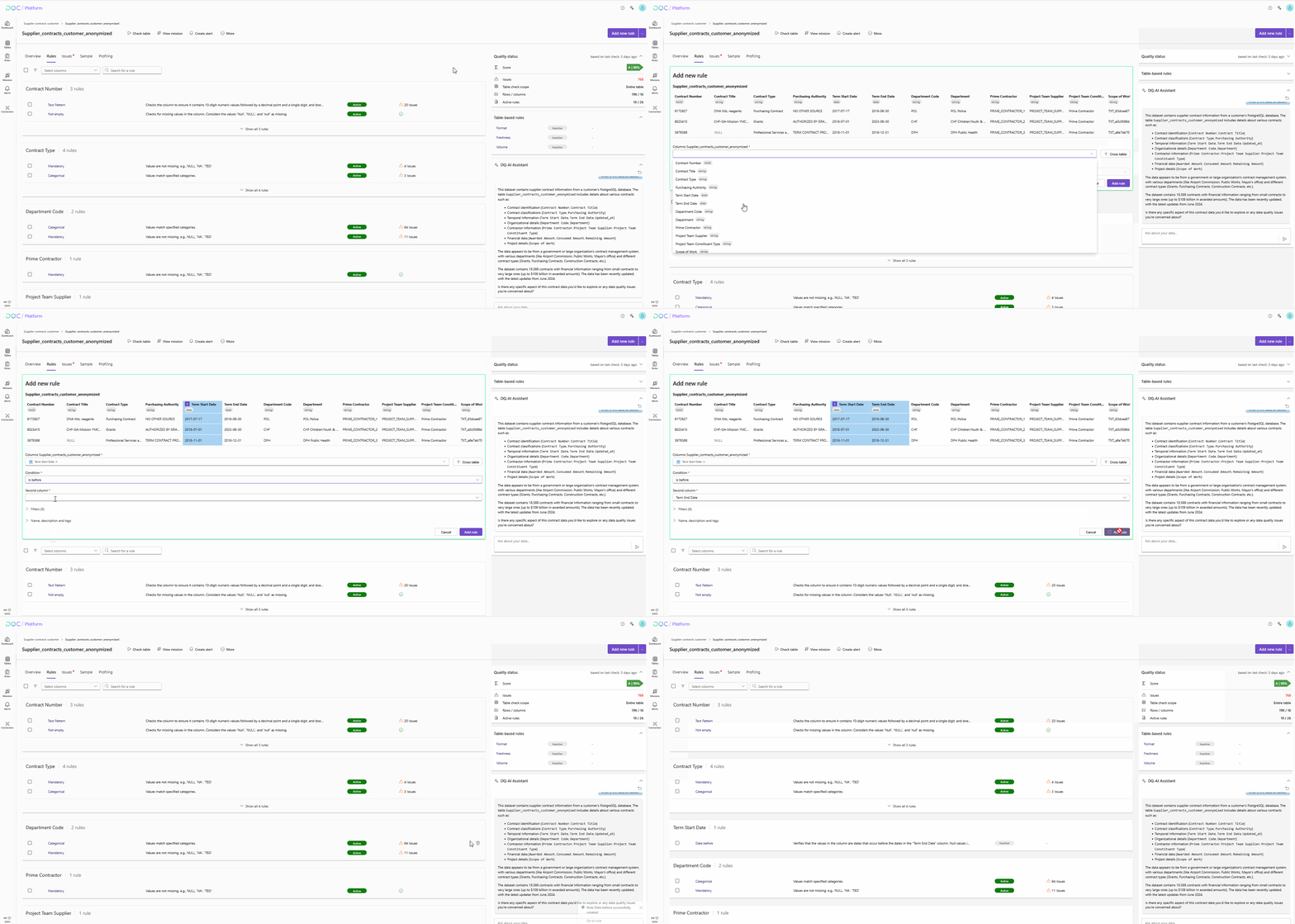
The drop-down menu is the simplest and most common method for manually creating data quality rules in the DQC Platform. You can define rules by selecting columns, conditions, and optional filters — all in just a few clicks.
This method is ideal for straightforward checks like “Not empty,” “Greater than,” or “Starts with.” Or to directly enter SQL code.
When to use this method
You want to quickly create one or multiple rules manually
You already know which column and condition you want to apply
You require custom SQL or Python logic
Step-by-step: Create a rule via drop-down
(1) Open the rule creation screen
From any table, click:
Table Overview → “Add new rule”
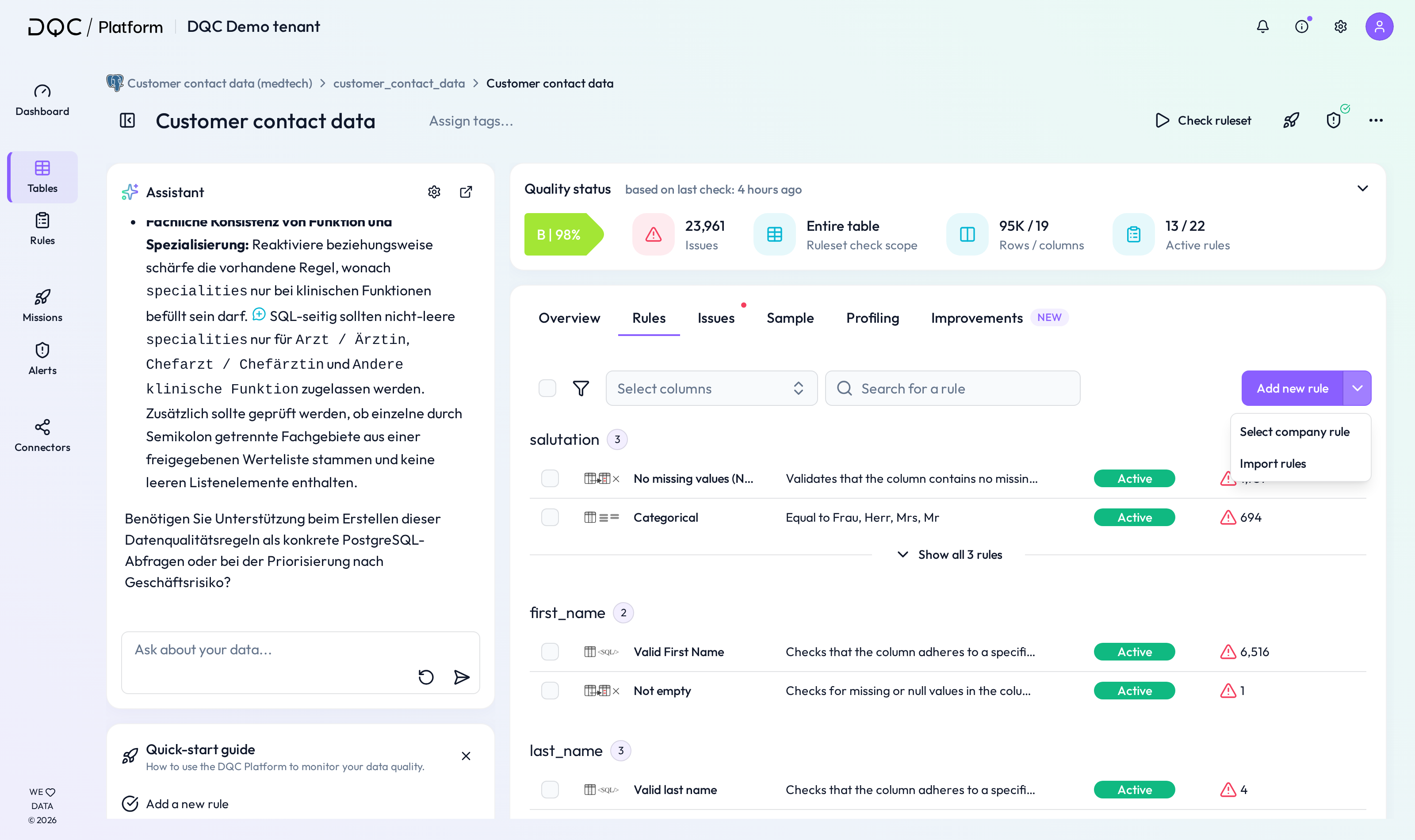 Start the rule creation process from the Table Overview screen.
(2) Select the column(s)
Choose the column that the rule should apply to.
For multi-column rules, select two or more columns (if applicable).
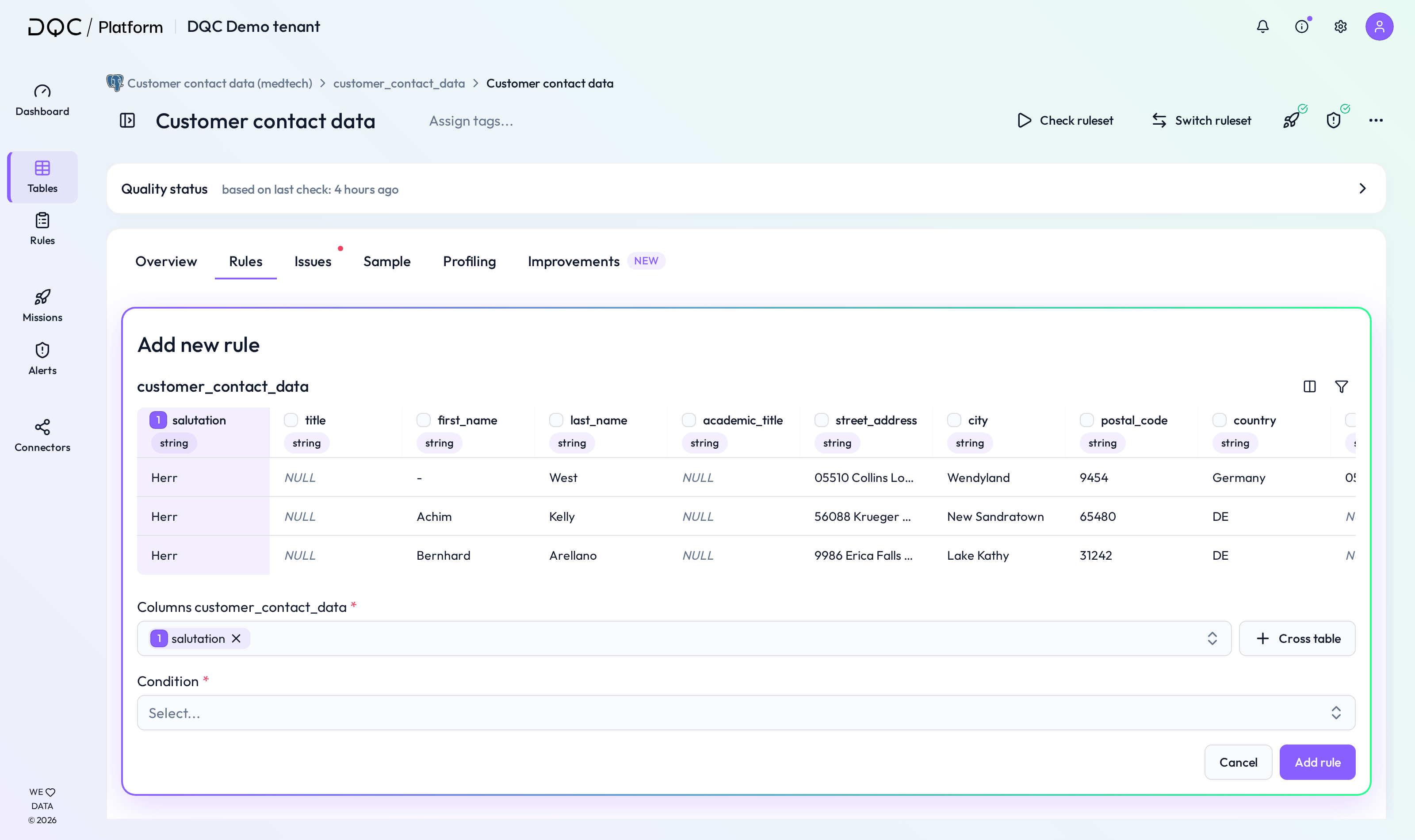 Column type determines which rule types will appear.
(3) Choose a condition
Pick the desired condition from the drop-down. Options will adapt based on column type:
Numeric: Greater than, Less than, No outlier, etc.
Text: Contains, Starts with, Pattern, etc.
Dates: Before, After, etc.
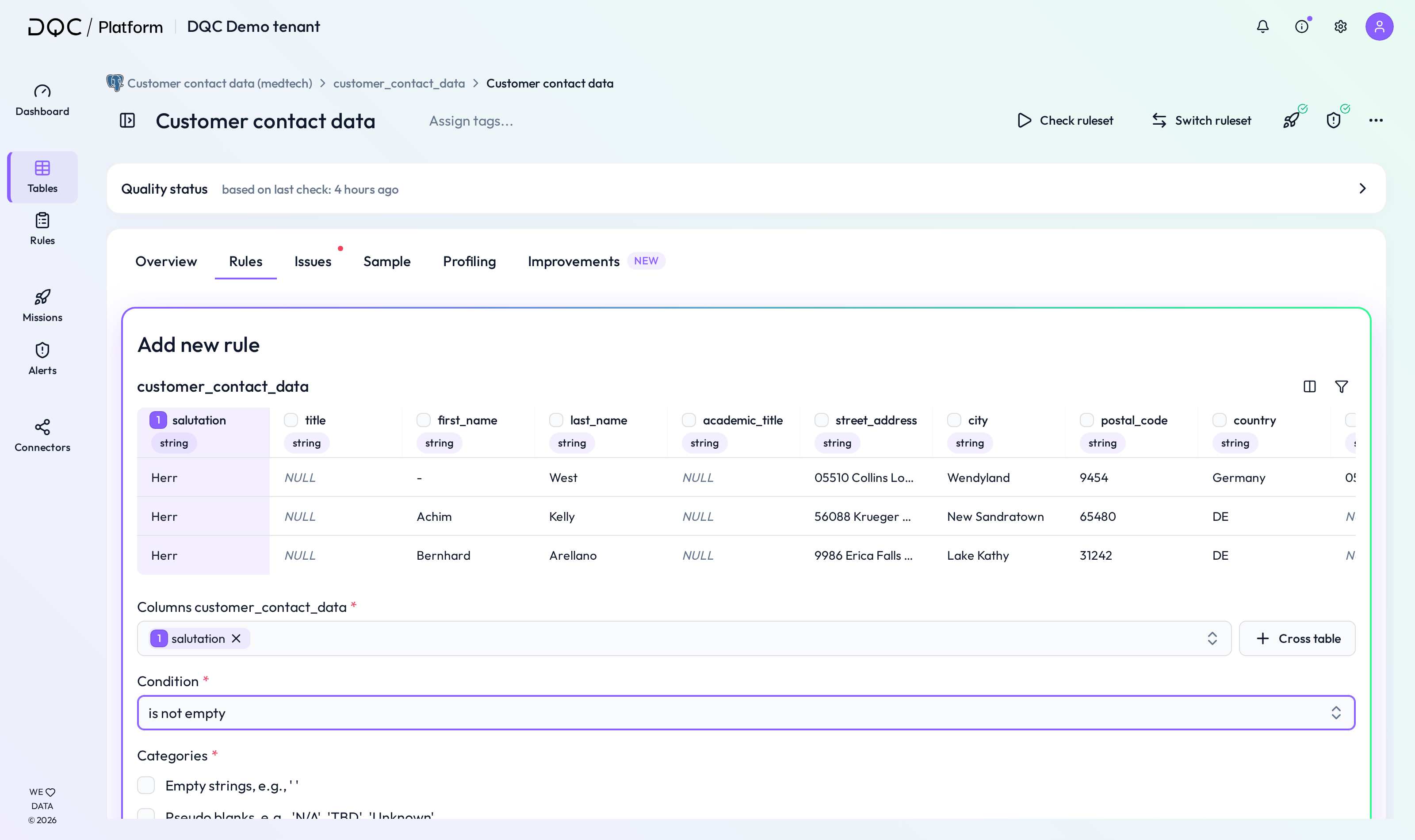 Only relevant rule conditions are shown automatically.
(4) (Optional) Add filter(s) or segmentation
You can refine the rule by applying a filter (e.g. Country = DE) or a segmentation (e.g. No outlier per department).
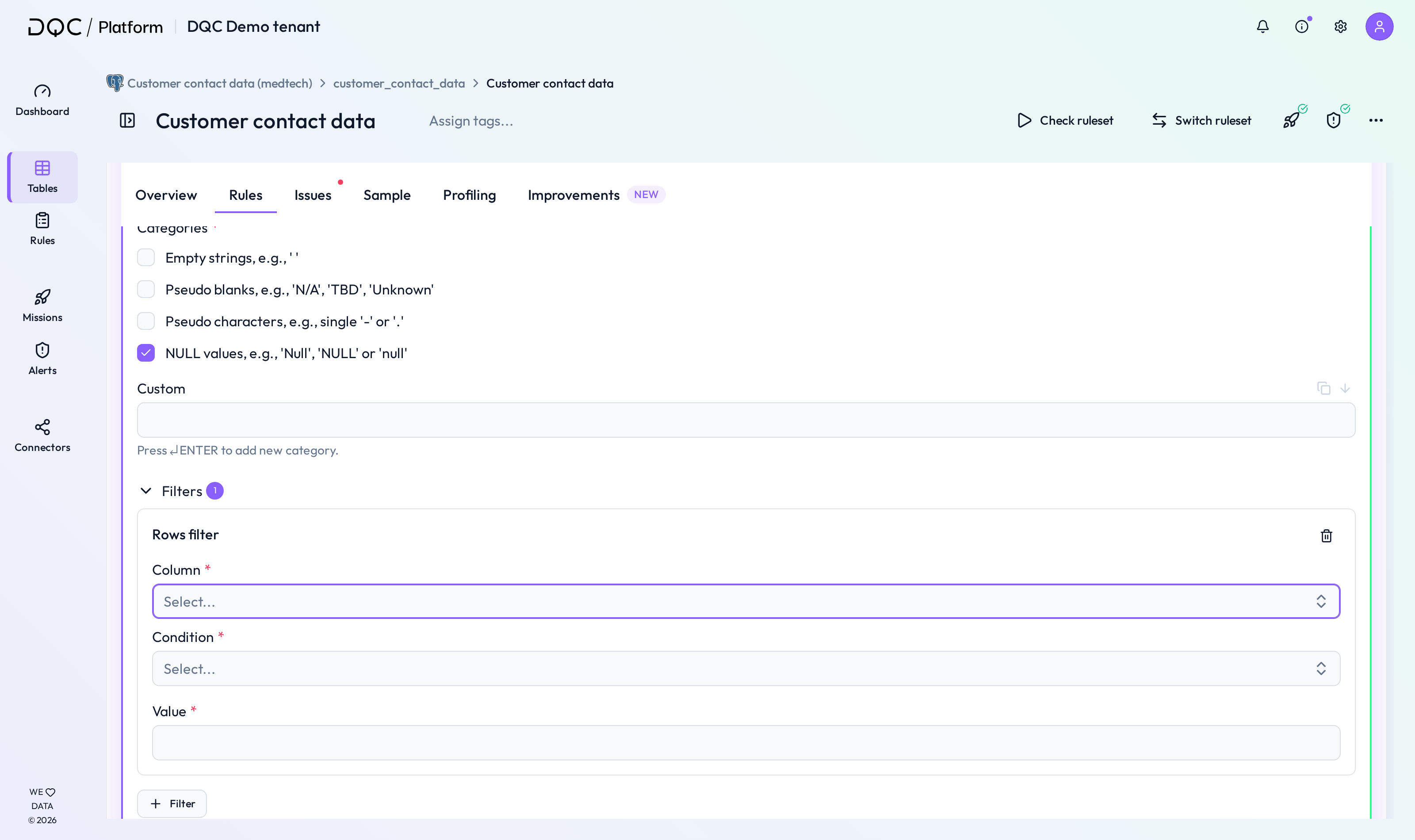 Filters limit the rule scope. Segmentations apply the rule per group.
(5) (Optional) Name and describe the rule
Give your rule a clear name and description.
You can write it manually or click “Generate with AI” for automated suggestions.
Optionally, add a Tag
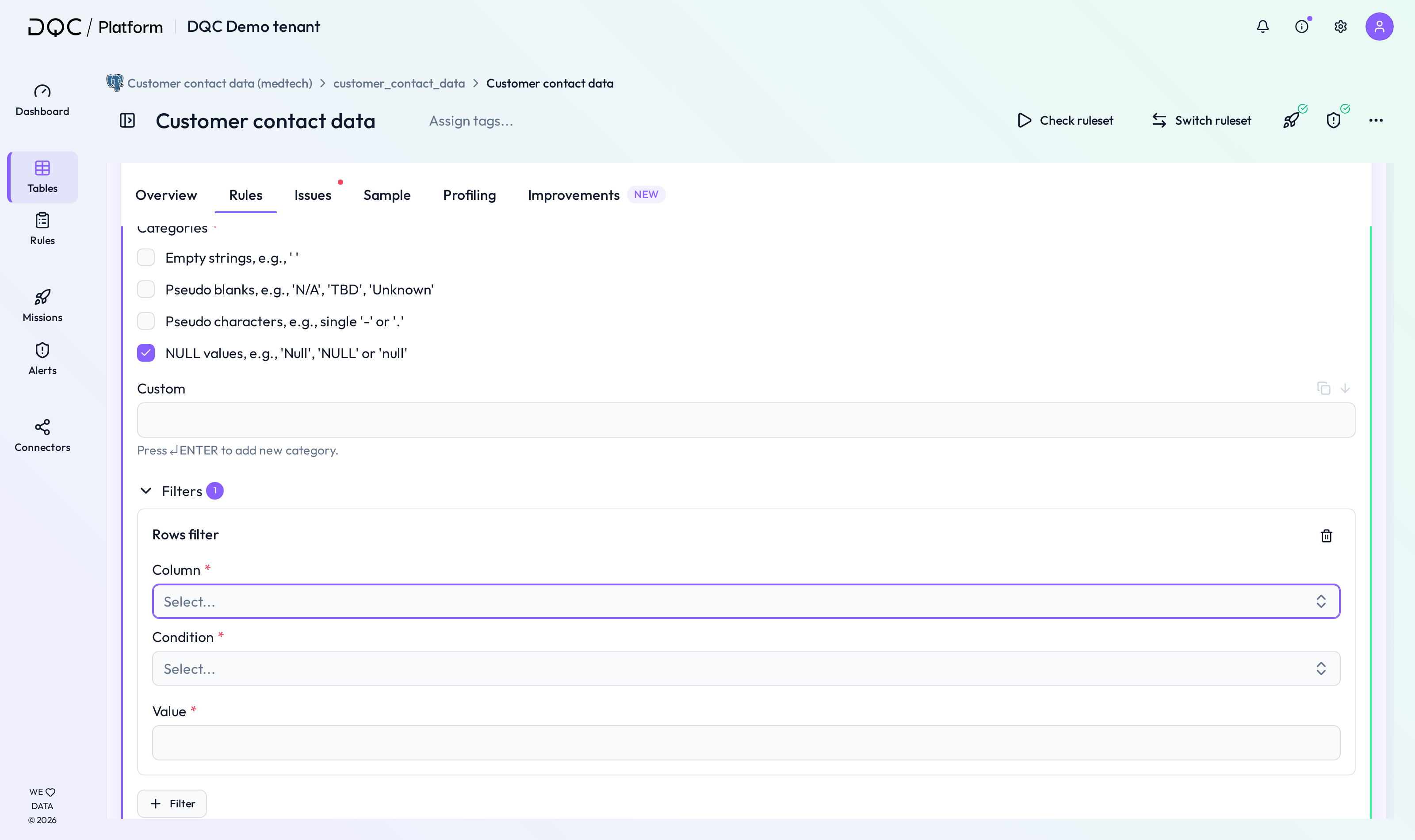 Helps with consistent naming across your project
(6) Click “Add Rule”
Click the “Add rule” button to save the rule.
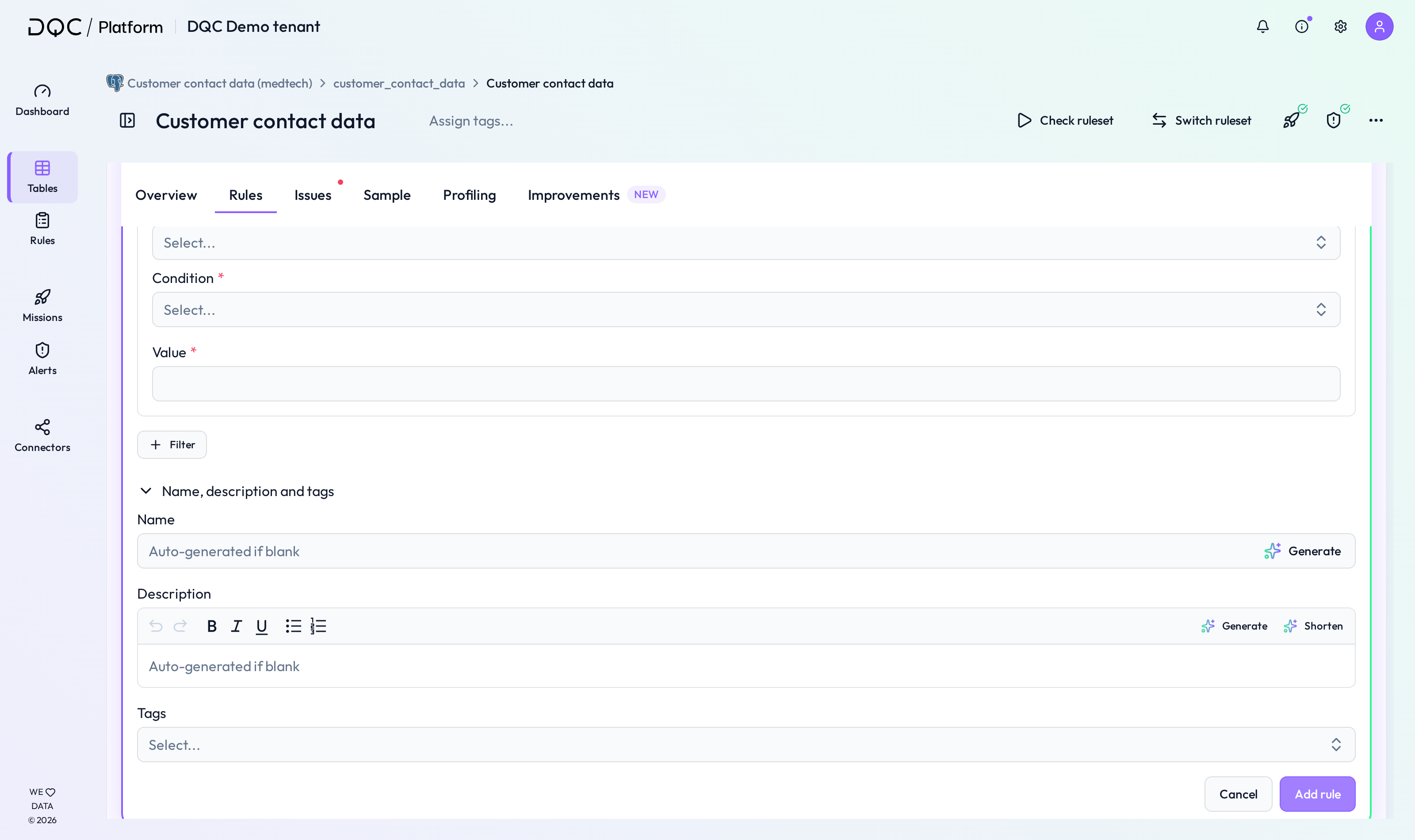 The rule is now active and will be included in the next check
 Notes
Notes
All drop-down rules can later be edited in the Rule Detail screen
Rules created this way can be promoted to Company Rules
For advanced use cases, use the AI Assistant, SQL, or Python methods
Learn more: Overview of existing rules, Rule creation with AI, Using filters