
Connection to Amazon Redshift
To connect Amazon Redshift to the DQC Platform, you need to provide your cluster connection details and configure IAM permissions. This article guides you through the full setup.
Add an Amazon Redshift connector
To begin:
Open the Data Connectors screen
Click the Amazon Redshift button
Fill in the connection parameters as listed below
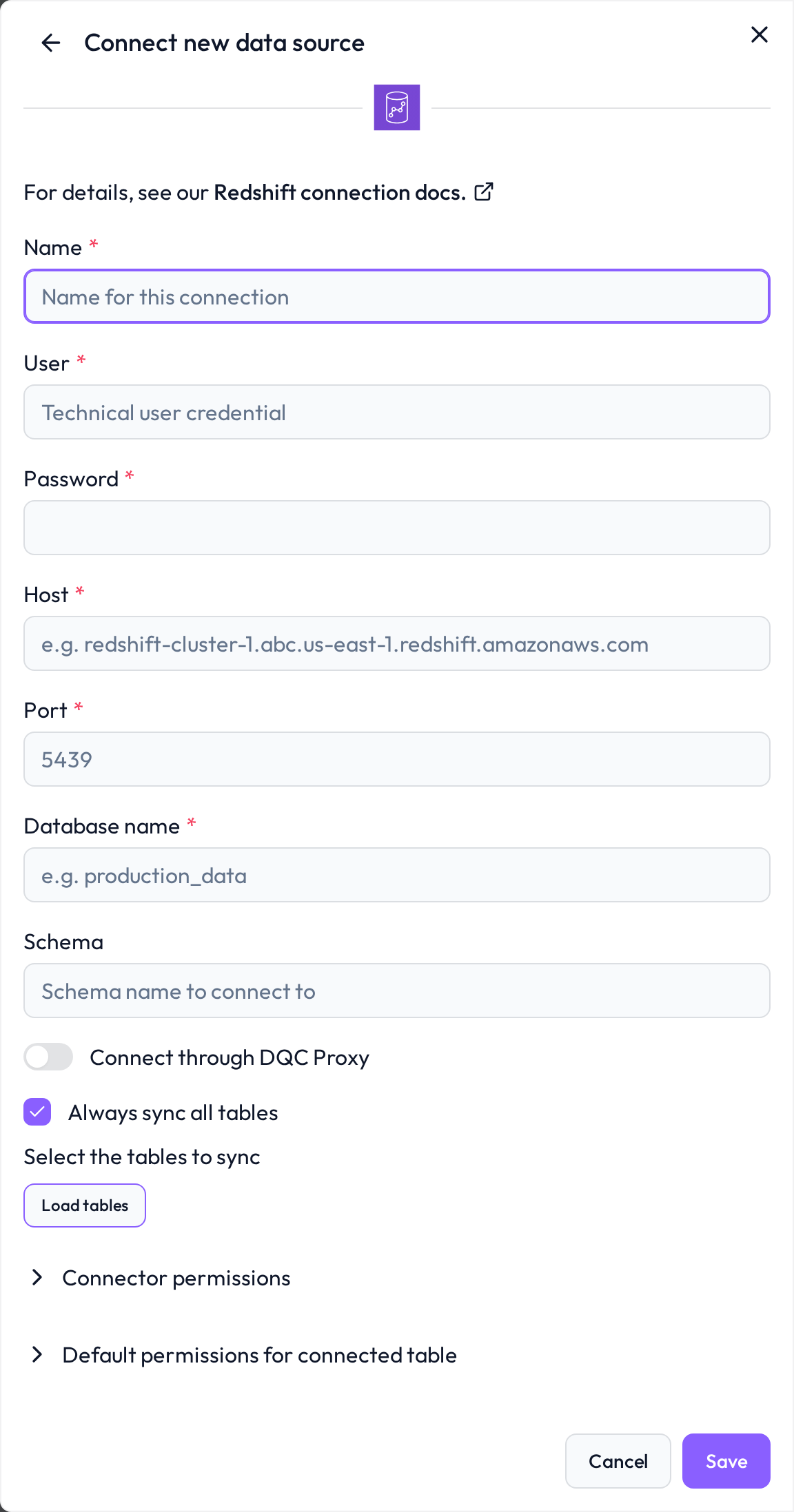 Start the process by selecting the Redshift data source
Required connection information
Field | Example | Description |
|---|---|---|
Name |
| Internal label for the connector |
User |
| Redshift user with read access |
Password |
| Password for the above user |
Host |
| Found under Configuration > Endpoint in your Redshift cluster settings |
Port |
| Default port for Redshift |
Database name |
| Target database to query |
Schema |
| Schema containing the relevant tables |
Configure IAM permissions
To support enhanced Redshift integration (e.g. Redshift Spectrum or federated roles), follow this setup:
Step 1: Create a custom IAM policy
Include the following permissions:
{
  "Effect": "Allow",
  "Action": [
    "redshift:GetClusterCredentials",
    "redshift:DescribeClusters",
    "redshift-data:ExecuteStatement"
  ],
  "Resource": "*"
}
Step 2: Create and attach IAM role
Go to IAM > Roles
Click Create role
Select Redshift as trusted entity
Attach the custom policy from step 1
Review and create the role
Step 3: Associate role with Redshift cluster
In the AWS Console:
Go to Amazon Redshift > Clusters
Open your cluster and select the Properties tab
Click Associate IAM Roles and choose the role created above
Whitelist the DQC Platform static IP
Make sure your network/firewall configuration or security group allows connections from:
3.123.94.228 Notes
Notes
We recommend using a dedicated Redshift user with read-only access
For secure connections, use SSL-enabled endpoints
Learn more: Supported data sources, Connection to AWS S3, Connection to Snowflake