
Connection to files on AWS S3
To connect files stored in Amazon S3 to the DQC Platform, you need to configure IAM access and supply your bucket details. This guide explains the steps and required parameters.
Add an AWS S3 connector
To get started:
Navigate to the Data Connectors screen
Click on the AWS S3 button
Fill in the required details (see table below)
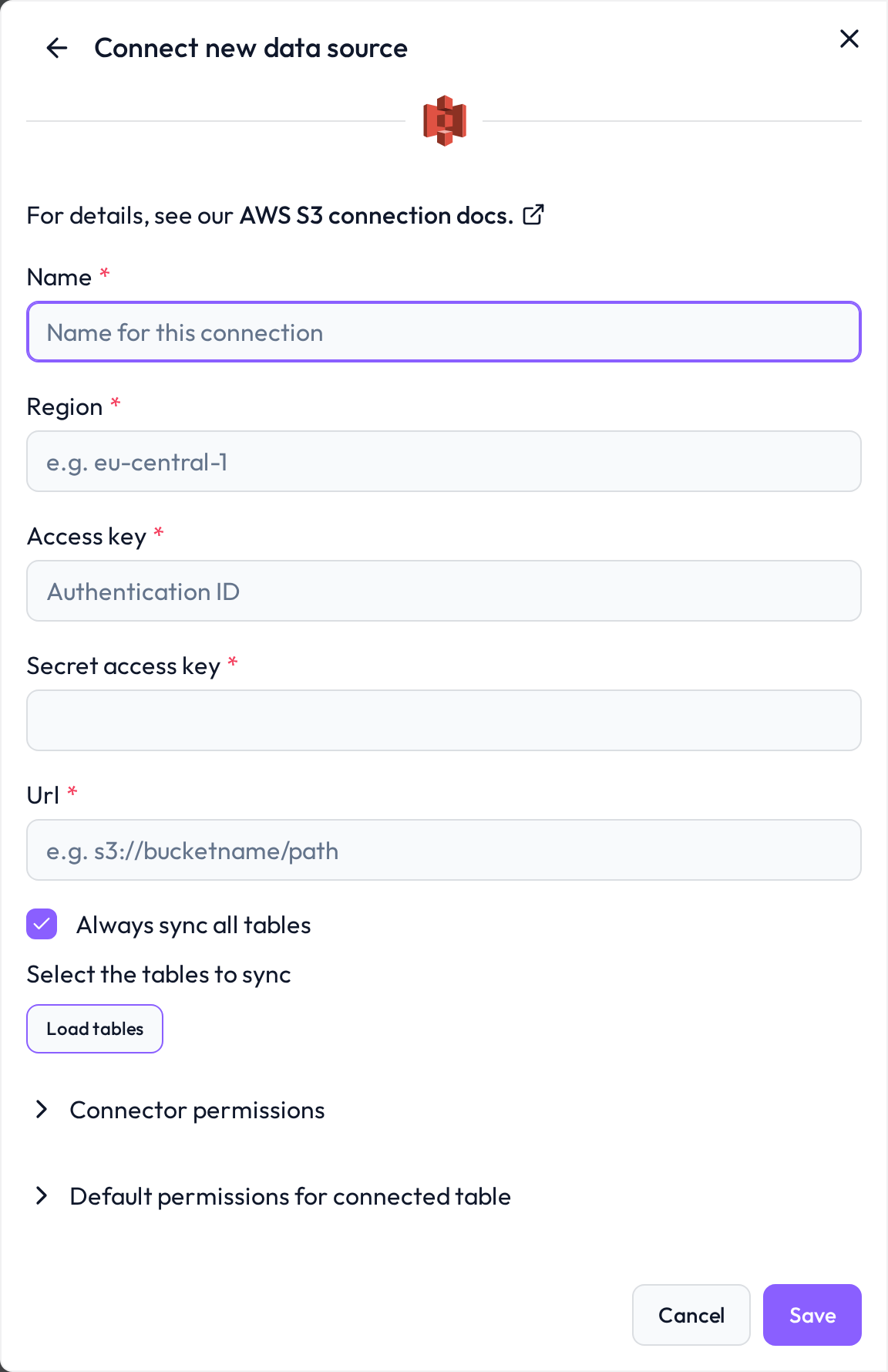 Choose AWS S3 to link your object storage bucket
Required connection information
Field | Example | Description |
|---|---|---|
Name |
| Internal name for your connection |
Access Key |
| AWS IAM access key |
Secret Access Key |
| Corresponding secret key for authentication |
Region |
| AWS region where your S3 bucket is located |
S3 URL |
| Path to your data — include folder if not using root |
Configure IAM access in AWS
To ensure secure and scoped access to your S3 bucket, follow these steps:
Step 1: Create IAM policy
Define a custom IAM policy with the following permissions:
{
  "Version": "2012-10-17",
  "Statement": [
    {
      "Effect": "Allow",
      "Action": [
        "s3:ListBucket",
        "s3:GetObject",
        "s3:GetBucketLocation"
      ],
      "Resource": [
        "arn:aws:s3:::your-bucket-name",
        "arn:aws:s3:::your-bucket-name/*"
      ]
    }
  ]
}
Step 2: Create IAM user and attach policy
Go to IAM > Users
Create a new user or choose an existing one
Attach the custom S3 access policy
Generate an Access Key and Secret Access Key
Whitelist DQC Platform’s static IP
To allow inbound connections, ensure that the following static IP address is whitelisted in your S3 bucket policies or VPC security groups:
3.123.94.228 Notes
Notes
Only read-access is required — no write/delete permissions needed
We recommend using a dedicated IAM user for each connection
Learn more: Supported data sources, Connection to Azure Blob, Data source access permissions