
Connectors screen
The Connectors screen allows you to manage all connected systems — including data sources, notification channels, and data catalogs.
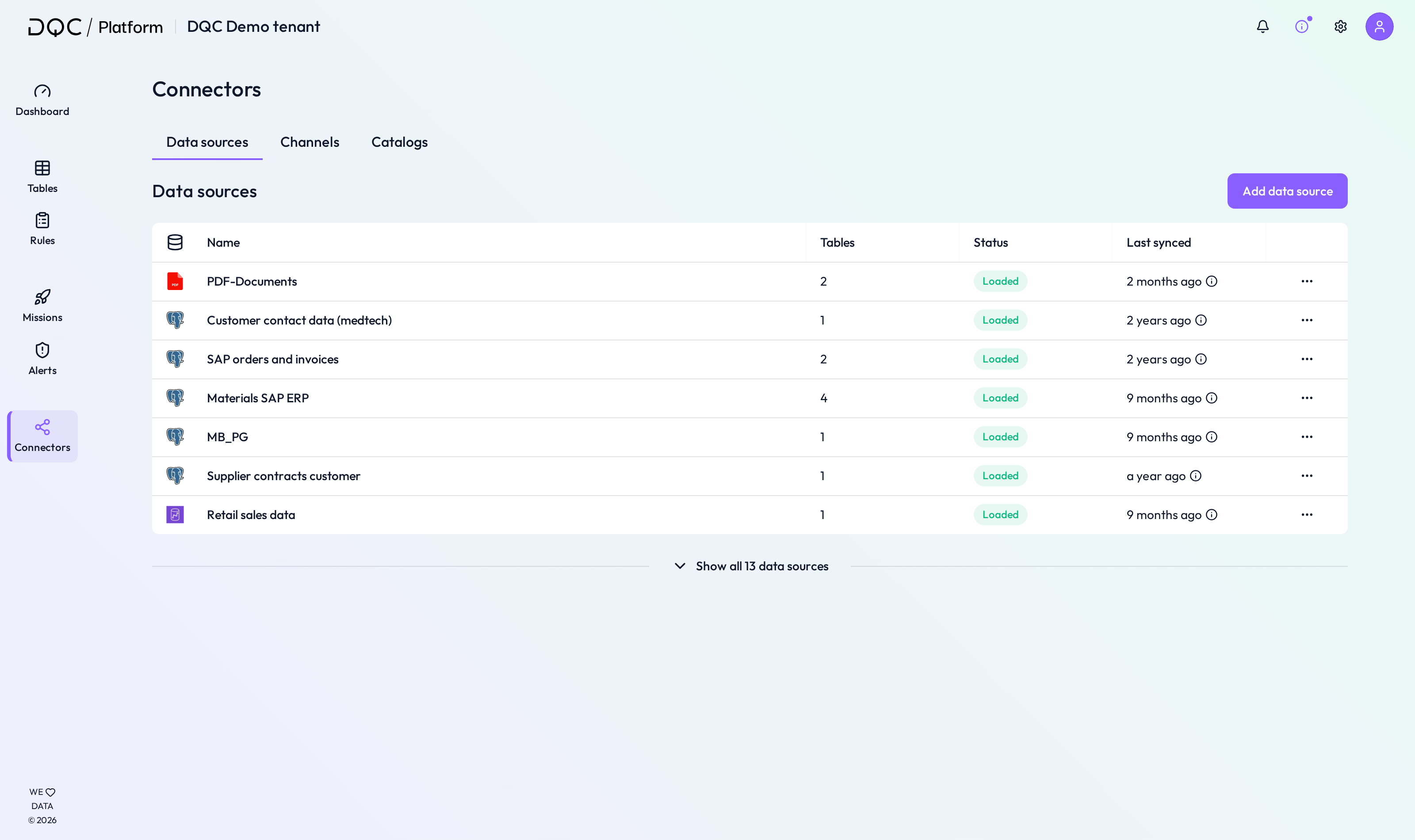
(1) Navigation options
You can switch between three connector types:
Data sources – Connect databases, warehouses, files, and storage
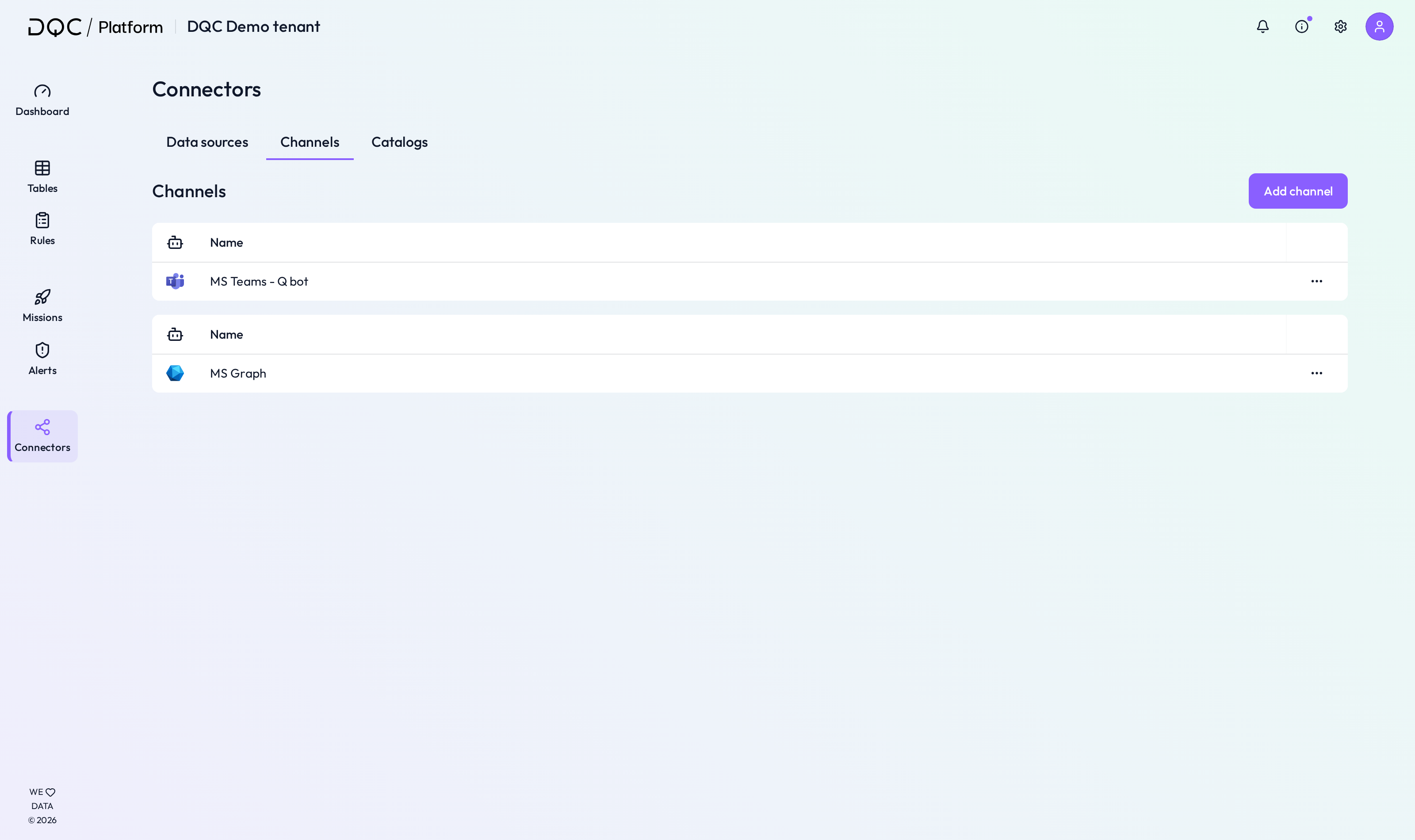
Channels – Manage communication and workflow integrations (e.g. Microsoft Teams)
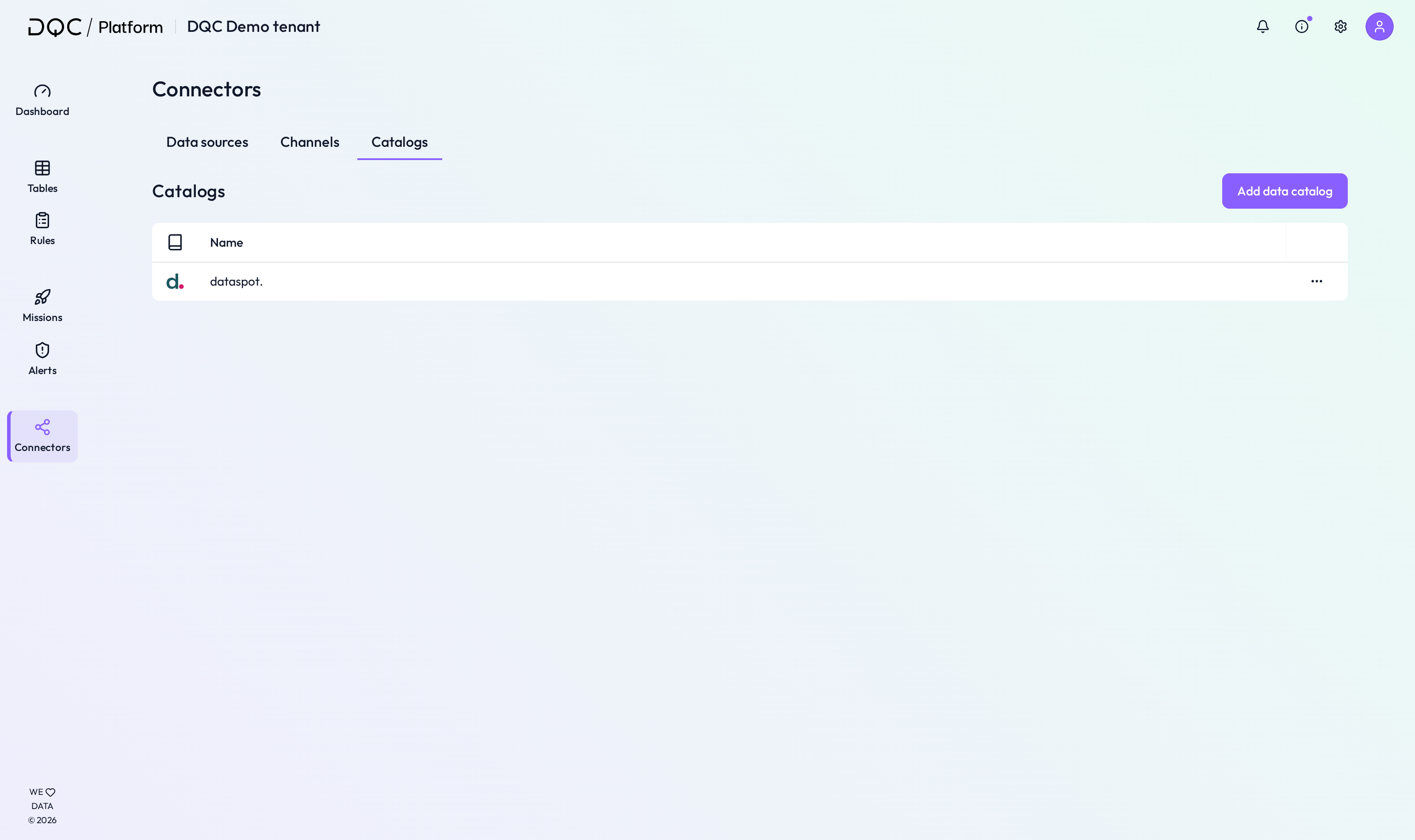
Catalogs – Integrate metadata tools like Alation
(2) Data sources overview
Each connected data source is listed with:
Source name and icon
Number of associated tables
Status (e.g., Loaded)
Created at timestamp
Actions via the “...” menu (resync, edit, or delete)
(3) Add new data source
Click "Add data source" to connect a new:
Database (e.g. PostgreSQL, Snowflake)
Cloud warehouse
Blob/File storage (e.g. Azure Blob, S3)
Static file (CSV, Excel, etc.)
(4) Channels overview
The Channels tab shows integrated communication tools. Each entry includes:
Name and type of channel
Actions via “...” (edit or delete)
(5) Add new channel
Click "Add channel" to connect:
Microsoft Teams Bot
Microsoft Teams Workflow
Microsoft Graph
(6) Catalogs overview
In the Catalogs tab, you can see integrated metadata catalogs (e.g., Alation). Each row shows:
Name of the connected catalog
Edit/Delete via the “...” menu
(7) Add new catalog
Click "Add data catalog" to set up a new integration — such as linking to Alation or other metadata systems.
 Notes
Notes
Data sources are the backbone of data quality checks — each table must come from a connected source
Channels ensure users are notified where they already work (e.g. Teams)
Metadata catalogs enrich DQ visibility across your data governance tools
All connectors can be edited, resynced, or removed as needed