
Working with tags
Tags help you organize and manage your data quality rules in a more structured way. By assigning tags, you can group, filter, and search rules efficiently — making it easier to maintain oversight across large rule sets.
Tags are also included in BI exports, allowing further downstream use (e.g., clustering in dashboards or audit reports).
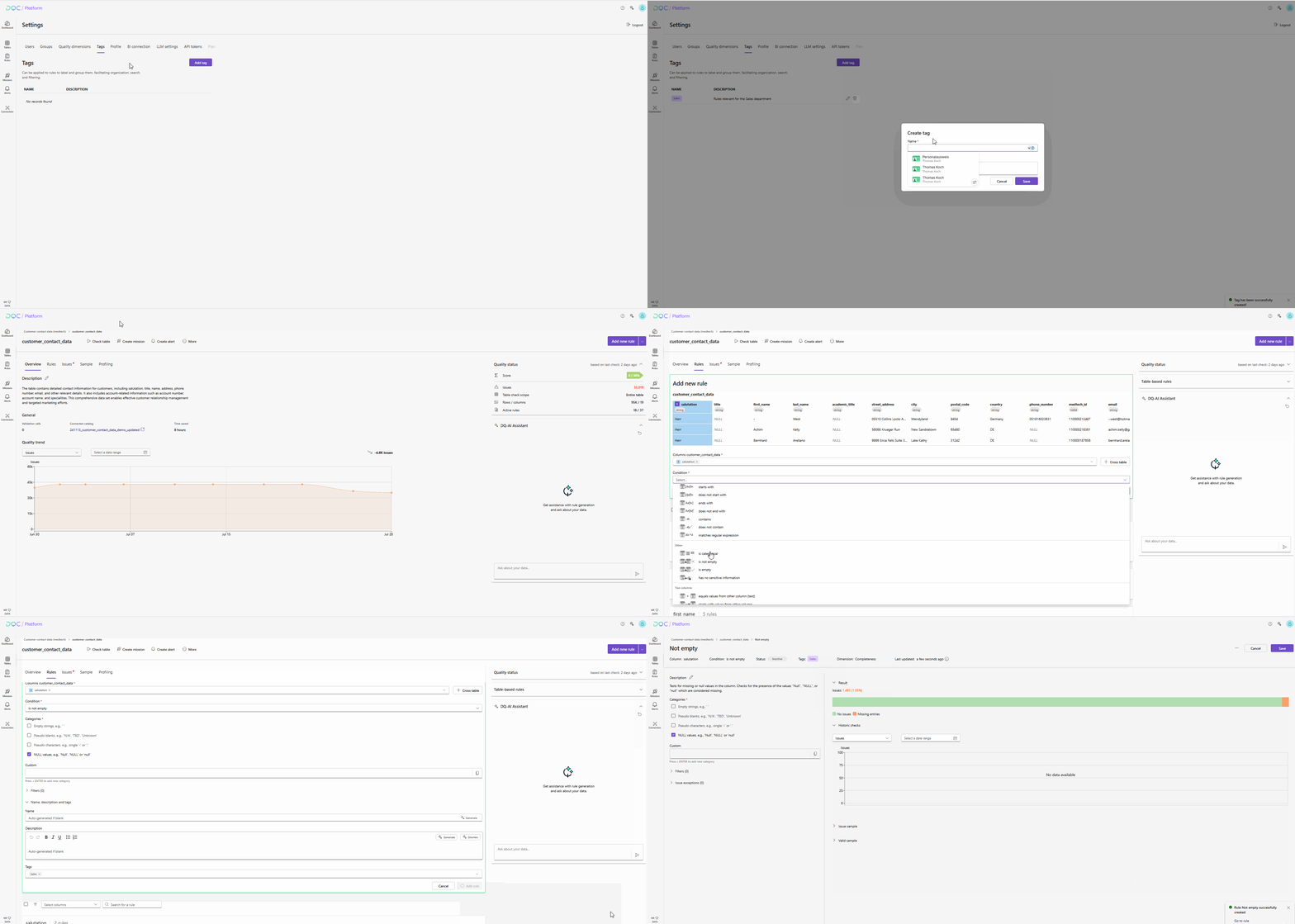
What are tags used for?
Tags provide:
A way to categorize rules based on purpose, type, domain, system, etc.
Filtering and search options in the Rule Repository
Easier tracking and maintenance of rule groups
BI compatibility for external analysis or dashboards
Tag creation
Tags are managed centrally in the Settings:
Navigate to Settings > Tags
Add new tags by name
Edit or delete existing tags at any time
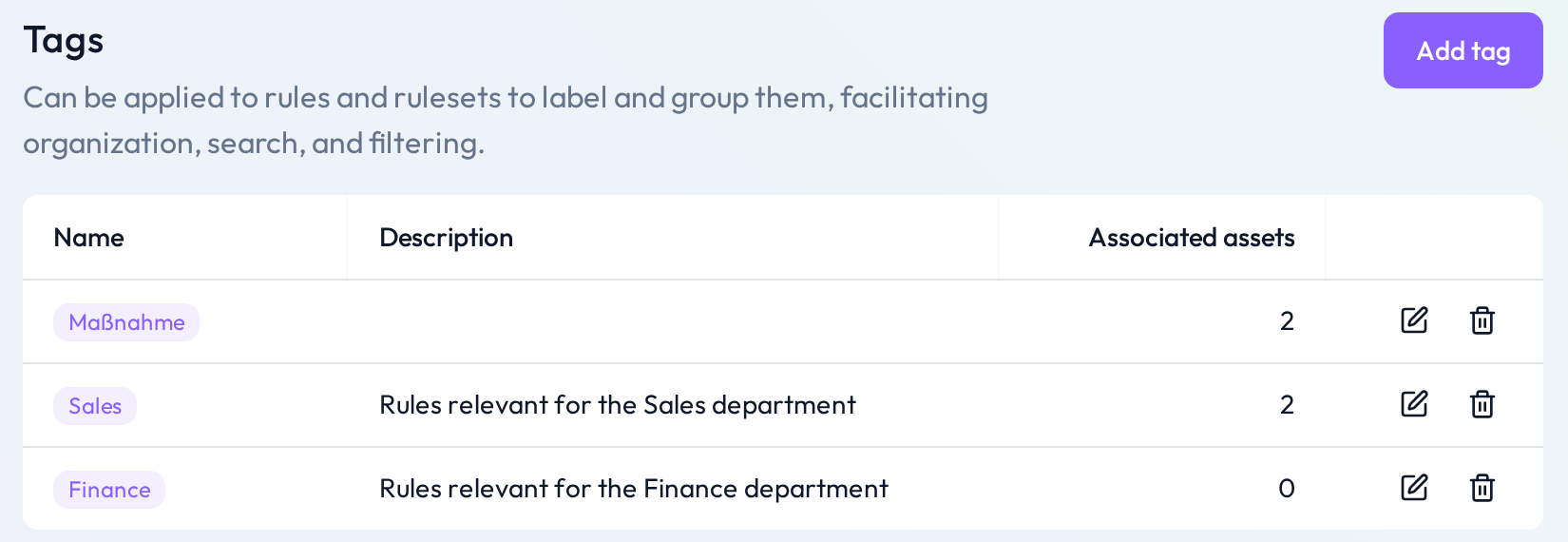 Define a consistent tag structure across your organization
How to Apply tags
You can apply tags in two places:
During rule creation
While creating a rule, scroll to the Tags section
Select one or more tags from the predefined list
Save the rule
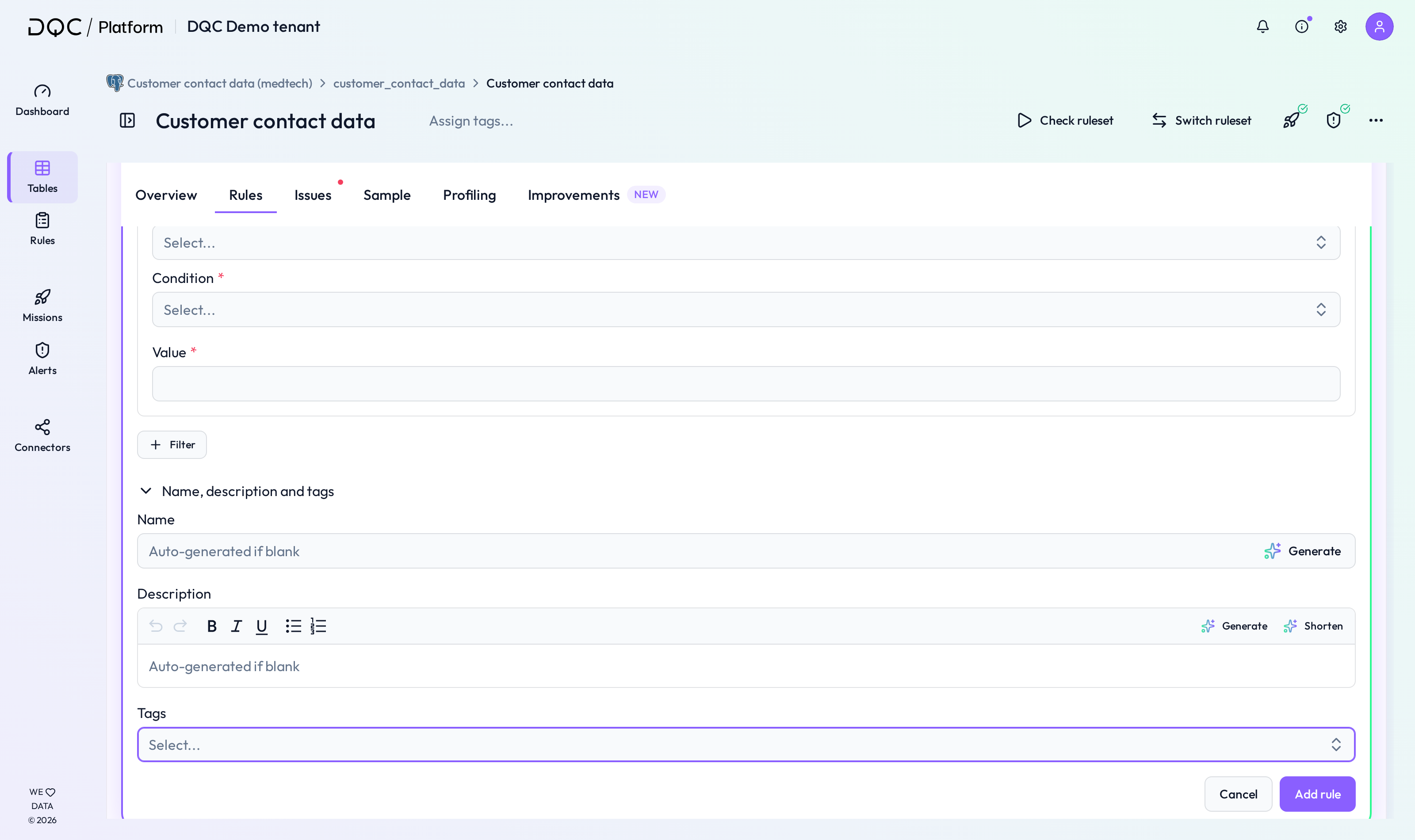 Tag rules right from the beginning for better organization
From the rule detail view
Open any existing rule
Click Edit
Select or update tags in the Tags field
Save changes
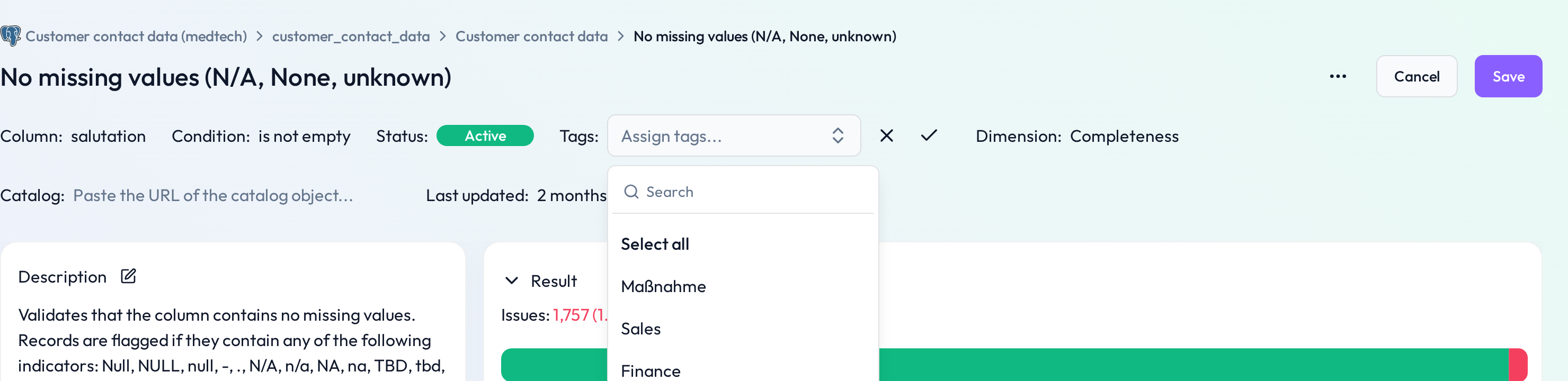 Update or remove tags at any time.
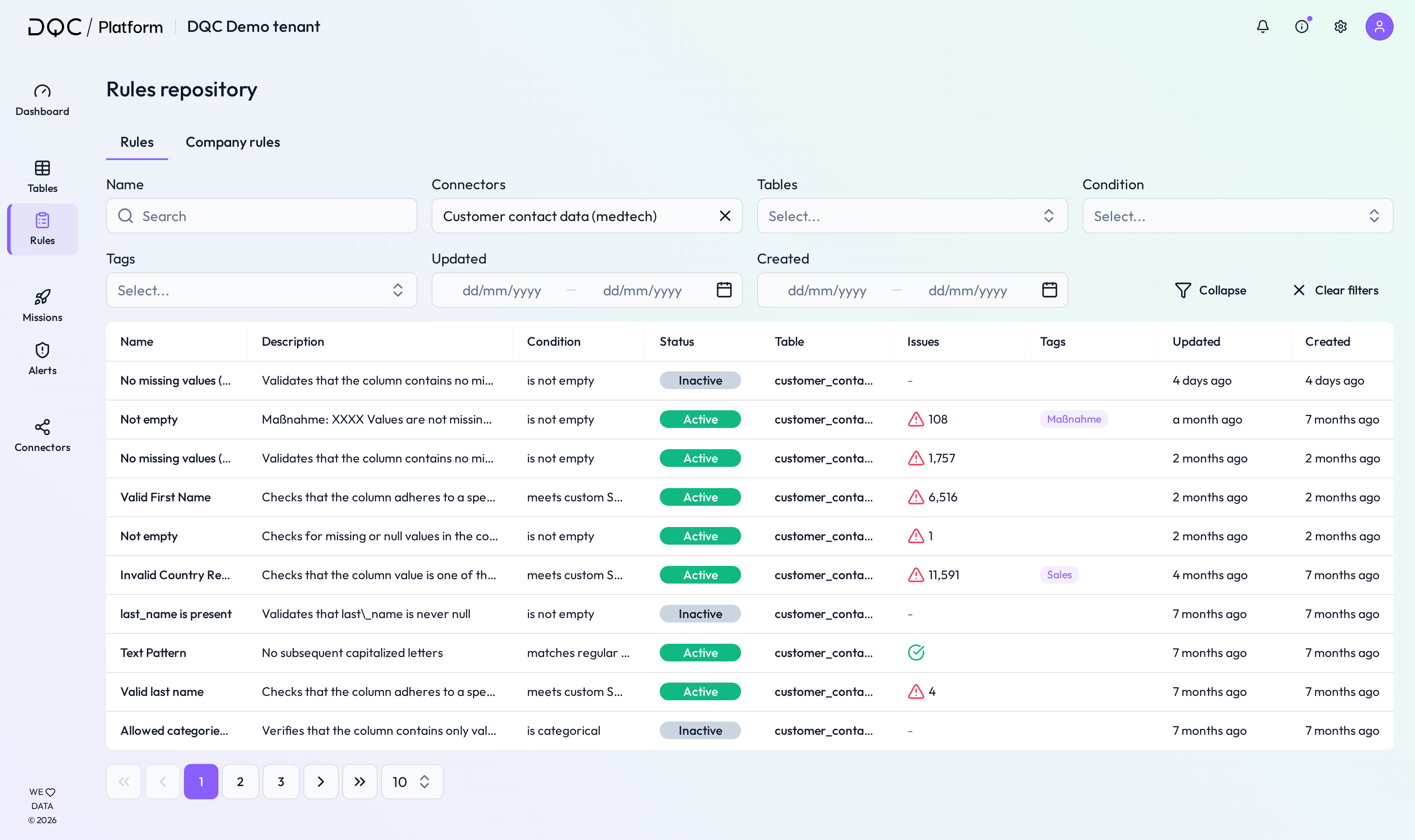
Search and filter by tag
In the Rule Repository, use the Tag filter to:
Find all rules tagged with a specific label (e.g. “Finance”, “Critical”, “SAP”)
View and export subsets of rules based on tags
Use tags in BI tools
Tags are included in BI exports, so you can:
Group rules by business domain
Build dashboards for rule coverage
Create reports for auditing or documentation purposes
 Notes
Notes
Tags must be created in Settings before they can be used
Rules can have multiple tags
Tags help support governance, auditability, and collaboration
Learn more: Rule Repository, Working in the Rule Detail Screen, Company rules