
Table – Rule detail screen
Each rule in the DQC Platform has its own detailed configuration view. This screen helps users understand how the rule works, review its results, and adjust parameters or settings where needed.
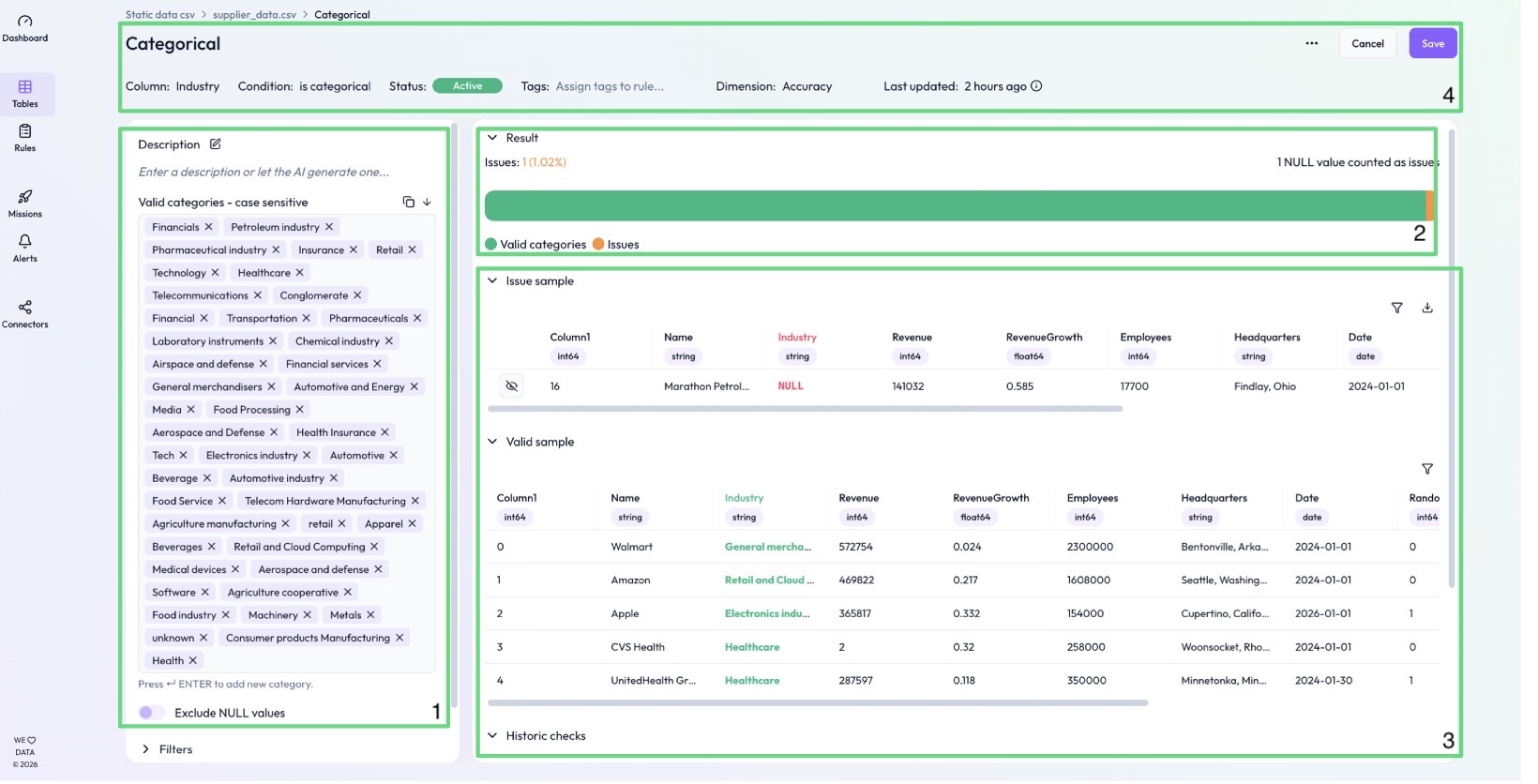
1. Rule configuration
The left-hand panel shows how the rule is configured. In the example shown, this is a Categorical rule which validates whether all entries fall within a predefined list of allowed values.
You can:
View or edit the valid categories
Toggle Exclude NULL values on or off
Add or edit filters (to restrict the rule to specific rows)
Manage issue exceptions (to exclude known false positives from being counted)
2. Rule check result
At the top of the main panel, you’ll find the result summary from the most recent table check for this rule:
Number of issues detected
Share of valid entries
Optional note if NULLs were included as issues
3. Additional info and sample data
The lower section offers more detailed insights:
Historic checks – Select a date range and metric (e.g., Issues, Quality Ratio) to view trends over time
Issue sample – Preview the rows that failed this rule
You can download this sample as a CSV using the Download icon on the far right
Valid sample – Example rows that passed the rule
4. Rule characteristics (header)
At the very top of the screen, the rule’s core properties are displayed:
Column – The column the rule applies to (e.g., Department_Code)
Condition – The type of rule used (e.g., Categorical, Not Empty)
Status – Toggle between Active and Inactive
Tags – Add or remove custom tags for easier search or filtering
Dimension – Adjust the associated quality dimension (e.g., Accuracy, Consistency)
Last updated – Timestamp of the last run
 Notes
Notes
Each rule runs independently during a table check and contributes to the overall quality score
Issue samples can be shared with stakeholders as CSV
Use exceptions to suppress known issues from impacting your metrics
Learn more: Creating Rules with the Assistant, Rule Types Overview, Downloading Issue Tables