
Setting up a company rule
Company Rules are reusable, centrally managed data quality rules that can be applied across multiple tables, columns, and systems.
They should be used for organization-wide data quality checks that need to be enforced consistently across your entire data landscape.
By defining a rule once and applying it to many tables, you:
Ensure standardized logic across data domains
Save time by managing updates from a single place
Avoid inconsistencies and manual rule duplication
Improve governance and traceability of critical rules
How to set up a company rule:
Typical use cases include:
Global “Not empty” checks for critical IDs
Consistent format validation for customer emails
Company-wide PII detection rules
Value range checks for shared KPIs (e.g., Net Margin > 0
Short video how to set up Company Rules
Create a company rule from an existing rule
To start, you need to create or open a standard rule that should serve as the basis for your Company Rule.
 Convert to a company rule:
Go to the Rule Detail View
Click the “...” menu in the top-right corner
Select “Use as Company Rule”

 A small “CR” label will mark rules that are defined at company level.
Apply a company rule to a table
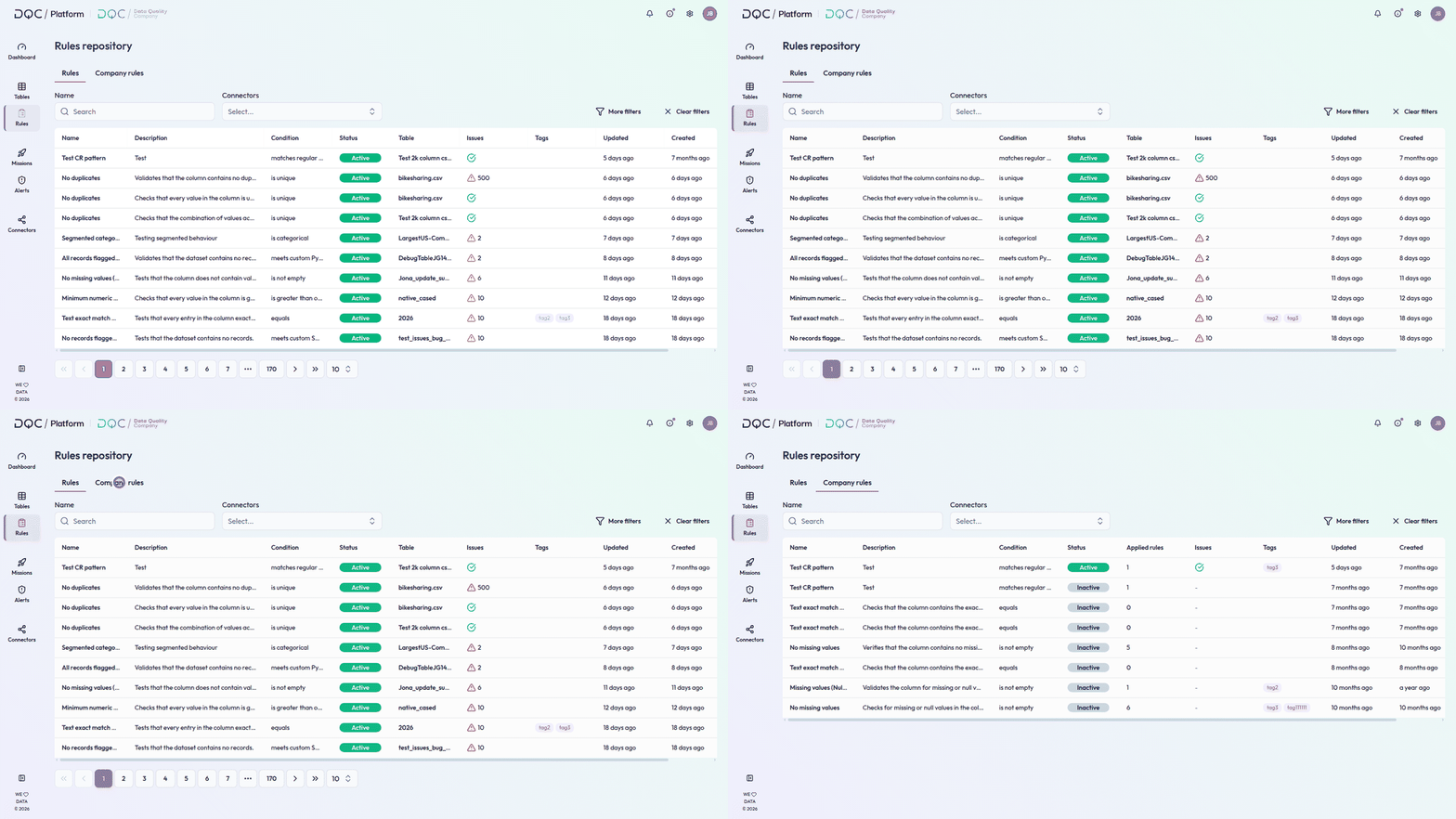
You can apply Company Rules either from the table view or the rule repository.
From the Table:
Open any table
Click “Add new rule”
Choose “Select Company Rule”
Pick the relevant Company Rule from the list
Select the column and optionally apply a filter

 You can only add filters — Company Rules themselves cannot be modified.
From the rule repository:
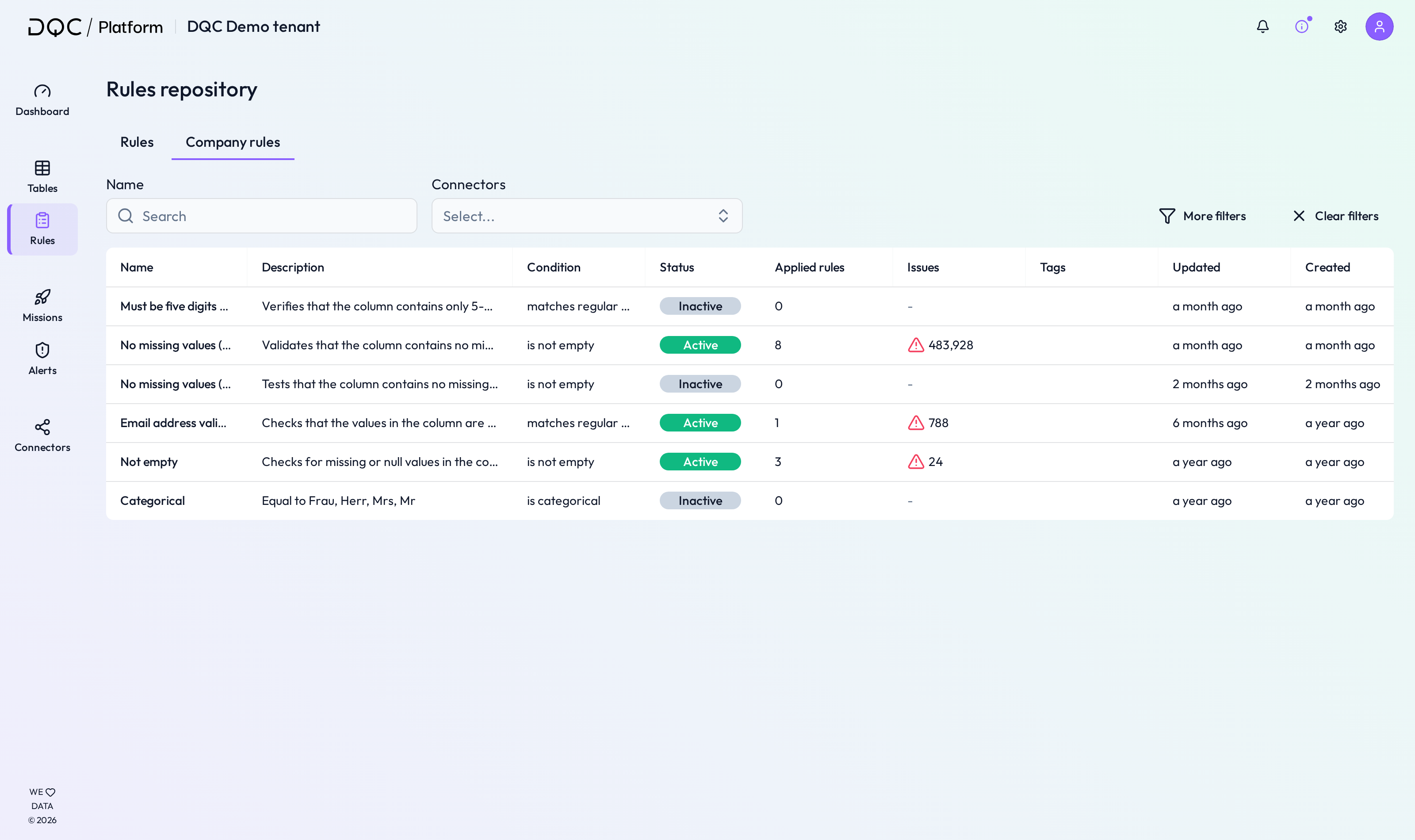
Open the Rule Repository
Click on Company Rules
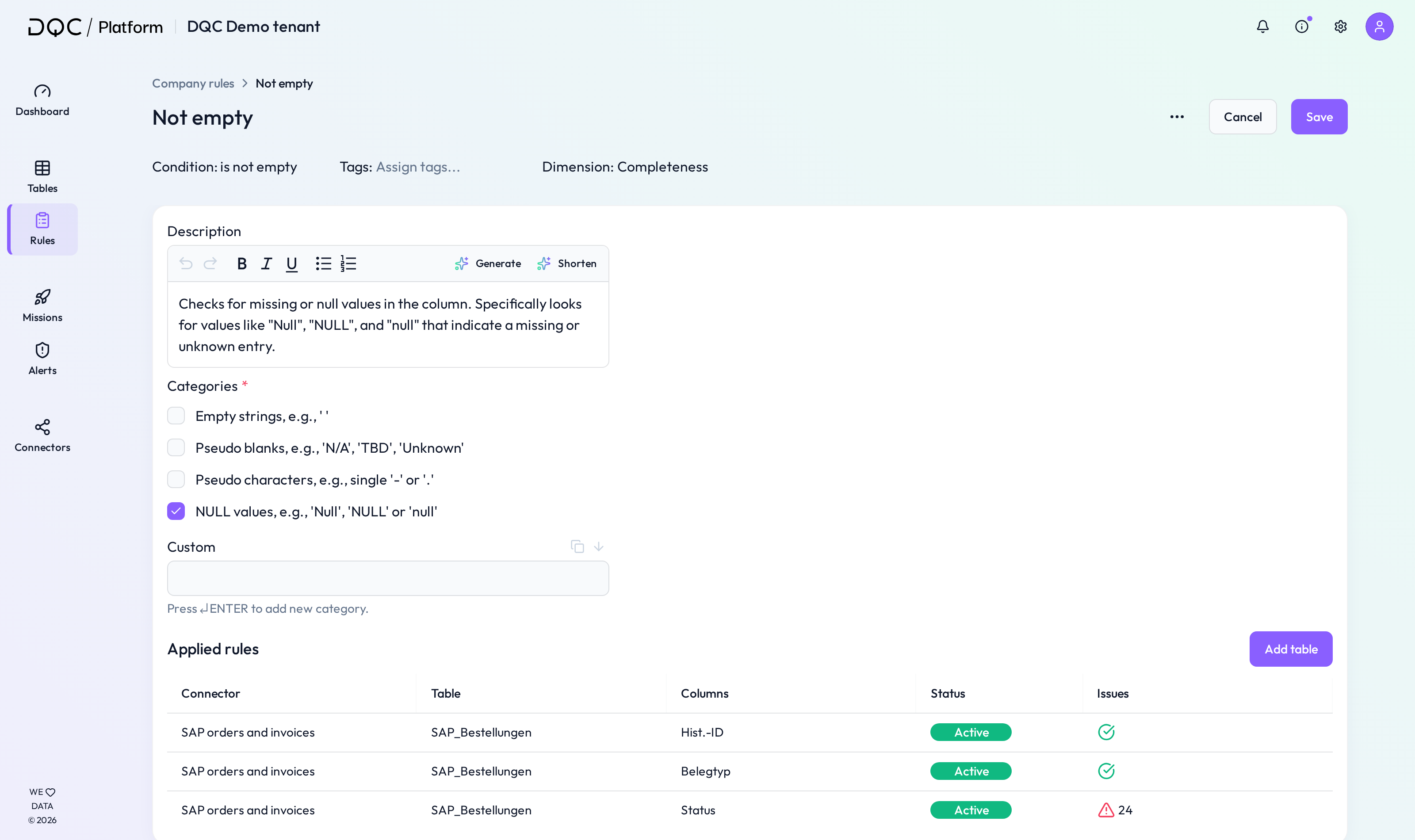
Click on a rule to open the Company Rule Detail Screen
Company rule Detail screen overview
This central screen gives you full control over a Company Rule and its applications.
(1) Rule settings
Adjust parameters such as thresholds, operators, or reference logic (if not locked).
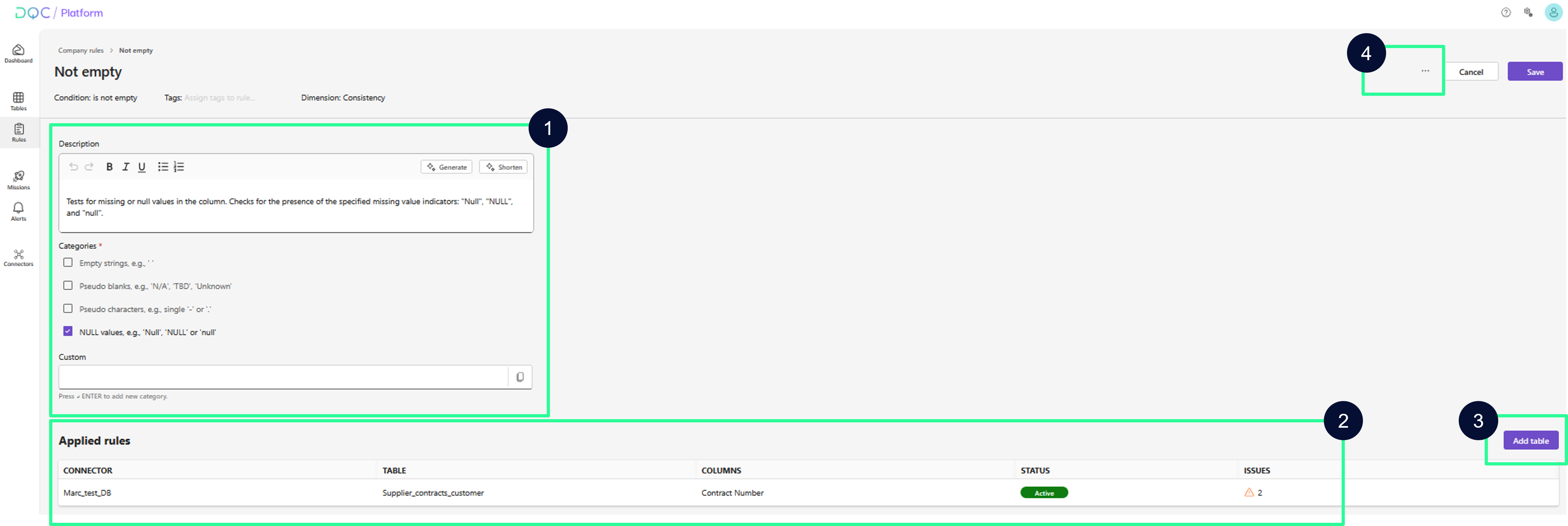
(2) Overview of applied rules
See which tables, connectors, and columns the rule is currently applied to.
Click any item to jump directly to its rule detail screen.
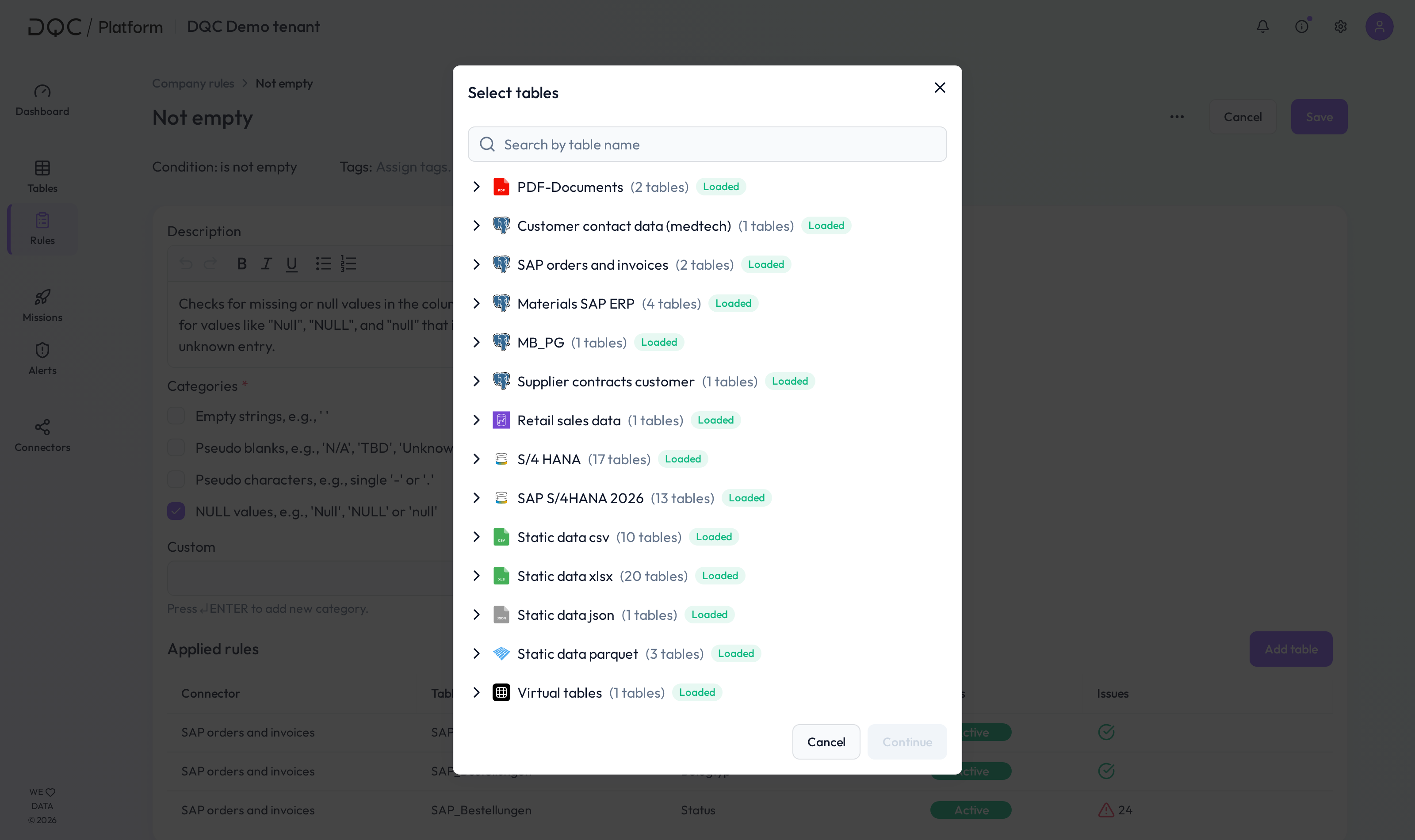
(3) Add to new tables
Click “Add table” to apply the Company Rule to new tables:
Select target tables from available connectors
Choose the column(s) per table
Click “Add” to confirm

(4) Other adjustments (via “...” menu)
From the Company Rule detail screen, you can:
 Deactivate all applied rules – Pauses checks without removing them
 Transform into regular rules – Converts linked instances into individual rules
 Delete all rules – Removes all linked applications and the Company Rule itself
 Notes
Notes
Company Rules can only be edited at the Company Rule level — individual instances are locked
Use filters per table to scope a global rule (e.g. apply only to
Region = EU)Learn more: Using the DQ AI Assistant to create rules, Working in the rule detail screen, Overview of existing rules