
v2.15
New features 
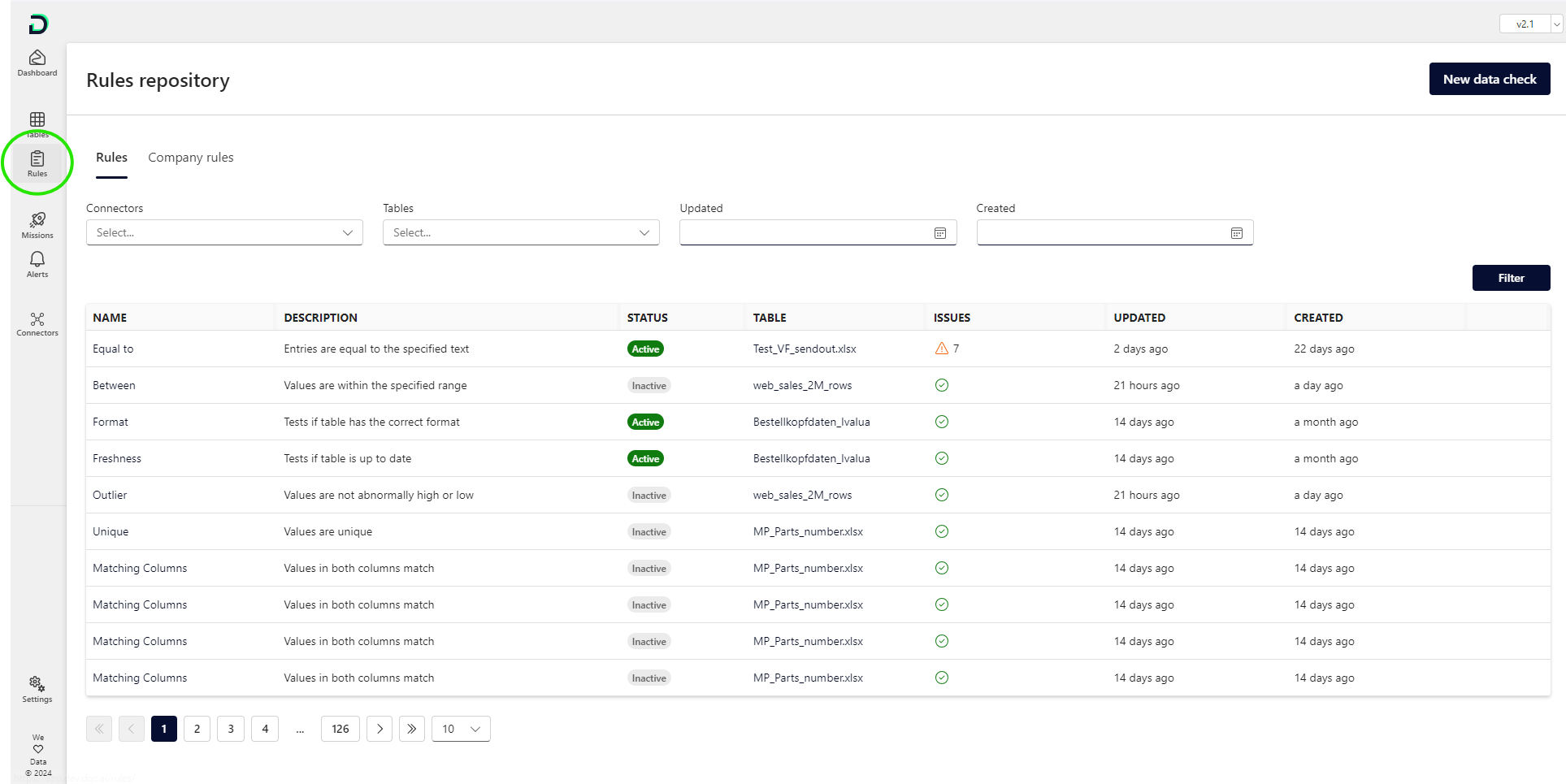
Rule repository: We added a new side panel item "Rules". Here you can see a filterable table with all existing rules on the platform. You can also sort the table by clicking on the column headers. To edit a rule, just click on the name and make the desired changes.
Company rules (CR): Should be used for all rules that are applied for the entire company across tables and columns. They can be managed from one central place. This helps to ensure consistent data quality checks across tables and saves time adding and managing these.
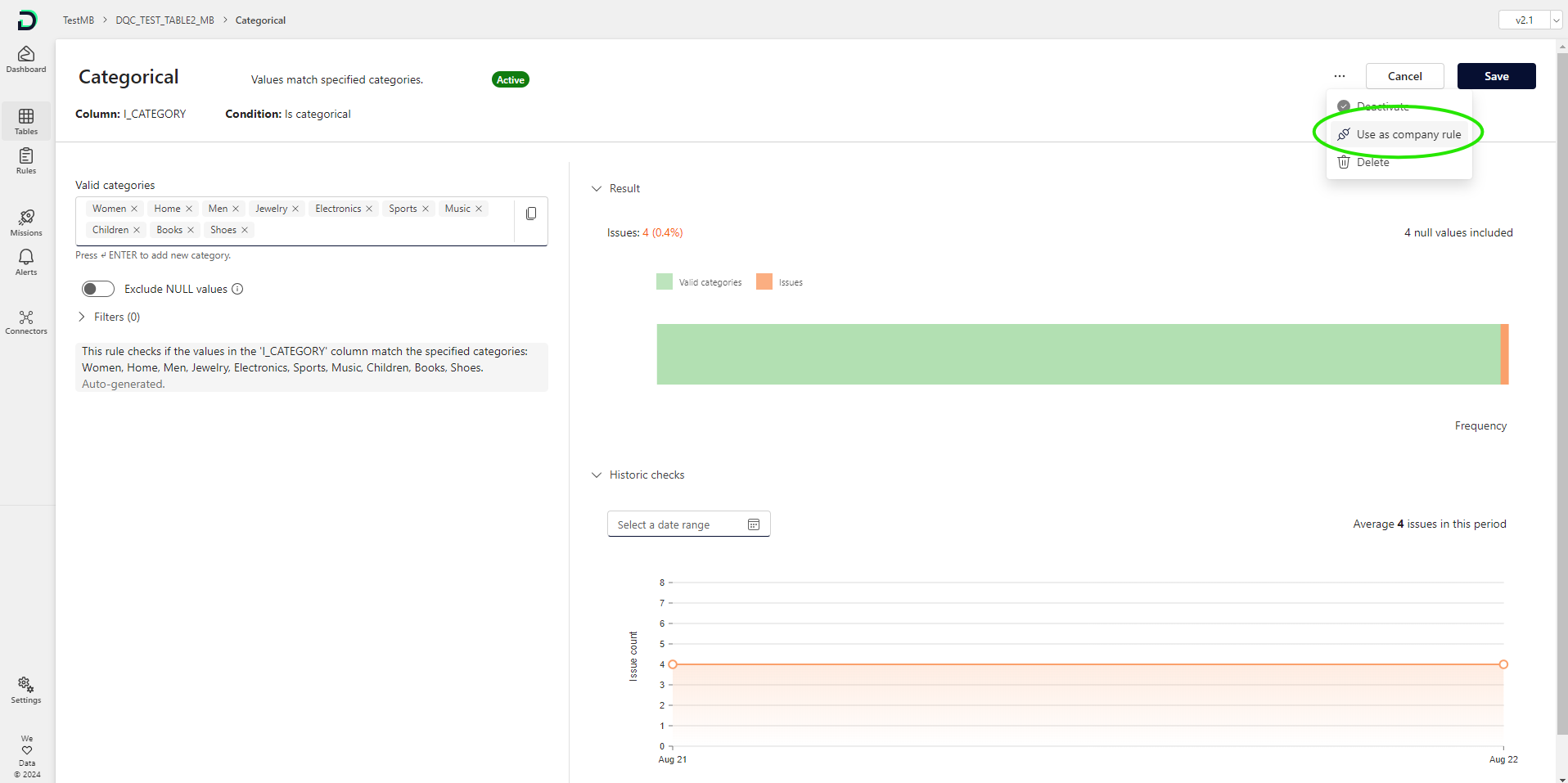
Add a CR: Most existing rules can be used as CRs. Rules that cannot be used as CR are: Multi-column, custom Python/SQL, table-based and segmented rulesUser flow to add a new CR: Tables > select a single table > select a single rule > More > Use as company rule
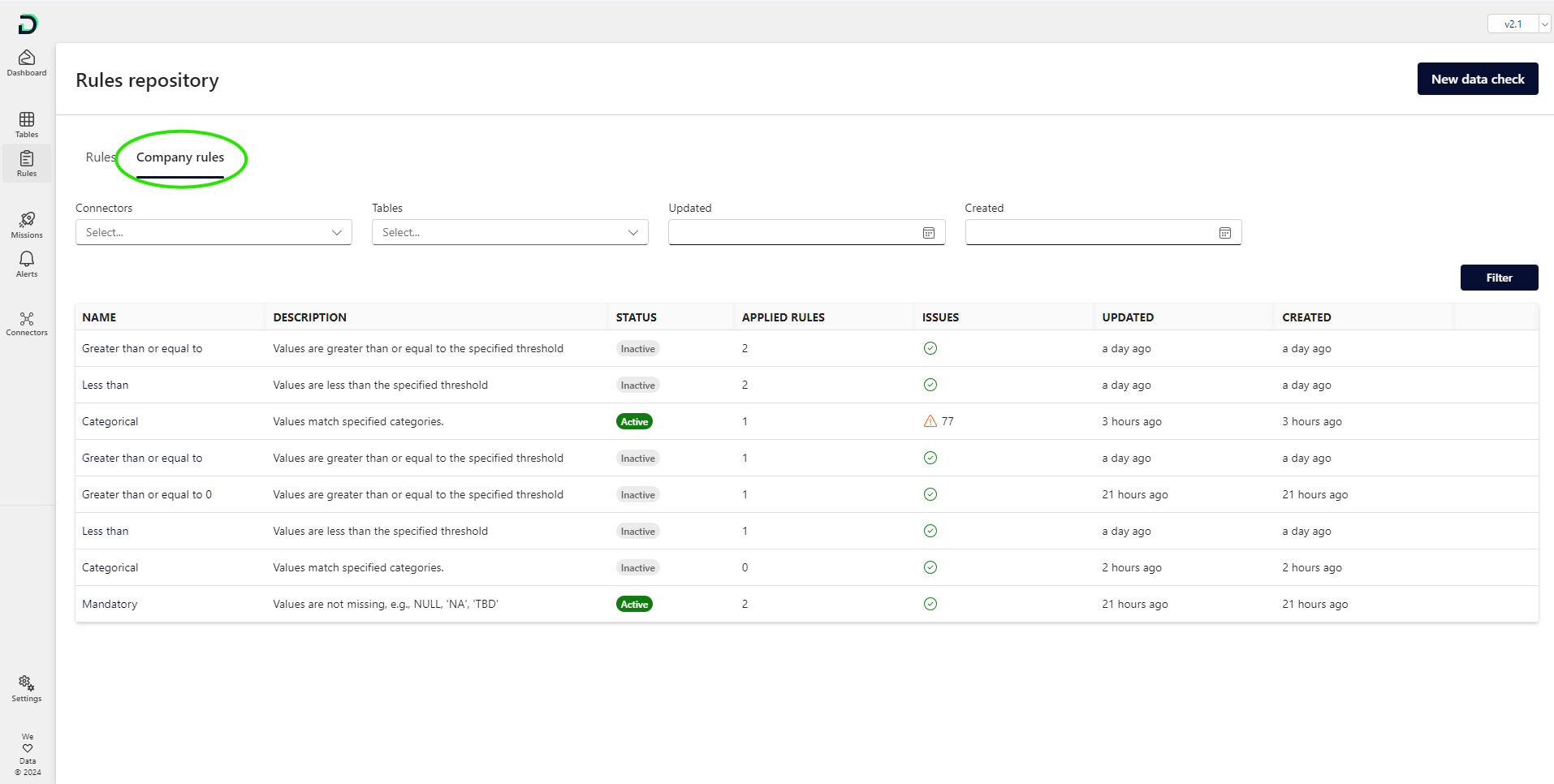
Manage CRs: In the rule repository, you can navigate to "Company rules" to see all existing CRs. Edits you make to Company rules will be implemented for all applied rules. You can also (de-)activate all applied CRs from this central place. User flow to manage CRs: Rules > Company rules
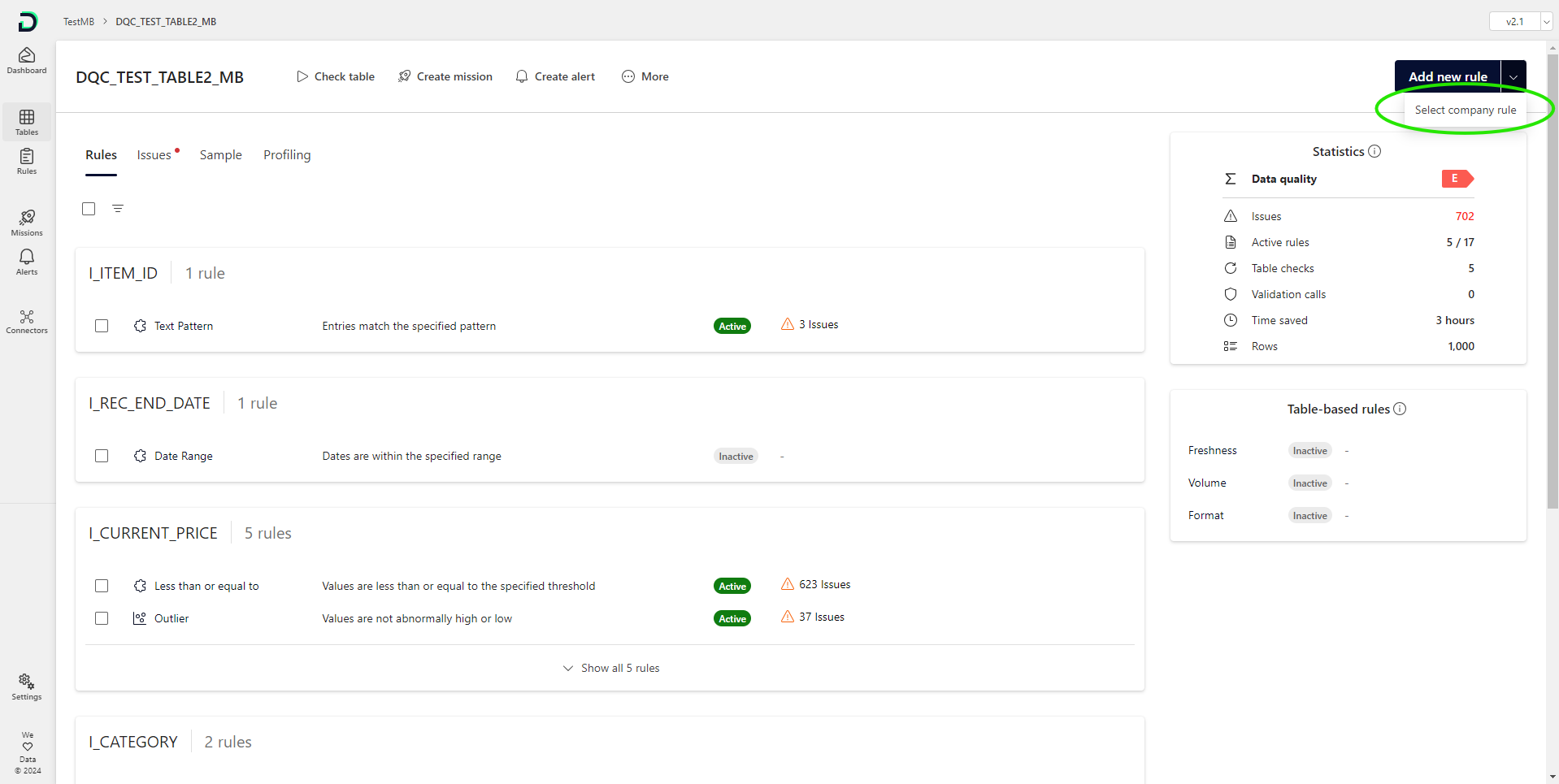
Apply a CR: You can apply a CR to either a single column or multiple columns at once. To do this, navigate to the table where you want to apply the CR, click the arrow on the split button labeled "Add new rule," and then select the desired CR. Keep in mind that only columns compatible with the rule type can be selected.CRs are powerful because they can be configured in one place and easily applied to various tables and columns. To apply a CR to multiple columns, go to the CR in the rule repository, click "Add rule," and then select all the tables and columns where the rule should be applied.User flow: Company rule > Add table > select the tables > select the columns
Transform a CR back to a regular rule: This can be done for a single applied rule or all applied rules at once. After the transformation, the company rule will become a regular rule that is only applied on one column User flow for a single applied rule: Rule detail > More > Transform to regular ruleUser flow for all applied rules: Rules > Company rules > select a single CR > More > Transform all rules to regular rules
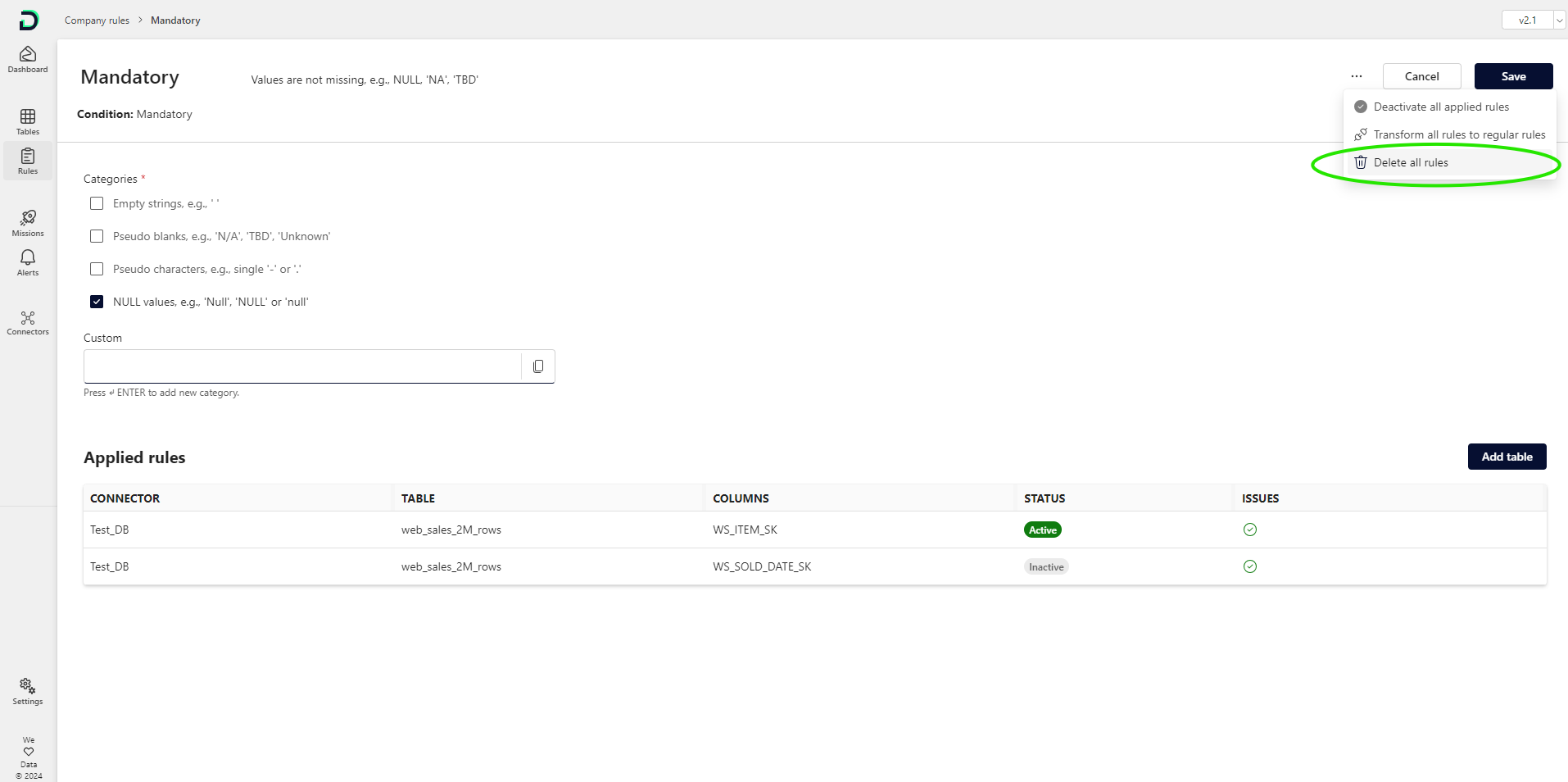
Delete CRs: Similar to deleting a single rule, you can also delete a company rule including all applied rules.User flow: Rules > Company rules > select a single CR > More > Delete all rules
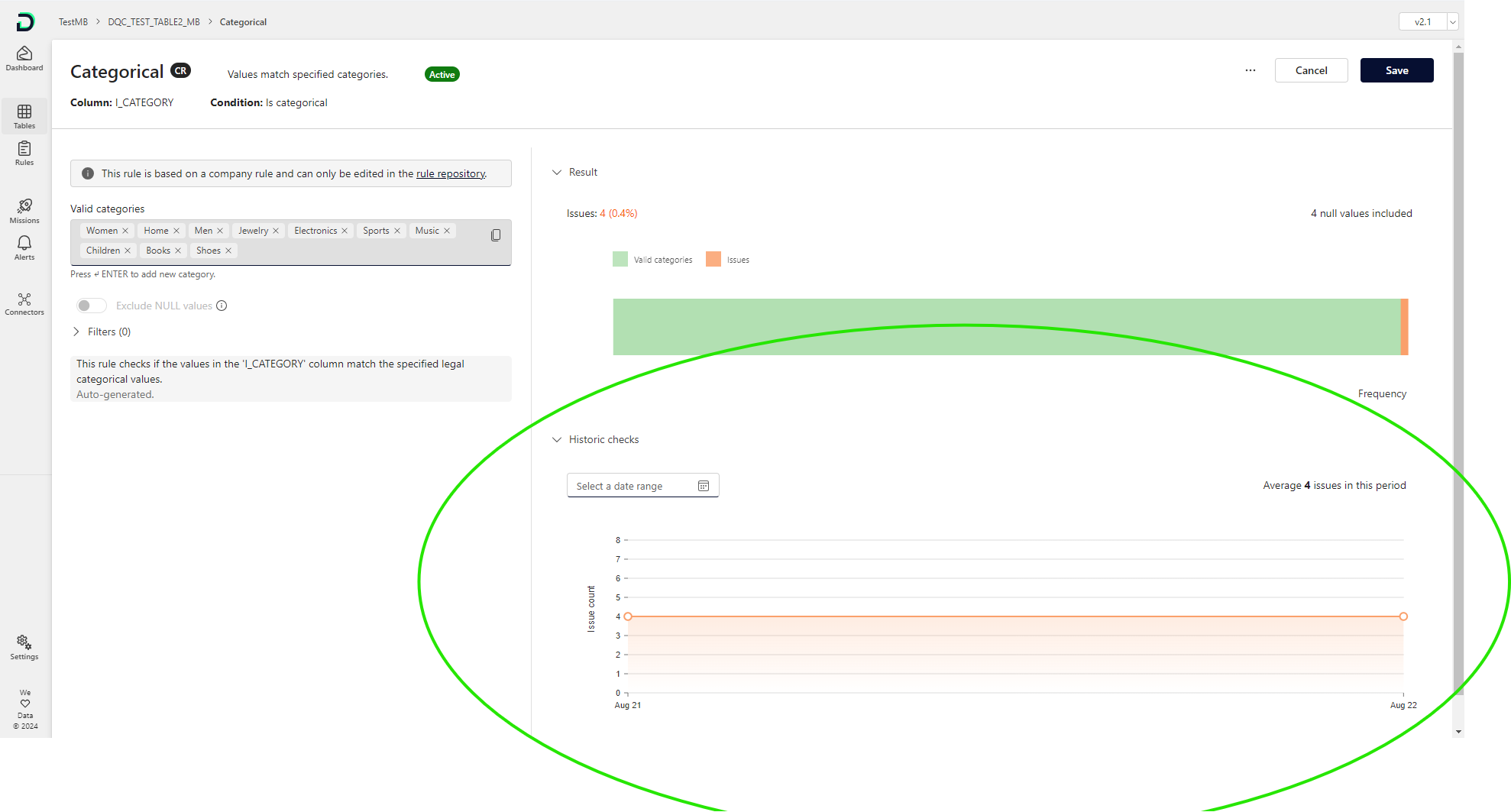
Historic checks: For each rule, you can now see in the rule detail view the result of previous checks. You can adjust the date range at the top (to see, e.g., when issues appeared for the first time).
Custom SQL clause for notifications: For missions and alerts, you can now use custom SQL clauses to customize the send-out of messages even more to your requirements.
Microsoft Webhooks are replaced by Workflows: Mircosoft decided to retire Webhooks and new connections to Teams channels should use the Workflow URL. Existing webhooks continue to work until December 2025.
Updated chart colors: We have updated the chart colors to ensure full consistency across the platform (e.g., issues are always displayed in orange).
Deletion of "Data check" menu item: The "Data Check" menu item was removed from the side panel to streamline the focus. Users can still initiate data quality checks directly from the "Dashboard" and now also from the new rules repository.
Deleted the requirement to set a unique identifier: You are not required to set a unique identifier anymore when connecting a new table.
Bug fixes and visual improvements 
Deleted the no-code filter option for custom SQL and custom Python rules as those should be implemented in the code if required
Transformed the greater/less than rules to single input rules
Changed the notification component so that a connected MS Teams bot cannot be selected under Channels anymore
Smaller bug fixes and wording changes
