
Multiple rulesets per table
This functionality allows teams to define and manage multiple, distinct data quality requirements for the same table — supporting parallel standards, testing environments, and localized compliance needs.
It removes the previous limitation of having only one table ruleset by introducing flexible, team-specific configurations.
Key benefits
Department- or region-specific standards – Define separate rulesets for Finance vs. Operations, regulatory vs. internal monitoring, or for individual countries or business units
Focused alerts and workflows – Keep notifications and Missions relevant by linking them only to the ruleset that matters for each team
Safe experimentation – Create temporary or testing rulesets to try out new thresholds or rule types before publishing them to all users
Independent metrics and governance – Each ruleset has its own KPIs, issue statistics, quality scores, and audit trail
Granular access control – Permissions can be applied at both the table and ruleset level, so departments can manage only their own configurations and optionally hide others (see Permissions section below)
How to add a new ruleset
Click on "Ruleset Detail" view under More > Manage ruleset > Add ruleset.
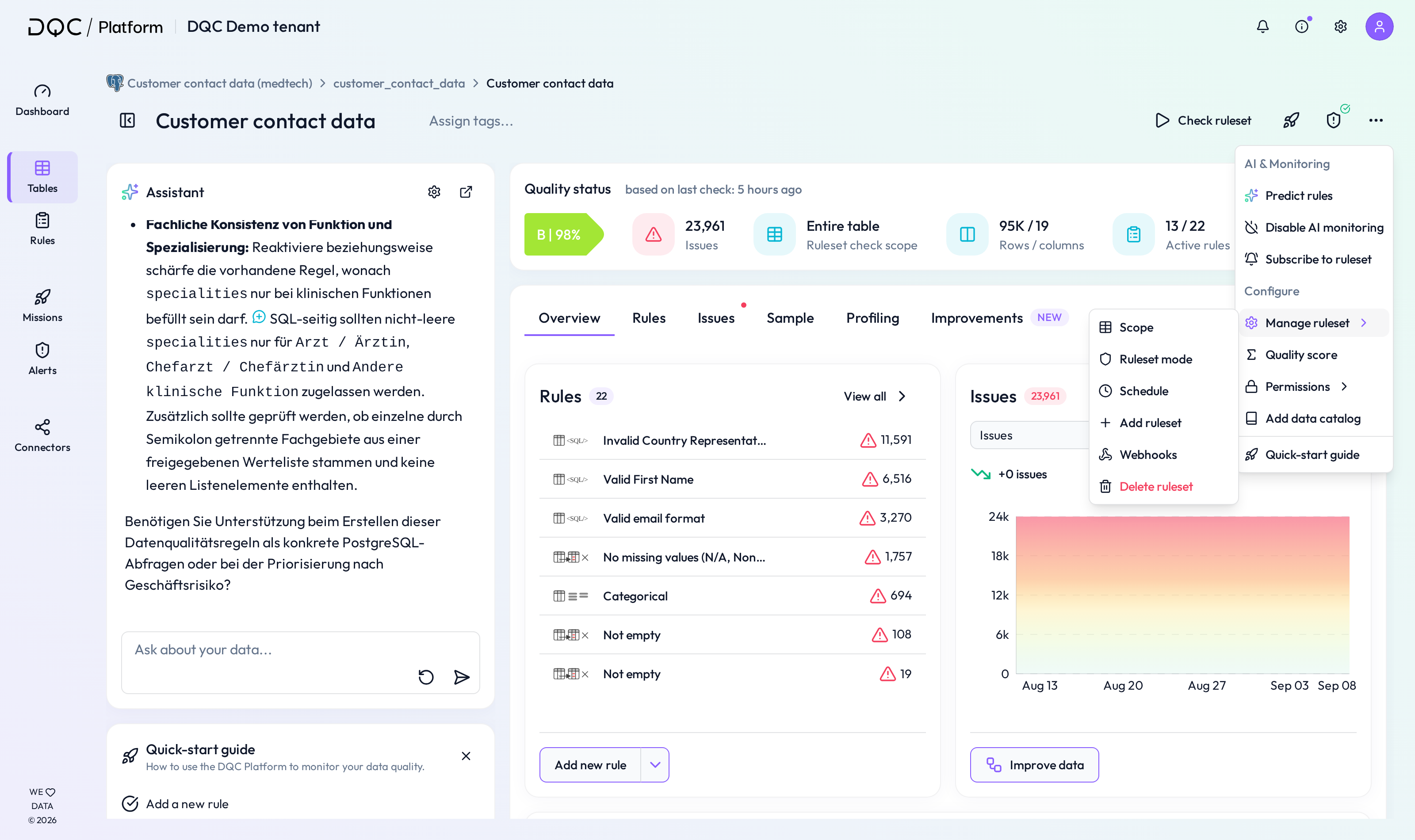 If you have access to a table but not to its existing rulesets, you can also add new rulesets directly from the Table Overview.

How to rename a ruleset
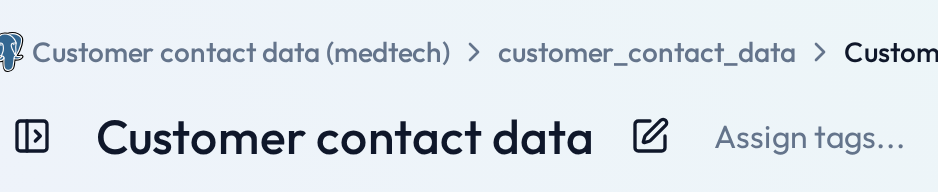
Newly created rulesets are automatically named New ruleset <timestamp>.
You can rename them by clicking the edit (pen) icon next to the ruleset name (visible on hover).
How to select and switch between rulesets
Users can select a ruleset directly from the Table Overview by expanding a table that contains multiple rulesets.
 Alternatively, users can switch between rulesets from within the Ruleset Detail view using the new Switch rulesets button in the header.
Only rulesets the user has permission to access will be displayed.

 Example
With multiple rulesets on an employee compensation table, every team can work independently:
HR uses its own ruleset to track “Eligible for Christmas Bonus,” celebrating qualified employees and improving engagement.
Finance applies its own “Bonus Payout Accuracy” ruleset, ensuring timely, correct payments before the holidays.
Because access controls limit visibility, Finance cannot view HR’s bonus‑eligibility criteria, and HR cannot access Finance’s payout tracking.
 Notes
Notes
Learn more: User Management and access rights, Rule Creation with DQ-AI Assistant,