
Deletion of a rule
In some cases, users may want to remove one or more data quality rules — for example, when a rule is outdated, duplicated, or no longer relevant for the table.
The DQC Platform offers multiple options to delete rules either individually or in bulk.
1. Delete a rule from the rule overview
On the Rule overview screen, each rule has a dedicated delete icon.
 Steps:
Navigate to the Rules tab
Locate the rule you want to delete
Click the delete icon next to the rule

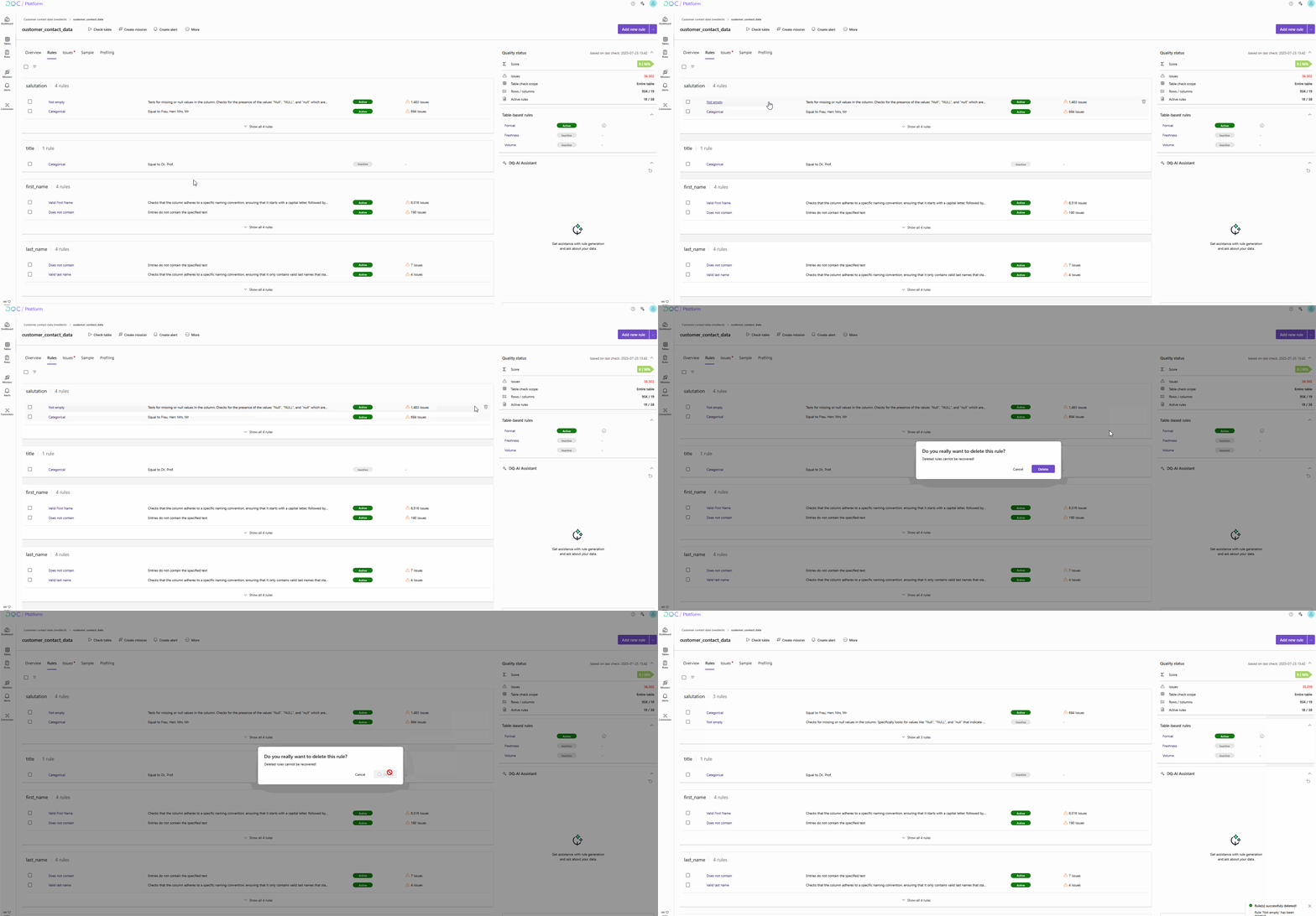 Removes one rule directly from the overview
2. Delete a rule from the Rule detail view
You can also delete a rule while editing it:
Open the rule from the Rules tab
Click on “...” in the top-right corner
Select “Delete”

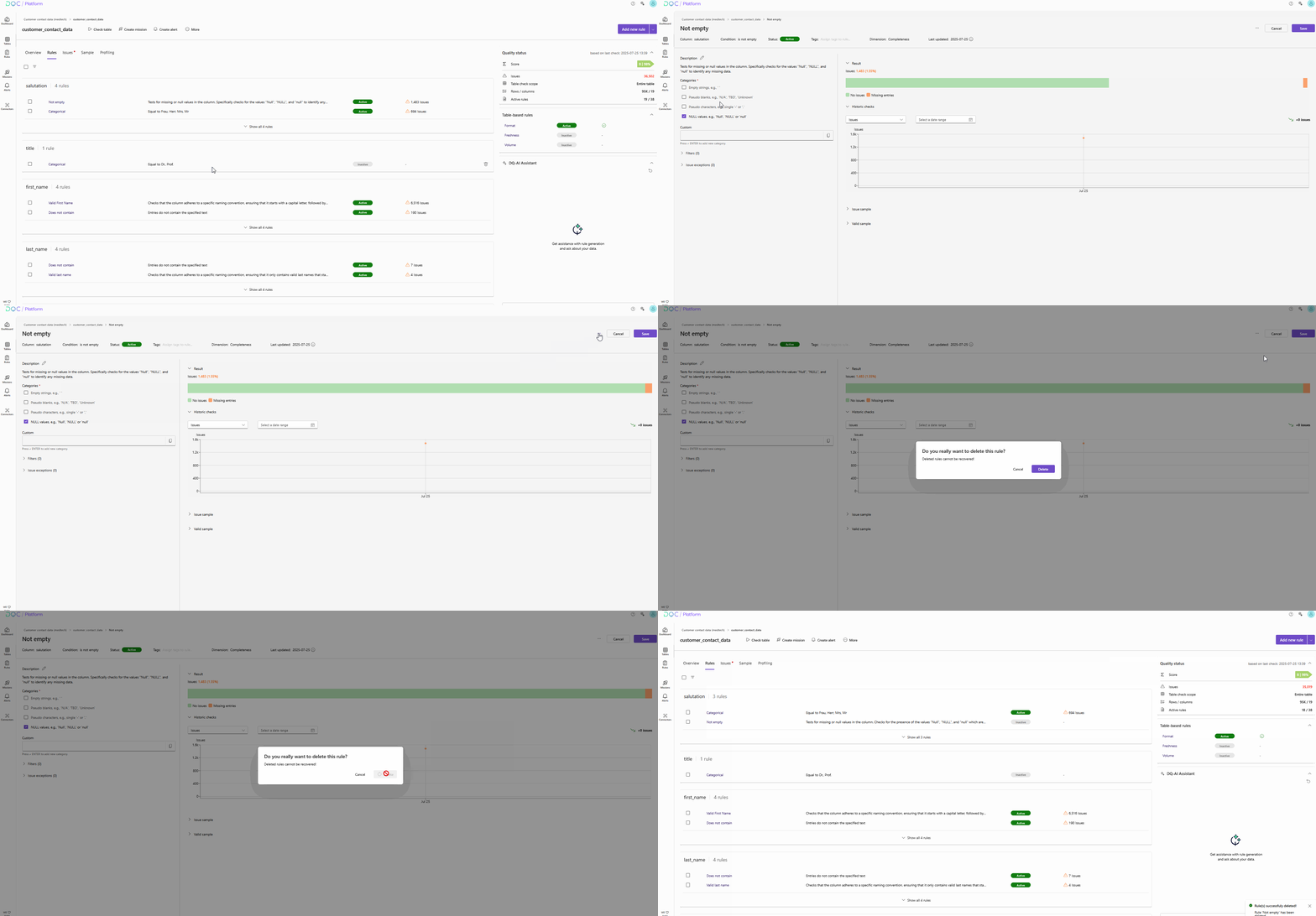 Ideal for removing a rule during inspection or editing
3. Delete multiple rules at once
You can delete multiple rules in bulk from the Rule overview:
Tick the checkbox next to each rule
Click the “Delete” button above the list
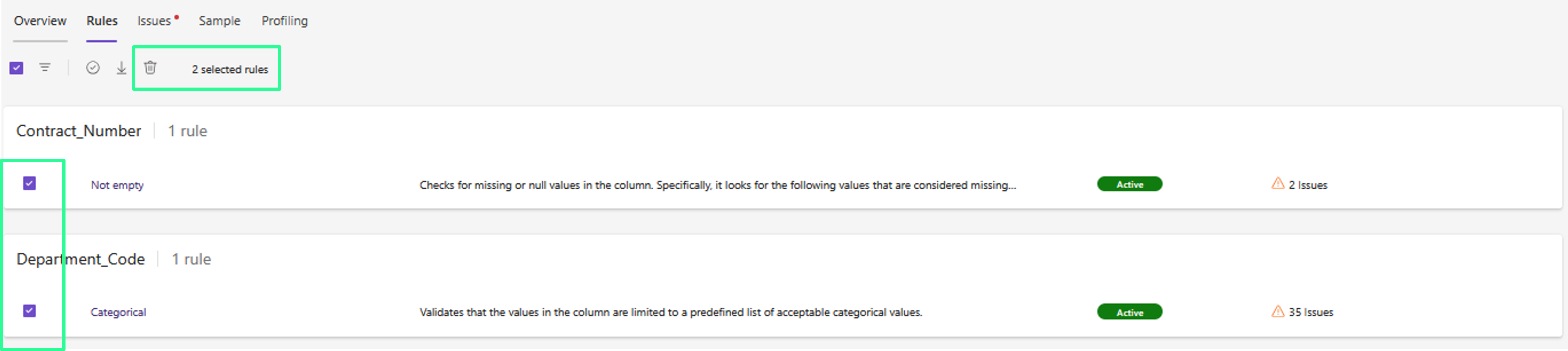
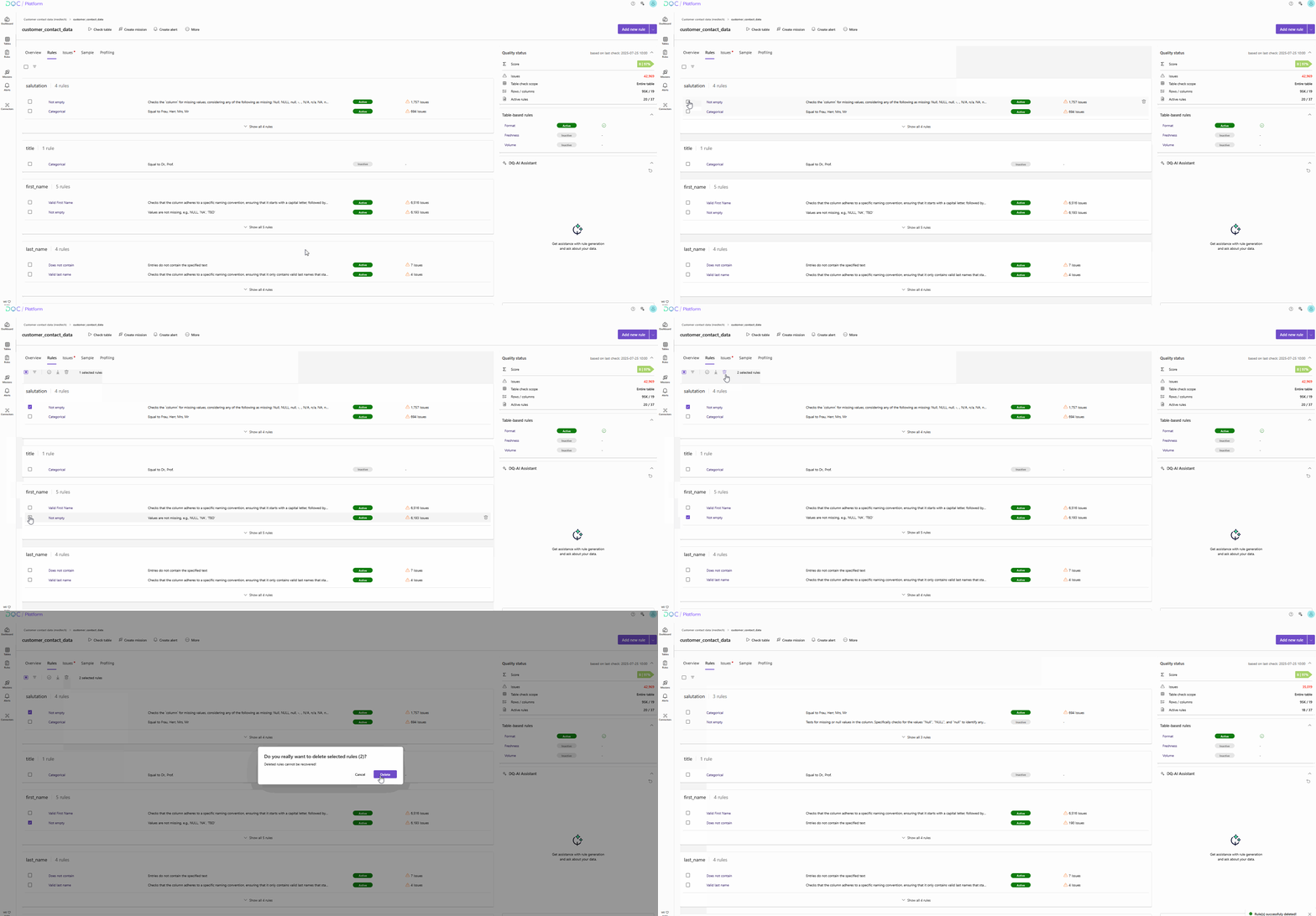 Efficient way to clean up outdated or irrelevant rules
 Notes
Notes
Deletion is permanent and cannot be undone
Rules can only be deleted if the user has the appropriate access rights
Deleting a rule removes it from all checks and dashboards
Learn more: Rule Repository, Working with the Rule Detail Screen, Setting Up a Table Check