
Connection to Databricks (legacy)
To connect a Databricks lakehouse to the DQC Platform, you’ll need to collect a few key pieces of configuration. This guide walks you through all required values, token creation, and permission setup.
Deprecated: This is the legacy, Spark based Databricks connector. It requires an all-purpose cluster, is limited in the number of parallel connections and is no longer actively developed. For new connections, use the native Databricks connector instead.
Required connection details
Field | Example | Description |
|---|---|---|
Name |
| Any internal name for this connection |
Host |
| Log into Databricks and copy the host from the URL: |
Token (dev) |
| Developer token — see steps below for generating access |
Service Principal (prod) | Client ID: | In Azure Databricks: User icon > Settings > Identity and Access > Service Principals |
Cluster ID |
| In Databricks, go to Clusters, open one, and extract the ID from the URL |
Catalog |
| Catalog that contains your target schema and tables |
Schema |
| Schema to which you want to connect |
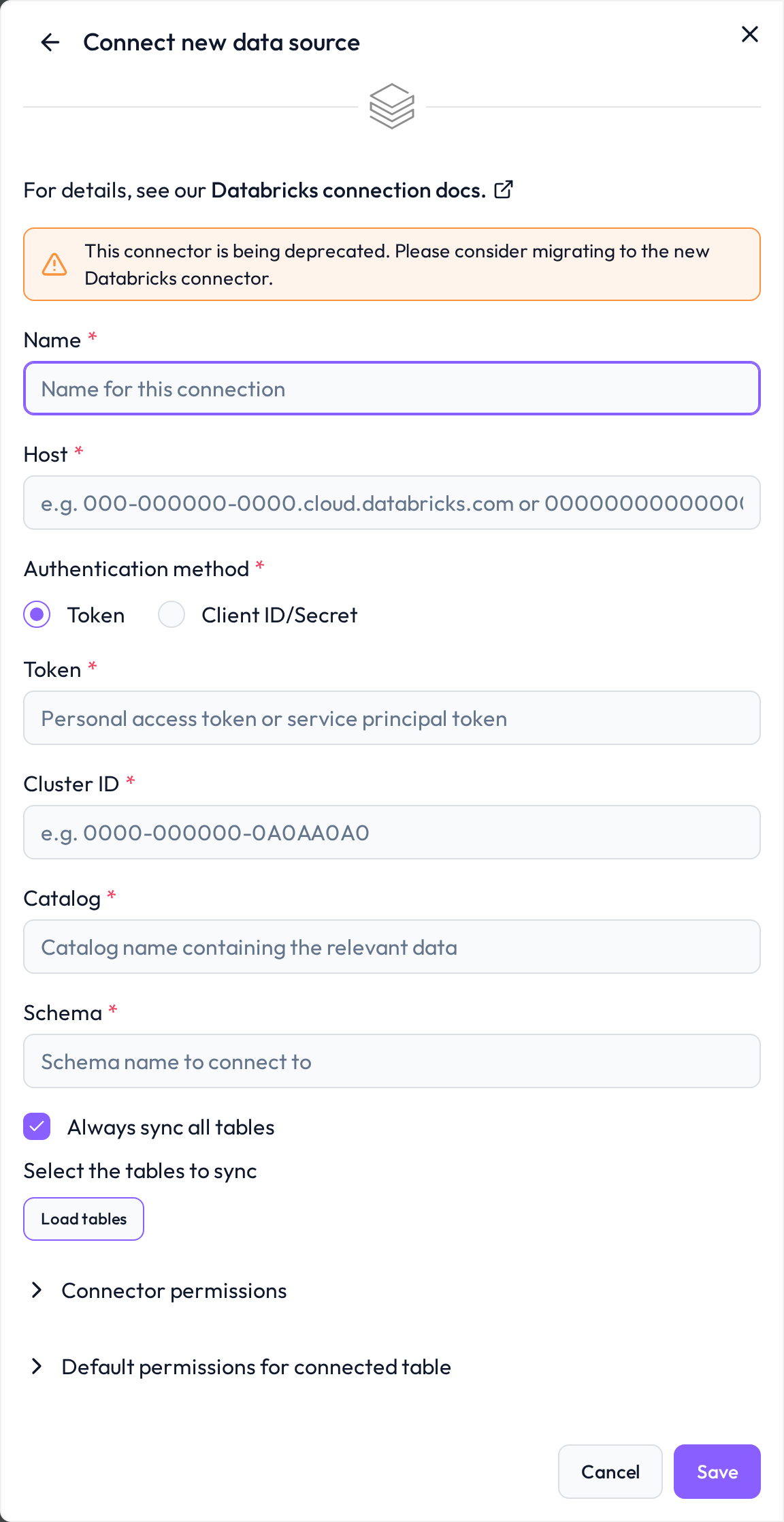 Enter the connection values in the integration form shown above
Create a Databricks access token
The DQC Platform requires an access token to connect. We recommend using a service principal.
Option 1: Service principal (recommended)
Create a new service principal for the DQC Platform
Use the Databricks API to create a principal and note the Application ID. Instructions (for Azure Databricks, see here).Grant token usage to the service principal
In your Databricks workspace, allow the principal to use tokens. InstructionsGenerate an access token
Create a token and set"lifetime_seconds": nullfor uninterrupted access
Store the token securely. Instructions
Option 2: User-based token (for development)
Navigate to User Settings > Developer Tools in Databricks
Generate a personal access token
Store it securely for use in the DQC Platform
Grant access to the target schema
To allow the DQC Platform to read data, grant the Data Reader role to the relevant user or service principal on the desired schema.
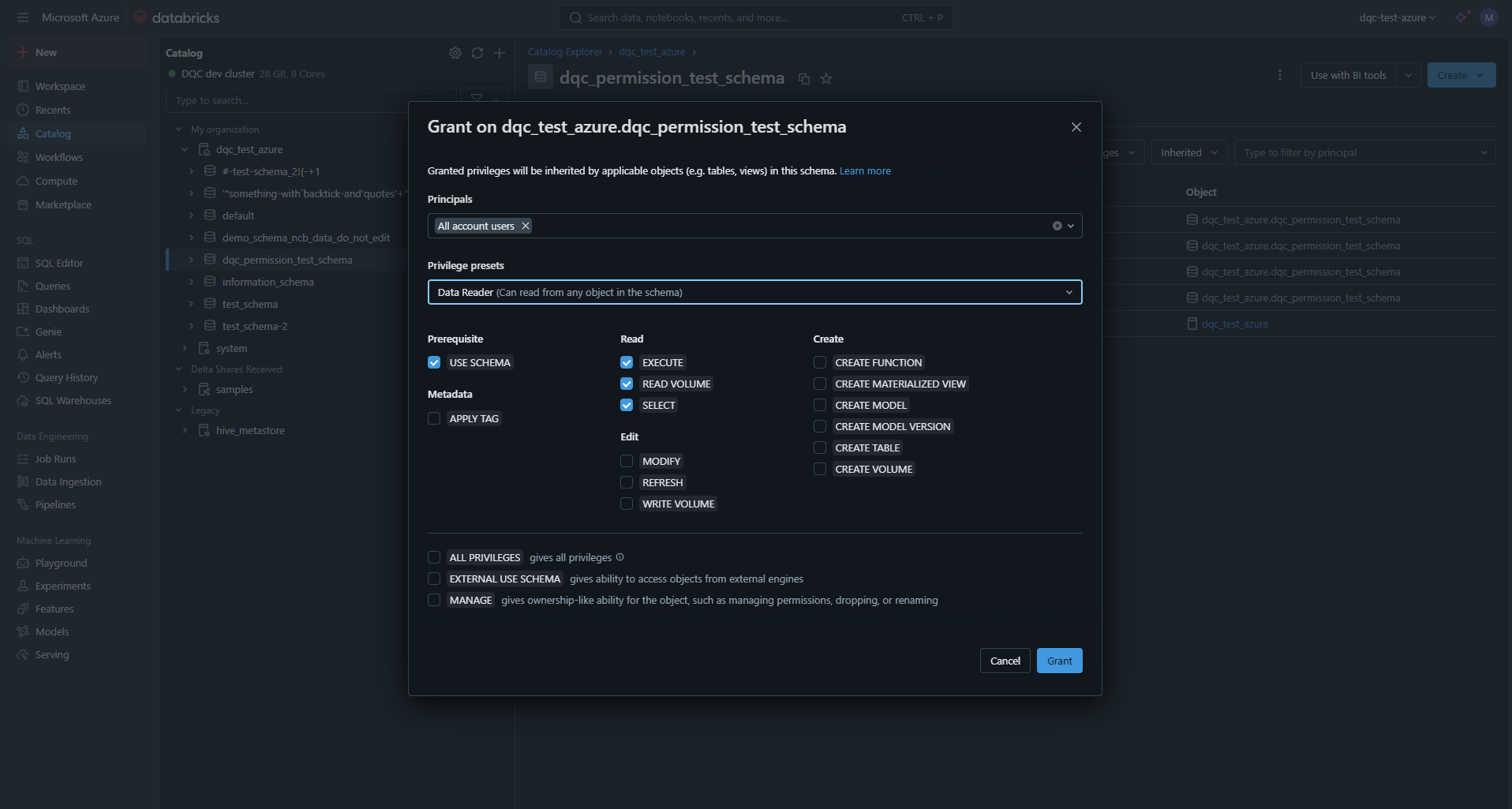 Set schema-level read permissions in Unity Catalog
Note: The CREATE VOLUME privilege is not required for this legacy connector. It applies to the native Databricks connector, where it enables governed staging of temporary data via Unity Catalog Volumes.
Allow static IP access
The DQC Platform connects using static IP addresses. Ensure that these are whitelisted in your environment:
3.123.94.228 Notes
Notes
For most production environments, we strongly recommend using a service principal
The connection is read-only and encrypted
Learn more: Supported data sources, Azure SQL connection, Connection to Snowflake