
Connection to Azure SQL
To connect an Azure SQL database to the DQC Platform, you’ll need to provide connection credentials for a read-only SQL user and whitelist the platform’s IP. This guide explains all necessary steps.
Add an Azure SQL connector
To begin:
Go to the Data Connectors screen
Click the Azure SQL Server button
Enter the connection parameters described below
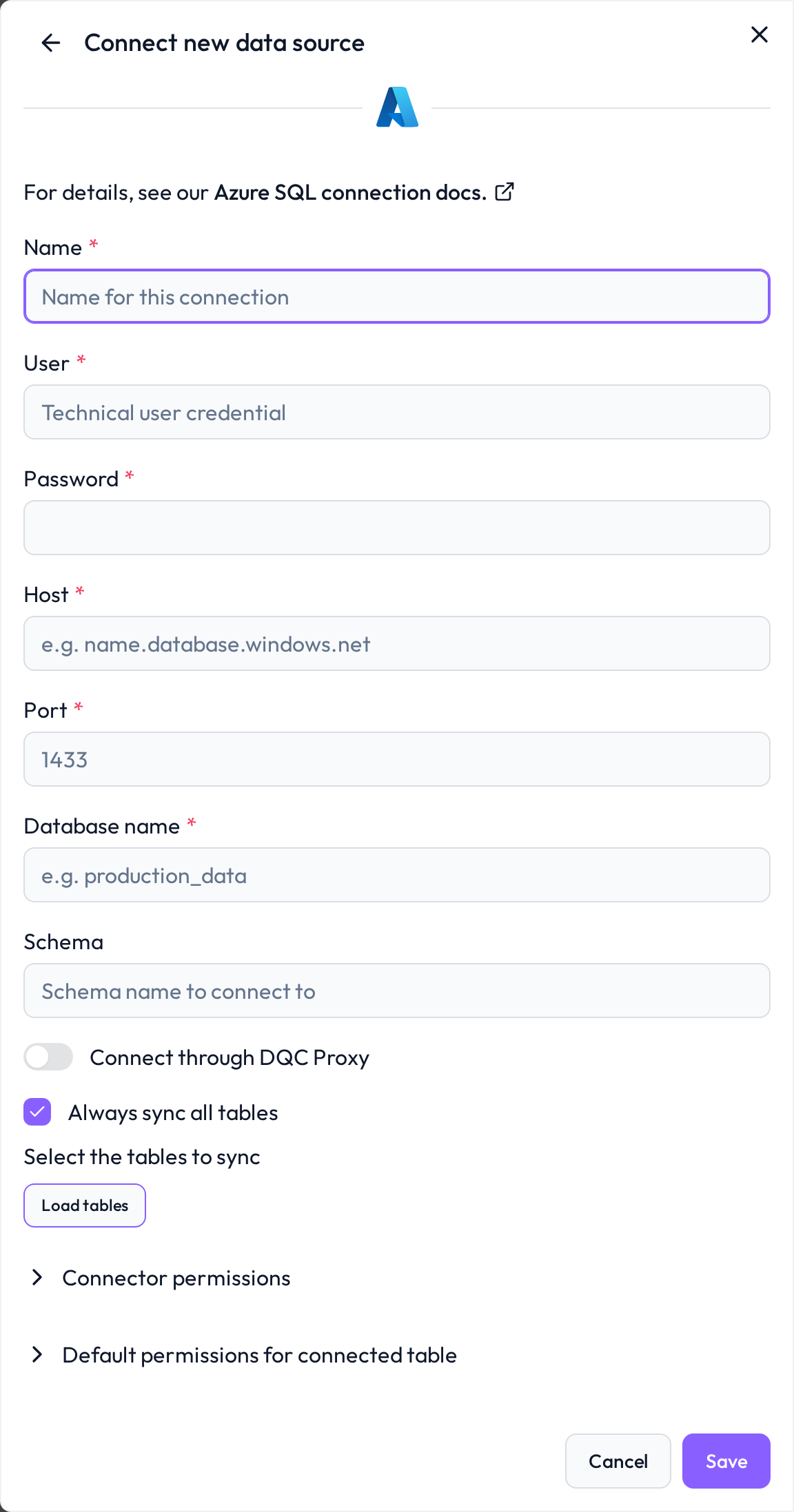 Select Azure SQL to begin configuring your database connection
 Required connection information
Field | Example | Description |
|---|---|---|
Name |
| Custom name to identify your connection |
User |
| A SQL user with read-only permissions |
Password |
| Password for the SQL user |
Host |
| Usually in the format: |
Port |
| Default port for Azure SQL |
Database name |
| Name of the target database within the Azure SQL instance |
.
User configuration & permissions
We recommend creating a dedicated SQL user for the DQC Platform connection with read-only access.
 Dedicated, Minimal-Privilege User
Avoid using admin or shared credentials
Create a user specific to DQC Platform access
 Assign Read-Only Role
In SQL Server Management Studio or via script, grant the following:
USE [your_database];
CREATE USER [dqcreader] FOR LOGIN [dqcreader_login];
ALTER ROLE db_datareader ADD MEMBER [dqcreader];
Whitelist the DQC Platform IP Address
To allow inbound connections from the DQC Platform, whitelist the following static IP in your Azure SQL firewall settings:
3.123.94.228 Notes
Notes
TLS encryption is used by default for all Azure SQL connections
Ensure that the SQL server allows public access, or configure a private endpoint with the same IP allowance
Learn more: Supported data sources, Connection to PostgresSQL, Data source access permissions