
Virtual table creation
In some cases, data quality checks require information from multiple tables. For this, the DQC Platform allows you to create a virtual table — a logical join of two or more existing tables. This virtual table does not store data physically, but presents a dynamic view that always reflects the latest state of its source tables.
What Is a virtual table?
A virtual table:
Combines multiple tables using join logic
Is updated automatically when the source tables change
Can be used for data quality checks just like any other table
Only supports joining tables from the same tenant
How to create a virtual table
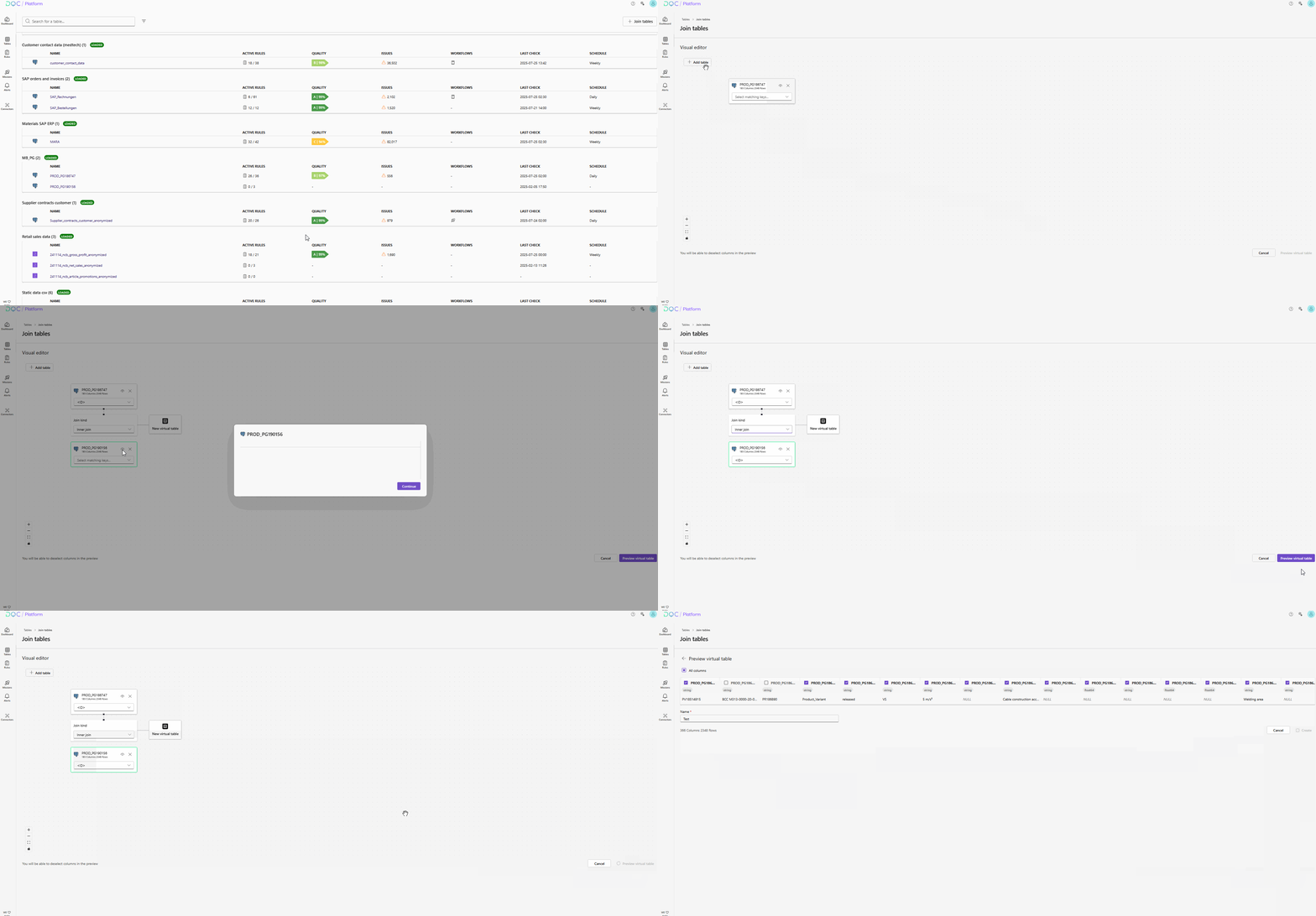
1. Start table join process
Navigate to the Tables overview and click on “Join tables”.

2. Add tables to be joined
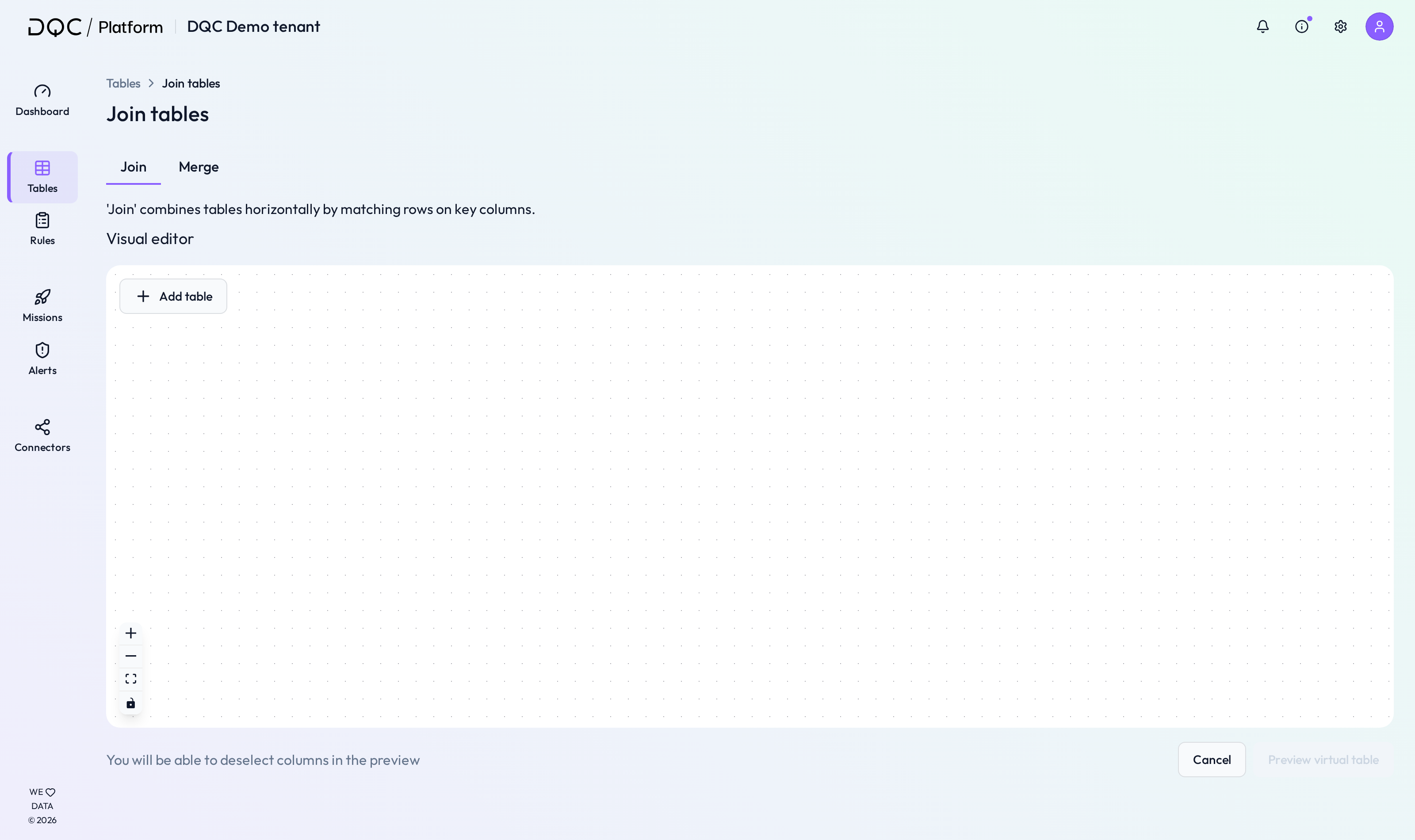
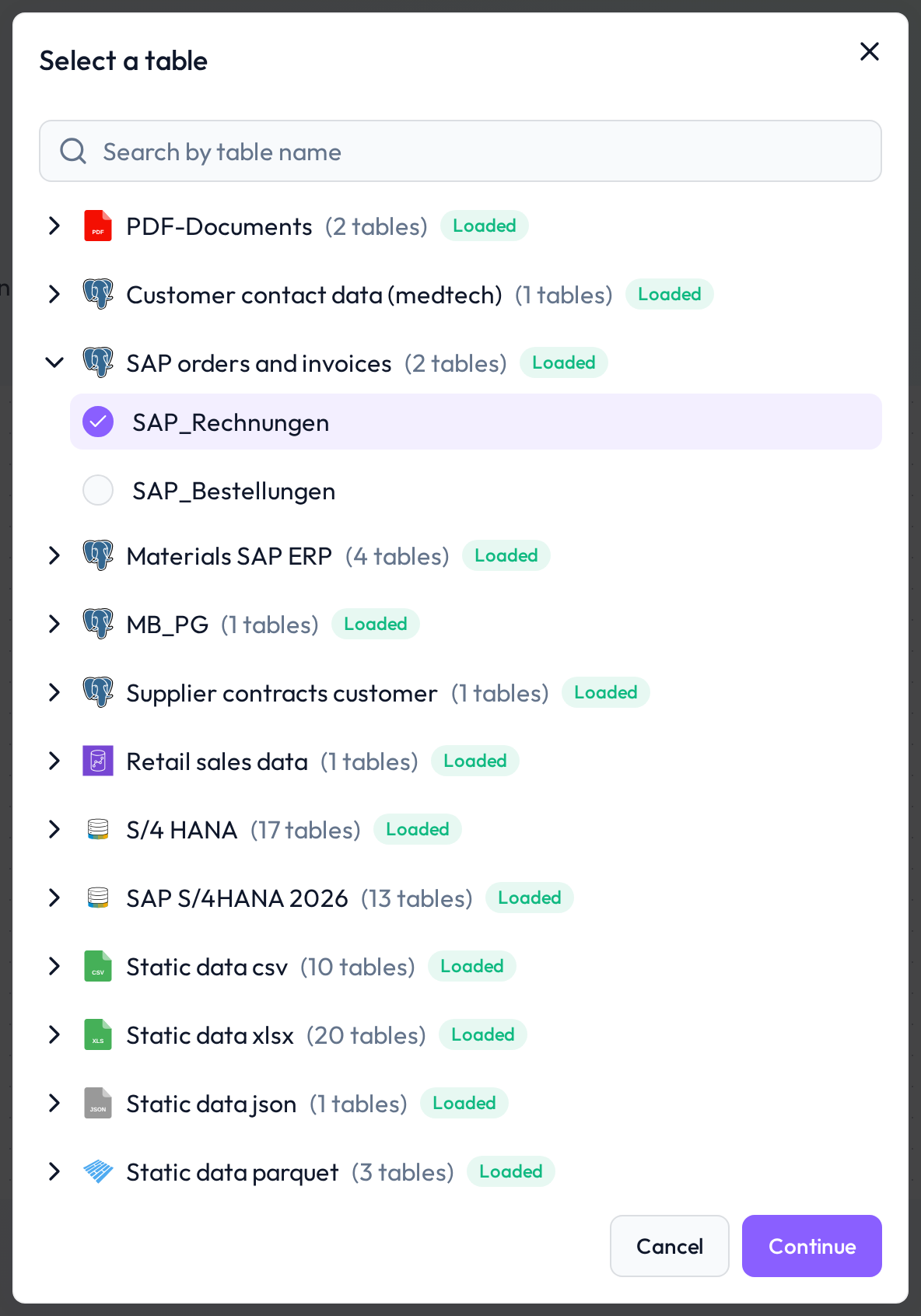
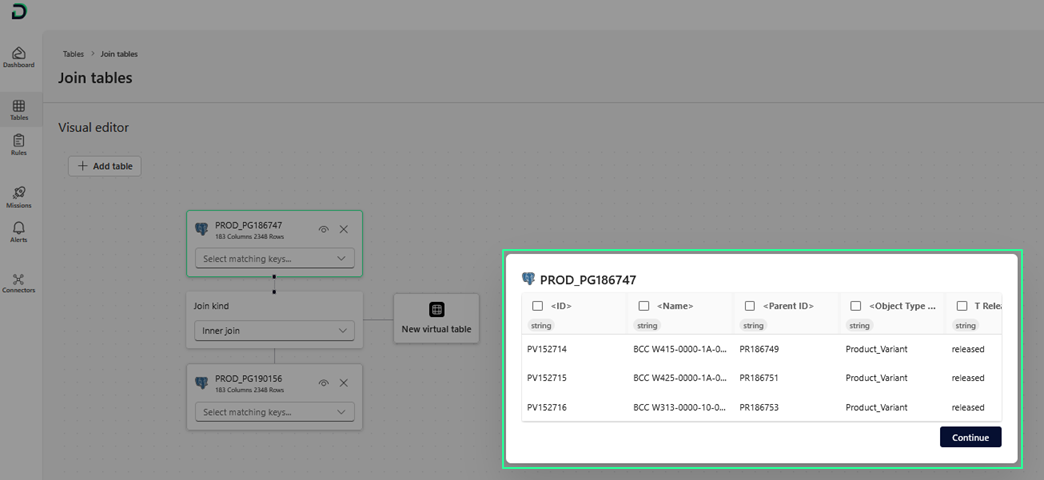
Click “Add table” and select a table from the same tenant.
Click “Continue” to confirm.
Repeat the process to add a second table (or more). Note: All joined tables must belong to the same tenant.
3. Select matching keys and join type
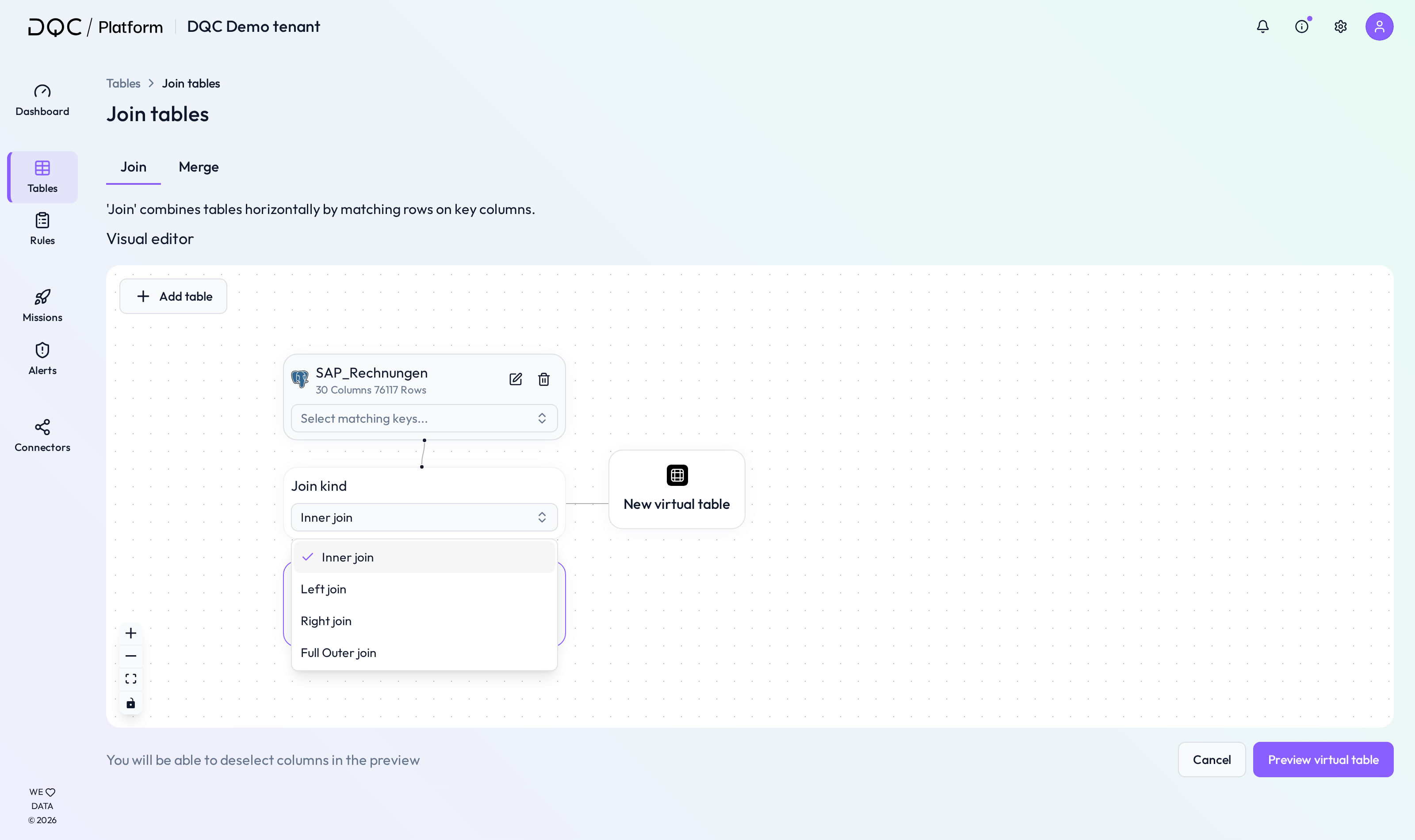
Once two tables are selected, the visual join editor appears, showing:
Table names
Number of columns and rows
A schematic view of how they will be joined
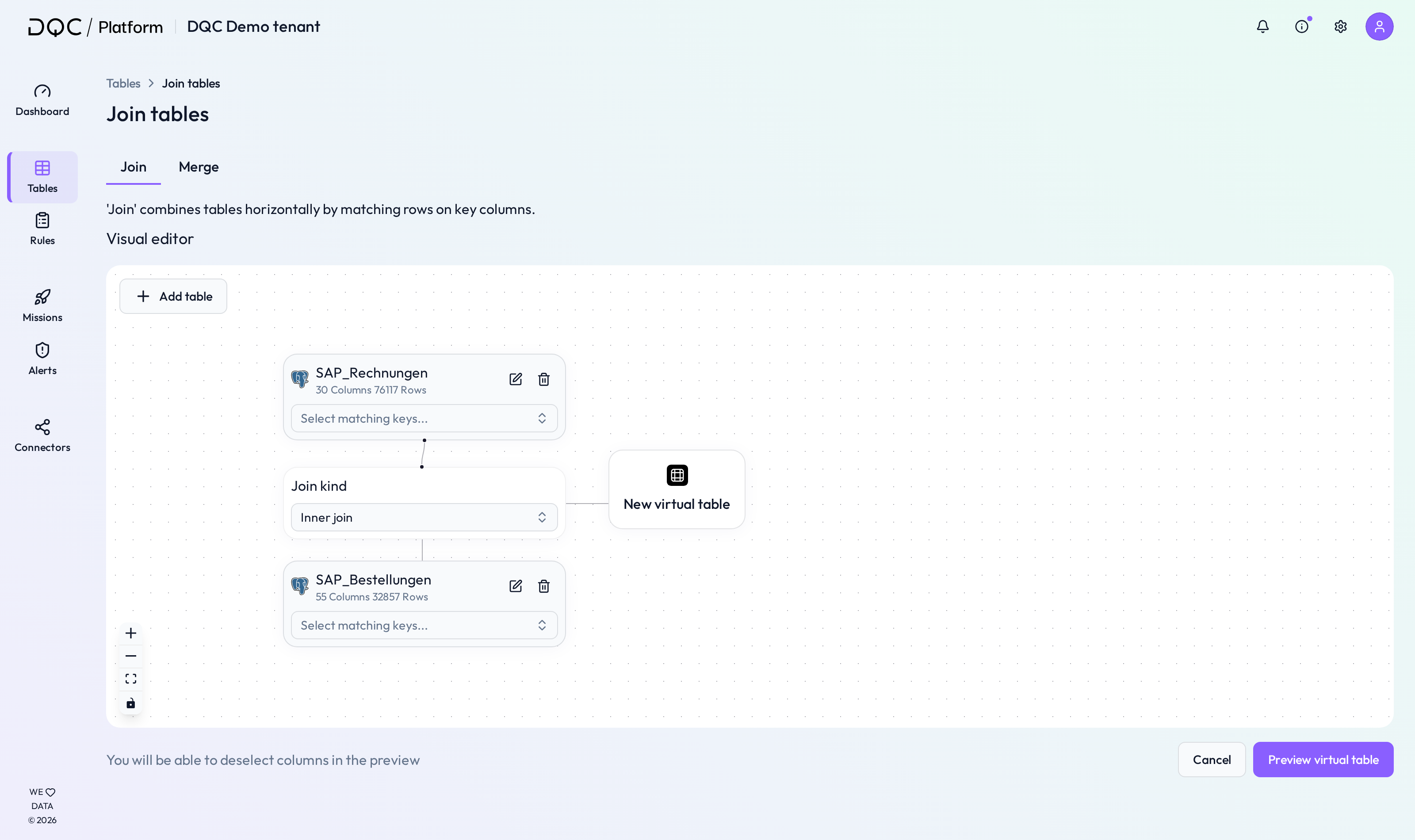
You now need to configure:
Matching Keys
These are the columns used to link the tables (e.g. Customer ID, Order ID).
You can select keys from a dropdown or click the eye icon for precise column matching.
Join Kind
Select the type of join from the dropdown:
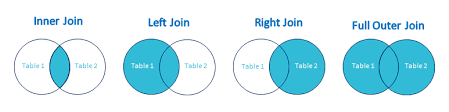
Inner Join – Only rows with matches in both tables
Left Join – All rows from the first table, matching rows from the second
Right Join – All rows from the second table, matching rows from the first
Full Outer Join – All rows from both tables; unmatched values filled with NULLs
4. Preview the virtual table
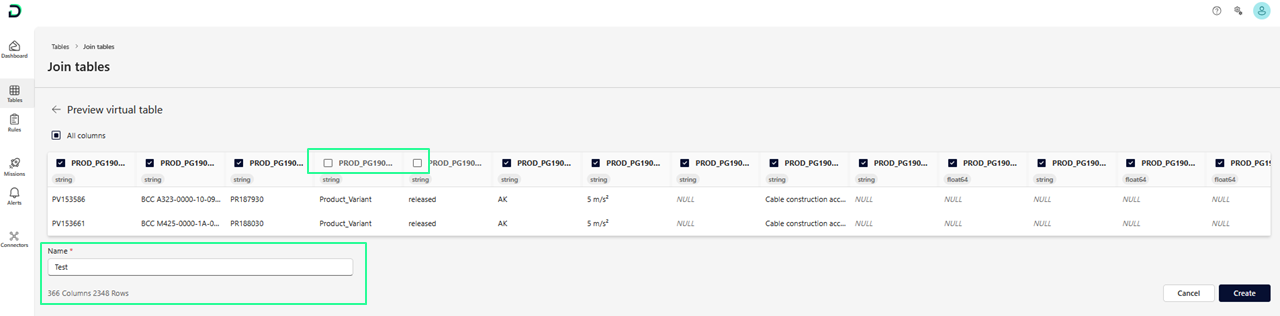
Click “Preview virtual table” to view a small sample of the joined result.
You can deselect columns if needed. Assign a name to your virtual table (required).
5. Finalize creation
Click “Create” to generate the virtual table.
It will now appear in the Tables overview and can be used for:
Rule creation
Data checks
Profiling
Alerting and missions
Data sync behavior
Any updates made to the underlying source tables will automatically be reflected in the virtual table — ensuring your checks always operate on live, consistent data.
 Notes
Notes
Virtual tables only join tables from the same tenant
They behave like regular tables across the DQC Platform
Changes to source data are automatically inherited
Learn more: Setting up a Data Quality Check, Rule Creation with DQ-AI Assistant, Issue Table