
Setting rules as active or inactive
Each data quality rule in the DQC Platform can be either active or inactive. Only active rules are evaluated during a table check.
Rule status overview
Newly created rules are inactive by default
Only active rules are considered during table checks
Inactive rules are ignored and will not trigger issues
1. Set rule status from the rule overview
On the Rule overview screen, each rule has a status toggle on the right:
 Steps:
Go to the Rules tab
Use the toggle icon to switch the rule between active and inactive
 Quickly activate or deactivate individual rules
2. Set rule status from the rule detail view
You can also change the status while editing a rule:
Open a rule
Use the toggle at the top of the screen
 Useful when reviewing or adjusting a rule
3. Set multiple rules at once
To activate or deactivate multiple rules in bulk:
In the Rules tab, select rules using the checkboxes
Click “Activate” or “Deactivate” in the action bar above
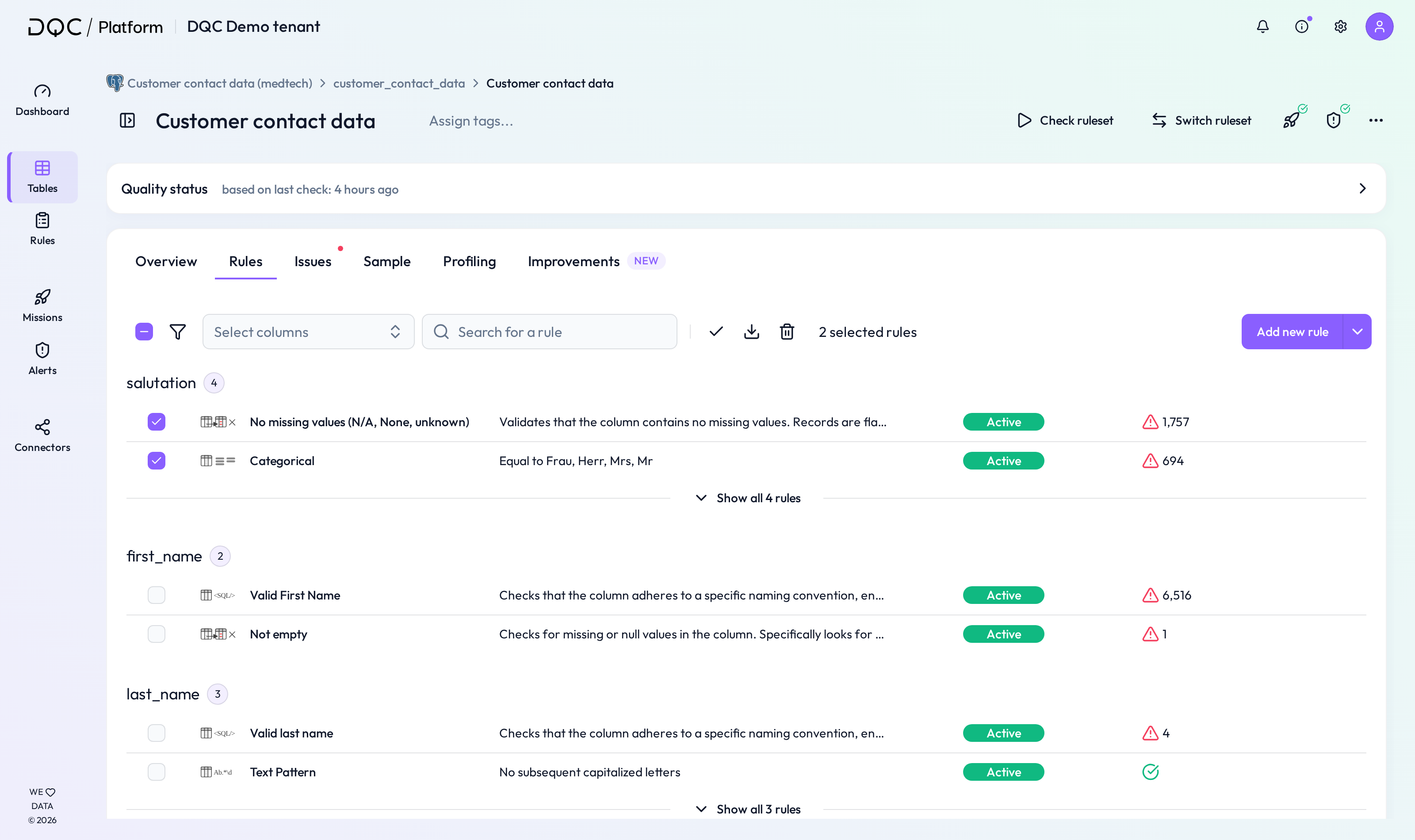 Ideal for large rule sets or when importing rules
 Notes
Notes
Inactive rules remain saved but are skipped in checks
Only active rules contribute to issue detection and quality scores
Use the Rule Repository to filter by active/inactive status
Learn more: Running a Table Check, Rule Repository, Scheduling Checks