
Integration of buttons into missions
In the DQC Platform, buttons can be added to mission messages to provide recipients with quick access to external tools, issue-resolution platforms, or context-specific resources. This enhances the usability of missions and streamlines the issue resolution process.
Where buttons appear
Buttons are included in the final section of the alert message setup. Each button displays a name and links to a specified URL. Recipients can click the button to immediately navigate to the defined destination.
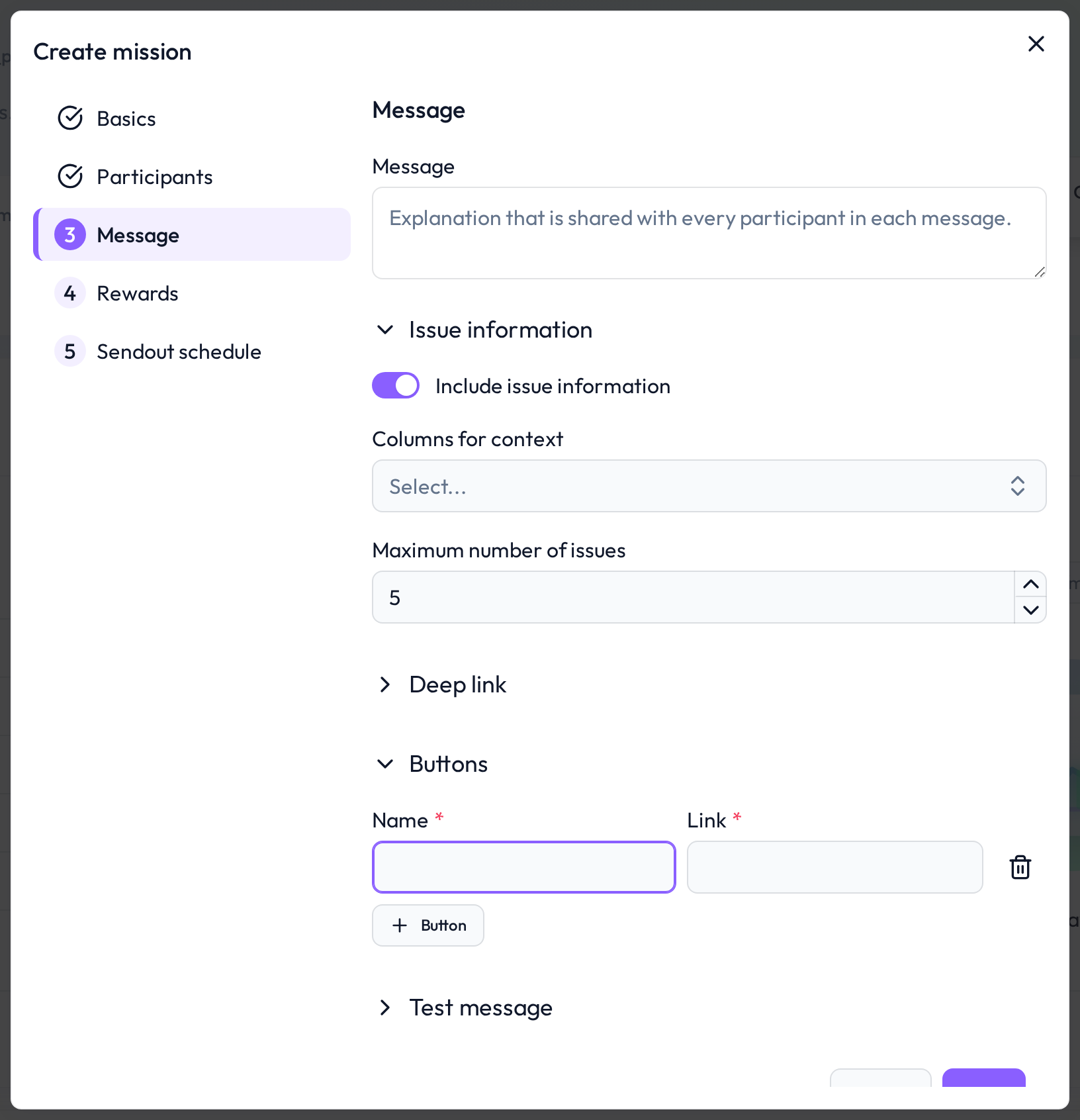 Buttons allow direct action links in mission messages
How to add a button
To add one or more buttons to an alert:
Navigate to the Message step in the alert creation process
Expand the Buttons section
Enter a Name for the button (e.g., Resolve Issue)
Enter a Link (e.g., https://yourtool.com/task/123)
Optionally, click + Button to add more
Typical use cases
Buttons can be used to:
Open internal tools for direct remediation
Guide users to documentation or dashboards
Trigger a predefined workflow or approval process
 Notes
Notes
Buttons are available in both MS Teams and Email mission messages
Use descriptive labels (e.g., Review Now, Fix in SAP) to make buttons intuitive
Learn more: Setting Up an Alert, Participant Selection for missions