
Connection to BigQuery
To connect Google BigQuery to the DQC Platform, you’ll need to provide a service account with read-only access and supply a few key connection values. This article walks you through the setup.
Add a BigQuery connector
To get started:
Navigate to the Data Connectors screen in the DQC Platform
Click on BigQuery
Fill in the required connection fields as described below
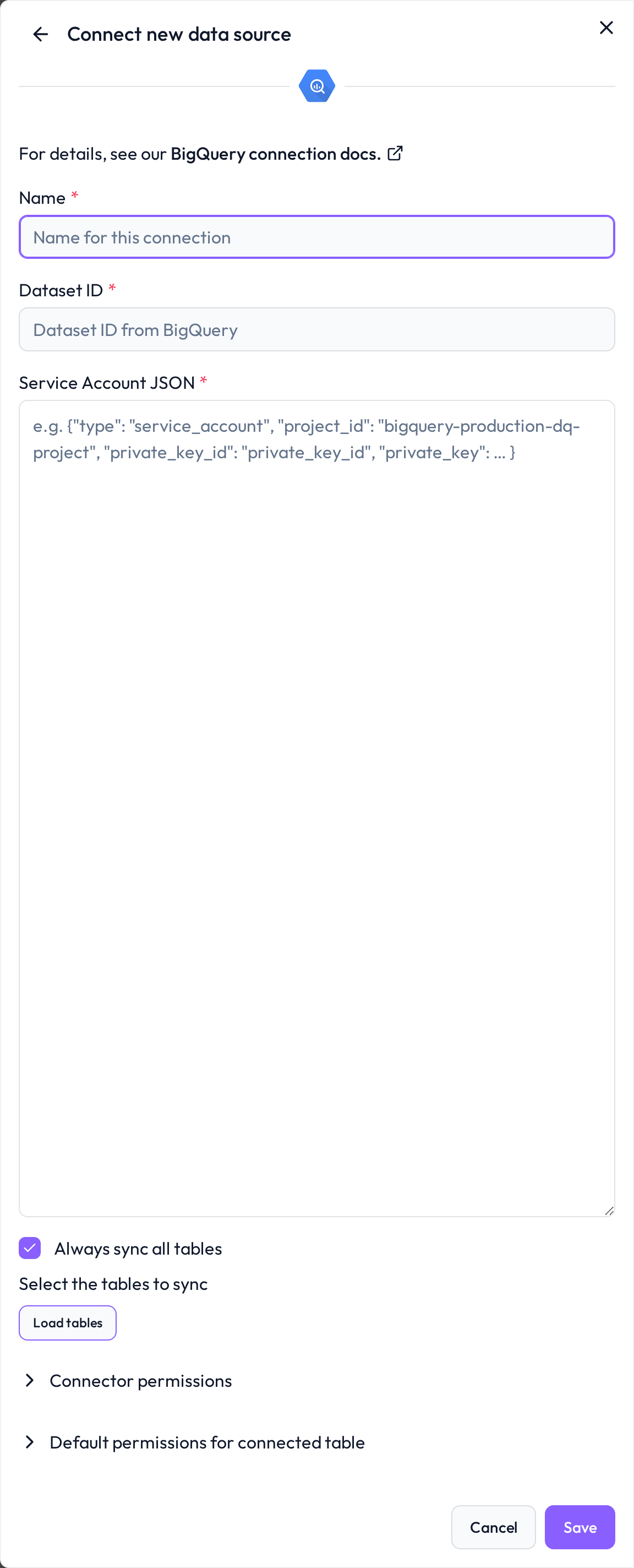 Start the setup by selecting BigQuery from the connector list
Required connection information
Field | Example | Description |
|---|---|---|
Name |
| Any internal name to label your connection |
Dataset ID |
| The ID of your BigQuery dataset (see below) |
Service account JSON |
| Full JSON credentials file for a service account with appropriate permissions |
Retrieve the dataset ID
Log into the Google Cloud Console
Go to BigQuery
Select the dataset that contains the tables to be checked
Copy the Dataset ID
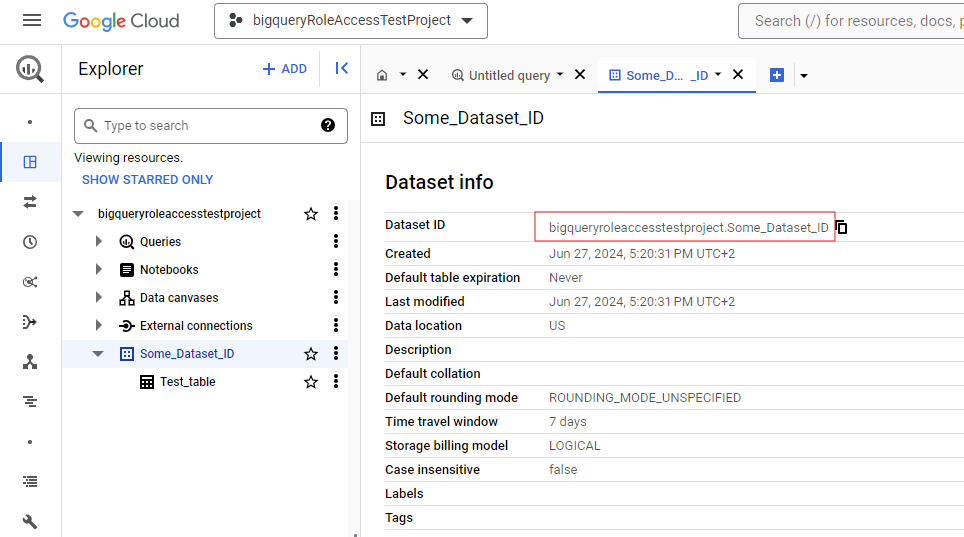 The dataset ID uniquely identifies the group of tables for data checks
Create the service account JSON
If you don’t already have a service account with the required permissions, follow these steps:
Step 1: Add a Service Account (Optional)
Go to IAM & Admin > Service Accounts
Click Create Service Account
Enter a name and click Continue
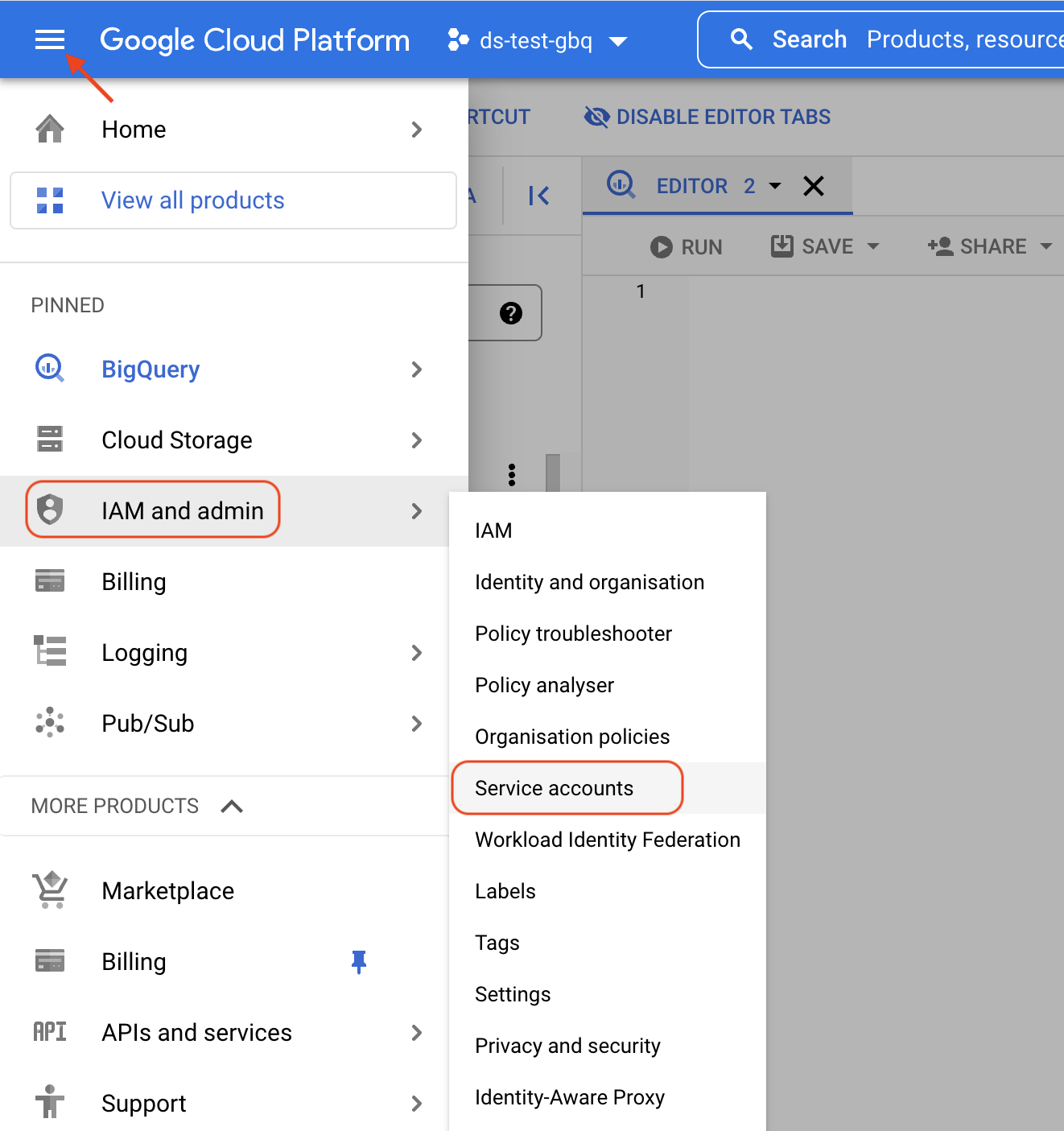 Add a dedicated service account for the DQC Platform
Step 2: Assign Permissions
Add the following three roles under product “BigQuery”:
BigQuery Data Viewer
BigQuery Job User
BigQuery Read Session User
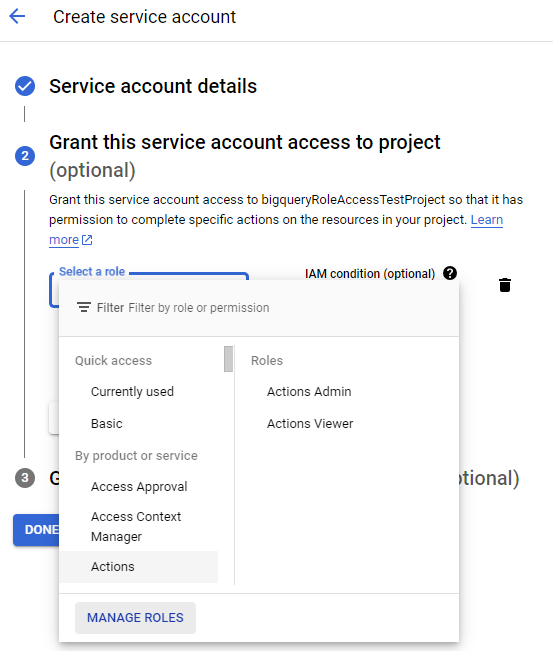 These roles grant safe, read-only access to your data
Step 3: Generate JSON Key
Select the new service account
Go to the Keys tab
Click Add Key > Create New Key > JSON
Download the file
Open the file in a text editor and copy the full JSON content
Paste this into the Service account JSON field in the DQC Platform
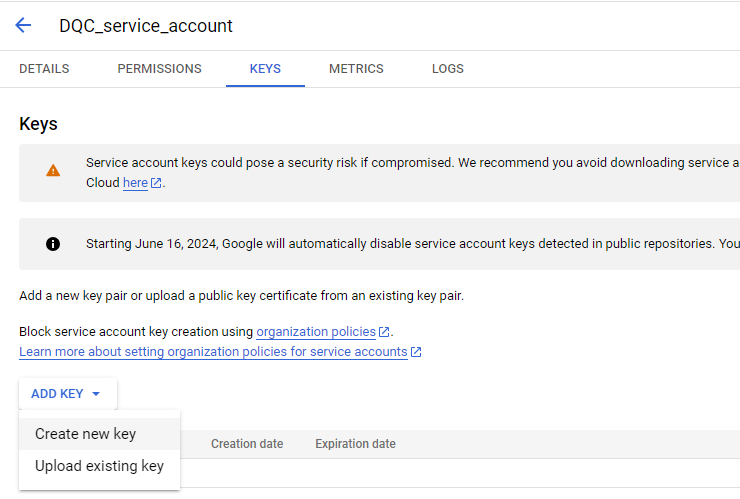 The key allows secure automated access via the DQC Platform
Enable BigQuery API (if not yet enabled)
Before using the connector, ensure the BigQuery API is activated in your Google Cloud project.
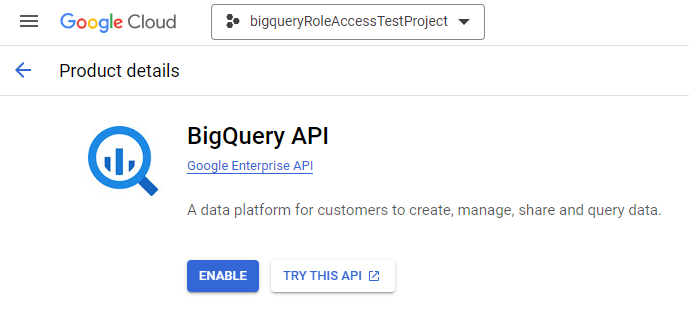 Search for “BigQuery API” in the GCP console and click Enable
Allow Static IP Access
3.123.94.228 Notes
Notes
The service account must be tied to the same project as the dataset
Permissions are read-only — no changes to data are made
Learn more: Supported data sources, Connection to Azure SQL, Data source access permissions