
v3.10
Release 3.10 makes Improvement workflows composable: a workflow may read the issues of the last check, the ruleset-scoped dataset or the result of another workflow, and the new Edit table node renames, removes and adds columns anywhere in the chain. Every node dialog now works with the data that actually arrives at that node, and input previews can be followed, cancelled and traced back to the node that failed.
Beyond that, connector failures can be sent to email recipients and webhooks.
 New Features
Choose the data an Improvement workflow reads
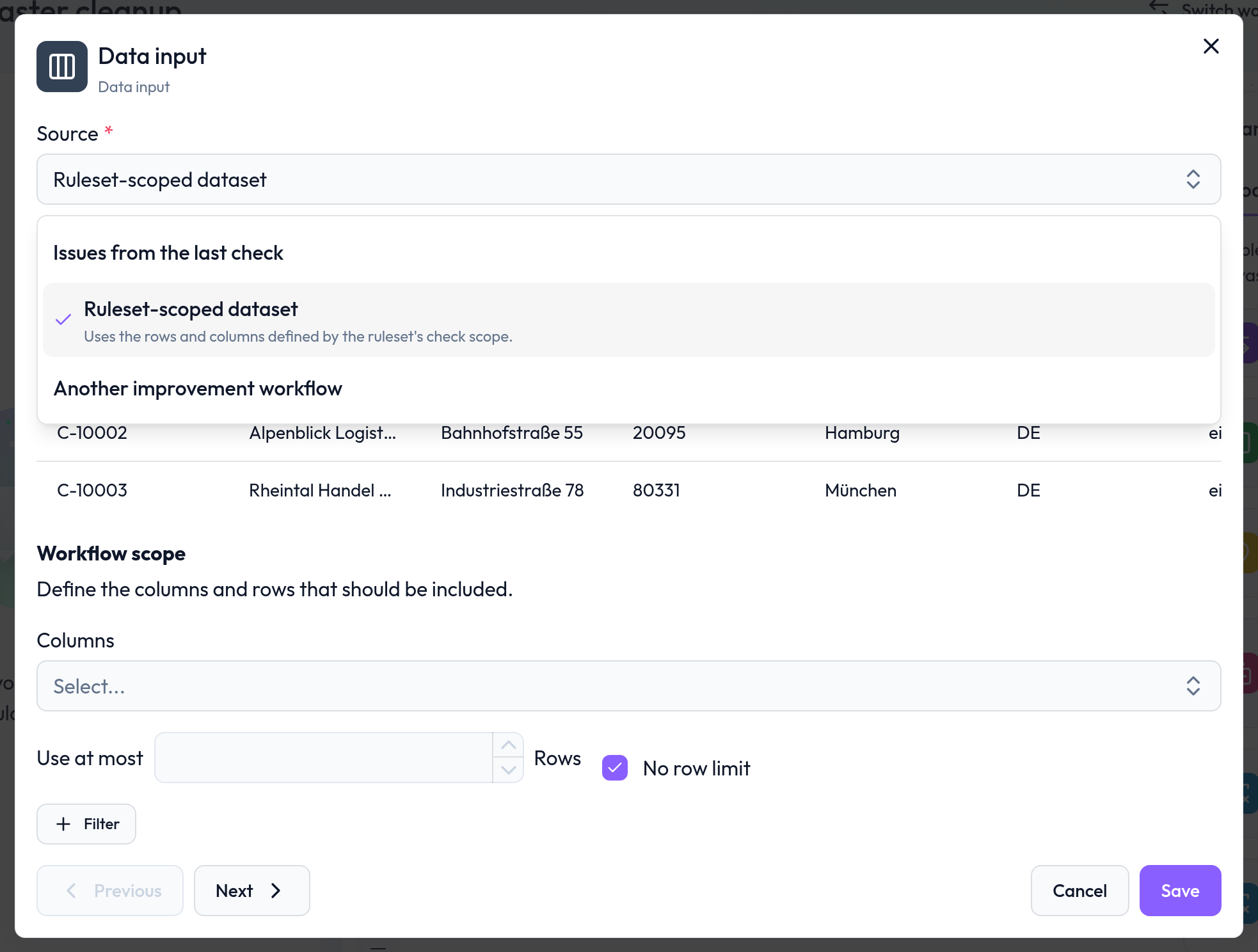
The Data input node has a source selection: Issues from the last check, Ruleset-scoped dataset (the rows and columns of the ruleset's check scope) or Another improvement workflow, whose latest result becomes the input.
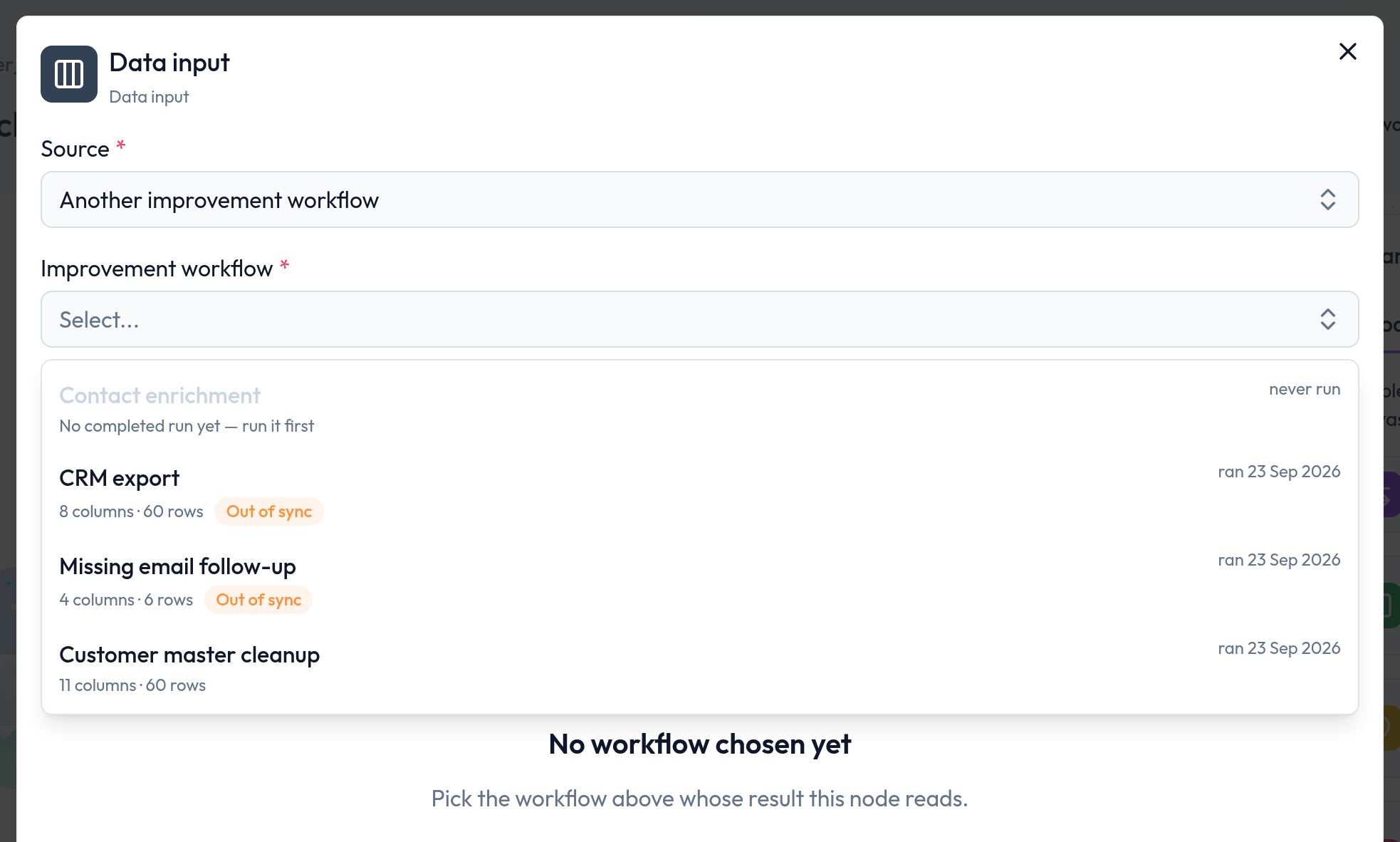
When reading another workflow, the picker shows its columns, rows and last run. Workflows without a completed run, and workflows that would create a loop, cannot be selected.
A workflow result is marked as out of sync when its underlying configuration changes: a new check, an edit to the ruleset's check scope (columns, row filters, sample size or sort), a new run of the upstream workflow, or a different source on the Data input node.
New workflows start without a source. Until one is chosen, the nodes below show a hint with an Open Data input button, and runs and previews explain that the source is missing. Existing workflows keep reading the issues of the last check.
Edit table node
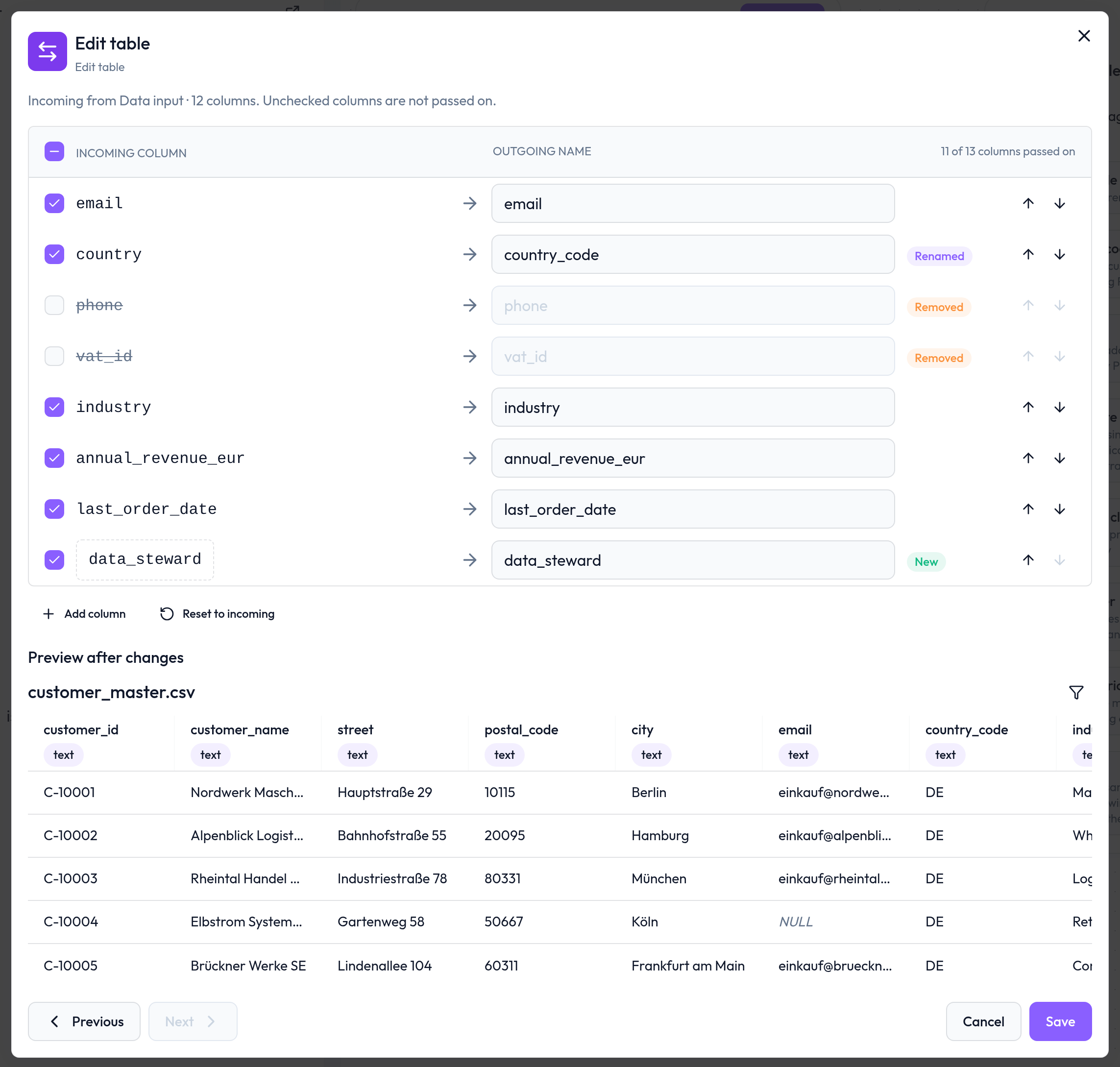
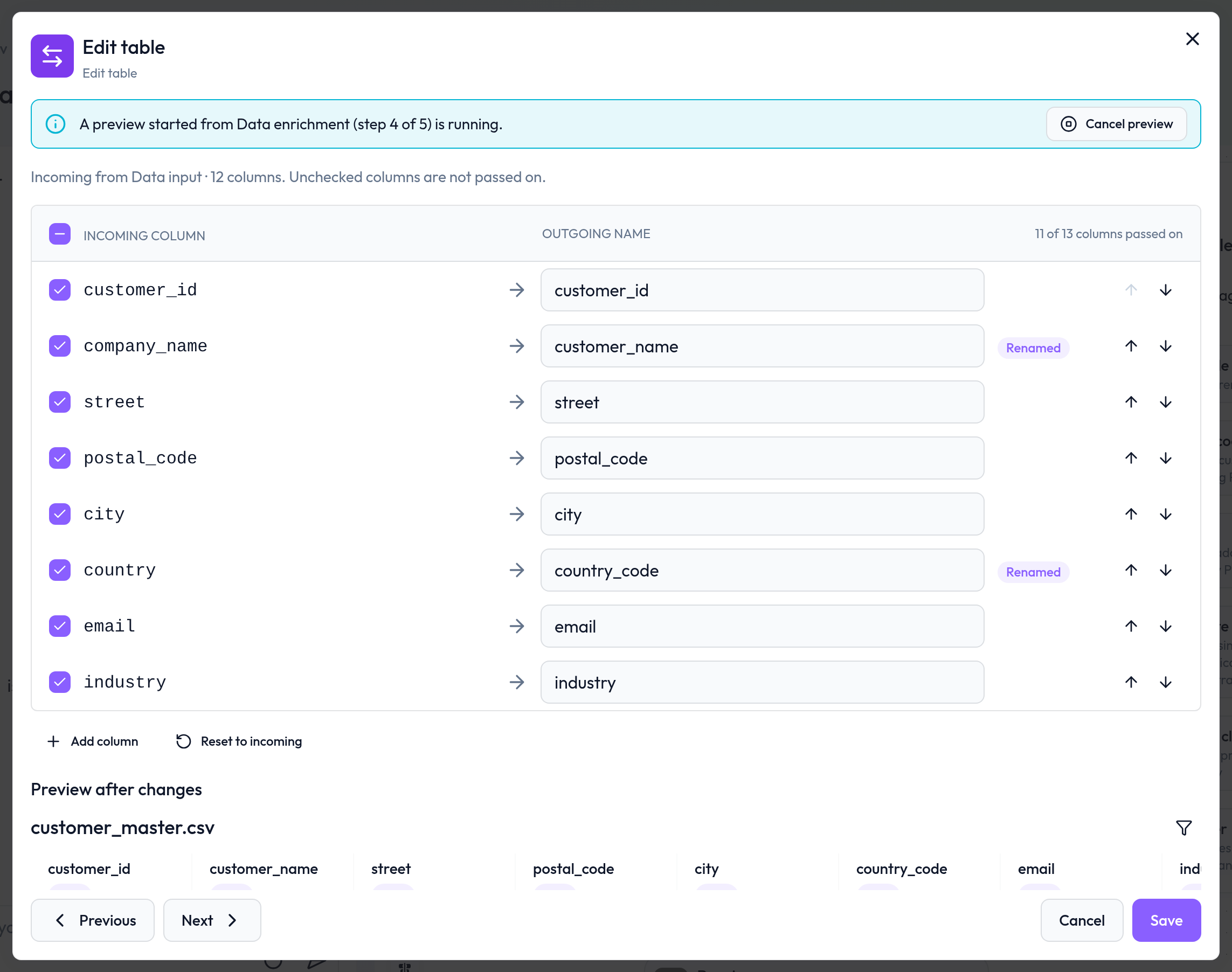
The new Edit table node renames, removes, reorders and adds columns at any point of a workflow.
Its dialog lists every incoming column with its outgoing name. Unchecked columns are not passed on, and Preview after changes shows the resulting table.
Duplicate outgoing names, columns that no longer arrive from the step above and an empty table are reported before saving.
Python nodes keep all incoming columns; use an Edit table node below them to remove or rename columns.

Node dialogs work with the columns that arrive
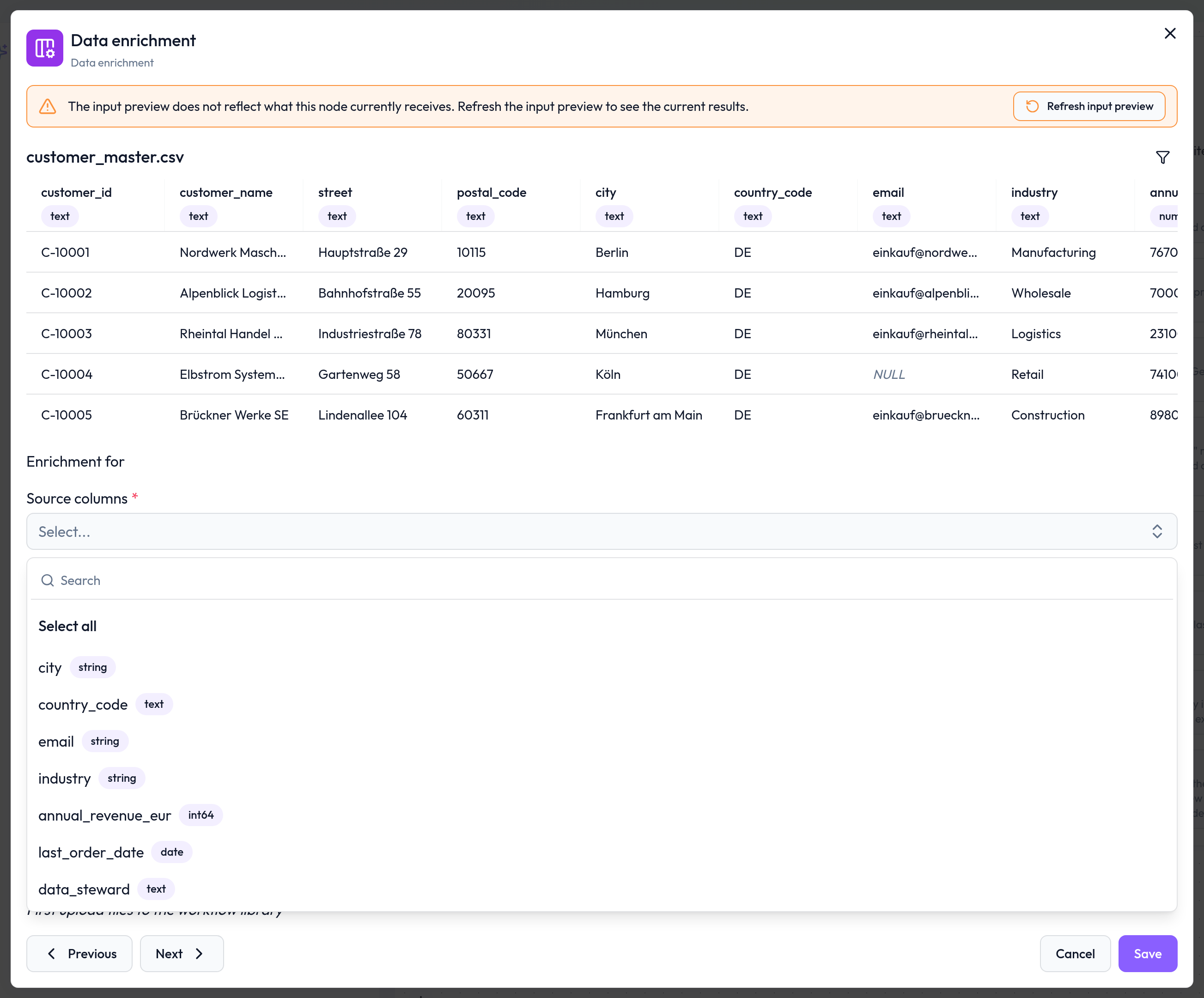
Column dropdowns in each node offer the columns that arrive at that node, including those added, renamed or removed by the nodes above, together with their data types.
The input preview of a node shows the rows as they arrive at that node instead of the rows of the Data input source.
Nodes can write their output columns without a timestamp in the name, so later nodes can select them. Names that would overwrite an incoming column are flagged in the dialog.
Input previews you can follow and cancel
"Refresh input preview" runs the nodes above with sample data and shows what the current node would receive. In the Preview node the same action is called "Calculate input sample".
Only one preview runs per workflow at a time. Every node dialog shows a running preview, even one started from another node, and "Cancel preview" stops it together with its processing.
A running preview is still shown after a page reload, and the dialog says when the input preview no longer reflects what the node receives, for example after a new check or an edit above.
If a preview cannot run because of an earlier node, the dialog lists the affected nodes with their errors and marks them on the canvas. Configuration errors are reported before anything starts.
Connector failure notifications
The tenant settings have a new Connector failure notifications section. Add email recipients and webhooks that are notified when a connector sync fails, for example because credentials expired, the source is unavailable or a sync got stuck.
Webhooks receive the new Connector sync failure event with connector ID and name, failure category, state and timestamp. Raw errors and credentials are never sent. Signing, retries and delivery history work as for the other webhook events.
SAP RFC connector
Connector promoted to GA - previously only available in private cloud - reads explicitly selected DDIC tables, DDIC database views and CDS view entities from SAP systems over RFC. Access is read-only and goes through a small DQC ABAP component installed in the SAP system.
Sources are found by their technical name, an extraction plan preview shows calls, volume and limits before the first row is read, and optional execution windows restrict when DQC accesses the SAP system.
The connector is enabled per deployment and tenant on request.
 Improvements
DQ Assistant on very wide tables
Rule suggestions work on tables with thousands of columns. The assistant looks columns up by name or meaning instead of seeing only the first 350, so a request that names a column far down the table leads to a valid rule on the first attempt.
Sample data for the assistant is bounded and prepared outside the request, so requests on very wide tables no longer stall the platform.
Faster pages and dialogs
The Tables overview, the connector table picker and the ruleset page check permissions in parallel and load noticeably faster on tenants with many tables and rulesets.
Node dialogs of workflows that read the ruleset-scoped dataset reuse a cached sample instead of querying the source system every time they open.
Token accounting for improvement previews on tables with thousands of columns takes seconds instead of minutes.
Virtual tables
The size estimate of a join counts the complete, filtered join chain and is based on the selected output columns.
The size limit also applies when the virtual table is created, for every connector. If the complete join exceeds it, "Continue to column" selection lets you deselect columns until the result fits.
Errors raised by the source system during creation are shown as reported, also when a ruleset run creates the virtual table.
Issue exceptions
Rows excepted from a rule appear in the rule's valid sample again; they were missing from both samples.
A row that differs from an excepted row only by an empty (NULL) value is no longer treated as excepted.
Duplicate rules apply exceptions before detecting duplicates, also with fuzzy matching: an excepted row no longer counts toward its group, and a group left with one member is resolved.
Editing Improvement workflows
Previous and Next buttons in the node dialog move between nodes without closing it; changes are validated and saved before switching.
Node configurations are saved while the Data input has no source yet, and closing a dialog with unsaved changes asks before discarding them.
Node dialogs no longer close on a click outside, and the Preview node explains what to do when it is opened for the first time.
If code generated in the Python node chat fails on the sample, the chat explains why instead of answering “Exceeded maximum output retries”. Requests to remove or rename columns are answered with a pointer to the "Edit table" node.
Navigation, layout and charts
The main navigation collapses to an icon bar on desktop and opens as an overlay on small screens; the desktop choice is remembered.
Page headers, toolbars and list and detail pages wrap on tablets and phones, so tables, rulesets and connectors can be used on narrow screens.
Issue and quality charts color the line by the A–E severity band of each value instead of a fixed red-to-green gradient, so a stable series keeps one color.
In the rule editor, the link to a dataspot catalog object moved from the header into the Link to data catalog dialog in the more menu.
Permissions and security
Deleting a ruleset or connector requires the delete permission on it, and changing company rules (edit, activate, deactivate, delete, tags) requires the permission to manage company rules.
Reading or changing the access list of a ruleset or connector requires view or edit permission on it.
The tenant of a request is always taken from the signed-in user or API key; a request can no longer address another tenant.
If the permission service is temporarily unavailable, requests are refused instead of proceeding.
Channel settings (MS Graph identity clients) never return the client secret, and creating, editing or deleting a channel requires the permission to manage channels.
Only tenant owners may assign the Owner role, change an owner's role or remove an owner.
 Small improvements and bug fixes
Downloading all issues failed for tables with binary columns; binary values are now exported as hex strings.
Exporting all issues failed on PostgreSQL connectors when the table already contained a column named like an export column, for example dqc_rule_columns from an earlier export.
Fuzzy duplicate rules failed on tables with list or array columns, even when these columns were not part of the rule.
Impala: a result column whose first 100 values were empty lost its type, so later values could not be loaded.
Validating several suggested SQL rules at the same time on a very wide table could freeze the service and end the chat with “Stream response body read failed”.
Notification filters with "contains" and "does not contain" match the text literally. Values with characters such as ., [ or ( no longer match unexpected rows or break the notification.
A workflow run is refused while another run of the same workflow is still running, instead of starting a second one.
A cancelled PDF or enrichment batch is no longer restarted by the automatic recovery of stalled batches.
Behaviour changes worth knowing
IT admins can no longer assign the Owner role, change an owner's role or remove an owner. They keep managing the Member, Manager and IT roles.
Members who can edit a rule but may not manage company rules receive an error on Use as company rule. Applying a company rule to a ruleset requires the permission to add rules to it; otherwise nothing is created.
Custom Python rules and Python nodes run on Python 3.12.
The full issue export renders binary columns as hex, as the last-run export already did. Databricks columns that return text as bytes therefore appear as hex there as well.
Fuzzy duplicate rules no longer flag rows whose rule columns are all empty, so rules on nullable columns can report fewer issues. For custom Python and PII rules, an issue row with an empty value in an exception column now stays an issue.
New duplicate issues are exported with “Occurs N times” instead of “Value is not unique”.
A second input preview or workflow run is refused while one is already running for the workflow.
Notification filters with contains or does not contain no longer interpret the value as a regular expression.
 Breaking Changes
The connector type Databricks (deprecated) has been removed. Use the Databricks connector, which is unaffected. Private cloud deployments must migrate or delete remaining connectors of the removed type before upgrading (see below).
 Private Cloud
For private cloud deployments, please point your release tags to:
qui: rc_203e74cef1cba9013f81281f7d3c2dbaa68f285f
qservices: rc_amd_203e74cef1cba9013f81281f7d3c2dbaa68f285f
python-executor: rc_amd_203e74cef1cba9013f81281f7d3c2dbaa68f285f
Platform version: 3.10.0
Worth knowing for this upgrade:
The platform and Python executor images run on Python 3.12.
Run the tenant migrations before starting the new version. The migration stops if a tenant still holds a connector of the removed Databricks (deprecated) type and names the tenant schema and the connector; migrate or delete that connector first.
The SAP RFC connector is not part of the standard images. It requires a separate image with the SAP NW RFC SDK and is enabled on request.