
Connection to Databricks (native)
To connect a Databricks workspace to the DQC Platform, you provide the workspace host, an HTTP path pointing at a SQL Warehouse or interactive cluster, the Unity Catalog name and credentials. DQC uses the native Databricks SQL protocol — no Spark cluster startup is required when targeting a SQL Warehouse.
If you previously used the legacy Databricks (Spark) connector, this is the modern replacement. The legacy connector is being phased out — see the migration note at the bottom of this page.
Add a Databricks connector
To begin:
Go to the Connectors > Data sources screen
Click the Databricks tile
Enter the connection parameters described below and choose an authentication method
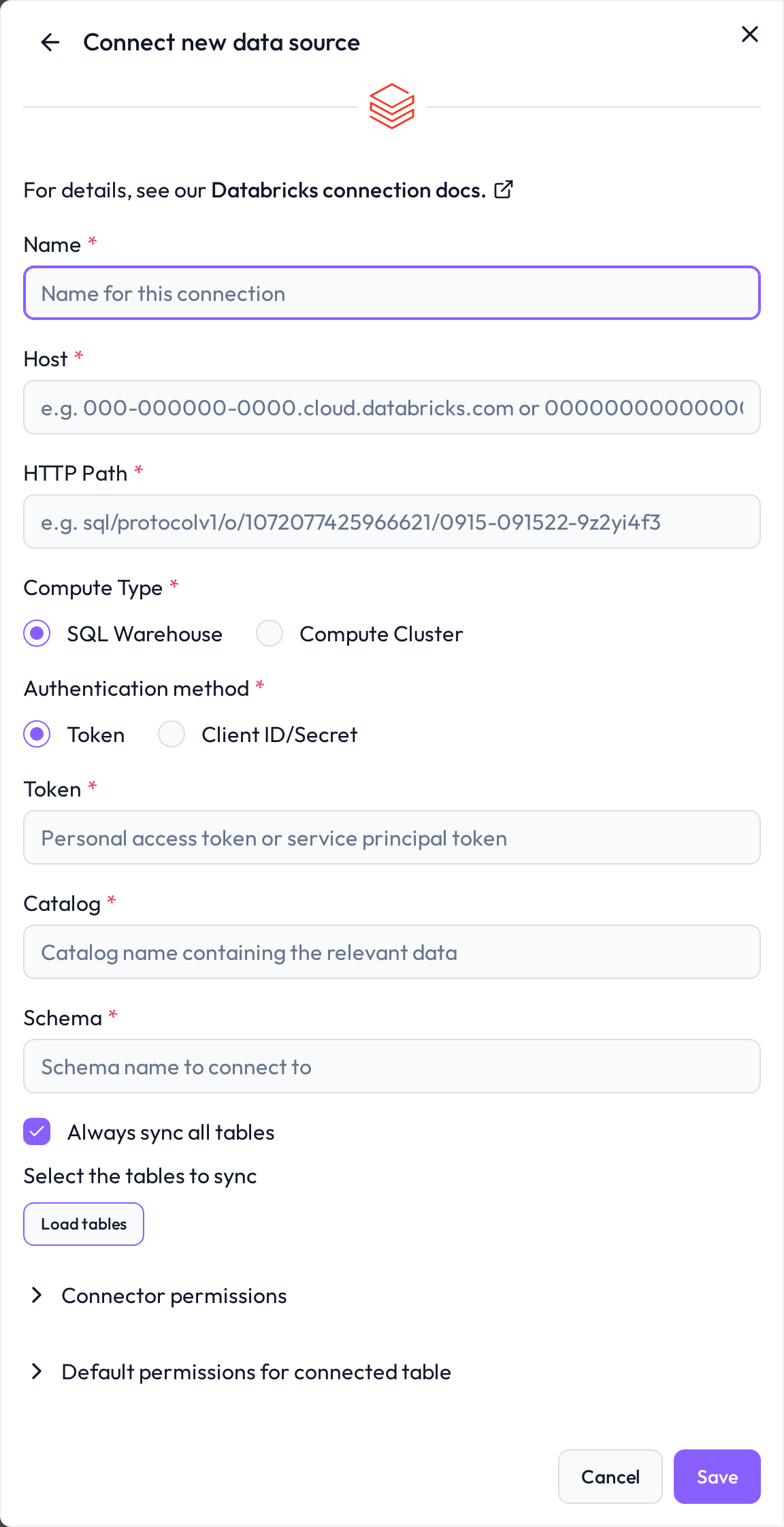
 Required connection information
Field | Example | Description |
|---|---|---|
Name |
| A custom name to identify this connector inside DQC |
Host |
| Workspace host without the |
HTTP Path |
| HTTP path of the SQL Warehouse or cluster. Find it in Databricks under SQL Warehouses → Connection details or Compute → JDBC/ODBC. |
Compute Type |
| Choose SQL Warehouse for serverless or pro warehouses (recommended) or Compute Cluster for interactive clusters. |
Authentication method |
| Either Token (Personal Access Token) or Client ID / Secret (OAuth service principal). |
Catalog |
| Unity Catalog name containing the relevant schemas and tables |
DB Schema |
| Schema (database) inside the catalog. Defaults to the workspace default if empty. |
 Choose an authentication method
Option A — Personal Access Token
In Databricks open User Settings → Developer → Access tokens and generate a new token. Recommended for quick setup and individual workspaces.
Option B — OAuth service principal
Recommended for production. Provide:
Client ID — the application ID of the service principal
Client Secret — the OAuth secret generated for the service principal
Grant the service principal USE CATALOG, USE SCHEMA and SELECT privileges on the target catalog/schema in Unity Catalog.
Unity Catalog permissions
Grant the technical user or service principal the following privileges on the target catalog and schema:
GRANT USE CATALOG ON CATALOG <catalog> TO `<service_principal>`;
GRANT USE SCHEMA ON SCHEMA <catalog>.<schema> TO `<service_principal>`;
GRANT SELECT ON SCHEMA <catalog>.<schema> TO `<service_principal>`;
GRANT CREATE VOLUME ON SCHEMA <catalog>.<schema> TO `<service_principal>`;
Why CREATE VOLUME?
The native connector follows Unity Catalog best practice for handling temporary data: instead of writing intermediate results to ungoverned storage, it stages them in a governed Unity Catalog Volume inside the catalog and schema you configure. The volume serves purely as a temporary staging area during query execution. In most cases it only holds technical metadata and short-lived helper files that Databricks compute requires. Staged files are removed after use, and no permanent copies of your data are created.
This permission does not:
grant access to any data you have not explicitly shared
allow permanent modifications to your data
bypass existing Unity Catalog access controls
 SQL Warehouse vs. Compute Cluster
SQL Warehouse — recommended. Lower latency, no Spark session start-up, HTTP Path looks like
/sql/1.0/warehouses/<id>.Compute Cluster — use only if you need an existing interactive cluster. HTTP Path looks like
/sql/protocolv1/o/<workspace_id>/<cluster_id>.
 What gets imported
All tables and views in the configured catalog/schema that the user (or service principal) can read
Delta, Parquet and external tables are all supported
Catalog and schema are bound to the connector — to query a different catalog or schema, create a new connector
 Migrating from the legacy Databricks (Spark) connector
The legacy Databricks (Spark) connector — which used PySpark and required a Cluster ID — is deprecated and will be removed in a future release. Recreate your connection using this connector and the SQL Warehouse compute type whenever possible. Migration is straightforward: host, credentials (token or service principal), catalog and schema stay the same; only the HTTP Path is added. Remember to also grant the CREATE VOLUME privilege described above.
 Connect and assign permissions
After saving, DQC validates the credentials, lists the available tables and lets you pick which ones to expose. To control who can use the connector inside DQC, see Data source access permissions.
Troubleshooting
When DQC cannot connect to Databricks or load its tables, it shows the reason with a short fix and links to this section. Look up the beginning of the message:
Message in DQC | Likely cause | Fix |
|---|---|---|
| The compute cluster was stopped; DQC starts it | Wait a few minutes and try again, or use a SQL warehouse |
| The cluster is starting, restarting or terminating | Wait until the cluster runs, then try again |
| The personal access token is wrong or expired | Create a new token (see Choose an authentication method, option A) |
| Wrong client ID or client secret, or an expired secret | Check the OAuth service principal (see Choose an authentication method, option B) |
| The principal may not create a volume in the schema | Grant |
| Wrong catalog or schema, or missing Unity Catalog grants | Grant |
| Wrong host or HTTP path, or the warehouse is missing | Enter the host without |
| DQC could not classify the error of the connection test | Check every field of the form, the network access and the permissions described above |
| The table was renamed, moved or deleted, or the user lost access to it after the last sync | Restore the table or the access, then resync the connector |
| Virtual tables need temporary tables in the source | Allow the user to create temporary tables, or do not use virtual tables on this connector |
Synchronization failed: when a sync cannot connect, the connector shows Failed on the Data sources screen and the badge links to this section. Edit the connector and click Load tables or Save: DQC tests the connection again and shows the current reason.
Tables missing from the table list: grant
SELECTon the tables or the schema.Still stuck? Write to support@dqc.ai with the connector name, the time of the attempt and the full message.