
Notification Center
The Notification Center is your home for catching up on everything that needs your attention across the DQC Platform. Instead of important updates flashing by as toasts and disappearing, they wait for you in one place — so you can review them at your own pace, whenever you're ready.
It's designed to grow into your single place to stay on top of what's happening across the platform: it surfaces AI-driven suggestions as well as operational updates such as failed checks, failed connector syncs, or failed improvement workflow runs.
At a glance
One place to catch up on what needs your attention
Notifications wait until you've dealt with them (for up to 60 days)
Each one carries a direct link to the item it concerns
Scoped to you — you only see notifications that are relevant and that you have access to
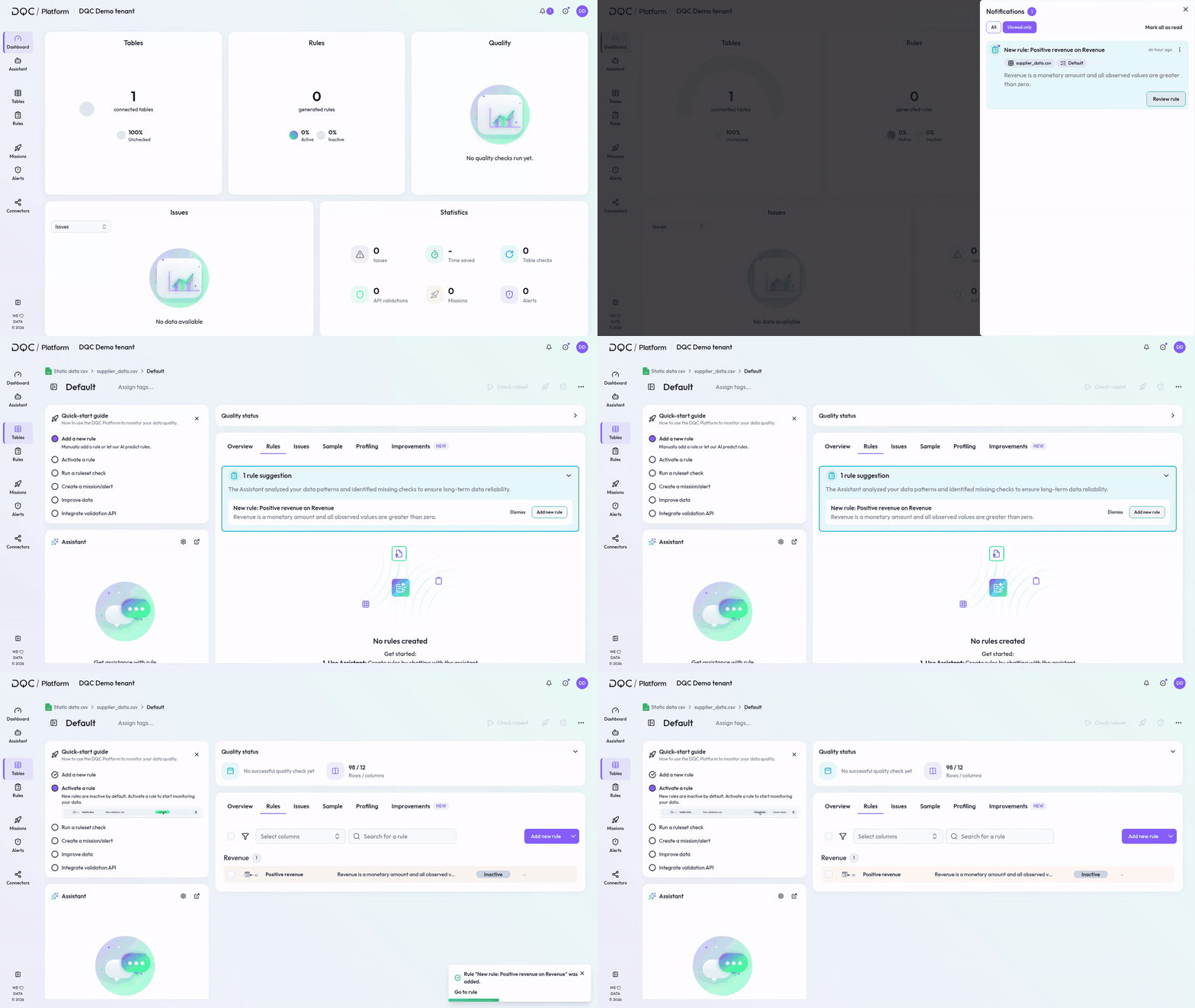
Where to find it
Open the Notification Center from the bell icon in the top-right corner of the platform. It's available from any page.
Some notifications may also appear contextually where you're already working — for example on a ruleset page or inside the Assistant — but the panel is always the central place where they're gathered.
How notifications work
The Notification Center is built around catching up, not interrupting:
They persist. A notification stays in the panel until it is deleted or resolved, for at most 60 days, so updates that happen while you're away (or looking elsewhere) are still there when you come back. Marking it as read does not remove it: read notifications remain under All.
Read / unread. New notifications are unread. You can filter for unread to focus on what's new: the panel opens on Unread only, All also shows read notifications, and Mark all as read marks everything as read in one step.
Direct links. Each notification links straight to the item it concerns, so you can jump to the ruleset, check, or asset involved.
You stay in control. You can delete notifications you no longer need.
Scoped to you. You only see notifications for assets you have access to. If you lose access to an asset, you no longer see its notifications. For ruleset-level notifications — such as new rule suggestions — only the people subscribed to that ruleset are notified.
Relationship to toasts
Toasts — the short pop-up messages that confirm an action in the moment — are unaffected and continue to work as they do today. Think of toasts as the in-the-moment nudge and the Notification Center as the place to catch up afterward: the same event can show a quick toast now and leave a durable entry you can return to later.
What you'll find there
Today: AI-driven suggestions
One type of notification is AI-driven suggestions: recommendations from the platform to improve your data quality, such as suggested new rules and suggested updates to existing rules. Each one appears in the panel with a Review rule button that opens the ruleset or the rule, where you accept or dismiss the suggestion.
See the dedicated article for how they work and how to turn them on: AI-driven suggestions
Operational updates
Besides AI-driven suggestions, the Notification Center reports when something went wrong and needs your attention:
Ruleset checks and rule predictions: a check that failed or was cancelled by the system, a rule prediction that failed, and check results that could not be reported to the data catalog. These reach the subscribers of the ruleset.
Connectors: a connector sync that failed or a PDF category extraction that failed. These reach everyone with access to the connector.
Improvement workflows: a workflow run that failed. This reaches everyone with access to the workflow.
Token credits: a notice when the tenant's token credits are running low or are used up. This reaches tenant owners.
No success messages: checks and runs that finish successfully do not create a notification.
This feature is independent from alerts and missions, which deliver data quality issues to external channels like Teams and email. The Notification Center is about catching up inside the platform itself.
Frequently asked questions
Where do I find the Notification Center?
The bell icon in the top-right corner, available from any page.
Will I lose a notification if I'm not looking when it happens?
No. Notifications stay in the panel, unlike toasts which disappear. They are removed when they are deleted or resolved, and automatically after 60 days.
Why don't I see a notification a colleague mentioned?
You only see notifications for assets you have access to, and some are scoped to specific subscribers. If you've lost access to an asset, its notifications are removed for you.
Is this the same as alerts and missions?
No. Alerts and missions deliver issues to external channels (e.g. Teams, email). The Notification Center is independent and lives inside the platform.