
Connection to SharePoint
To connect a Microsoft SharePoint site to the DQC Platform, you register an application in Microsoft Entra ID, grant it read access to the target site, and configure the connector with the resulting credentials. Once connected, every visible SharePoint list on the site becomes available as a table for data quality checks.
Add a SharePoint connector
To begin:
Go to the Connectors > Data sources screen
Click the SharePoint tile
Enter the connection parameters described below and choose an authentication method
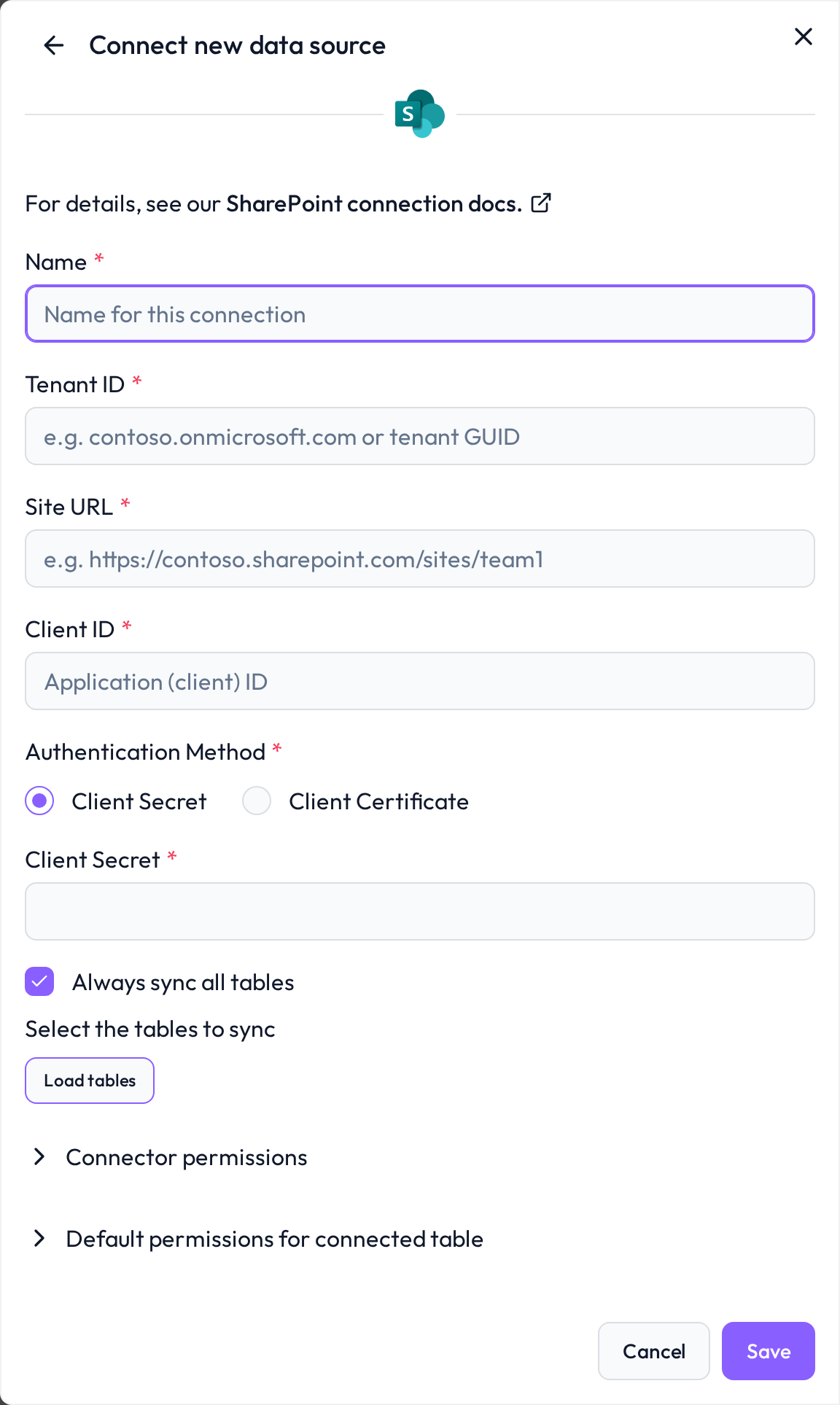
 Required connection information
Field | Example | Description |
|---|---|---|
Name |
| A custom name to identify this connector inside DQC |
Tenant ID |
| Your Microsoft Entra ID tenant — either the verified domain (e.g. |
Site URL |
| Full URL of the SharePoint site whose lists you want to connect. Use the root site URL (e.g. |
Client ID |
| Application (client) ID of the Entra ID app registration used to authenticate |
Authentication method |
| Either Client Secret (a generated secret string) or Client Certificate (PEM-encoded private key plus thumbprint) |
The Tenant ID and Site URL are bound to the data cache and cannot be changed after the connector has been created. To point the connector at a different site or tenant, create a new connector.
 Choose an authentication method
DQC authenticates against Microsoft Graph using the OAuth 2.0 client credentials flow (app-only, no user sign-in). You can supply credentials either as a client secret or as a client certificate.
Option A — Client Secret
Paste the secret value generated under Certificates & secrets in the app registration. Make sure to record the value when it is created — Entra ID will hide it afterwards.
Option B — Client Certificate
Recommended for production. Provide:
Certificate (PEM) — the PEM-encoded private key including the
-----BEGIN PRIVATE KEY-----and-----END PRIVATE KEY-----markersCertificate Thumbprint — the SHA-1 thumbprint of the certificate uploaded to the app registration
 Microsoft Entra ID setup
Perform these steps once per tenant. You need the Application Administrator or Global Administrator role in Entra ID.
In the Azure portal, open Microsoft Entra ID > App registrations and create a new registration (e.g.
DQC SharePoint Reader)Copy the Application (client) ID and the Directory (tenant) ID — these become the Client ID and Tenant ID in DQC
Under Certificates & secrets, create either a client secret or upload a certificate (depending on the authentication method you chose above)
Under API permissions, add the Microsoft Graph application permission
Sites.Selected(recommended) orSites.Read.All, then click Grant admin consentIf you chose
Sites.Selected, grant the app read access to the specific site using PowerShell or the Graph Explorer (see Microsoft's Sites.Selected documentation)
 Required Microsoft Graph permissions
Permission | Type | Used for |
|---|---|---|
| Application | Read access scoped to the specific site granted to the app |
| Application | Read access to all sites in the tenant — use only if |
 What gets imported
Once connected, DQC discovers and imports SharePoint lists from the configured site. Each list becomes a separate table.
Custom and built-in lists are included
Document libraries are not imported
Hidden and system lists are skipped
Lookup, person and choice fields are flattened to their display value (e.g.
Display Name,Title, orEmail) — multi-value fields are joined with;Internal metadata fields starting with
@or_are dropped
List items are cached locally in DuckDB on a per-connector basis to keep subsequent reads fast. The cache is refreshed automatically when DQC pulls fresh data.
 Connect and assign permissions
After saving the connector, DQC validates the credentials, fetches the available lists and lets you pick which ones to expose as tables. To control who can use the connector inside DQC, see Data source access permissions.
Troubleshooting
When DQC cannot connect to SharePoint or load its tables, it shows the reason with a short fix and links to this section. Look up the beginning of the message:
Message in DQC | Likely cause | Fix |
|---|---|---|
| Wrong client secret; often the secret ID instead of its value | Copy the secret value from the app registration |
| The client secret expired | Create a new secret and enter it |
| Wrong client ID, or the app is not registered in this tenant | Check client ID and tenant ID |
| The certificate is not registered or the thumbprint does not match | Upload the public certificate to the app registration and check the thumbprint |
| The app lacks Microsoft Graph permissions | Grant |
| Wrong site URL | Enter the full site URL, for example |
| The site URL has no host | Enter the full site URL starting with |
| The list was renamed or deleted | Restore the list name, then resync the connector |
| Wrong tenant ID or an invalid certificate | Check the tenant ID and the certificate |
| DQC could not classify the error of the connection test | Check every field of the form, the network access and the permissions described above |
Synchronization failed: when a sync cannot connect, the connector shows Failed on the Data sources screen and the badge links to this section. Edit the connector and click Load tables or Save: DQC tests the connection again and shows the current reason.
Lists missing from the table list: DQC imports custom lists only; document libraries and hidden lists are not listed (see What gets imported).
Still stuck? Write to support@dqc.ai with the connector name, the time of the attempt and the full message.