
Connection to Microsoft Fabric
To connect an Microsoft Fabric database to the DQC Platform, you’ll need to provide connection credentials for a read-only SQL user and whitelist the platform’s IP. This guide explains all necessary steps.
Add an Microsoft Fabric connector
To begin:
Go to the Data Connectors screen
Click the Microsoft Fabric button
Enter the connection parameters described below
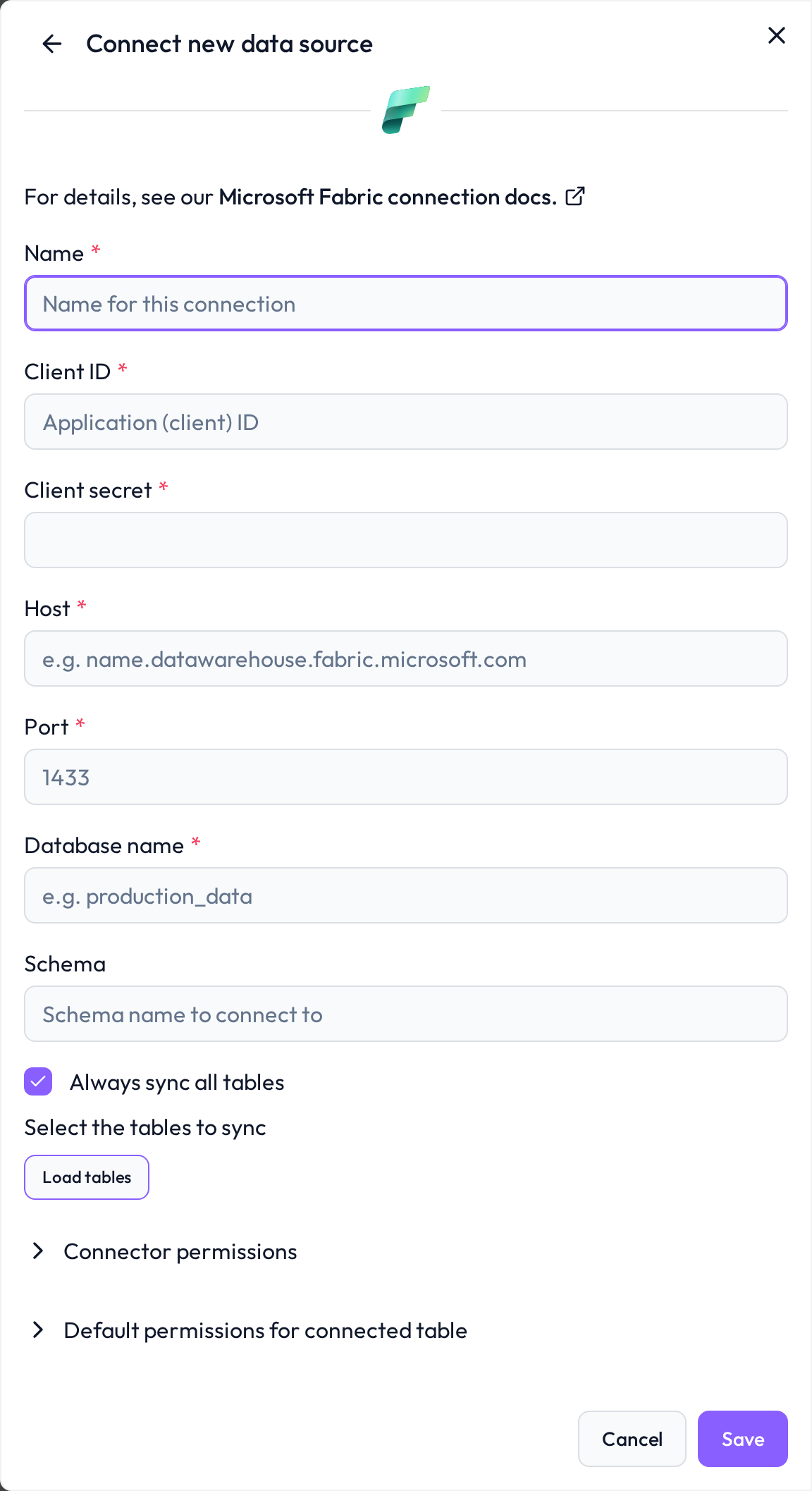
 Required connection information
Field | Example | Description |
|---|---|---|
Name |
| Custom name to identify your connection |
Client ID |
| A SQL user with read-only permissions |
Client Secret |
| Password for the SQL user |
Host |
| |
Port |
| Default port for Microsoft Fabric |
Database name |
| Name of the target database within the Microsoft Fabric instance |
.
User configuration & permissions
We recommend creating a dedicated SQL user for the DQC Platform connection with read-only access.
 Dedicated, Minimal-Privilege User
Avoid using admin or shared credentials
Create a user specific to DQC Platform access
 Assign Read-Only Role
In SQL Server Management Studio or via script, grant the following:
USE [your_database];
CREATE USER [dqcreader] FOR LOGIN [dqcreader_login];
ALTER ROLE db_datareader ADD MEMBER [dqcreader];
Whitelist the DQC Platform IP Address
To allow inbound connections from the DQC Platform, whitelist the following static IP:
3.123.94.228Troubleshooting
When DQC cannot connect to Microsoft Fabric or load its tables, it shows the reason with a short fix and links to this section. Look up the beginning of the message:
Message in DQC | Likely cause | Fix |
|---|---|---|
| Wrong client ID or client secret, or the service principal is not a member of the workspace | Check client ID and client secret, and add the service principal to the workspace |
| Microsoft Entra ID rejected the certificate; the reason contains the | Upload the public certificate to the app registration and check the thumbprint and the tenant ID |
| The certificate fields are incomplete or the key is encrypted | Paste the thumbprint and an unencrypted PEM private key |
| Wrong database name, or no access to the warehouse or lakehouse | Check the database name and the item permissions |
| DQC cannot reach the SQL endpoint | Check the host ( |
| Another ODBC or Microsoft Entra ID error; the reason names it | Check that service principals may use Fabric APIs in the Fabric tenant settings, then act on the reason |
| DQC could not classify the error of the connection test | Check every field of the form, the network access and the permissions described above |
| The table was renamed, moved or deleted, or the user lost access to it after the last sync | Restore the table or the access, then resync the connector |
Synchronization failed: when a sync cannot connect, the connector shows Failed on the Data sources screen and the badge links to this section. Edit the connector and click Load tables or Save: DQC tests the connection again and shows the current reason.
Microsoft Fabric cannot be connected through the DQC Proxy.
Still stuck? Write to support@dqc.ai with the connector name, the time of the attempt and the full message.
 Notes
Notes
TLS encryption is used by default for all connections
Ensure that the SQL server allows public access, or configure a private endpoint with the same IP allowance
Learn more: Supported data sources, Connection to PostgresSQL, Data source access permissions