
Connection to files on AWS S3
To connect files stored in Amazon S3 to the DQC Platform, you need to configure IAM access and supply your bucket details. This guide explains the steps and required parameters.
Add an AWS S3 connector
To get started:
Navigate to the Data Connectors screen
Click on the AWS S3 button
Fill in the required details (see table below)
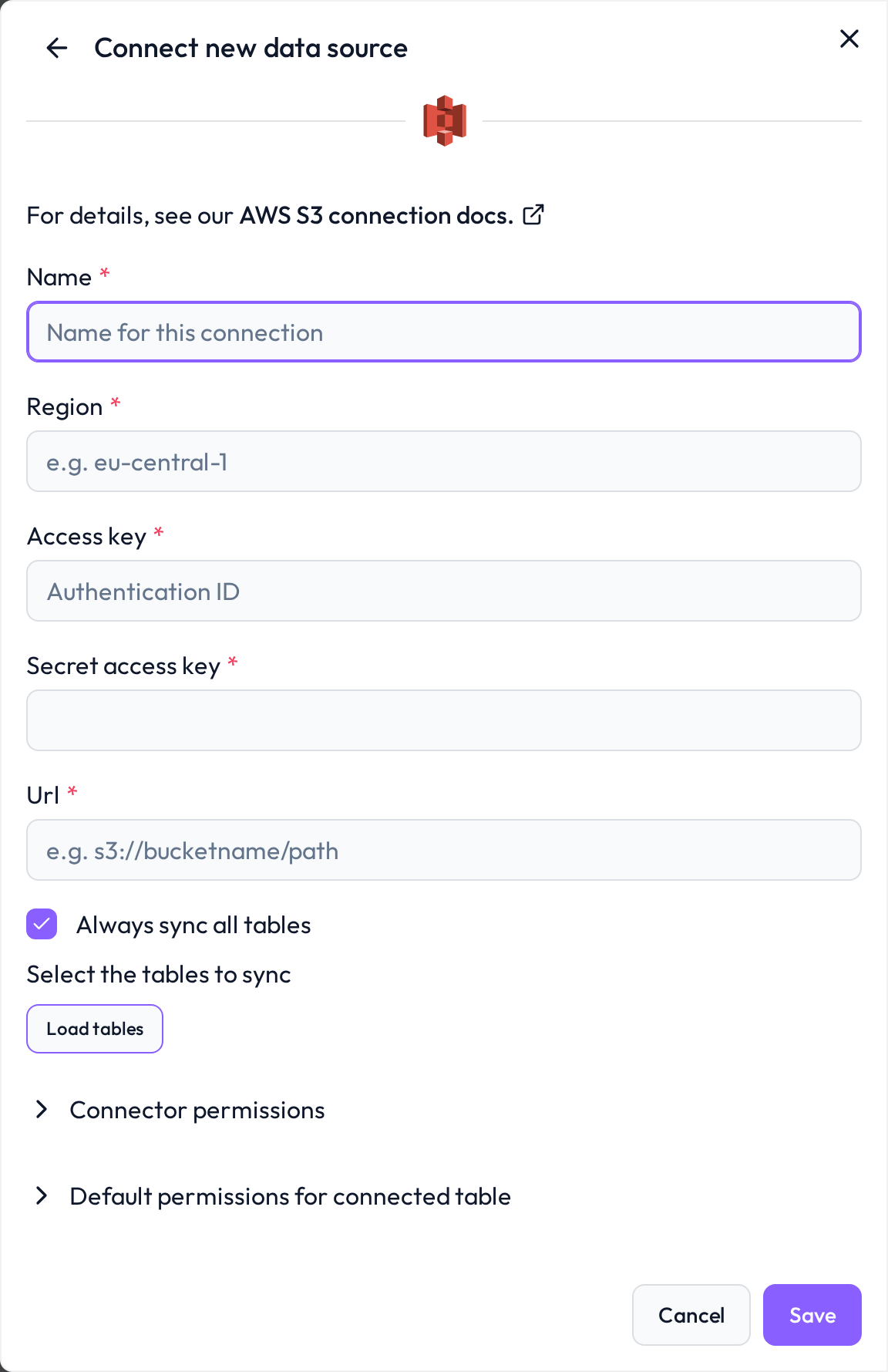 Choose AWS S3 to link your object storage bucket
Required connection information
Field | Example | Description |
|---|---|---|
Name |
| Internal name for your connection |
Access Key |
| AWS IAM access key |
Secret Access Key |
| Corresponding secret key for authentication |
Region |
| AWS region where your S3 bucket is located |
S3 URL |
| Path to your data — include folder if not using root |
Configure IAM access in AWS
To ensure secure and scoped access to your S3 bucket, follow these steps:
Step 1: Create IAM policy
Define a custom IAM policy with the following permissions:
{
  "Version": "2012-10-17",
  "Statement": [
    {
      "Effect": "Allow",
      "Action": [
        "s3:ListBucket",
        "s3:GetObject",
        "s3:GetBucketLocation"
      ],
      "Resource": [
        "arn:aws:s3:::your-bucket-name",
        "arn:aws:s3:::your-bucket-name/*"
      ]
    }
  ]
}
Step 2: Create IAM user and attach policy
Go to IAM > Users
Create a new user or choose an existing one
Attach the custom S3 access policy
Generate an Access Key and Secret Access Key
Whitelist DQC Platform’s static IP
To allow inbound connections, ensure that the following static IP address is whitelisted in your S3 bucket policies or VPC security groups:
3.123.94.228Troubleshooting
When DQC cannot connect to AWS S3 or load its tables, it shows the reason with a short fix and links to this section. Look up the beginning of the message:
Message in DQC | Likely cause | Fix |
|---|---|---|
| Wrong bucket or prefix, wrong access key pair, or missing IAM permissions | Check the bucket URL ( |
| A DQC Proxy is selected | Remove the proxy; S3 is reached directly |
| The file was deleted or renamed after the last sync, or its name contains | Restore or rename the file, then resync the connector |
| The prefix holds many or very large files; DQC reads them during the connection test | Point the connector at a smaller prefix |
Synchronization failed: when a sync cannot connect, the connector shows Failed on the Data sources screen and the badge links to this section. Edit the connector and click Load tables or Save: DQC tests the connection again and shows the current reason.
Files missing from the table list: DQC lists CSV, JSON, Parquet and Excel files directly under the prefix, with lowercase extensions. Subfolders and compressed files (
.gz) are not listed.One broken file blocks the connector: a malformed JSON, corrupt Parquet or unreadable file makes the whole connection fail. Fix the file or move it out of the prefix.
Still stuck? Write to support@dqc.ai with the connector name, the time of the attempt and the full message.
 Notes
Only read-access is required — no write/delete permissions needed
We recommend using a dedicated IAM user for each connection
Learn more: Supported data sources, Connection to Azure Blob, Data source access permissions